QUOTE(nimrod323 @ Mar 3 2009, 05:10 PM)
Probably the CAS latency makes a difference,but KVR or Mushkin is good enough,im using both on my merom MB 2GBKVR and 1GBMushkin = 3GB
What to Buy
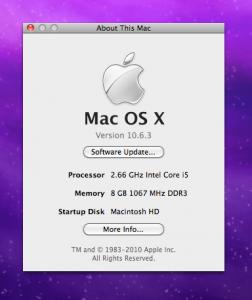
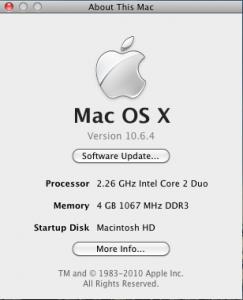
Example memory info in System Profiler
Before you purchase memory, you need to know what kind to get. The easiest way to figure this out is to look in the manual that came with your Mac. There will be a section on memory upgrades, advising you exactly what type and speed of memory it needs. You can also check the System Profiler utility: go to the Apple Menu, About This Mac, More Info..., then click on Memory.
Key things to know are:
Speed: sometimes expressed in MHz, but often as a "PCnnn" number where nnn can be a number like 100, 133, 2700, 3200, 4200, 5300, or many others.
The numbers are equivalent:
PC2700 is the same as DDR-333 MHz
PC3200 is the same as DDR-400 MHz
PC2-4300 is the same as DDR2-533 MHz
PC2-5300 and PC2-5400 are the same as DDR2-667 MHz
Type: here you'll see any number of acronyms, including SDRAM, DDR, DDR2, FB-DIMM, and more. You cannot substitute one type for another -- DDR2 is not backwards compatible with DDR for example. There's also ECC (error correcting RAM), which can be installed in recent Power Macs, Mac Pros, and Xserves. Really old systems may even have FPM or EDO RAM.
Format: You will usually see DIMM (desktop full sized modules), or SO-DIMM ('notebook' size modules, however all of the Mac Core/Core2Duo machines use SO-DIMMs)
Pins: different physical sizes of memory chips usually have different numbers of pins. Common numbers for current machines are 184 pins, 200 pins and 240 pins.
CAS Latency: this one isn't quite as important; the right type and speed of memory should work even if the CAS number is slower. Adding memory with faster CAS than your machine supports won't speed anything up, and adding memory with a slower CAS will probably only be a small percentage slower.
Dual Channel: many Apple machines use dual channel memory. In a few cases, this means that memory must be installed in matched pairs. Your computer's manual would say so if that's true. For the majority of cases, unpaired chips will work fine, but matched pairs will result in a slight speed increase (on the order of a few percent).
http://guides.macrumors.com/Buying_RAM 

 Jan 20 2009, 02:27 AM, updated 17y ago


 Quote
Quote























 hope i didnt sound like a blonde there.


 .. my battery can last around 3-4 hr depend on what i do with it
















 0.2749sec
 1.40
1.40
 6 queries
 GZIP Disabled