The Galaxy Tab is Samsung first 7" Android tablet which was launched in Malaysia on 25 Oct initially available exclusively through Maxis with or without a contract. It is now offer by other telcos Celcom and Digi. Latest rumors as on Jan 2011 indicates Digi will no longer be promoting its sales of this tablet
LATEST RETAIL PRICING original set as on end Jan 2011: RM 2199 UPDATED retail pricing original set as on April 2011 : RM 1599 ( WiFi/3G version )
The Galaxy TAB is powered by Android Operating System 2.2 (Froyo) and a Cortex A8 1.0GHz application processor with support for Adobe Flash Player 10.1. HD video content are supported by a wide range of multimedia formats (DivX, XviD, MPEG4, H.263, H.264 and more), which can be viewed on the Galaxy Tab´s 7-inch TFT-LCD display.
It is a great communication device via ush e-mail, voice and video call, SMS/MMS or social network with the optimised user interface as well as 3G HSPA connectivity, 802.11n Wi-Fi, and Bluetooth 3.0. The Samsung GALAXY Tab can be used as a speakerphone on the desk, or a mobile phone on the move via a wired or Bluetooth headset. The front-facing camera allows face-to-face video telephony over 3G, the rear-facing camera captures still images and video that you can edit, upload and share.
Additionally, the Galaxy Tab comes with a "Readers Hub," Samsung´s e-reading application that provides access to a vast digital library -- from classical literature to the latest bestsellers and reference materials.
I am creating a user list in post# 4. Check your version at Settings/About. Please provide me by posting here or PM me your : Username/Country/Baseband/Build Number and any rom upgrades you have done Example : benny888/Europe/XXJK5/XWJJ7 upgraded to XXJMA/XAJME
SPECIFICATIONS of the SAMSUNG GALAXY TAB
» Click to show Spoiler - click again to hide... «
» Click to show Spoiler - click again to hide... «
If you have Battery Life issues, try this first: Turn the Tab off and charge to 100% Unplug from charger and immediately boot into recovery by holding volume up & power button Navigate to Advanced In the Advanced menu, choose Wipe Battery Stats Reboot Tab normally and Enjoy a freshly calibrated battery NOTE - Having the tab off is important...I notice that even if I charge to full while tab is on, once I turn it off it continues charging for another 10 minutes or so before hitting 100%. I believe the sensor determining what is a full battery is different in the off position and will allow you to get the fullest charge.
Understanding the FIRMWARE codes :
» Click to show Spoiler - click again to hide... «
These codes is abbreviated description of rom sources : Look at list below ( might not be latest ) and by looking at your firmware coding you will know the original language/country, year, month and lastly version number What do the letters and numbers mean in firmware names? Example firmware P1000XXJK5
P1000 = Model which is the Galaxy Tab XX = The linguistic area : which is Austria, Belgium, France, Germany, Hungary, Italy, Spain, United Kingdom, Denmark J = Year which is 2010 K = Month which is November 5 = Version of month
The linguistic areas are as follows: Europe, Africa, Asia.
Europe: BD Cyprus, Greece CP Finland DB Vietnam DC Thailand DD India DT Australia DX Indonesia, Malaysia, Philippines, Singapore, Vietnam DZ Malaysia, Singapore JA South Africa JC Algeria, Morocco, Nigeria, South Africa, Tunisia JP Arabic JR Arabic JX Algeria, Egypt, Iran, Iraq, Kuwait, Morocco, Nigeria, Oman, Pakistan, Saudi Arabia,South Africa, Syria, Tunisia, Turkey JV Algeria, Egypt, Iran, Iraq, Kuwait, Morocco, Nigeria, Oman, Pakistan, Saudi Arabia, South Africa, Syria, Tunisia, Turkey MT Switzerland XA Austria, France, Germany, Italy, Netherlands, Switzerland, United Kingdom XB Denmark, Norway, Sweden XC Portugal, Spain XD Croatia, Czech, Hungary, Slovakia XE Bulgaria, Estonia, Kazakhstan, Latvia, Lithuania, Russia, Ukraine XF Bulgaria, Croatia, Romania XX Austria, Belgium, France, Germany, Hungary, Italy, Spain, United Kingdom, Denmark ZC China, Hong Kong ZH Hong Kong ZT Taiwan
Africa: JC Algeria/Tunisia JP/JR Arabic JV Turkey
Asia: DB Vietnam DC Thailand DD India DT Australia DX Thailand/Indonesia/Vietnam/Malaysia
Year: A 2001 B 2002 C 2003 D 2004 E 2005 F 2006 G 2007 H 2008 I 2009 J 2010 K 2011
Month: A January B February C March D April E May F June G July H August I September J October K November L December
REVIEWS
» Click to show Spoiler - click again to hide... «
» Click to show Spoiler - click again to hide... «
MobileTechReview ( 15 mins )
Technobuffalo.com ( 7 mins )
WhichWebsite ( 15 mins )
Our Msian forumer winniekepala 2 parts review
How different is the WiFi version against the 3G/WiFi version ?
» Click to show Spoiler - click again to hide... «
This looks like nothing but bad news, according to some pretty unhappy users over at the XDA forums it looks like the WiFi-Only Samsung Galaxy Tab (original 7″ model) has been downgraded on more than just a few things. It is much less than just a Galaxy Tab with no 3G radio inside. Users are reporting it to have different hardware inside all together, with Samsung never mentioning this that is not cool. Weaker GPU that performs much worse in gaming, video playback taking a huge hit with that as well, even lack of HDMI features and more.
The WiFi only TAB has a PowerVR SGX530 listed as the graphics processor. The original Galaxy Tab and all Galaxy S phones came with the Samsung Hummingbird CPU that had a PowerVR SGX540 GPU. Why does this matter, the SGX530 is much, much weaker. You will have slower, and worse gaming performance as well as video playback suffering. YouTube content in HD struggles, but was smooth before. This is all because the weaker GPU. All Galaxy S phones have a lower resolution with a better CPU/GPU so video playback and games rock, but the Galaxy Tab resolution is 1024×600, much larger with a weaker GPU. Some users reported anything in YouTube above 480p struggled.
Samsung also removed GPS, Bluetooth 3.0 has been downgraded to Bluetooth 2.1, it doesn’t support HDMI video output anymore either and it runs Android 2.2. One user bought it along with the HDMI dock only to plug it in and get a error saying it doesn’t support HDMI Output. This is all pretty bad news, not only that but as far as I know Samsung did not mention ANY of this back when they announced the Wifi-Only going on sale.
» Click to show Spoiler - click again to hide... «
A factory reset will reset the Galaxy Tab to factory settings and your all data on the device will be removed. So before doing the reset process its better to backup your all data like Contacts, Emails, SMS, etc. from your device. If If your device hangs and unresponsive some time due to any application then try to remove this application. To reboot unresponsive Samsung Galaxy Tab, press and hold the “Power” button for about 10 seconds your device will reboot automatically. If problem still persists and Galaxy Tab is unresponsive again then its better to hard reset / restore to factory settings.
Reset Galaxy Tab from Android OS Menu > Settings > Privacy > Factory data reset Read and follow the on screen instruction carefully.
Reset Galaxy Tab with Hardware Keys If Android OS is not loading then you can hard reset Galaxy Tab using hardware Keys combination. Make sure tab is turned off, Press and hold the Power button for about 10 seconds to turn it off. Press and hold the “Volume Up” and “Power” buttons at the same time, when logo appears on the screen release the “Power” button and continue press the “Volume” button When recovery screen appears use “Volume Up/Down” buttons to navigate and select “wipe data / Factory reset” by pressing the “Home” or “Power” button (Depends on Galaxy Tab model).
2. How do I take a screenshot without using any app ?
» Click to show Spoiler - click again to hide... «
To take screenshot press “Power” and “Back” buttons simultaneously and you will hear a photo capturing sound. Now, go to “ScreenCapture” folder on the microSD card of your tablet and see, your screenshot is saved there.
3. Is there a SD card inside the Galaxy Tab ?
» Click to show Spoiler - click again to hide... «
If you use a file explorer app example Astro File Manager, you will see the main root of its directory listed as /mnt. Look at the listing , you will see a folder "sdcard". This is the INTERNAL 16 GB built in storage of the Galaxy Tab . It is NOT the external micro-SD card. Tap on the folder "sdcard" and scroll down , you will see a folder "external_sd" - this is the external micro SD card. All apps will be installed inside the internal SD card. If you need to add in any special data into the TAB, you have to add it inside this internal "sdcard", for example Navisea folder for PaPago X5
4. How do I uninstall 3rd party apps ?
» Click to show Spoiler - click again to hide... «
Press HOME key, then MENU key. Tap SETTINGS. Tap APPLICATIONS. Select " Manage applications". Scroll down the list of apps shown. Tap on the app you wish to uninstall. In the new apps window , just select " Uninstall"
5. How do I uninstall built-in apps ?
» Click to show Spoiler - click again to hide... «
Be careful on this. It is not recommended for system core apps example contacts, calendar, mail etc. However it is safe to uninstall non-system related apps, example 3rd party launchers, utilities, readers etc. The best solution I have found is to use an app " Titanium Backup" but you need to root your TAB to install this app
6. How do I save my camera and video shots on the external micro-SD card ?
» Click to show Spoiler - click again to hide... «
In Applications, tap " Camera". Tap Settings ( a gear-like icon ) at the lower left hand side. Tap " Setup" than "Storage" - Select " Memory Card"
7. Since there is a built-in Task Manager, do I still need to install Task Killers on the TAB ?
» Click to show Spoiler - click again to hide... «
This is a debatable topic. Personally I don't use any Task Killers. The official stand from Google is Task Killers are unnecessary for Androids. I quote from Google :
By default, every application runs in its own Linux process. Android starts the process when any of the application's code needs to be executed, and shuts down the process when it's no longer needed and system resources are required by other applications. A content provider is active only while it's responding to a request from a ContentResolver. And a broadcast receiver is active only while it's responding to a broadcast message. So there's no need to explicitly shut down these components. Activities, on the other hand, provide the user interface. They're in a long-running conversation with the user and may remain active, even when idle, as long as the conversation continues. Similarly, services may also remain running for a long time. So Android has methods to shut down activities and services in an orderly way.
9. How do I enable full screen mode for some of the apps ?
» Click to show Spoiler - click again to hide... «
This tweak does not work for all apps especially for the older ones ( games in particular ). - Download "Spareparts" from Market. It is a free app - Launch “Spare Parts” and scroll down to “Compability Mode”. Un-tick the box and tick it back. - Reboot the Galaxy Tab. - Launch “Spare Parts” again, scroll down to “Compatibility Mode” and un-tick the box. - Reboot the Galaxy Tab. - DONE !! Your apps are now displayed in full screen!
Watch this video :
10. Which is the best app to take screenshots , preferably FREE ?
» Click to show Spoiler - click again to hide... «
All screenshot apps required the TAB to be rooted. My favorite is "ShootMe" follow by "Screen Capture". Both apps are free, download it from the Market.
11. How do I access the PAID apps in the market ?
» Click to show Spoiler - click again to hide... «
Your phone need to be rooted for this. From the Market, download and install the free app " MarketAccess" . Launch the app. In the main interface, select "Backup Settings" - this will save your local APN settings. Move to the next tab, select "T-Mobile (US)" as foreign telco and a pop-up window " fake this provider now". Select it. Close the app. Launch Market and you will be able to view all the paid and free apps. Once you have completed your " marketing:, launch MarketAccess and select "Restore Value" so as to enable back your actual network provider OR you can just restart the phone.
12. How do I make payment for Paid apps in the market ?
» Click to show Spoiler - click again to hide... «
- First, you need a GMail account. If you don't have, just register one at www.gmail.com. - Browse to Google Checkout : https://www.google.com/accounts/ServiceLogi...<mpl=default - Sign in using your gmail account and you will be guided accordingly to setup a payment system using your credit card
13. Will the present Galaxy TAB have the newer F/W GINGERBREAD ( ver 2.3) or HONEYCOMB ( 3.0) ???
» Click to show Spoiler - click again to hide... «
This is only a rumor. But we all love rumors , right ?? Source :According to a tweet released by SamFirmware a few days ago, it seems that Samsung Galaxy Tab will receive the Android 2.3 (Gingerbread) update at the end of Q1 (1st quarter) 2011. We are not sure if this is true or not but according to them this news is “based on FW and insider news”. We all know that Android 2.3 is already getting tested on different devices such as the new PlayStation Phone and Google accidentally released a video showing how the new android OS works. And if we take into account the fact that carriers still have to update their mobile devices to Android 2.2, it makes sense to wait a bit until everyone is on the same OS. I am sure that Android 2.3 will arrive soon also based also on the fact that Google’s CEO and Chairman of the Board, Eric Schmidt, confirmed at the Web 2.0 Summit that Gingerbread will be launched “in the next few weeks
Source: If there was any doubt Samsung would fail to support the Galaxy Tab and ensure it would be updated with each new Android firmware release, Samsung Hub is reporting that Samsung India has today confirmed that its 7-inch tablet will receive upgrades to Gingerbread and then Honeycomb in the coming months
14. When surfing with default browser, if I have scrolled down many pages, is there a shortcut to go back to top taskbar, instead of having to scroll up many pages again?
» Click to show Spoiler - click again to hide... «
I would highly recommend Dolphin Browser HD as an alternative browser. Try it and 9.9/10 you will not want to use the default browser anymore. It is not only faster and have great Tab and bookmark features. As for your question, I don't think there is a solution for the default browser and quite few other browsers too. However Dolphin with its GESTURE features will help you greatly
QUOTE : Quote from SoftpediaGesture commander feature is one of the most useful functions of the browser, as it shortens the time to access a website or do another actions such as, go back, forward, go to the top or end of a webpage. Basically, you can draw a special sign on the screen and the application will recognize it and act accordingly by automatically sending you to the webpage you previously specified. To make a gesture command you will need to click on the small hand on the left bottom corner of you browser and then draw the sign on the screen.
The small hand icon can be moved on the right bottom side or you can hide it. There's a number of predefined gesture controls that you can check by going to going to Settings / Gesture settings. You can also create you own gestures by clicking on the Create a gesture option. From what I noticed, the sign are immediately recognized and greatly improves the functionality of the application. There's no need to scroll through your bookmarks or scroll from the top to the bottom of a webpage, as you can do it with only two clicks.
[attachmentid=2015612]
15. I am on a prepaid data plan and I worry I will exceed my data limit. What is the best app to monitor my usage?
» Click to show Spoiler - click again to hide... «
I would recommend 2 good apps for this purpose: 3G Watchdog and Data Counter Widget. These are widgets which you can display on the homescreen. The top widget is 3G Watchdog and the bottom is Data Counter. 3G WD display your current usage for the current day while the Data counter display the monthly total to date. Both widgets when selected allows you to view your daily, weekly and monthly statistics. Download these from Market and explore it - there are free and paid pro versions
[attachmentid=2015781]
Examples of 3G Watchdog: [attachmentid=2015782][attachmentid=2015784][attachmentid=2015785]
Examples of Data Counter Widget [attachmentid=2015787][attachmentid=2015788]
16. What can I expect to see with Gingerbread once available on the Galaxy TAB ?
» Click to show Spoiler - click again to hide... «
17. I heard some apps cannot be display full screen on the TAB. Do you have such a listing ?
» Click to show Spoiler - click again to hide... «
A isting below - I am not too sure how accurate it is. Notice it is mainly older games. Please PM me if you know of any others so I can update this list. Those of you using these apps if can be enabled full screen using Spare Parts, please PM me too so I can update it
Bills Reminder by Forperfect Technologies Blow Up by Camel Games Bonsai Blast by Glu Games Bookmarks to SD by Dolphin Browser Add-ons Camera 360 by mAPPn, Inc. Cestos 2: Party Time by Chicken Brick Studios City Jump by DroidHen Cubes Free by The Mob Dictionary.com by Dictionary.com, LLC Droid Comic Viewer by Robot Media DroidEmuLite by DavidWu Duck Hunter by Reverie Endless Reader (TXT Version) by PCR Engadget by AOL Inc. File Manager by Adao Team Free Running by era.yeung Frozen Bubble by Pawel Aleksander Fedorynski Hungry Shark Free! by Future Games of London iBasket by Ideateca Kamikaze Race beta by TastyPlay.com Location Alarm by IT4U Ltd. Location Log by Jason Michalski Mobile Banking by Bank of America My Shopping List by kamax_android Newton Lite by Badlogic Games Penguin II – Power Bar by MTM HZSTUDIO Ranger by Numero Robo Defense FREE (presumably full version too) by Lupis Labs Software Screenshot by Gik Soft SketchBook Express by Autodesk Inc. Sniper by roidstudio Solitaire by Ken Magic Space Man by DroidHen Spare Parts by Android Apps Speedtest.net Speed Test by Ookla Spider Man by DroidHen Stock Alert by Pocketools.com Sudoku Free (presumably full version too) by genina.com Super KO Boxing 2 by Glu Games The Weather Channel by The Weather Channel World War by Storm8
18. How is the Galaxy TAB performance as a magazine reader ?
» Click to show Spoiler - click again to hide... «
This is my personal opinion. A 7" screen is just too small to read magazines. I would like to draw a comparison with the 9.7" iPad which I used to own ( for 8 months ). The iPad has a bigger screen 9.7". Even if you can view the whole page onscreen the fonts are just too small. I need to constantly select pinch and zoom to enlarge it. In addition I often have to scroll left /right or up/down to view the contents. It is just too tiring and not practical to read a whole magazine on the iPad. Reading certain selected articles/or sections probably. So I will only conclude it will be a worse experience reading it on the TAB with a smaller 7" screen. For those interested ZINIO is a very good magazine app and its magazine subscription prices is reasonable - launch Readers Hub and download it to test some free magazines
19. Can I use the Galaxy TAB as a modem ?
» Click to show Spoiler - click again to hide... «
This is forumer izamd response ( with editing ) : Samsung galaxy tab as a modem is awesome . Just go setting >wireless and network > tethering > help mode. You will be guided on what OS you are running on PC. if your using windows XP you need to download tetherxp and install on C: Tab usb tethering , and bravo. you can surf web site. i done comparison using as a modem on omnia II and SGT. They seems have a different in modem speed.SGT more-more stable and fast compare to omnia II. i 'm using DIGI.Thrust me, this SGT modem is like Lamborghini. UNQUOTE I'd like to add further using the TAB as a modem will also consume more power ; so don't be suprised to see an increase of easily 20% to 30% more than your normal usage.
20. I plan to use galaxy tab as phone. Any problem? Does it have build in mic in it?
» Click to show Spoiler - click again to hide... «
Our forumers response : wyefueng : Use earpiece. Or the best solution is with bluetooth headset
adamking : You need bluetooth headset and car holder bcos it is way too big for 1 hand use when driving. Anyway the build in mic/loudspeaker is very good, most of the time i can talk sit back while the SGT on the holder during conversation.
waeguk : Just tried out the earphones on the SGT, excellent sound quality... always loved samsung's sound, similar to my Samsung mobilephone last time. Also take note, it takes a bit of a push to insert the plug into the port, must get a snap to know it's locked in
21. Is the Galaxy TAB better than the Apple's iPAD ?
» Click to show Spoiler - click again to hide... «
This is not a question that can be easily answered. There are just too many comparisons out there in the web. Which is better I'd say will depend heavily on your needs. I have been using the iPAD ( 64GB 3G) for the past 8 months and the Galaxy TAB only a mere 10 days. However I can give you a impartial and unbiased assessment. To go into the details would mean I have to write a detailed comparison which I plan to do at a later time. Just 10 days using the TAB I deemed is still insufficient to give a fairer assessment.
The answer is simply look at your NEEDS - what you wish to use the tablet for. Don't buy just to follow the "Jones" unless money is not a problem. Each has its pros and cons. I will be emphasizing more on the cons of the iPAD - if you can accept its CONS, then the iPAD could probably be a better choice for you.
The iPad is good ( not excellent ) as a browser ( better buy another browser for it if this is important), excellent for ebooks, magazines, gaming and good for videos ( Apple supported format ) , poor for non Apple supported formats - it is more of a consumption gadget. Remember there is NO flash support, meaning about 75% of the web videos you cannot watch. It can never replace your netbook. It does not come with any office apps and be prepare to pay US$15 to US$30 for a full set of office apps or the iWork suite. Editing is poor - do not expect to do any major work creation on it. File management need to be done thro iTunes or through cloud services ( eg Dropbox ) . If you buy the Camera Connection Kit - you need to jailbreak to enhance its usage
The SGT will lose out on the fluidity of the interface but its main advantage I see is its micro card slot : so if you are looking at a tablet to do some serious office work too - this is a better alternative. It can basically do what the ipad can but it offers more flexibility and convenience. If you read a lot - forget about the tab , the ipad is a better choice for now.
APPS : iPad advantage - close to 35000 apps for ipad and another 250000 apps ( run on small size screen 3.5" and if expanded twice suffers a poorer resolution). If playing/experimenting with apps is important - ipad is the king. The Android market has 100000 apps and most probably it can meet your needs unless you are addicted to certain games/apps which only Apple iOS has . So apps availability will be another important consideration.
I'd like to highlight here here further some points that one should know about the iPad's deficiency. One should know these limitations , then you can make a fairer comparison with the Galaxy TAB. I only list down here the main ones which most users will frequently face
Hardware - it has no USB port and not even a front video camera. The absence of the USB port has hampered its functionality
Officework Suite : iPad comes without any. Cheapest is to purchase Quickoffice US$15 or you buy Apple default iWork package of Pages, Keynote, Numbers - each will cost you US9.99, meaning all 3 will cost you close to US$30. It comes with just a simple note app. I bought Quickoffice and Keynote
Safari : Poor browser , main issue only one window one time and basically just a expanded phone browser. You can switch to another window but lose last window. I replace it with Atomic Browser and Life browser : cost me another US$3
Videos : Apple approved formats only , ie H.264 and MPEG-4 video in mp4, m4v and mov. In its approve formats, video is great. Others you need to convert using , say Handbrake or Air Video ( both free software ) or use third part free and paid ( I bought YX Player, CineXplayer ) plays other non-Apple approved format but generally quality playback is poor. Is still a better option to convert. Some 3rd party video player works only on Jailbreak ipads
File Transfers to iPad : Easiest email yourself to retrieve file but not workable for big files, say above 10 MB - email over and download slow. You can use iTunes to transfer but this only for apps that are approved by Apple to read the files. You can set up cloud services accounts eg GoAruna or Dropbox and upload files to them and access download files from ipad. Only on Jailbreak iPad, you can use Wireless transfer using WinSCP ( Windows) or Cyberduck ( MAC). If you have a MAC, you can use Netatlk to transfer and also access files on the ipad
If you often need to transfer photos JPEG format, you can buy the Camera Connection Kit ( US$29) and plug into the iPad connector. The CCK also allows you to plugin SD card and thumb drives You need to Jailbreak to install a File EXplorer ( quite few types available costing average US$1 to US3 ) . By default you cannot access the ipad files
EBooks : iPad reads only ePub format and PDF. If you have a collection of pdb, prc formats you have to use Calibre to convert it to epub format
Saving files from email : Attachments on email cannot be saved to the ipad for , say future reference. Only way you save the email or use 3rd party apps eg ReaddleDocs ( US$4.99) , open and save thro Goodreader ( US$0.99 ) or upload these to your Dropbox account
iPad latest OS 4.2.1 support for Multitasking is limited to only apps that have such features. A better solution is to JailBreak it and install Backgrounder ( free app ) to have multitasking. Disadvantage it takes up memory and I often have to close down apps manually else ipad will freeze with too many apps open. The iPad memory is miserably low only 256MB
22. Seriously, how many of you guys use the Galaxy TAB as a main mobile phone ?
» Click to show Spoiler - click again to hide... «
Good question and there is no right or wrong answer. Anyway forumer adamking had conducted a poll. 45 users has voted. The results : 17 % using as phone , while 55% think is too big. look it up here : http://forum.lowyat.net/topic/1653442
23. My TAB freeze and I am unable to switch it on to reboot ?
» Click to show Spoiler - click again to hide... «
- Hold POWER button in for 8-10 Seconds, or until powered OFF - Leave Unit OFF 10-15 seconds. - Hold POWER button in for 3 seconds, or until powered ON
24. Games Full Screen on TAB without any patch from Spareparts : Source
» Click to show Spoiler - click again to hide... «
25. Can I sent documents from the Galaxy TAB to print on an external printer ?
» Click to show Spoiler - click again to hide... «
On 21 Jan 2011 at the CES Show in Las Vegas, Samsung announced the release of the Samsung MobilePrint app. It is the first application for printing from Android and iOS mobile devices to Samsung wireless printers. With this app, you can now print emails, web pages, maps, photos and Microsoft Office and PDF files .
The Samsung MobilePrint app saves you the hassle of installing driver and network configurations. This can be downloaded from the relevant application store or marketplace. It also has the capability to let users review and make changes to documents that have been scanned into a local Samsung printer. You can also choose if you want the file to be in colored or black and white scans.
The Samsung MobilePrint app is also a fast printer because it lets you select and print multiple images simultaneously via the photo gallery. Aside from this, it also lets you print e-tickets, flight confirmations or other itineraries with the use of SD cards. The app is FREE. Samsung Galaxy tabs manufactured this 2011 will also have this app built in. You can use it with all existing and new Samsung wireless and network printers.
You can now download it from Samsung Apps but it will depend on the country of your TAB. I have downloaded mine as it was a Europe Tab using the latest firmware JMF. Not too sure whether it is available for Asian TABS.
26. How do I download Gameloft games to my TAB since most of the HD games are not available in the Market ?
» Click to show Spoiler - click again to hide... «
Select Country Key in : Carrier, Phone model, Phone number
In a few sec you will receive SMS with a link to download the game
How to download games from Gameloft Try Android HD games for free before purchasing. Here is our latest video of an in-depth tutorial.
How to download Gameloft's Android HD games
10 NEW Gameloft HD Games
27. I am often told Titanium Backup is one of the best backup/restore app for Android. What is the difference between the free and paid version ?
» Click to show Spoiler - click again to hide... «
Paid version : US$ 5.99 ( or above up to you as a donation ) Website : http://matrixrewriter.com/android/ Support is provided free of charge for all Titanium Backup users by Legendroid Community( a M'sian site started by forumer shahz )
Features of the Free version: No time limit Very fast app listing (~1 second for 300 apps) Sort apps by name / last backup / backup frequency Filter apps by name / type / status / Apps Organizer labels (also affects Batch operations) Backup/restore regular apps + their settings Backup/restore protected apps + their settings Backup/restore system settings (incl. Wi-Fi AP list) Restores the Market links when restoring apps Zero-click background batch backup Interactive batch restore Many batch scenarios (eg: if more than N days since last backup, etc) Zero-click app un-installer Zero-click system app un-installer Desktop widgets A single weekly or biweekly scheduled backup User-defined apps lists with filtering, coloring and scheduling support
Additional features of the PRO/Donate version:
Multiple backups per app (history length can be chosen) Zero-click background batch restore Encryption of your backups (asymmetric crypto: the passphrase is needed on restore only) Batch verification of all backups Ultra fast HyperShell (much faster for almost everything) Market Doctor can remake any broken Market links (only for apps that were backed up with the link in place) App freezer can disable an app (and make it invisible) without un-installing it Batch app freezing/defrosting Unlimited, independent scheduled backups (each of which can run 1 to 7 times a week) Dalvik cache cleaner can free up precious internal memory Integrate updated system apps directly into your ROM to free up even more internal memory Synchronize all (or some of) your backups to Dropbox Retrieve all your backups from Dropbox (in case of lost phone or SD card failure) Brand the app with your name
28. Is there a better free music player for the TAB ?
» Click to show Spoiler - click again to hide... «
YES. Use the music player from upcoming Honeycomb which has a nicer interface and more features. From GalaxyTabNews: The fancy music player from the upcoming Android 3.0 is now available (unofficially) for the Galaxy Tab. However, there is a bit of lag in the music when you rotate the screen, but other than that, it surely appears to be a huge improvement over the (pathetic) stock music player
As the ‘apk’ file is still in Beta, there is a scope for improvement. The player also comes widget which does not shows the album art (just the name of the file and basic controls to stop or move to the next track).
» Click to show Spoiler - click again to hide... «
This is not an easy question to answer. Every user's needs with it is definitely different from another. One who play games intensively, browse the web frequently will incurred a shorter battery life than one who use it as a communication device ( email, RSS, Tweets, some browsing ). The official indication from Samsung is the Galaxy Tab's 4000 mA battery is good for more than seven hours of CONTINUOUS HD video playback, and there's support for HTML 5, Adobe Flash Player 1.10 (another key point of difference from the iPad) and multiple codecs including DivX, XviD, MPEG4, H.263 and H.264. The general opinion of most users the battery life is very good.
The Tab is at 4000mah. Even though its screen estate is double that of most phones, its battery strength is more than double, close to three times. . If you just google you will read most web reviews gives very good comments on the Tab battery's life. Engadget example put it through a continuos video test at 65 % brightness with WiFi on recorded more than 6 hours . I have tested and noted that if you are not using it the screen display brightness tone it right done. I noticed by so doing my battery usage has improved by 20 to 30% from 11 pm to 7 am ( when I am not using it ). However background downloads are on. My typical settings for a whole 24 hour day:
4 email accounts : refresh/download every 15 minutes Weather : refresh every 4 hours News feed, Tweeter : Every 30 mins Phone calls - about 10/day and SMS about 20. No MMS Youtubes : Download and view - ranges 30 mins to an hour Music : NONE Browsing : About 2 hours/day ( mostly on 3 G ) as the places I go to usually no WiFi unlike KL ( mine small town). When at home, I use WiFi but seldom use it as I will use notebook/desktop With these at 7 am 100% charged , by 7 pm I still have about 10 to 20 % charge left. So I estimate if I use continously will exceed 7 hours before it dry up
Some excerpts of battery life on the TAB here from renown websites on this subject:
http://www.carrypad.com/2010/11/09/samsung...atures-summary/ Battery life. We’ve been testing the Galaxy Tab for over 3 weeks now and we’re confident to say that you’ll have trouble running this device flat in anything under 6 hours. Our most extreme test was in-car using 3G with the screen on running Google Navigation. The projected battery life in this scenario was 6 hours. Maybe turning on the 3G router and playing music could have brought the battery life down further but it would be an unlikely scenario. Expect 12-18hours of usage if you’re using the device for up to about 6 hours per day with Wifi or 3G connectivity for general activities. With the occasional 10-20 minutes usage for 5/6 times per day, you can expect over 2 days use before charging. With the screen off, the device will run, connected to Wifi, for many days (Samsung quote a 3G standby time of 1500 hours) and if you’re just playing back MP3s with the screen off, we see again, multiple days usage. Talk time is quoted as 16.5 hours which is a good indication of battery life streaming audio over 3G (screen off.) Video playback time is estimated at 7 hours (medium brightness) When the screen is off, the Galaxy Tab is a Galaxy S smartphone with three times the battery capacity. With the screen on you can expect significant drain. We estimated that an idle device with screen on full would drain flat in under 15 hours.
Battery life is pretty good. I got two days of intermittent use on one charge including a four-hour bout of movies one night. This should last a good three days without heavy network polling, and you can definitely get about 10 hours of movie watching out of this.
Knowing we'd be able to have a whole bunch of apps running at the same time made us think the Tab's battery life would be short and brutal, like an enraged dwarf. Samsung reckons you'll get around 7 hours of video playback, which is just about the most intensive task you can set the Tab. In the few days we had the Tab in for testing, we didn't notice the battery draining too quickly, despite Samsung telling us that our particular review sample suffered from an abnormally weak battery. We reckon you'll get a couple of days of normal use out the Tab before it needs a recharge. We want tablets that last for weeks on a single charge, but, nevertheless, the Tab's battery life is far from disappointing.
But overall, the battery life is pretty good. The Galaxy Tab’s 14.8 Wh (4000 mAh) battery managed 9.75 hours on our web browsing test over WiFi. That outdoes the Dell Streak by an hour and a half, the Droid X by an hour, and the EVO 4G by two. Unfortunately, here’s the rub: Anand got almost an exact time out of the iPad, but he ran the same test with music playing in the background and email fetching every 15 minutes. I’m still running the web-only battery life test on the iPad, but I can safely say that it should outlast the Galaxy Tab by a decent margin. To get a feel for battery life during video playback, I timed a looping 2GB H.264 encode of the original Tron DVD. The Galaxy Tab made it through four times over before giving up the ghost, good for 6:42 of video playback. This looks pretty poor in comparison to the 13.6 hours Anand got from the iPad in his 720p h.264 battery life test, but that video file was encoded to a lower bitrate, so it isn’t directly comparable. I’ll be rerunning the iPad using the same Tron file that we used this time around, and it’ll be our standardized HD video file for tablet battery testing going forward.
So without focusing too much on direct numbers, there’s only a couple of takeaways. The Galaxy Tab has pretty good battery life, but there’s not really any directly competing 7” devices to compare it with. The Galaxy Tab is more power efficient than the iPad due to the smaller screen, but the iPad has an absolutely massive 25 Wh battery. That’s the mobile equivalent of stacking the deck, so Samsung shouldn’t feel bad for losing out to the iPad on the battery life front.
30. What are the secret Samsung Codes ?
» Click to show Spoiler - click again to hide... «
This is secret code on Samsung Android phone. With this secret code you can access hidden phone information.*#*#4636#*#* Phone Information *2767*3855# Hard Reset* *#*#7780#*#* Factory Reset** *#*#7594#*#* Change End Call/Power Option *#*#197328640#*#* Service Mode *#*#273283*255*663282*#*#* File Copy Screen (Backup Media Files) *#*#526#*#* WLAN Test *#*#232338#*#* Shows WiFi MAC address *#*#1472365#*#* GPS Test *#*#1575#*#* Another GPS test *#*#232331#*#* Bluetooth test *#*#232337#*# Shows Bluetooth device address *#*#8255#*#* GTalk Service Monitor
Codes to launch various Factory Tests:
*#*#0283#*#* Packet Loopback *#*#0*#*#* LCD test *#*#0673#*#* Melody test *#*#0842#*#* Device test (Vibration test and BackLight test) *#*#2663#*#* Touch screen version *#*#2664#*#* Touch screen test *#*#0588#*#* Proximity sensor test *#*#3264#*#* RAM version
Codes to get Firmware version information:
*#*#4986*2650468#*#* PDA, Phone, H/W, RFCallDate *#*#1234#*#* PDA and Phone *#*#1111#*#* FTA SW Version *#*#2222#*#* FTA HW Version *#*#44336#*#* PDA, Phone, CSC, Build Time, Changelist number
Note : * Hard Reset to remove all files and settings in internal memory, or equal to reformat the firmware * Warning! when it is direct push hard reset, there is no cancel option * Factory Reset just delete the account, system & application settings
31. How do I read /interpret the Firmware codes ?
» Click to show Spoiler - click again to hide... «
In general, Samsung firmware files Galaxy S is divided into 3 files with suffix. Tar or. Md5. To distinguish it are:
Firmware PDA => This file usually has an inscription CODE or PDA in the name of the file. The size is big enough that is about 200MB. This file contains the Google Android operating system and applications are brought.Example: CODE_I9000XWJM5.tar.md5 AP_S1_PDA_DXJF4_CL363024.tar I9000XXJP3-REV3-PDA-mid-CL470734.tar
Firmware RADIO => These files usually have the writing or PHONE MODEM now where the file. This file serves to regulate the working of wireless chipsets such as Wifi, Bluetooth and GSM. Radio firmware is already adapted to regional conditions or the state that issued this firmware. Therefore the use firmware from another region can cause abnormalities when used with a sim card we like wasteful batteries and so forth.
This is reasonable because the RADIO ROM from another region is not specified for use in the service of our country.
Firmware CSC => This file contains country-specific code / application / APN settings that vary between regions / countries. Using CSC file from another region may cause us to lose the APN settings automatically or application that is only reserved for our country. On the contrary we may find applications that may not be able to walk in the service of our country.
CSC file sizes will vary from about 12 MB to 81 MB and has the writing of CSC in the name of the file.
There have been many questions on the forums regarding which video chatting apps work and which done. If you dont wanna read my mobo-jumbo just jump down to the results.
One of the main reasons I decided to abandon my Nexus One and get the Samsung Galaxy Tab was because it offered a 1.3 MP front facing camera so I could video chat. So you can imagine my dismay when I found out that there were no apps that played nice with the Tab; they either didnt use the front facing camera or just completely sucked. Well, it has been a few months since I got the Tab and as expected, some apps have emerged and I'm here to outline a couple of them. There are apps out there such as Tango, Fring & the official T-Mobile Video Chatting app (powered by Qik) that work well with the Tab but they only offer Android-Android video calling which was pointless for me. I know it may be shocking, but not everyone owns an Android phone (let alone one that has a front facing camera)! I was more interested in calling between a Mac/PC & the Tab. Here are my results:
Results:
If you didnt have time to watch the entire video, here's the gist of it. OoVoo offers a great video chatting experience but unfortunately the image captured from the Tab always appears on its side. This makes it difficult for the person on the other side to get a clear look at your mug and they basically have to tilt their head sideways for them to view you properly. This could cause for some neck pains after prolonged use! But hey, if they don't care then I don't either! And if that wasn't bad enough, the person on the desktop/laptop needs to be using a Windows machine. Ya, I know. Bummer!
Lastly we have ClearSea. This app is the only one that works "perfectly". It uses the front facing camera properly and it displays the images correctly. Of course, there's always a catch. ClearSea is only a 10 day trial and requesting a demo account every time may seems cumbersome but its a great alternative. One thing to mention is that the desktop client software is compatible on Mac & PC wish is a pure win!
In the end, I still use Oovoo because when I'm not on my Tab (which is rare) and am using my computer, I like to use the video calling software they provide; it feels more polished. I got an email from oovoo today regarding this issue so lets hope we get a patch out there quick!
Apps mentioned but not tested (They dont use the front facing camera): -Video Chat -ReelPortal -Yahoo Messenger -Fring -SipDroid -Radar
33. How do I download YouTube videos to the TAB from the browser ?
» Click to show Spoiler - click again to hide... «
1. Navigate your phone’s browser to the YouTube video you want to download 2. Click on the video’s URL and use the Android Web browser to open it rather than the YouTube application 3. While in the browser, hit Menu and then Go To URL Here’s where the magic happens. 4. The video’s URL should be in the URL field. Place your cursor directly after the “www.” and type in the word “pwn” before “youtube.com” The resulting link should look something like “http://www.pwnyoutube.com/videocode” 5. Hit Enter 6. Simply tapping the Download High Quality MP4 Video option on this page will download the MP4 file directly to your SD card
34. Is it necessary to unmount the external micr SD card before taking it out from the TAB ?
» Click to show Spoiler - click again to hide... «
It's always better to shut down access to the card prior to removal. By un-mounting the SD card you'll prevent corruption and damage to the SD card.
From the Home screen tap on Settings, then SD card and tablet storage. Tap Unmount SD card. When prompted tap "OK". When the “External SD card safe to remove” message is displayed you can remove the SD card.
35. Which "Network Mode" should I use ?
» Click to show Spoiler - click again to hide... «
There are 3 modes in the TAB :
You can select GSM only if you do not mind a slower data download speed and saving some battery usage
GSM/WCDMA ( auto mode ) : this is default and recommended setting GSM only - The GSM phone is capable of using only 2G data communication. When the 2G signal is too low you get nothing at all. WCDMA only - The GSM phone is capable of using only 3G data communication. When the 3G signal is too low you get nothing at all.
36. Does anyone know a way of setting the wallpaper for just one screen on the homepage? Or what the best resolution size is?
» Click to show Spoiler - click again to hide... «
Best resolution size to use : 1200 x 1024
A suggested good app to explore several wallpapers : download free app WallpaperCASA
This post has been edited by benny888: Jun 17 2011, 11:29 PM
» Click to show Spoiler - click again to hide... «
1 Password 3G Watchdog Data Counter widget AdFree ADWLauncher EX Launcher Pro Astro Awesome Drop Backup to Gmail Barcode Scanner BatteryLife Bluetooth File Transfer Bookmarks to SD Bump Chrome to Phone ConvertPad - Unit Converter Currency converter plus Dropbox Fancy Widget Pro Beautiful Widgets Folder Organizer GoAruna Google Translate Handcent SMS Hanndy Safe Pro MarketAccess MarketEnabler MyBackup Pro Palmary Weather Pro People Widget Protector Quick Boot Quick System Info Root Explorer S2 Calendar Widget Smooth Calendar SMS Backup SMS Backup & Restore SMS Translate ProSpeed Test StopWatch & Timer SwitchPro Widget SystemPanel Zip Viewer
OFFICE :
» Click to show Spoiler - click again to hide... «
AK Notepad Documents To Go ezPDF Reader Google Pinyin Note Everything K-9 Mai Post it Desk Quickoffice Vlingo
MULTIMEDIA :
» Click to show Spoiler - click again to hide... «
» Click to show Spoiler - click again to hide... «
Aldiko Books Comic Reader Mobi Google Reader iReader iSilo Laputa Pro PalmBookReader Repligo Reader Tapatalk XDA
NEWS
» Click to show Spoiler - click again to hide... «
BBC News Better Engadget BeyondPod CNN News DailyDilbert FT Mobile MobileKini Newsroom NYTimes TweetDeck Twidroyd PRO World Newspapers
REFERENCE
» Click to show Spoiler - click again to hide... «
ColorDict Concise Oxford Medical Dictionary Earth IMDB iPharmacy Oxford Dictionary of English WikiMobile
BROWSER-COMMUNICATION
» Click to show Spoiler - click again to hide... «
Dolphin Browser HD Foursquare GPS Status GPS Test Plus MSN Talk Pro PAPAGO! Aura Skype XSCope 6
GAMES ! GAMES ! GAMES ! I have little interest in games. This is a list of what I know are common favorites and works well on the TAB. PM me your recommendation and I will update this list Read post#2 above FAQ section : Question # 17, 24, 26 for games related issues Refer this site for games updates/reviews for the TAB : http://www.galaxytabnews.com/game/
» Click to show Spoiler - click again to hide... «
Angry Birds Asphalt 5 Dungeon Hunter Nova Need for Speed Air control Bebbled Homerun battle Pocket God Vegas Real blackjack Solitaire free pack Backgamon Buble Burst Kumpa Frodo 64 Zelda Lite InfeCCt Pocket legends Modern combat sandstorm hd Shrimpocalypse (sea-themed tower defense) Splinter cell conviction
GALAXY TAB USERS LIST : Please provide me your : Username/Country/Baseband/Build Number and any rom upgrades you have done I have taken the liberty of listing others who I am guessing are users too based on their posting. Please update me the additional info or correct me if I am wrong
» Click to show Spoiler - click again to hide... «
» Click to show Spoiler - click again to hide... «
[COLOR=blue]MAXIS
1) Home -> Menu -> Settings -> Wireless & networks -> Mobile networks -> Access Points Name 2) Menu -> New APN
Name: Maxis 3G Internet
APN: unet Proxy: 202.075.133.049 Port: 80 User Name: maxis Password: *** (I don't know what is the password as it only shown *** on my SGT) Server: Not Set MMSC: http://172.16.74.100:10021/mmsc MMS Proxy: 202.075.133.049 MMS Port: 80 MCC: 502 MNC: 12 Authentication type: PAP APN type: internet + mms
DIGI
1) Home -> Menu -> Settings -> Wireless & networks -> Mobile networks -> Access Points Name 2) Menu -> New APN Name : DiGi Internet User name : digi APN: diginet MCC: 502 MNC: 16 APN Type: default (Others, blank)
NOTE : If you subscribed to Digi Internet Prepaid package ( RM2/day package ): the APN is : 3gdgnet
DIGI MMS
Name: DIGI MMS APN: digimms Proxy: no set Port: Not Set Username: mms password: mms Server: http://mms.digi.com.my/servlets/mms MMS proxy: 203.092.128.160 MMS port: 80 MMS protocol: WAP 2.0 MCC: 502 MNC: 16 Authentication type: not set APN type: mms
Digi Wap
Name: digiwap Apn: digiwap Proxy: 203.092.128.188 Port: 80 Username: digi Password: digi Server: Not Set MMSC: Not Set MMS proxy: Not Set MMS Port: Not Set MMS protocol: wap 2.0 MCC: 502 MNC: 16 Authentication Type: Not Set Apn Type: httpproxy
CELCOM
1) Home -> Menu -> Settings -> Wireless & networks -> Mobile networks -> Access Points Name 2) Menu -> New APN Name : Celcom 3G APN : celcom3g MMSC: http://mms.celcom.net.my MMS Proxy : 10.128.1.242 MMS Port : 8080
Can try this if above doesn't work:
Celcom 3g internet setting :
Name : Celcom 3G Internet APN : celcom3g MCC : 502 MNC : 19 APN type : default
Celcom 3g MMS setting :
Name : Celcom 3G MMS APN : celcom3g MMSC : http://mms.celcom.net.my MMS proxy : 10.128.1.242 MMS port : 8080 MCC : 502 MNC : 19 APN type : mms
Celcom 2g internet setting :
Name : Celcom 2G Internet APN : celcom.net.my MCC : 502 MNC : 19 APN type : default
Celcom 2g MMS setting :
Name : Celcom 2G MMS APN : mms.celcom.net.my MMSC : http://mms.celcom.net.my MMS proxy : 10.128.1.242 MMS port : 8080 MCC : 502 MNC : 19 APN type : mms
This post has been edited by benny888: Jun 23 2011, 01:00 PM
Disclaimer : I am not a techie guy. I am still learning the whats and hows of Android. I will attempt to answer some of the common technical questions. If I am wrong in any way or misinterpreting/misinforming I'd appreciate the Android Gurus to correct me. My solutions to these questions is solely based on my experience " playing" with Android only for about 6 months
1. I am new to Android. There are so many terms I do not understand. Where can I get a quick ABC-123 startup lesson ?
» Click to show Spoiler - click again to hide... «
2. Now I know what is rooting, how do I root my Galaxy Tab. Is it safe ? How about warranty ?
» Click to show Spoiler - click again to hide... «
Rooting will not and impossible to brick/spoil your TAB. Just make sure your TAB is well charge. I'd recommend at least 70% charge ( can even be lower ). Rooting will void warranty but most root solutions allows you to easily unroot back. I have summarized 3 methods to root the Galaxy Tab in my blog : http://leemn.wordpress.com/2011/01/23/root...the-galaxy-tab/
OR watch this video from Unlockr using SuperOneClick as a guide:
NOTE: You have to copy the NAVISEA folder into the internal sdcard NOT external micro SD card
To have full screen display if you have got a incompatible version : Either connect your TAB through KIES with computer OR use any file explorer ( example Astro File Manager ) , locate the "Organic" folder - rename the folder 480x854 to 600X1024. Locate folder 480X854 in the sub folders of Organic and rename all to 600X1024. Use Spareparts to enable full screen ( see Question 9 in post above ) Reset the TAB.
Update your free maps every month ( first week) from : http://www.malfreemaps.com/viewtopic.php?f=23&t=9969 Run the exe file in PC - copy all the extracted files and just copy over and replace those files in the SD card folder : Navisea/Maps/Malaysia
4. I am ready to flash a new rom. How do I start. There are so many posts in forum XDA and Modaco - I am confused !
» Click to show Spoiler - click again to hide... «
You can try by reading my guide in my blog which is written specifically for beginners. I would suggest you spend time reading too my recommended links to have a wider view of the whole process. http://leemn.wordpress.com/2011/01/25/gala...rotohammer-jme/
5. What is Clockwork Recovery ? Do I need it for my TAB ?
» Click to show Spoiler - click again to hide... «
Clockwork Recovery (also known as ClockworkMod or ClockworkMod Recovery) is a recovery console used to perform a range of operations on Android devices. It is widely used by those who customize their phones by flashing custom ROMS to them. It also allows you to perform and restore backups of your Android phone. Your phone must be rooted prior to the installation of ClockworkMod.
Even if you do not wish to flash any roms, it'd be good to have a backup ( commonly known as Nandroid backup) of your TAB with all its data/apps/customizations etc. With such a backup available, you can easily restore your TAB to its last recorded backup.
6. How do I install Clockwork Recovery ? Which is the best Recovery program ? How do I make a backup and a restore ?
» Click to show Spoiler - click again to hide... «
At present, there are 2 significant solutions for Clockwork Recovery for the Galaxy Tab ( default RFS file system ) .
- The developer has offered both a flashing process and paid APK Bootstrap version ( download from Market ) solution for Euro and Verizon TABS. T_Mobile TABS need to perform it through a flashing process. However based on several users feedback, the Recovery solution is still very buggy, justifying its BETA status. There are reports of successful backups but unsuccessful restore. Many users are reporting their TABS were freeze and cannot be used and need a new flashing back to stock rom. I have tried the Bootstrap APK and my TAB was stuck at the Samsung logo. It was fortunate I could restore it by flashing to Roto JME firmware. This is therefore still considered developmental. Use it at your own risk and the chance your TAB becomes unusable ( but can be save ) is quite high. But knowing Koush and having used his Rom Manager for my previous Android smartphones successfully, I believe we will see a good solution within the next 2 months.
I am using this recovery solution. The recovery is done through flashing using ODIN 1.7. The process is very fast, takes less than 2 minutes. There are some limitations though as it cannot be used on protected bootloaders. It is RFS based and if you have earlier used Koush CWM and filesystems has been converted to EXT4, it will not work.It will also not work if you have applied a 3rd party one click lagfix as such solutions changes the file system to EXT.
To go to recovery mode : Switch off TAB. Hold down VOLUME UP button and press on/off switch. Once you see the bootup, letgo. The TAB will reboot into recovery mode. You will see a menu listing. Select Backup - the creation of this backup is called NANDROID. Depending on how much data you have - the backup will takes up to 10 minutes or slightly longer. The backup will create the backup file in a folder CLOCKWORKMOD/BACKUP in the internal SD card . Strongly suggest you make a copy of it in the external micro SD card as some rom flashing/kernel flashing will wipe clean your internal SD card contents When you need to restore, same as Backup procedure - this time just select restore. Restore time quite similar to backup time. If for whatever reason your internal SD card is wipe clean, just copy your backup copy into it
Here is the step to access various countries Samsung Apps. I have tried it a few times and manage to access UK, US and Hong Kong... Below steps are easier if using ADB command from PC but nowadays I'm lazy turning on the PC so this work fine for me. Here are the things needed in your SGT in order to follow thru these instructions (ONLY FOR ROOTED PHONE)
1. ConnectBot (ssh/console shell command). 2. Busybox Installer. Install this App from Market and after installed look for BusyBox Installer in Apps drawer. Run it and Click on "Install". 3. MarketAccess. Please google this and install the APK.
Here are the instructions.
1. Run ConnectBot. 2. At bottom left corner, click on the dropdown selector and select "local" 3. At bottom text box put in "root" and click enter/done in your virtual keyboard. 4. You are now in system console. Type "su" + enter. 5. Type "cd /system/csc" + enter. 6. Type
mount -o remount,rw -t rfs /dev/block/st19 /system press enter.
7. Type <--- this step is where you select country code, this example uses US
echo "XEE" > sales_code.dat press enter.
8. Type
mount -o remount,ro -t rfs /dev/block/st19 /system press enter.
9. Type "exit" 2 times to quit the console and exit to main app. 10. Run MarketAccess and choose T-Mobile. 12. Clear SamsungApp cache data by System Setting->Application->Manage Application->All->Samsung App / Market and select Clear Data 13. Run SamsungApp.
There you will see the various app cater for US by Samsung. Remember Malaysia region is "XME" and you may need to change this back to update via Kies (Not confirm yet, better be safe). For step (8) is crucial, since it is system dir we need to modify and lock it back. For your info, (6) is make it read/write and step (8) to make it read-only.
For UK, I use "XEU" and using MCC/MNC code of Vodafone (23415) for MarketAccess custom code. For HK, I use "TGY" and using CSL HK (45400)
Here are the CSC codes for various country (courtesy of xda developer)
OPS - Australia (YES OPTUS) VAU - Australia (Vodafone) BRANDED XSA - Australia (Telstra, YES OPTUS, Vodafone AU, Virgin Mobile, 3, Crazy Johns) SEB - Baltic (LMT GSM, LV TELE2, LV BITE, LT Omnitel, LT Bite, LT TELE2, EE EMT, EE ELISA, EE TELE2) ETR - Bangladesh TML - Bangladesh (TML and ETR seem equal, same version, same network operators) PRO - Belgium VVT - Bulgaria (vivacom) MTL - Bulgaria (MTEL) BMC - Canada (Bell) BWA - Canada (SaskTel) XEZ - Czech Republic VIP - Croatia (HR VIP) SFR - France (F SFR, SFR RU) BRANDED XEF - France DBT - Germany CYO - Greece (MTN, CYTAVODA) EUR - Greece (WIND GR, vodafone GR, COSMOTE) INS - India (CSCEdition > ED006) INU - India (CSCEdition > ED009 | I think INU is an updated version of INS, as they seem to have the same network operators) MET - Ireland (Meteor) ITV - Italy XME - Malaysia NPL - Nepal XEE - Nordic (Denmark, Finland, Iceland, Norway, Sweden) XEO - Poland (Plus, Era, Heyah, Orange, Play) TPH - Portugal CNX - Romania (Vodafone RO) COA - Romania (Cosmote) ORO - Romania (RO Orange) HAT - Romania (RO Orange, Vodafone RO, Cosmote) SER - Russia (MTS, Beeline, Megafon, TELE2) TOP - Serbia XSP - Singapore XSO - Singapore (Singtel) MOT - Slovenia (Mobitel) SIM - Slovenia (Si.mobil) XEC - Spain (Movistar) BRANDED FOP - Spain (Movistar, Vodafone ES, Orange, Yoigo, Mobil R, EUSKALTEL, TeleCable, Blau, Simyo) SLK - Sri Lanka AUT - Switzerland (Sunrise, Swisscom, Orange CH) MOZ - Switzerland (Sunrise, Swisscom, Orange CH) CPW - United Kingdom & Ireland DBT - Germany
For MCC/MNC telco code, please use this table to input into MarketAccess custom menu.
8. Is it possible to update the firmware using a MAC ?
» Click to show Spoiler - click again to hide... «
YES. I do it using Windows 7 via VMware Fusion interface.
9. Why can't I charge my TAB through my notebook USB port ? Do I need to buy a special car charger to charge it as I noted my previous PDA/smartphone charger cannot work ?
» Click to show Spoiler - click again to hide... «
The TAB requires more power compared to the normal smartphones. Any car charger that can charge the iPAD can be used - check that the output mA is at least above 1000mA. Most smartphones required only about 500mA. Most notebook USB port cannot supply sufficient power to charge the TAB efficiently ; most of the time it will show no charging although it is said there is a trickling slow charge. There is however a software solution from Asus with several users reporting success: You can try it at : http://event.asus.com/mb/2010/AI_Charger/ .
10. I am not able to view the new features of Google Maps 5.0 ?
» Click to show Spoiler - click again to hide... «
Most of the new features in Maps 5.0 we will not have the luxury to see it even if you have installed i t. You will not see 3D view in Msian or even Spore maps as is not enabled yet by Google . If you wish to know which cities in the world has 3D viewing enabled , check the link below :
Scroll down to bottom - select the country. To date only about 100 cities in the world has this feature enabled
Also, you will not have the luxury of voice assisted navigation. If you want voice assisted navigation, download the BRUT version at forum XDA. Works similarly as MapKing but with additional directions at top header http://forum.xda-developers.com/showthread.php?t=630887
11. I would like to installed the latest Brut version 17 of Google Maps so that I can have voice assisted navigation. However my unit comes with Google Maps 5.0 pre-installed and I am unable to delete/overwrite it ? Is there any way to do this ?
» Click to show Spoiler - click again to hide... «
You can do this but your TAB needs to be rooted and you need TiTanium Backup. - Uninstall original/stock map using titanium backup. - Download and Install the latest version of Google Maps from the market - you need MarketAccess to see it - Uninstall Google Maps using the market (this is to clear off any data that might still be in the phone) - Install Brut 17 apk off SD Card
12. When I connect my TAB to the Windows computer, I wish to access both the external micro SD card and internal SD card. However my computer is unable to detect it ?
» Click to show Spoiler - click again to hide... «
This problem is usually due to the computer failing to detect the Android USB drivers. There are 2 ways to overcome this:
i. Download and install the Android SDK at http://developer.android.com/sdk/index.html . After downloaded, extract the zip file to your named folder. Browse to the downloaded Android SDK on computer and launch SDK manager.exe. Older versions of the ASDK will allow you to choose your Android versions while newer versions will not have this choice. Whatever the case it is , just allow it to install the drivers.
OR use this :
ii. Download and install Samsung proprietary USB drivers from HERE
Restart the computer.
If the computer is still unable to detect your TAB, then you'd need to force install the drivers manually.
On computer, Go to Device Manager. You should see an errored item called Android 1.0. Right click Android 1.0, select Update Driver Software, select Browse my computer, select Let me pick, select All Hardware, scroll down to Android Phone , select Android Bootloader and click OK. Restart computer
On TAB, turn off USB Debugging. Connect TAB to computer. If successful, you will see a USB icon at the top taskbar. Swipe down the notification bar and you will see a Green Android logo USB Connected and a box " Mount". Tap on Mount. Wait a few seconds and you see a Yellow Android logo showing a successful connection. Launch Windows Explorer, and you will see the two drives mounted .
13. What are the other ways to sync OUTLOOK contacts to TAB besides using KIES ?
» Click to show Spoiler - click again to hide... «
Are you one of those still having problems using KIES to sync your TAB with your computer ? For those who really need it and wishes a ONE STOP convenient easy solution : Use CompanionLink sync - it cost US$39.99 http://www.companionlink.com/phones/samsung-galaxy-tab.html
Another way is to sync your TAB with your GMail account. However if you maintain your contacts consistently using Outlook - it is tedious process to sync Outlook with GMail. This solution however works very well.
How to Export Outlook Contacts to GMail Contacts You can export your Outlook Contacts as a Comma Separated Values (.csv) file and then import your contacts into your Gmail account. Export Outlook Contacts
1. In Outlook, on the File menu, click Import and Export. 2. Click Export to a file, and then click Next. 3. Click Comma Separated Values (Windows), and then click Next. 4. In the folder list, click the Contacts folder, and then click Next. 5. Browse to the folder where you want to save the contacts as a .csv file. 6. Type a name for the exported file, and then click OK. 7. Click Next. 8. Click Finish.
Import Contacts into Google Gmail
1. Log on to Gmail, and then click Contacts at the top of the page.
The Contacts list opens in a new window. 2. Click Import Contacts. 3. Click Browse, and then navigate to the .csv file that you created in the "Export Outlook Contacts" section of this article. 4. Select the file, and then click Import Contacts.
After your contacts are imported, a dialog box appears and displays the total number of contacts imported.
14. I am unable to use KIES to connect my TAB with the computer. The message is always " Connecting your device. Please wait ...". I have reinstall KIES but it remains unchanged.
» Click to show Spoiler - click again to hide... «
KIES is still a buggy software. There are many complaints from users about its inconsistency and reliability.
Reinstall the drivers. Looked up the option for "driver recovery" from the top left dropdown menu in Kies. Execute it.
The Tab needs to be in "Kies mode" when connected for Kies to be able to work. To make this possible do this Unplug your Tab and go to Settings > Wireless & Network > USB settings Select "Ask on Connection" -- this is the most flexible option. When you connnect the Tab select Kies Mode and then click on "Mount" if the Mount button is displayed. Start Kies if it doesn't start automatically, then it should work.
15. One of our forumer reported: I think I brick my TAB while trying to flash Chainfire Recovery. I am unable to have download or recovery mode displayed. What is on the screen is just a logo of a computer and a phone. What can I do to restore it to boot ?
» Click to show Spoiler - click again to hide... «
Scenario: 1st, i flash the rotohammer's Roto JME Pre-Rooted Firmware v4 ROM, everything look fine and tab boot successfully. 2nd, i want install ClockWorkMod, so i flash use CF-Root as recommendated by rotohammer : "If you want to install ClockWorkMod, use CF-Root as its tested to work with Roto-JME and it does not change your filesystem format!" Again i really follow the instruction carefully as shown on the Chainfire thread. Odin just stop and show FAILED in the red color, i restart the tab manually , the bricked pic shown up.
SOLUTION : thro' forumer dave18 : The phone --!-- computer problem is solvable.
Power off your phone, and power it back on. Power it back on by Press power+volume button down at the same time. When you see the computer--!-- sign release the buttons.
You are now in download mode, although you can't see the little android with the shovel. Connect it to a pc with an odin 1.7 open and you will be able to reflash it.
16. How can I install apps to the external microSD card ? I need more space in the internal SD card .
» Click to show Spoiler - click again to hide... «
Since applications take up room in your Galaxy Tab's precious base memory you may consider moving some of your lesser used or larger applications to the SD card. That increases the amount of storage you have for your Tab. The type of SD card for Samsung Galaxy Tab is a MicroSD or MicroSDHC card up to 32GB in size.
Once you have the app installed to your Galaxy Tab just follow these steps to transfer the app to your memory card. NOTE: once you move apps to the SD card the apps will not work if you remove the memory card.
From the home screen, press the Menu button below the screen. Select Settings Tap Applications. Tap Manage Applications. Tap the application you wish to move. Tap the Move to SD card button. If you get an error message "Failed to move application" the app you tried to move is probably included with the ROM of your device and cannot be moved.
If you want to move ALL your apps hit the market and grab "SDMove". After installing just tap Menu > Move All Warning: System utilities and Widgets should not be move to external microSD card
17. Can I play Facebook games on the TAB ?
» Click to show Spoiler - click again to hide... «
Most of them will work but probably not in the default browser. Grab "Dolphin HD" browser from the market since it has a way to trick web sites into thinking you are on a desktop computer. Open Dolphin, then open menu and select "More". Open Settings and go to "User Agent" in the Dolphin Settings section and change it from "Android" to "Desktop".
18. is XT9 available on the TAB ?
» Click to show Spoiler - click again to hide... «
Yes, XT9 is a "predictive text system" that guesses the next letters and auto-suggests words to make typing on a mobile device easier and you can use it on the Tab.
Bring up the keyboard on a text box. Click on the "Settings" or "Gear" logo. Tap the XT9 field. A green checkmark will appear after you tap it. Tap the XT9 advanced settings field to modify XT9 settings if you are looking to modify how it works. You probably won't need to do that.
19. Suddenly my Tab would not connect to my house WiFi and would remain stuck on “getting IP address…”. I changed from WPA to WEP to WPA2 PSK with no luck. But if I go to a static IP, then I have no problem to connect. How do I delete a network from the list? It seems to me that the Tab keeps an IP address in memory and if ever that address is taken by another device, it gets stuck!
» Click to show Spoiler - click again to hide... «
Your TAB must be rooted for this to work:
1. Download from the Market 'root explorer' 2. Lauch Root Explorer - at the main root map folder, locate folder and file data/misc/dhcp/dhcp_list 3. Either delete the file or rename it 4. Reset TAB
The previous leases are stored in /data/misc/dhcp/dhcpcd-eth0.lease and /data/misc/dhcp/dhcp_list. You just have to remove the second file (dhcp_list) to force the phone to start a new dhcp negotiation.
If this is a regular occurance, downloaded the free android app, Scripter (by fazik logic) from Market. Si Allowed it root access with SU and saved the single command line script: rm /data/misc/dhcp/dhcp_list
So now all you need to do is run the script whenever it's stuck "Obtaining ip address.."
20. How do I check whether the TAB is using the default RFS file system or a converted EXT4 file system?
» Click to show Spoiler - click again to hide... «
Installed freeware TERMINAL from Market. Launch terminal. Input in following commands :
> su > mount
You should see a list of mountable files of the filesystem. Scroll down and look for the entry: /dev/block/stl9 /system and 'ext4' beside it. That means its in ext4 format. If you see 'rfs' beside it then its in rfs format.
OR you can use ADB commands with TAB connnected to computer. In computer launch MSDos command prompt ( or terminal) . Type the following commands:
> adb shell > su > mount
21. My TAB I bought from Digital Mall is from Saudi Arabia. It does not come with Market app. How can I have Market app on it ?
» Click to show Spoiler - click again to hide... «
Solution :
1. Open the Phone App
2. Enter the following info *#272*your device IMEI#
(your IMEI number is on the back of the galaxy tab)
3. Then choose XSG as the Sales Code option and tap ok/install.
4. The tab will reboot and reset, this should take around 1-2 min. Then setup your tab again and you can see the Market app on the main screen and the menu.
22. Is there any other keyboard I can use in the TAB ?
» Click to show Spoiler - click again to hide... «
1. Make sure ur tab wifi is turned off. 2. Make a copy of the original wpa_supplicant in case things go wrong. use root explorer and go to system/bin u will find the file there. 3. Now unzip the file got from xda, and replace it with the original wpa_supplicant. 4. turn on ur wifi and u should see any adhok network.
(B). Now this is the most important part inorder to get an internet connection working on ur tab u better download a small app for that instead of creating a manual adhok connection on ur pc. i learned this from this website thx to him ( http://pal-talks.blogspot.com/2011/04/miss...-laptop-to.html ).
1. download app. go through the instructions there u can use ur PC Lan network or wifi connection, i am using Lan so i chose that. 2.Now u should be able to see the connection on ur Tab and able to connect to internet.
25. I have upgraded my Tab to official Goingerbread BUT I cannot root it using Superoneclick - any other methods ?
» Click to show Spoiler - click again to hide... «
26. I would like to update my Tab via Kies to Samsung 2.3.3 ROM. My Tab is currently Overcome Hermes whar should I do please guide me. Do I need to I flash via Odin 1.7 to P1000DXKM3 Froyo before update?
» Click to show Spoiler - click again to hide... «
I've managed to roll back to stock DXJK2 (from Overcome GB v3 c/w latest kernel and ext4)and flashed stock GB ,DXJPD with Kies. Here's what i did:
a)Flash with Odin3 v1.7 1. Download P1000DXKM3 from here. P1000DXKM3 - http://www.4shared.com/file/pqPvd29x/P1000DXKM3.html? 1. Backup your data. 2. Extract the firmware files from the P1000DXKM3.7z file. 3. select P1_add_hidden.pit for .pit file. 4. check repartition. 5. select AP_P1000DXKM3-REV03-ALL-CL874291.tar.md5 for PDA. 6. select CP_MODEM_P1000DXKM1_REV_00_CL873880.tar.md5 for PHONE. 7. select CSC_P1000OLBKM2-MULTI-CL878295.tar.md5 for CSC. 8. Flash your tab and wait for it to restart. 9. Welcome back to stock.
extra steps 10. Root by using SuperOneClick v1.9.5 by CLShortFuse. 11. Unsign Bootloaders by using this SGT-Bootloader-Patch by chainfire and rotohammer.
(courtesy of noxxius, xda)
b) Go to Phone on tab, key in code : *#272*your device IMEI# Change CSE code from KOR (korea) to XME (M'sia). The Tab will reboot into recovery then auto reboot into the default start menu/set up c) Now flash DXJK2 using Odin. Rom here:http://www.4shared.com/file/-87CbOF3/P1000DXJK2.html? Use pit and put the entire tar file into PDA. d) Connect to Kies, now rom detected as CSC - XME and xme gingerbread offered as update. Well. you know the rest.
As for rooting, I used Chainfire CF Root.
SPECIAL ACCESSORIES of interest
» Click to show Spoiler - click again to hide... «
This is quite good in case you are out and you need extra power : it acts as an extra battery and also charges your TAB sametime The unit can be charge thro the USB port or micro USB port It comes with many additional pins for other gadgets. For the TAB, just plug in your USB cable
Input : DC 5V - 1000mA Output : DC 5.3V - 1000mA (MAX) Capacity : 4800mah Dimension : 100 x 44.5 x 25 mm Weight : 140g Color could be white or black depend on availability
TAB camera connection kit : Now available for preorder , no pricing and release date known yet - Not much information and I'd guess is similar to iPAD CCK but is a 2-in-1 with a SD card slot and a normal USB - http://www.expansys.com/samsung-camera-con...axy-tab-201990/
Samsung Galaxy Tab Case with Bluetooth Keyboard : US$ 59
Samsung Galaxy Tab Case with Bluetooth Keyboard protective slim lined leather case for your Samsung Galaxy Tab with keyboard built-in. This is made of fine genuine leather. The leather case offers high protection for your device. It features a slim, perfectly fit and stylish design. This is a Bluetooth enabled keyboard. It's portable and tiny design can be used for travel, school, or any other working environment with a Bluetooth enabled Samsung Galaxy Tab
Table charging station on the top left, which happens to have a neat set of HDMI and audio output ports, making the Tab a quirky but viable choice for pumping movies into your HDTV. It's said to be priced at €54 ($69), which we might consider expensive if it wasn't for the keyboard peripheral costing €82 ($105). The relative bargain of the set is the leather case that doubles as a stand, asking for only €41 ($52)
Holds the tab either Horizontally or Vertically Can be affixed to either the Dashboard or Windscreen Charges Tab whilst docked Cutouts for various features such as the 3.5mm audio jack
» Click to show Spoiler - click again to hide... «
Q: What is a ROM? A: A ROM contains the operating system and often additional software which can be “installed” to your mobile device. Most ROM’s provided by the chefs (people who create cutomized ROM’s) just contain the operating system and additional applications. Shipping ROM’s (ROM’s provided by the manufacturer or official providers) also contain a Radio ROM and a bootloader. Please notice: A ROM can ONLY be flashed to a device it is made for.
Q: What is a bootloader? A: A bootloader contains information about your device. It is quite similar to a computer’s BIOS. Some Official bootloader are signed/locked and if you want to flash another ROM, you first have to turn unlock the bootloader first.
Q: What is a Radio ROM? A: The Radio ROM contains the drivers for the communication devices of your phone. Some ROM’s need one or more specific Radio ROM’s to work properly. Usually the chef, who created the ROM recommends a Radio ROM. But don’t mind, if your Radio Rom does not match, you can always flash another without needing to flash the ROM containing the Operating System (OS) again.
Q: What means SIM-Unlock? A: Lots of providers want to bind their customers. So they add a SIM-Lock to their devices with only allows to use SIM-Cards using their networks. If you want to use a SIM-Card from another provider, you need to SIM-unlock your device. This can be done by contacting the phone's provider (paid & sometimes free). This is common for USA based Tecos.
Q: Can I brick my phone by flashing a ROM? A: YES. But if you follow all instructions, it is quite implausible that your device bricks.
Q: Does flashing affect the warranty of my device? A: Yes, flashing an unofficial rom will void warranty. But as long as your device can be unrooted and be reflashed again to stock original rom you can than send in for warranty claims.
Q: What can I do, if i gain problems with the ROM i flashed to my device? A: First of all you should inform the creator by posting in the ROM's thread if the problem is not described yet. Then you should wait for an update/fix or, if the issue is a showstopper for you, try another ROM.
Q: Which is the best/fastest/... ROM? A: Nobody can answer you this properly. There are nearly daily new ROM's here and everybody has different demands to a ROM. If you want to know, which fits best for you, read the ROM description and try the ROM('s). Only you can decide, which ROM is the best (for you).
Q: What is the difference between a hardreset and a softreset? A: A softreset reboots your device. A hardreset sets all settings back to the ROM's defaults. All of your data, settings and additionally installed programs will be deleted.
1. What is a ROM? A. Parts of a ROM B. How is a ROM packaged?
2. How do I install a ROM. A. Got Root? B. Recovery C. Nandroid D. Copy and Flash
3. What if something went wrong? A. Reflash the ROM B. Flash a different ROM C. Look for an official recovery tool D. "Borrow" a Nandroid backup E. A trip to the store
4. How do I uninstall a ROM. 5. Building your own ROM.
Some roms come with signed bootloaders; you need to unsign the bootloader first before flashing roms. Use this tool below to check bootloader status and unsigned it before flashing: UNLOCK signed bootloader patch : http://forum.xda-developers.com/showthread.php?t=888071
» Click to show Spoiler - click again to hide... «
Our forumer thepittbull has written a very comprehensive guide on procedures to flash Overcome roms. He works closely with the rom developer to beta test all newer verions. Download it from the link above. These are some of his good tips :
When you flash with the Overcome v1.6.3 Updater and not the Overcome v1.6.3 Full Install file, you would be performing an "upgrade" with your data intact. So, what I advised was, while you're still in CWM Recovery (as the Overcome v1.6.3 Updater can only be flashed in the CWM recovery...) you might as well wipe the Cache & Dalvik Cache (and those two only!)
Wiping Cache and Dalvik Cache will not wipe the data in your Tab. It'll clean up all the cached operating data that apps use during its day to day use. To use an analogy, it's like cleaning up your Temp Folders and the files that Windows caches in the "Prefetch" folder to speed up your boot/app use. It does not wipe user data. Of course, it'll take a while for the system to start up during the first boot, as the system needs to rebuild these caches, but it's building up again from the new system files and all the applications residing within.
It's just considered best practices, and have been found to eliminate some small problems and cruft that has been building up over time. It's not a REQUIREMENT, but do you notice that whenever there's a problem/issue on the XDA thread after a (upgrade) flash , the first thing we'd ask users to do, would be to wipe these caches, to see if the issues/problems persist? (If it's a full install, of course, the first question would be, "did you follow the guide?" ;-))
if there's an upgrade, I'd usually just do an upgrade. Saves time and the "lecehness" of backing up data, and restoring them, etc... But make sure it's from the same base, like a 1.6.0 or 1.6.1 to 1.6.3 upgrade, and not from a different base like 1.4.5 to 1.6.3. That would require a full wipe (and it's always recommended to follow the instructions from the guides found in the first post of the Overcome thread in XDA)
But once in a while, I'd always just do a restock and clean up my system, just like when you're using a Windows PC... after a while, most power users would just reformat their PC's and reinstall Windows from scratch again -- cleans out old rubbish accumulated, and starts a system clean and minty fresh again... ;-)
Just follow the guides there, and you should be fine...
Oh BTW, while the upgrades are constantly tested before release, sometimes a bug crops up that slips through the cracks of testing as well (seeing as we don't have a huge team to test... ) like the 1.6.2 update, it's always a good idea to sometimes do a nandroid backup (which is the backup tool you can find in the CWM recovery) before an upgrade. Just to be safe, and in case you need to revert back.
However, I know some don't do it, as the nandroid process can take a while... and sometimes in the rush to test things, I usually don't do it too, when it comes to an upgrade. It's an advice... but again, you need to know what you're doing to ignore conventional wisdom! ;-)
This post has been edited by benny888: May 12 2011, 08:20 PM
i have a question regarding the launcher.... i used go launcher... so i find that the apps in the screen have a big gap in between each other. end up i can only place 4 x 4 apps in the front screen? Is is becoz of the resolution is there anyway to settle this problem?
1) On TAB , disable USB debugging mode at Settings>Applications>Development>USB Debugging 2) Connect TAB to PC and launch KIES and sync once 3) Disconnect TAB and enable debugging mode at Settings>Applications>Development>USB Debugging 4) Connect the TAB again to PC and click on home button so that Tab comes out of Kies connection 5) Launch SuperOneClick.exe 5) Click on root and wait for 5-10 Mins
Uncle Benny,
Mine is still connecting with Kies for almost 10 min...any advise
1) On TAB , disable USB debugging mode at Settings>Applications>Development>USB Debugging 2) Connect TAB to PC and launch KIES and sync once 3) Disconnect TAB and enable debugging mode at Settings>Applications>Development>USB Debugging 4) Connect the TAB again to PC and click on home button so that Tab comes out of Kies connection 5) Launch SuperOneClick.exe 5) Click on root and wait for 5-10 Mins
Uncle Benny,
Mine is still connecting with Kies for almost 10 min...any advise
if i remember correctly, here's what i did. Enable usb debugging mode in tab, connect to pc, run super1click, click root and lastly reboot.
1) On TAB , disable USB debugging mode at Settings>Applications>Development>USB Debugging 2) Connect TAB to PC and launch KIES and sync once 3) Disconnect TAB and enable debugging mode at Settings>Applications>Development>USB Debugging 4) Connect the TAB again to PC and click on home button so that Tab comes out of Kies connection 5) Launch SuperOneClick.exe 5) Click on root and wait for 5-10 Mins
Uncle Benny,
Mine is still connecting with Kies for almost 10 min...any advise
OR try Reinstall the drivers from KIES. Looked up the option for "driver recovery" from the top left dropdown menu in Kies. Execute it.
The Tab needs to be in "Kies mode" when connected for Kies to be able to work. To make this possible do this Unplug your Tab and go to Settings > Wireless & Network > USB settings Select "Ask on Connection" -- this is the most flexible option. When you connnect the Tab select Kies Mode and then click on "Mount" if the Mount button is displayed. Start Kies if it doesn't start automatically, then it should work.


 Apr 21 2011, 01:00 PM, updated 15y ago


 Quote
Quote


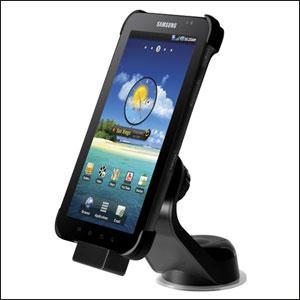


 <3
<3


 0.0357sec
 0.34
0.34
 6 queries
 GZIP Disabled