QUOTE(zheilwane @ Sep 21 2009, 05:01 PM)
how do we convert to 640x480?
Guides written by
Eiraku ~ Tutorial for Handbrake
» Click to show Spoiler - click again to hide... «
Where to get Handbrake? Uncle Google is your best friend.
Oh, another thing... If you're running Handbrake in Vista, MAKE SURE its running WITH Administrator Rights (Run as Admin).
» Click to show Spoiler - click again to hide... «
Method 2 RMBV to MP4 Converter
Method 3 WINAVI MP4 ConverterMethod 4Guides written by
RiuK3n. ~
Tutorial for Super converterPros & Cons» Click to show Spoiler - click again to hide... «
Pros:
All in one : Practically able to convert any file (unless if there's is a file type that I have not tried)
Customization : Convert any file with any settings you desire
Quality : It maintains the quality of the file you convert with the correct settings
Cons:
Takes a long time for large files
Have to try a few settings before getting the right one
Different computers give different output files depending on the codes you have in the computer
Before Starting» Click to show Spoiler - click again to hide... «
1) Click on this link to download Super Converter at the bottom of the page --->
Super™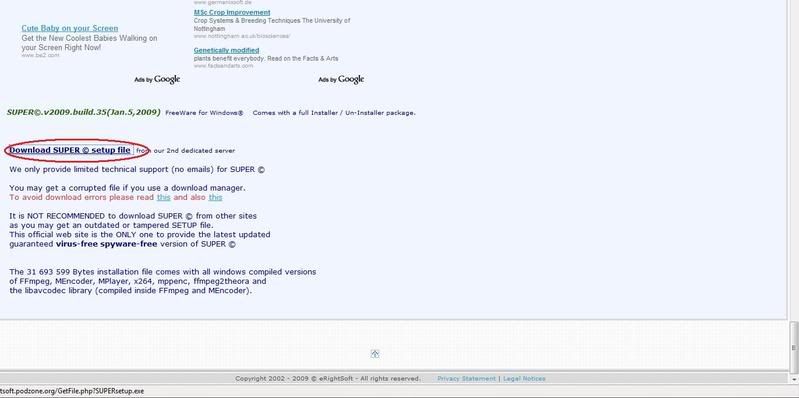
2) Do all the necessary installations as needed and also an important note for Vista users, before you start the converter you need to right click an select "Run As Administrator" --> "Allow" in order to use this converter.
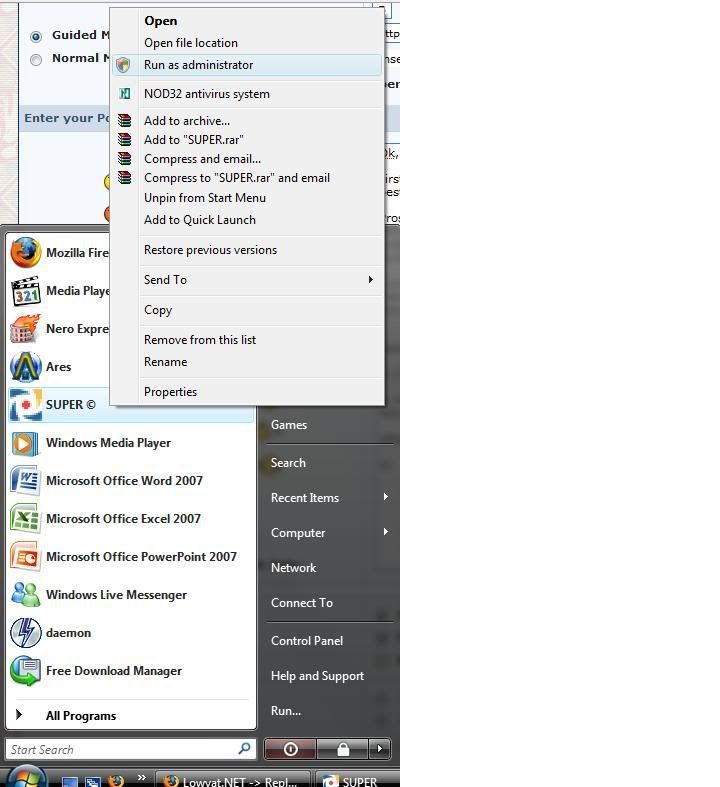
After launching Super Converter
3) You'll notice that there's a lot of settings and also preset settings that is available in it. However what we are trying to do is to customize the settings for our tube.
4) To do so you need this settings:
Videoi) Output Container =
MP4ii) Output Video Codec =
Mpeg - 4iii) Output Audio Codec =
AACiv) Video Scale Size =
640:368 (In case you can't find it, there's a "More" box beside the Video Scale title. Click on it to find it)
v) Aspect =
16:9vi) Frame/sec =
25vii) Bitrate =
1200Audio
i) Sampling Freq =
44100ii) Channels =
2iii) Bitrate =
128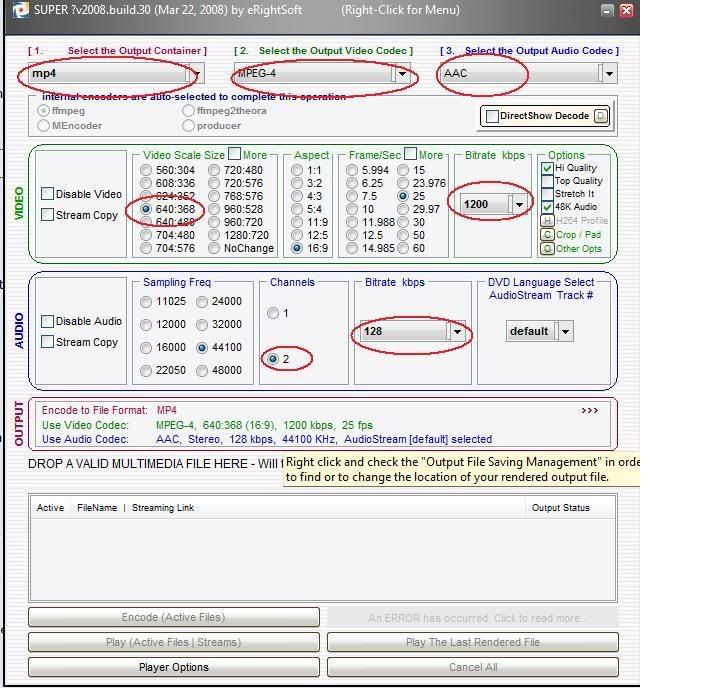
5) Save the settings so that you don't have to configure them anymore next time. To save, Right Click --> Export (Save) a Super? "Settings Profile"
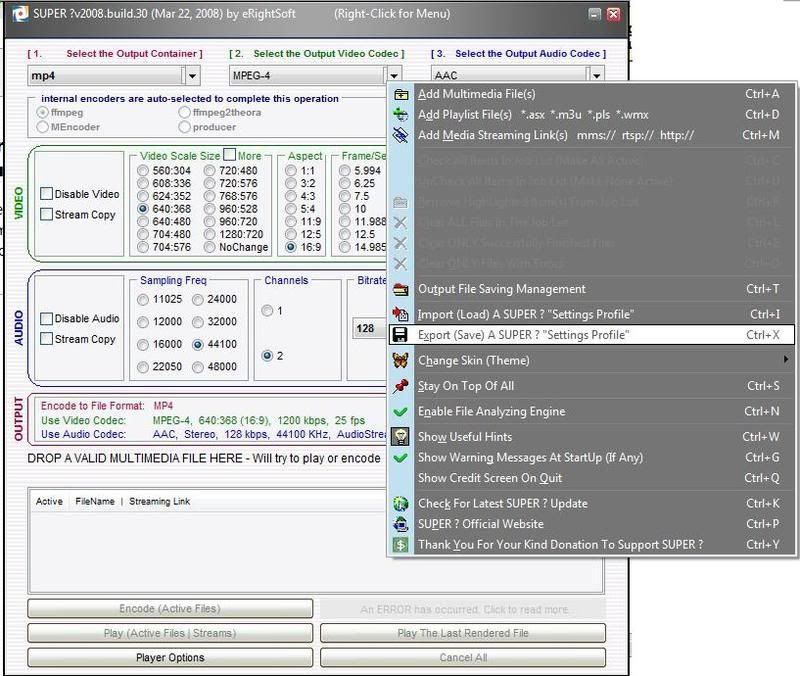 To convert
6) Right click and choose "Multimedia Files", browse the files you want and then place it in.
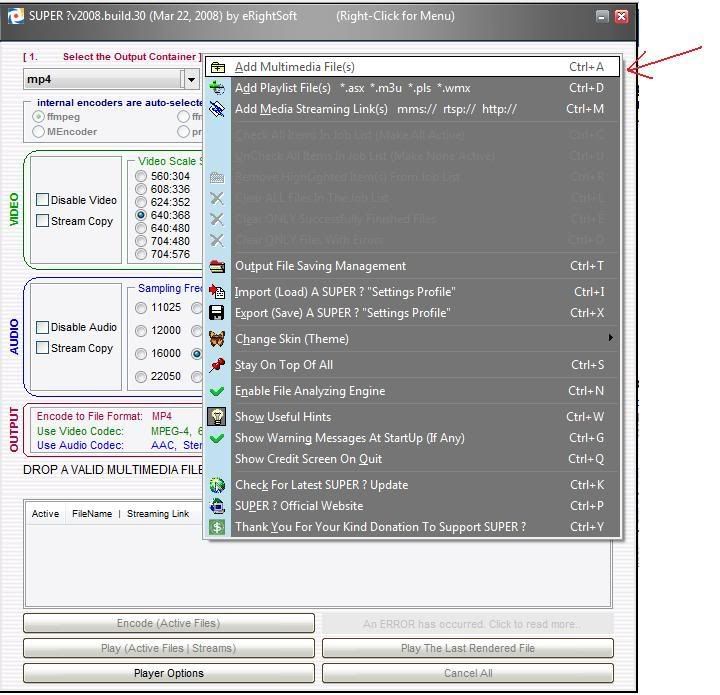
7)Finally, just press the "Encode Active Files" and wait for the file to be converted. The file will appear under the Output folder of your designated Super Converter folder.
Guide: Convert Video to play on Nokia 5800 Xpress Music (in 5 easy steps)
By
J-Slade» Click to show Spoiler - click again to hide... «
Honestly we have tested about 6 different video converters for the Nokia 5800 Xpress Music:
- Nidesoft Nokia Video Converter
- Nidesoft Video Converter
- Super
- Xilisoft Video Converter (Ultimate)
- Handbrake
- Free Zune Video Converter
and now we have found the best so far is…
Free Zune Video Converter
Why?* Easier to use. It’s almost dummy proof.
* Fastest conversion time.
* Smaller file size. Believe it or not, most of the converters actually made bigger .mp4 files than the original .avi videos
* 100% Compatible with the Nokia 5800 Xpress Music at 16:9 display
* Its FREE!So here we have compiled an easy to use step-by-step instruction on how to convert the video. It is so easy, it only takes 5 steps!
(sorry for the uber large images… we wanted to make the guide as easy to read as possible)
Step 01 - Get The Software
Click HereStep 02 - Extract and run ZuneConverter
Step 03 - Add File
Firstly, you have to choose your file. Go to File List > Add files to list…
Step 04 - Settings
There are a few settings which you have to set which we will guide you through.
1) Select the Output Format to be “MP4 (MPEG-4/AAC) - video and audio
2) Set the bitrate and FPS (frames per second).
- Bitrate can be anything lower or higher even 1000+ but remember, a higher bitrate means a bigger file output.We chose 600 and it gave us a 400+mb file out of an original 800mb divx file.
- FPS set to 25
3) Resolution here choose “640 x 350 - EGA”. We have tried using ‘custom’ and setting 640×360 but it doesn’t play on the Nokia 5800.
4) Set where you want your output to be. Here we chose the desktop so we don’t have to go finding it again
5) When you are very confirm that all the settings have been finalized, click the “CONVERT” button on the top.
Step 05 - Let it run
Basically let it encode finish and you are done! Easy isnt it?
Note: If you see message “This application has failed to start because libmp3lame-0.dll was not found.” or similar, download libmp3lame-0.dll file and copy it to folder where you extracted Free_Zune_Video_Converter.zip archive. (issue already fixed in version 1.1)
credits goes to zamanjaafar for sharing this solution
Source : All photo please click this link by
XPS1530Videora Nokia 5800 XpressMusic ConverterDownloadMethod 7 Format Factory by
JdOtL» Click to show Spoiler - click again to hide... «
Format Factory is a multifunctional media converter.
Provides functions below:
All to MP4/3GP/MPG/AVI/WMV/FLV/SWF.
All to MP3/WMA/AMR/OGG/AAC/WAV.
All to JPG/BMP/PNG/TIF/ICO/GIF/TGA.
Rip DVD to video file , Rip Music CD to audio file.
MP4 files support iPod/iPhone/PSP/BlackBerry format.
Source files support RMVB.
Format Factory's Feature:
1 support converting all popular video,audio,picture formats to others.
2 Repair damaged video and audio file.
3 Reducing Multimedia file size.
4 Support iphone,ipod multimedia file formats.
5 Picture converting supports Zoom,Rotate/Flip,tags.
6 DVD Ripper.
7 Supports 48 languages
OS requirements: All 32 windows OS


 Sep 21 2009, 01:40 PM


 Quote
Quote







 0.1048sec
 0.20
0.20
 5 queries
 GZIP Disabled