Sorry for my confusion, the explaination I'm given might not clear and very confusing to you all so I make another quite detail summary here and I will delete my previous review sooner...
Ok so I make the summary for extra details and given the new owner a clearly infomation on using all the mouse features.....
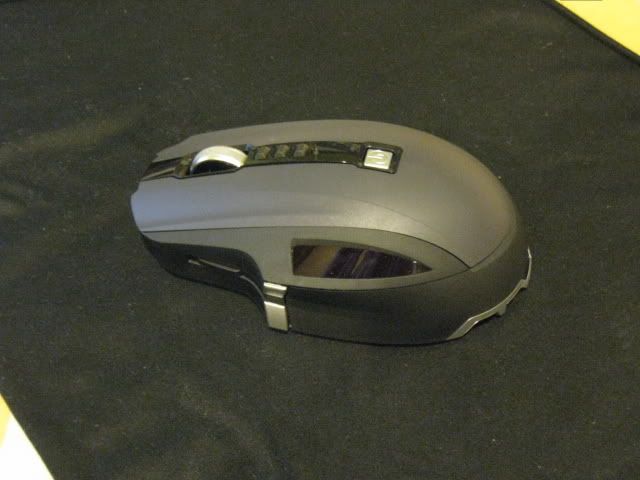
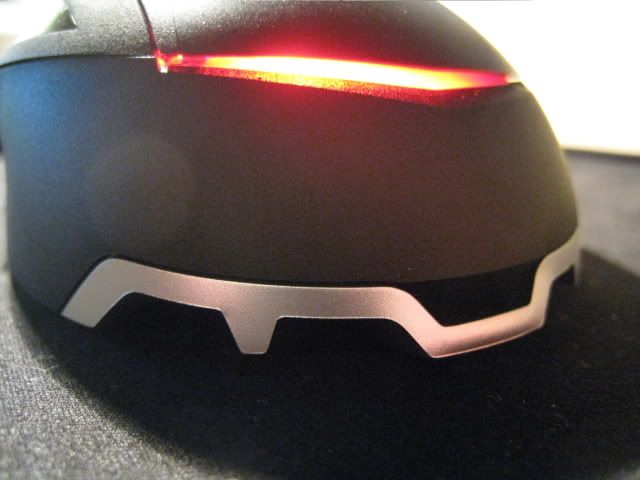
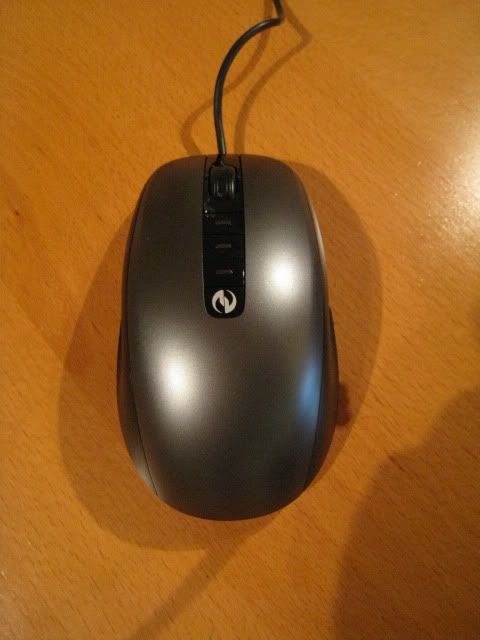
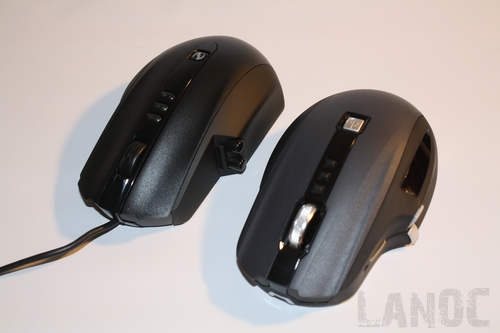
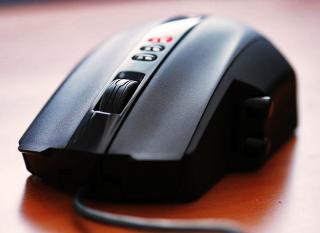
Sidewinder X8As for general feature TomatomanzSeedlezz has point out most of the pro's and con's... so I straight foward for details on each features ...
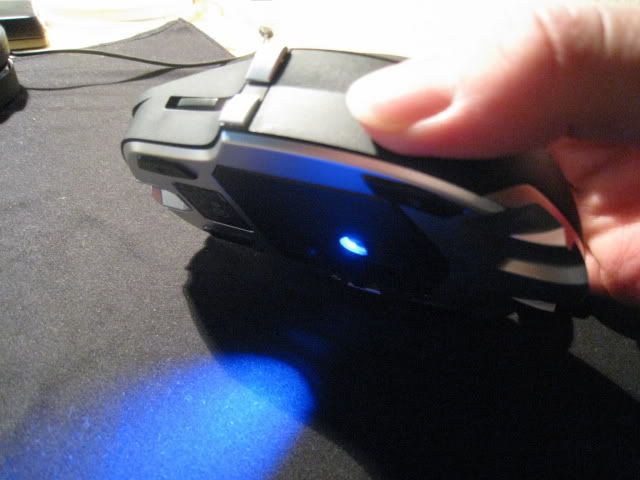
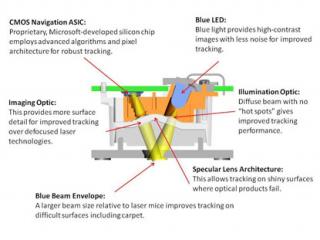
1) Bluetrack Technology - To make it clear, Bluetrack technology actually is using the back the optical light but comes in blue color, with the blue optical light engine features, these Bluetrack engine mouse has more powerful tracking ability which can track more surface accurately than Laser mouse and given more precise tracking. Likewise, these Bluetrack Mouses which is Microsoft Explorer, Explorer Mini and Microsoft Sidewinder X8 Gaming Mouse has very smooth and great tracking performance on mosts of the gaming mousepad.
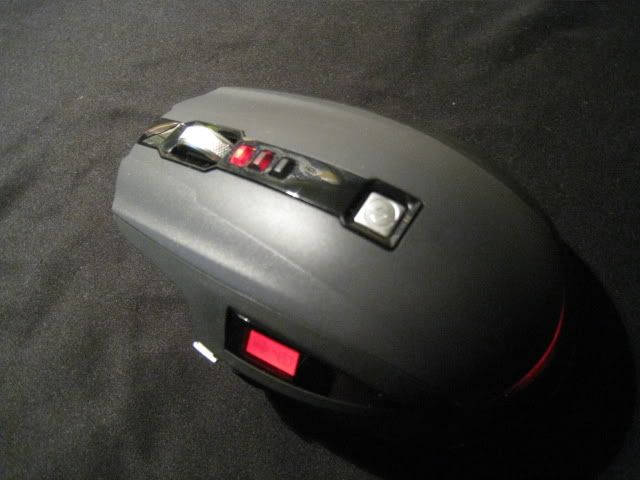
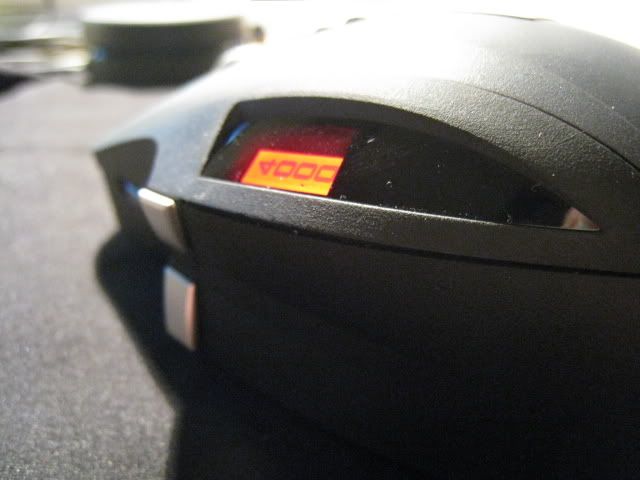
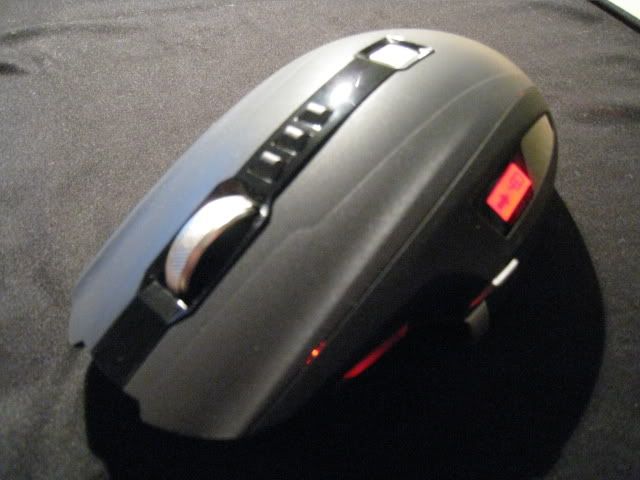
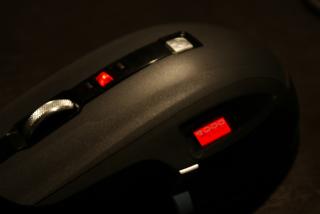
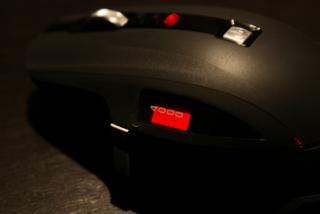
2) LCD Screen Display - LCD Screen Display only available for Microsoft Sidewinder and Sidewinder X8, the features of the LCD is displaying the DPI Settings and the Intellpoint "Quickturn" features. For Sidewinder X8, it added the Macro Record Button display which able for user to seen the settings of recording.

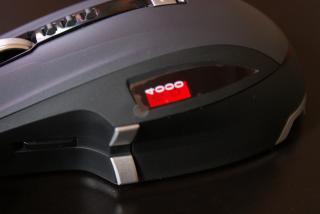
3)Custom buttons and Macro Record Buttons - Yes, Sidewinder X8 has 5 customable buttons(excluding the main left and right click buttons) and added a macro record buttons which allow the users to setup a macro while in gaming.
Customable Buttons are:
-Top and Bottom Thumb Buttons
-Left and Right Click Buttons
-Wheel, Left and Right Wheel Tilt buttons
Uncustomable Buttons are:
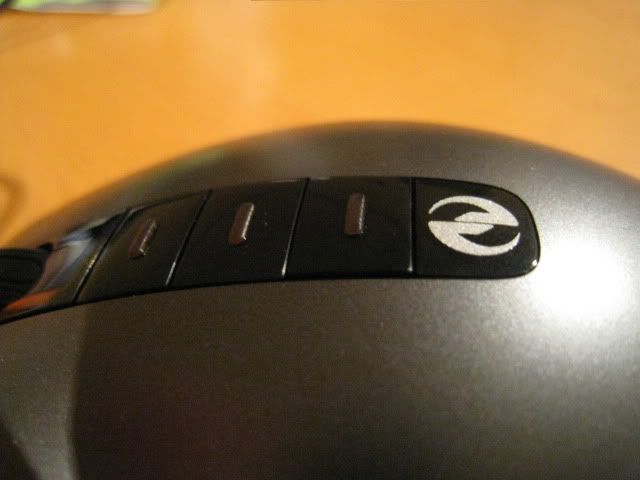
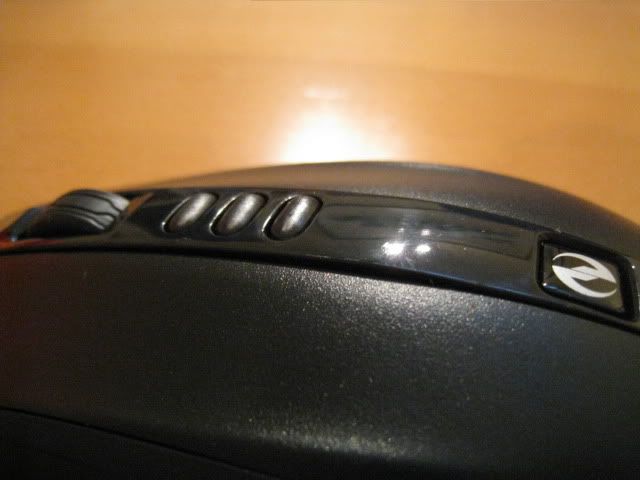
-Gaming Shortcut File buttons (Silver Sidewinder Icons Button)
-Macro Record Buttons
-Dpi Sensitivity Buttons
Yet, here's the step of record the macro buttons:
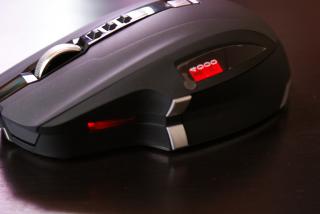
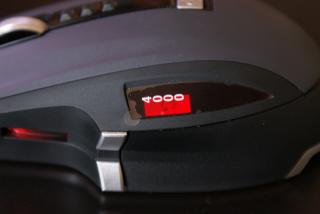
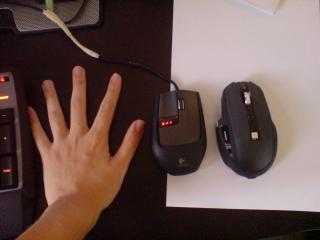
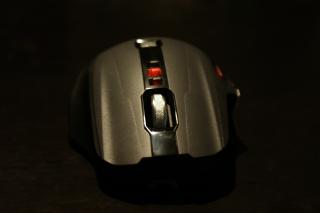
a) Press the Macro Record buttons, the Macro Record buttons will lights up in red and the LCD Display will show the icons of Macro Record Settings.
b) To known the Macro Record is recording or not recording, see the LCD Display, when you see the Mouse with an arrow, it means that the Macro record is not yet been setting up and you may press one of the button for macro record.
c) You can only select Right Click, Top and Bottom Thumb button, Wheel Button, Wheel Left and Right Tilt Buttons only for macro record.
d) Once you select the buttons, the LCD Display will become a rolling arrow display and the macro buttons will start blinking, right now you can assign the keys from your mouse or your keyboard for macro record.
e) While you finish your macro assignment, press the macro record button and your macro is recorded on your selected buttons on your mouse.
4) Gaming Shortcut Buttons - A simply buttons that opens the 'Games' file once you hit off the silver Sidewinder icon buttons.

5)DPI On-the-fly buttons - Generally, there are three buttons for the on-the-fly settings, allows you to sets of your DPI settings on these buttons. I'm not sure for the others Sidewidner series mouse but for X8, the DPI sensitivity is recordable which means, once you set your current DPI on your Computer A, the DPI settings will remain the settings you set on the Computer A even you plug in your mouse into Computer B or Computer C without Intellpoint software and the
Sidewinder mouse sensitivity settings* *The Intellpoint Microsoft Mouse do only shows DPI sensitivity if your installation settings sets to Sidewinder series mouses
6) DPI Numbers Settings - Yes, here's the infomation of the DPI Numbers settings, unlike Logitech G9 mouse. Sidewinder DPI Sensivity comes in less choices of your DPI Settings and here's the numbers of the DPI Settings you may allow
for setup:
(Min) 250 < > 500 < > 750 < > 1000 < > 1500 < > 2000 < > 3000 < > 4000 (Max)
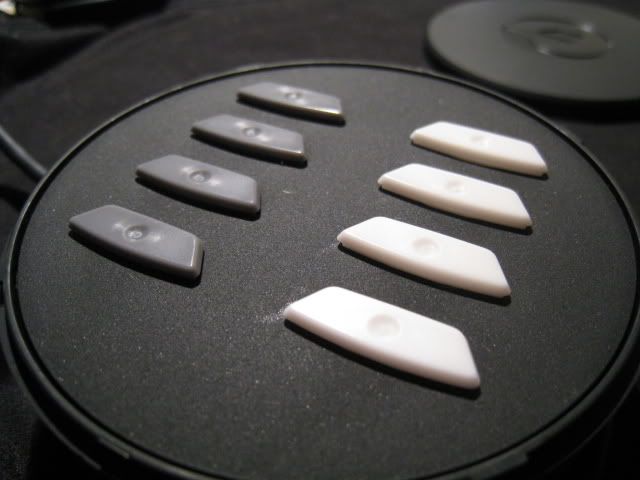
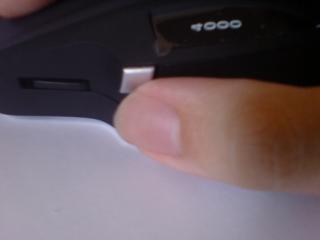
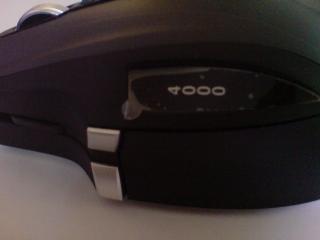
7) Mousefeet - Sidewinder Mousefeet comes with non-rubberized grip, much more of plastic made coat up with a smooth surface. You will have total up 3 sets of mouse feet (2 spare mouse feet). Because these mouse feet are not rubberized so it may cause your mouse suffering an unbalancing problem in some certain of very solid surface which I'm encounter it. Futhurmore, the mousefeet can be easily damaged and grinded if you let your mouse in a very solid surface especially those very hard surfaces. Here's the result that your mouse feet will be damage if you keep using on the hard and solid table:
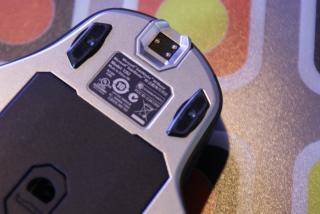
So if you extreamly care your mouse like me, kindly use your mouse with a cloth pad or straight forwardly play your mouse together with your cloth-type gaming mousepad or the soft and smooth surface like thick papers, cards and etc.
with soft + smooth surface.
8) Intellpoint Software - Mouse and Gaming Support Software
A Microsoft Software for all the Microsoft Mouses which given your mouse to assign different function, shortcut and macro's. No doubt, all the Microsoft Mouses has no on-board memory as Razer Lachesis and Mamba, also the Logitech G9 and G9x but Intellpoint gives a powerful gaming accelerations which is ; Quick Turn, Precision Booster and Gaming Toggle.
Now I do a short explaination about these features,
Quick Turn - Allows you to turns 360 degree in lighting speed, yet this is the powerful ability that others brand mouses besides Microsoft did not have it.
Precision Booster - An option for you to slowing down your mouse pointer in a short while, this features does not affect with any DPI decreases, like if you put your mouse DPI as 1000 sensitivity, while you use Precision Booster, your mouse do slows down by slowing down your
Mouse Pointer speed. This is an option while you want do a short aiming and correct your mouse position especially in FPS while you using Machine Gun in full auto mode, it do helps a lots.
Precision Booster comes with two options which is Press and Hold and Toggle mode.
Gaming Toggle - A secondary quick macro record buttons, which allows you to instant record anything you press on the keyboard with up to 64 words. In sidewinder, while you use the gaming toggle, it will appear the small icons of Gaming Toggle.
For the instructions and how to using these features, just go to your buttons option and select these three feature, it will appear the guide for you that teach you how to works on these features. For Precision Booster it straight forward appear the settings and it did write the description on how the features do works for the Precision Booster window.
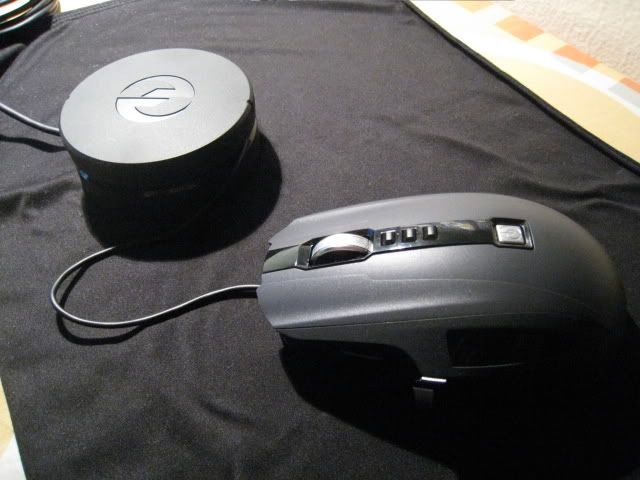
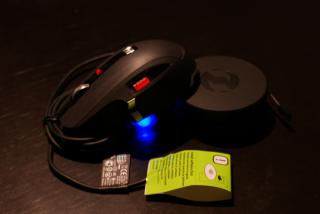
9) 3 in 1 Puck and battery info - yes the Puck is the Sidewinder X8, Charger + Wired plug-in + Mousefeet Storage + Wireless Receiver and yet howmuch does the battery can last long?
From the tester of Razer Mamba and Sidewinder users, they said both had same wireless battery life .....
For serious non-stop gaming, the battery life can lasts around 30 hours but after the testing, hardcore gaming can do last around 5~7 hours for Razer Mamba and around 10++ Hours for Sidewinder X8
(Need hard core gamer help to proving this)
For casual gaming which you play a few hours for 2 to 3 times and with a few hours break in a day (erm about 1~4 hours for game play and 30min ~ 2 hours rests ), the battery life can lasts around 70 hours
For not serious gaming which you only play up to 1 to 4 hours in a day, the battery life can lasts about more than 70 hours
And for full battery charge, you need one to two hours but still depends the condition of your mouse battery, temperature and the current battery life ......
This post has been edited by wingster: May 8 2009, 05:58 PM 


 Apr 22 2009, 10:20 PM, updated 17y ago


 Quote
Quote









 as for that price of the x8 mouse compared to the up coming mamba, wonder which will be more significant








 as it is better to preserve the mouse that you bought for that amount of money...just a thought.
 ...and maybe go to lowyat or other pc hardware shops nearby your house...
 ...later your teflon mousefeet gone case wei...somemore i don't think anybody sells the mouse feet yet...its not out on the market yet...













 )
)





















 0.2845sec
 0.82
0.82
 6 queries
 GZIP Disabled