


 Dec 19 2010, 02:56 PM, updated 15y ago


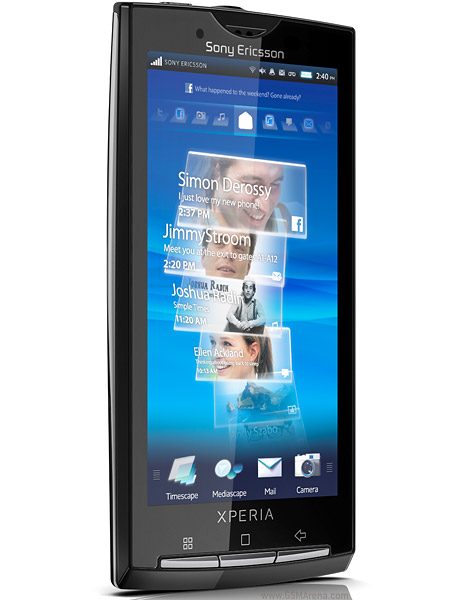
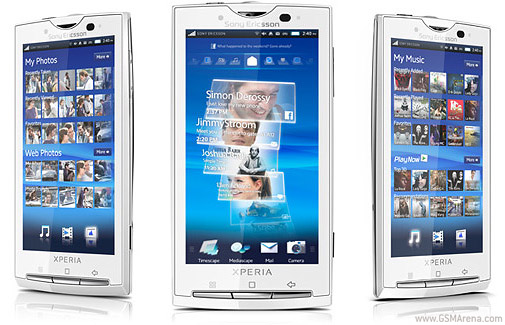
about xperia x10
» Click to show Spoiler - click again to hide... «
Size
119.0 x 63.0 x 13.0 mm / 4.7 x 2.5 x 0.5 inches
Available colours
Sensuous Black , Luster White
Weight
135.0 g / 4.8 oz
Memory
microSD™ up to 16GB, 8GB included
Phone memory
1GB
Actual free memory may vary due to phone pre-configuration
Screen
480 x 854 pixels (WVGA) / 4" capacitive touchscreen
Battery performance
Battery performance may vary depending on network conditions and configuration, and phone usage.
Networks Talk time
GSM/GPRS/EDGE 850/900/1800/1900
10 hours 415 hours
UMTS/HSPA 900/1700/2100
8 hours 425 hours
UMTS/HSPA 800/850/1900/2100
8 hours 425 hours
Note that UMTS/HSPA network compatibility varies per location.
A Standby time specification is an industry standard. The only intention is to allow comparison of different mobile phones under the same circumstances. Factors including - but not limited to - network, settings, location, movement, signal strength and cell traffic strongly effect standby power consumption. Standby time specifications of different mobile phones can therefore be compared only in a controlled laboratory environment. When any mobile phone is used in real life - i.e., under circumstances for which the mobile phone is intended - the actual standby time could be considerably lower and will be strongly dependent on the factors mentioned above.
119.0 x 63.0 x 13.0 mm / 4.7 x 2.5 x 0.5 inches
Available colours
Sensuous Black , Luster White
Weight
135.0 g / 4.8 oz
Memory
microSD™ up to 16GB, 8GB included
Phone memory
1GB
Actual free memory may vary due to phone pre-configuration
Screen
480 x 854 pixels (WVGA) / 4" capacitive touchscreen
Battery performance
Battery performance may vary depending on network conditions and configuration, and phone usage.
Networks Talk time
GSM/GPRS/EDGE 850/900/1800/1900
10 hours 415 hours
UMTS/HSPA 900/1700/2100
8 hours 425 hours
UMTS/HSPA 800/850/1900/2100
8 hours 425 hours
Note that UMTS/HSPA network compatibility varies per location.
A Standby time specification is an industry standard. The only intention is to allow comparison of different mobile phones under the same circumstances. Factors including - but not limited to - network, settings, location, movement, signal strength and cell traffic strongly effect standby power consumption. Standby time specifications of different mobile phones can therefore be compared only in a controlled laboratory environment. When any mobile phone is used in real life - i.e., under circumstances for which the mobile phone is intended - the actual standby time could be considerably lower and will be strongly dependent on the factors mentioned above.
camera
» Click to show Spoiler - click again to hide... «
HD video recording (720p)
Record High Definition video with a simple touch of a button.
Function may require a software update
Camera - 8.1 Megapixel
Capture and share special moments.
Digital Zoom - up to 16x
Get close to your subject.
Auto focus
Automatic focus for optimal clarity.
Face recognition
Your phone automatically recognises up to five faces in your picture.
Image stabiliser
Avoid blurriness caused by slight hand movements.
Flash / light type - Photo light
When lighting conditions are poor, your picture can still be good.
Picture blogging
A function that lets you take a picture and send it straight to a live blog
Video record
Record video clip
Video light
More light when shooting video.
Geo-tagging
Have your photo tagged with information on where it was taken.
Smile detection
Let the camera automatically snap the shot when your subject flashes a smile
Record High Definition video with a simple touch of a button.
Function may require a software update
Camera - 8.1 Megapixel
Capture and share special moments.
Digital Zoom - up to 16x
Get close to your subject.
Auto focus
Automatic focus for optimal clarity.
Face recognition
Your phone automatically recognises up to five faces in your picture.
Image stabiliser
Avoid blurriness caused by slight hand movements.
Flash / light type - Photo light
When lighting conditions are poor, your picture can still be good.
Picture blogging
A function that lets you take a picture and send it straight to a live blog
Video record
Record video clip
Video light
More light when shooting video.
Geo-tagging
Have your photo tagged with information on where it was taken.
Smile detection
Let the camera automatically snap the shot when your subject flashes a smile
music
» Click to show Spoiler - click again to hide... «
TrackID™ music recognition
Record a few seconds of a song and get track, artist and album information sent to your phone in seconds.
Media Player
An in-phone media player for music and video
Album art
Choose music by browsing CD album art or other images
Bluetooth™ stereo (A2DP)
Music from your phone to headset over a wireless connection.
PlayNow™
Download music and games to your phone.
Music tones - MP3, AAC
Use original artist recordings as ringtones.
Record a few seconds of a song and get track, artist and album information sent to your phone in seconds.
Media Player
An in-phone media player for music and video
Album art
Choose music by browsing CD album art or other images
Bluetooth™ stereo (A2DP)
Music from your phone to headset over a wireless connection.
PlayNow™
Download music and games to your phone.
Music tones - MP3, AAC
Use original artist recordings as ringtones.
web
» Click to show Spoiler - click again to hide... «
Pan & zoom
View web pages as you like - get a quick overview or zoom in on details.
Bookmarks
Quick access to your favourite Web sites.
Google™ search
Find what you’re after with the Google™ search function.
Web feeds
Get the news in your phone as it happens.
Web browser - WebKit
Full Internet browser with support for standard protocols, images and video.
entertainment
» Click to show Spoiler - click again to hide... «
Media Browser
Media content in one place for fast and easy access.
3D games
Enjoy quality games with full color and depth.
YouTube™
View your favourite YouTube™ videos, or upload your own - access is easy via the YouTube™ application.
Video streaming
Realtime video streaming, e.g. live cam
Video Clip
Video clip viewing and transfer to another phone or PC
Sony Ericsson Mediascape
Get instant access to - and a perfect overview of - all your content.
Media content in one place for fast and easy access.
3D games
Enjoy quality games with full color and depth.
YouTube™
View your favourite YouTube™ videos, or upload your own - access is easy via the YouTube™ application.
Video streaming
Realtime video streaming, e.g. live cam
Video Clip
Video clip viewing and transfer to another phone or PC
Sony Ericsson Mediascape
Get instant access to - and a perfect overview of - all your content.
connectivity
» Click to show Spoiler - click again to hide... «
Micro USB connector
Connect to your PC and other devices.
3.5 mm audio jack
Share your music via the extra jack. Use any headphones with a standard-sized 3.5 mm connector.
Wisepilot™ turn-by-turn navigation
Get live instructions for how to find your way to your destination - and have fun en route. Free trial version included. The service may not be available in every market. For more information, visit www.sonyericsson.wisepilot.com.
aGPS
Use GPS-powered location-based services.
Google Maps™
Find your way to your destination.
Bluetooth™ technology
Connect wirelessly to other Bluetooth™ devices.
USB support
PC to phone USB cable support
WiFi™
Utilise high-speed Internet at Wi-Fi™ hotspots at airports and other facilities.
Connect to your PC and other devices.
3.5 mm audio jack
Share your music via the extra jack. Use any headphones with a standard-sized 3.5 mm connector.
Wisepilot™ turn-by-turn navigation
Get live instructions for how to find your way to your destination - and have fun en route. Free trial version included. The service may not be available in every market. For more information, visit www.sonyericsson.wisepilot.com.
aGPS
Use GPS-powered location-based services.
Google Maps™
Find your way to your destination.
Bluetooth™ technology
Connect wirelessly to other Bluetooth™ devices.
USB support
PC to phone USB cable support
WiFi™
Utilise high-speed Internet at Wi-Fi™ hotspots at airports and other facilities.
messaging
» Click to show Spoiler - click again to hide... «
Conversations
Say it via chat-style text messaging.
Email:
Built-in email client with inbox, outbox, compose, send and other functions
Text messaging (SMS)
Send text greetings anywhere in the world.
Picture messaging (MMS)
Colourful multimedia messaging.
Predictive text input
Fast and easy text messaging.
Say it via chat-style text messaging.
Email:
Built-in email client with inbox, outbox, compose, send and other functions
Text messaging (SMS)
Send text greetings anywhere in the world.
Picture messaging (MMS)
Colourful multimedia messaging.
Predictive text input
Fast and easy text messaging.
communication
» Click to show Spoiler - click again to hide... «
Twitter™ - Timescape™ integration
Let the world know how you feel and what you think - say it with a tweet.
Facebook™ application
Stay in touch with your friends on Facebook™ through your phone.
Speaker phone
Loudspeaker suitable for using the phone as an office handsfree
Vibrating Alert
The phone vibrates and you can feel when a call comes in
Sony Ericsson Timescape™
All your communication with one person in one place.
Let the world know how you feel and what you think - say it with a tweet.
Facebook™ application
Stay in touch with your friends on Facebook™ through your phone.
Speaker phone
Loudspeaker suitable for using the phone as an office handsfree
Vibrating Alert
The phone vibrates and you can feel when a call comes in
Sony Ericsson Timescape™
All your communication with one person in one place.
design
» Click to show Spoiler - click again to hide... «
Keyboard - Onscreen QWERTY
Text input made easy.
Auto rotate
Switch from vertical to horizontal mode by rotating the phone. Whatever you're viewing will rotate to suit.
Picture wallpaper
Background picture on-screen when the phone is in standby mode
Touchscreen
Intuitive navigation – just touch the screen
Text input made easy.
Auto rotate
Switch from vertical to horizontal mode by rotating the phone. Whatever you're viewing will rotate to suit.
Picture wallpaper
Background picture on-screen when the phone is in standby mode
Touchscreen
Intuitive navigation – just touch the screen
organiser
» Click to show Spoiler - click again to hide... «
Android™ OS
Android™ OS for great performance. Personalize with all the apps you need from Android Market.
Alarm clock
Set your phone alarm clock to ring at the time of your choice.
Calendar
Store appointment information and set reminders.
Calculator
Full-function calculator when you need it.
Flight mode
Disable the radio receivers and transmitters in your phone so you can safely use other functions.
Phone book
The information you need to keep in touch with friends and family.
Infinite button
Just one press to all about your friends or all the artist info you need
Android™ OS for great performance. Personalize with all the apps you need from Android Market.
Alarm clock
Set your phone alarm clock to ring at the time of your choice.
Calendar
Store appointment information and set reminders.
Calculator
Full-function calculator when you need it.
Flight mode
Disable the radio receivers and transmitters in your phone so you can safely use other functions.
Phone book
The information you need to keep in touch with friends and family.
Infinite button
Just one press to all about your friends or all the artist info you need
ok
i guess tat just about explains in summary the capabilities of the xperia x10 we r not holdin in our hands
since tis is like a new startin point for ur all
everythin will b started anew
multitouch news
» Click to show Spoiler - click again to hide... «
Official: Dual-touch Xperia X10 update hits Japan on 19 Jan
Just yesterday we saw a video demonstrating the new pinch-to-zoom update for the Sony Ericsson Xperia X10. Well now Sony Ericsson Japan has officially notified users that this update will hit NTT DoCoMo on 19th January through PC Companion and 20th January OTA.
They have also confirmed that the new dual-touch features will work in the browser, Google Maps Navigation, Office Suite and Moxier. SE can’t confirm that it will work in all third-party apps. Hopefully, this news means that the update should also start hitting other regions imminently. Watch this space.
Just yesterday we saw a video demonstrating the new pinch-to-zoom update for the Sony Ericsson Xperia X10. Well now Sony Ericsson Japan has officially notified users that this update will hit NTT DoCoMo on 19th January through PC Companion and 20th January OTA.
They have also confirmed that the new dual-touch features will work in the browser, Google Maps Navigation, Office Suite and Moxier. SE can’t confirm that it will work in all third-party apps. Hopefully, this news means that the update should also start hitting other regions imminently. Watch this space.
Added on December 19, 2010, 2:59 pmservice menu
» Click to show Spoiler - click again to hide... «
on keypad press *#*#4636#*#*
x10 flash tool
» Click to show Spoiler - click again to hide... «
Hi,
I will take the lead on releases of this tool as Bin4ry will have less time to work on it.
FlashTool now is something like an all in one Tool for your phone.
It can:
- Flash original Images (Android 1.6 & Android 2.1 Images)
- Root your phone (Only if the phone is on a 2.1 android version)
- Install xRecovery, Busybox
- Clean your Rom (remove /system/apps apps of your choice) (Be careful, unless you really know what you do, do not modify the default list. This can make your phone stuck at the SE Logo)
- Clear dalvik cache
- Optimize (install of JIT v2)
- Customize (installs apps found in the custom/apps folder of the flashtool)
- Clean uninstalled (remove any references to system apps removed in the Clean (root needed) step)
- Edit /system/build.prop
Download FlashTool version 0.2.6 :
http://www.multiupload.com/Q2NRGI76JR (MD5: 9055964A6B8A649EF7B9DEFB809751B6)
Firmwares for FlashTool version 0.2.4 and up
(If anyone has a ftf bundle version which is not listed here, just PM me a link to it, I will update this list)
X10i Generic
Generic version 2.1update1 build 2.1.A.0.435 (MD5: 11712b23ed90eb0c279d19d2f4bcd3b0) (thanks arkedk)
Generic version 2.1update1 build 2.0.2.A.0.24 (MD5: 715527B6E25871B3EC01119DF84E696A)
Generic version 2.1update1 build 2.0.A.0.504 (MD5: 38006C35A6935F45D14A2B3F1D42FFE0)
X10i Branded
Bouygues Telecom version 2.1update1 build 2.0.A.0.504 (MD5 : 3B3B3F411FE6017B06FA4030CC68578D)
X10a Generic
Generic version 2.1update1 build 2.1.A.0.435 (MD5 : 0C67A08A4B120EBA87E395865F431E81)
Generic version 2.1update1 build 2.0.2.A.0.24 (MD5: E592508FC714A9F2CB6BDC41914ABC81)
Generic version 2.1update1 build 2.0.A.0.504 (MD5: F3735BF4D48ED4BBA8BF5BC60CD1D34C)
Firmwares addons for any 2.1 firmware for FlashTool version 0.2.4 and up
Dual touch addon for any X10i/X10a (thanks to Bin4ry) (MD5: 4884A39E40CFC3550D51626D834AC185)
You don't know how to find hash values of files you download ? Go here : http://implbits.com/Products/HashTab.aspx
You can visit this HOW-TO (thanks to rendeiro2005) about using the flashtool
To support Flashtool, please click the button in the app. We will split the money 50/50
Changelog:
0.2.6:
[Upd] Flashing 1.6 firmwares could lead to a FC with Timescape. 1.6 bundles must have the preset.ta file if this one exists. otherwise the flash will be uncomplete.
[Upd] Updated the "turn to flashmode" wait box. (thanks to rendeiro2005 for the animated gif)
[Upd] Updated to xRecovery 0.3
[Upd] Decryption now opens the bundle creation when complete.
[Bug] Correction of a bug under certain scenario with ROM cleaner (when switching firmware version)
0.2.5:
[Bug] Root not working properly (regression from 0.2.3 to 0.2.4). Fixed.
[New Feature] Added a basic build.prop editor.
0.2.4:
[Bug] Clean (root needed) task bug resolved. A new button "Ask Root Perms" has been added to be sure the flashtool has root accesses. All task which need root access are disabled while this Ask Root task is not complete.
[New Feature] Firmwares have to come bundled in one file named with a ftf extension (ftf for Flash Tool Firmware). A Create Bundle feature has been added to the tool to create your own firmware bundles. (So no need to Redownload a firmware you already have. Just bundle it). This way it will be easier to package / distribute / integrate firmwares as they come out.
0.2.3:
[Bug] SEUS decrypt fixed
[New Feature] Wipe Userdata is set to default YES
HOWTO:
Flashing (from version 0.2.4) :
Add ftf firmwares files in the firmwares folder
Click the flash button, choose your firmware and wait for the tool to ask about turning the phone to flashmode. Then do it and click OK
Flashing will begin ...
What's next :
Features I think about adding after 0.2.5 :
- A xRecovery rom manager (Bin4ry)
- A Filemanager
- A plugin system so that anybody with java skills will be able to extend features.
Any other ideas are welcome.
IMPORTANT:
- You should always wipe userdata if you switch between Android versions (1.6 <-> 2.1). If not your phone will keep restarting all the time. This is the same for some providerbrandings even if you flash between same Android versions. So if you have this restarting problem, flash again with Wipe Userdata. If you don't want to loose your apps you have to backup them with Titanium or some other backup tool!
Regards
Androxyde
I will take the lead on releases of this tool as Bin4ry will have less time to work on it.
FlashTool now is something like an all in one Tool for your phone.
It can:
- Flash original Images (Android 1.6 & Android 2.1 Images)
- Root your phone (Only if the phone is on a 2.1 android version)
- Install xRecovery, Busybox
- Clean your Rom (remove /system/apps apps of your choice) (Be careful, unless you really know what you do, do not modify the default list. This can make your phone stuck at the SE Logo)
- Clear dalvik cache
- Optimize (install of JIT v2)
- Customize (installs apps found in the custom/apps folder of the flashtool)
- Clean uninstalled (remove any references to system apps removed in the Clean (root needed) step)
- Edit /system/build.prop
Download FlashTool version 0.2.6 :
http://www.multiupload.com/Q2NRGI76JR (MD5: 9055964A6B8A649EF7B9DEFB809751B6)
Firmwares for FlashTool version 0.2.4 and up
(If anyone has a ftf bundle version which is not listed here, just PM me a link to it, I will update this list)
X10i Generic
Generic version 2.1update1 build 2.1.A.0.435 (MD5: 11712b23ed90eb0c279d19d2f4bcd3b0) (thanks arkedk)
Generic version 2.1update1 build 2.0.2.A.0.24 (MD5: 715527B6E25871B3EC01119DF84E696A)
Generic version 2.1update1 build 2.0.A.0.504 (MD5: 38006C35A6935F45D14A2B3F1D42FFE0)
X10i Branded
Bouygues Telecom version 2.1update1 build 2.0.A.0.504 (MD5 : 3B3B3F411FE6017B06FA4030CC68578D)
X10a Generic
Generic version 2.1update1 build 2.1.A.0.435 (MD5 : 0C67A08A4B120EBA87E395865F431E81)
Generic version 2.1update1 build 2.0.2.A.0.24 (MD5: E592508FC714A9F2CB6BDC41914ABC81)
Generic version 2.1update1 build 2.0.A.0.504 (MD5: F3735BF4D48ED4BBA8BF5BC60CD1D34C)
Firmwares addons for any 2.1 firmware for FlashTool version 0.2.4 and up
Dual touch addon for any X10i/X10a (thanks to Bin4ry) (MD5: 4884A39E40CFC3550D51626D834AC185)
You don't know how to find hash values of files you download ? Go here : http://implbits.com/Products/HashTab.aspx
You can visit this HOW-TO (thanks to rendeiro2005) about using the flashtool
To support Flashtool, please click the button in the app. We will split the money 50/50
Changelog:
0.2.6:
[Upd] Flashing 1.6 firmwares could lead to a FC with Timescape. 1.6 bundles must have the preset.ta file if this one exists. otherwise the flash will be uncomplete.
[Upd] Updated the "turn to flashmode" wait box. (thanks to rendeiro2005 for the animated gif)
[Upd] Updated to xRecovery 0.3
[Upd] Decryption now opens the bundle creation when complete.
[Bug] Correction of a bug under certain scenario with ROM cleaner (when switching firmware version)
0.2.5:
[Bug] Root not working properly (regression from 0.2.3 to 0.2.4). Fixed.
[New Feature] Added a basic build.prop editor.
0.2.4:
[Bug] Clean (root needed) task bug resolved. A new button "Ask Root Perms" has been added to be sure the flashtool has root accesses. All task which need root access are disabled while this Ask Root task is not complete.
[New Feature] Firmwares have to come bundled in one file named with a ftf extension (ftf for Flash Tool Firmware). A Create Bundle feature has been added to the tool to create your own firmware bundles. (So no need to Redownload a firmware you already have. Just bundle it). This way it will be easier to package / distribute / integrate firmwares as they come out.
0.2.3:
[Bug] SEUS decrypt fixed
[New Feature] Wipe Userdata is set to default YES
HOWTO:
Flashing (from version 0.2.4) :
Add ftf firmwares files in the firmwares folder
Click the flash button, choose your firmware and wait for the tool to ask about turning the phone to flashmode. Then do it and click OK
Flashing will begin ...
What's next :
Features I think about adding after 0.2.5 :
- A xRecovery rom manager (Bin4ry)
- A Filemanager
- A plugin system so that anybody with java skills will be able to extend features.
Any other ideas are welcome.
IMPORTANT:
- You should always wipe userdata if you switch between Android versions (1.6 <-> 2.1). If not your phone will keep restarting all the time. This is the same for some providerbrandings even if you flash between same Android versions. So if you have this restarting problem, flash again with Wipe Userdata. If you don't want to loose your apps you have to backup them with Titanium or some other backup tool!
Regards
Androxyde
what is root
» Click to show Spoiler - click again to hide... «
QUOTE(zerophrame;6508926)
GENERAL INFO:
For those that are unaware, "Rooting essentially gives you total control over the OS. You can add/remove programs/files from the device that are locked, flash custom roms, recovery images, themes, backup installed apps and lots of other things.
FAQ:
What is ROOT?:
Rooting essentially gives you total control over the OS. You can add/remove programs/files from the device that are locked, flash custom roms, recovery images, themes, backup installed apps and lots of other things. (As Stated Above)
How do we get ROOT for the X10?:
There are alot of developers working on cracking the X10; Sony put a lot of work into locking the X10 down.
There are many ways to root your X10 now, and including several one-touch apps that will root for you.
Does ROOTING unlock my X10?:
No it does not.
I have an X10a (or X10i), can I use the X10i (X10a) method to ROOT?
Short Answer is no; the files are different. Don't be so lazy and follow instructions.
The ROOT didn't work, what can I do?
Here's the thing, if it's bricked/non-working...search the forums, chances are there's someone out there that has done what you've done and the issue may already be solved. ONLY POST A NEW TOPIC IF THERE IS ZERO INFORMATION REGARDING YOUR SITUATION.
Can I put newer versions of Android on my X10 after ROOT?
You sure can, but unless you know how to cook the rom yourself...you'll just have to wait like the rest of us. Keep your eyes peeled and wait for the good stuff to start popping up.
one click root
z4root
» Click to show Spoiler - click again to hide... «
QUOTE(MarylandCookie;9118680)
Just to make it clear this is not my work, I have taken it/linked it from another post on XDA - here.
Original Post
Credits
z4ziggy
Sebastian Krahmer's rageagainstthecage
What this does
It is an app you install (currently you must side load it, but it will be on the market once it's had some testing here on XDA), that has a single button that will root your device. Should work on ALL Android devices -- please leave a note if it works or doesn't work on your device.
How safe is this?
Should be 100% safe - nothing on disk is changed besides the root binaries, so if something goes wrong, simply rebooting the device should fix up any and all issues. Let me know if you find any bugs!
Compatibility:
Compatible
Samsung Galaxy S (All variants)
Backflip
Sony Xperia X10
Sony Xperia Mini
Drod 2
Galaxy Tab
Galaxy I5700
Galaxy 3 I5800
Droid X
Samsung Acclaim
Cricket Huawei Ascend
Motorola Cliq
Huawei 8120
Hero
Optimus T
Droid 1 (z4root 1.2.1)
Garmin Asus A50
Motorola Defy
LG Ally
Incompatible
Desire (requires nand unlock)
Desire HD (requires nand unlock)
Magic (unknown)
Evo (requires nand unlock)
G2 (requires nand unlock)
Archos 70 (unknown)
LG Optimus One (unknown)
myTouch 3G (unknown)
Wildfire
Droid Incredible

Changelog
V1.0.0 : Initial Release
V1.1.0 : Will now open the application settings page if USB debugging is not enabled.
V1.2.0 : Unroot support, fix for devices with small max file size such as I5700, binaries in xbin rather than bin (Thanks to SEMPITERNAL for the update)
V1.2.1 : Back to /system/bin for support for some devices. Fix for QVGA devices.
V1.2.2 : Adverts added (can be permanently disabled with menu option). Hopefully fixed devices such as Moment.
V1.3.0 : Force unroot option, temporary root option.
Original Post
Credits
z4ziggy
Sebastian Krahmer's rageagainstthecage
What this does
It is an app you install (currently you must side load it, but it will be on the market once it's had some testing here on XDA), that has a single button that will root your device. Should work on ALL Android devices -- please leave a note if it works or doesn't work on your device.
How safe is this?
Should be 100% safe - nothing on disk is changed besides the root binaries, so if something goes wrong, simply rebooting the device should fix up any and all issues. Let me know if you find any bugs!
Compatibility:
Compatible
Samsung Galaxy S (All variants)
Backflip
Sony Xperia X10
Sony Xperia Mini
Drod 2
Galaxy Tab
Galaxy I5700
Galaxy 3 I5800
Droid X
Samsung Acclaim
Cricket Huawei Ascend
Motorola Cliq
Huawei 8120
Hero
Optimus T
Droid 1 (z4root 1.2.1)
Garmin Asus A50
Motorola Defy
LG Ally
Incompatible
Desire (requires nand unlock)
Desire HD (requires nand unlock)
Magic (unknown)
Evo (requires nand unlock)
G2 (requires nand unlock)
Archos 70 (unknown)
LG Optimus One (unknown)
myTouch 3G (unknown)
Wildfire
Droid Incredible
Changelog
V1.0.0 : Initial Release
V1.1.0 : Will now open the application settings page if USB debugging is not enabled.
V1.2.0 : Unroot support, fix for devices with small max file size such as I5700, binaries in xbin rather than bin (Thanks to SEMPITERNAL for the update)
V1.2.1 : Back to /system/bin for support for some devices. Fix for QVGA devices.
V1.2.2 : Adverts added (can be permanently disabled with menu option). Hopefully fixed devices such as Moment.
V1.3.0 : Force unroot option, temporary root option.
superoneclick root
» Click to show Spoiler - click again to hide... «
QUOTE(somebloke;8936089)
ROOT achieved for 2.1 FW.
Sometimes the first method isn't always the best:
*edit*
A new app has appeared on the market called "z4root". This seems to root in one click.
Details are here.
Install this from the Market, press Root and you're away.
Old Methodm should it still be required:
This requires you to have 2.1 already (either Nordic, or other generic, or using Bin4ry's flashtool version here.
instructions and files as below.
Download the SuperOneClick (files attached) or original post here
Updated Superoneclick version 1.5.4
v1.5.4
Fixed superuser install issue
Added a prompt to tell you to allow superuser on your phone, for the test.
Fixed unroot.
It can take a while to ROOT - looks as though it is stuck in a loop. I thought it wasnt working but waited about 10mins and it worked.
If you wait longer and it still doesn't work, try untick/retick USB debug while it's running
Hey Presto - ROOT !
Remember you will probably want Busybox too - click Problems from within Titanium to download.
NOTE: If you're having no luck with this, it seems the PDANet client might install different drivers which help the process. If you're struggling this might be worth a try. Also ticking Unknown Applications allows it to send the SuperUser.apk has reported to help some users.
PdaNet Client is here.
Pre-requisites not mentioned in this post:
Working 2.1 X10
Drivers must be installed for X10 Debug mode - try adb manually to check
Some virus checkers might flag these files - this is because an exploit can be a security risk, but 100% virus free
You run this all on your PC - it connects to your phone and roots it from there.
Sometimes the first method isn't always the best:
*edit*
A new app has appeared on the market called "z4root". This seems to root in one click.
Details are here.
Install this from the Market, press Root and you're away.
Old Methodm should it still be required:
This requires you to have 2.1 already (either Nordic, or other generic, or using Bin4ry's flashtool version here.
instructions and files as below.
Download the SuperOneClick (files attached) or original post here
Updated Superoneclick version 1.5.4
v1.5.4
Fixed superuser install issue
Added a prompt to tell you to allow superuser on your phone, for the test.
Fixed unroot.
It can take a while to ROOT - looks as though it is stuck in a loop. I thought it wasnt working but waited about 10mins and it worked.
If you wait longer and it still doesn't work, try untick/retick USB debug while it's running
Hey Presto - ROOT !
Remember you will probably want Busybox too - click Problems from within Titanium to download.
NOTE: If you're having no luck with this, it seems the PDANet client might install different drivers which help the process. If you're struggling this might be worth a try. Also ticking Unknown Applications allows it to send the SuperUser.apk has reported to help some users.
PdaNet Client is here.
Pre-requisites not mentioned in this post:
Working 2.1 X10
Drivers must be installed for X10 Debug mode - try adb manually to check
Some virus checkers might flag these files - this is because an exploit can be a security risk, but 100% virus free
You run this all on your PC - it connects to your phone and roots it from there.
QUOTE(Ultima @ Jan 10 2011, 12:56 AM)


app2sd
» Click to show Spoiler - click again to hide... «
tis tutorial is written by a member of lyn 
QUOTE(wolfilein;8474025)
This new tutorial is not from me, credits go to tot 31
The leds on boot are Now working :
If You have an x10 mini (pro) go here :
http://forum.xda-developers.com/showthread.php?t=804574
blue means:
no proplem with sd card booting normal
purple/voilet means
sdcard malfunktion booting with failsafe
I'm writing the how to my own way, hope this will more helpful..
How To : App2sd on Xperia X10i
Pre Installation.
I'm assuming that you have just fresh install 2.1 firmware and root your phone before you start the procedure. This is how I did with my phone.
1. Reinstall 2.1 firmware by using Sony Ericsson Update Service.
2. Root the phone by using SuperOneClick ( http://d01.megashares.com/dl/1xcuTic/Super...4-ShortFuse.zip ). More info on SuperOneClick, go here -> http://forum.xda-developers.com/showthread.php?t=803682
Note : Please disable any anti virus especially Kaspersky as it will give false virus alarm and will delete one of the file.
Step 1 : Preparing your micro SD Card.
Please refer to this link ( http://forum.xda-developers.com/wiki/index...rd_partitioning ) on how to prepare your micro sd card. For better performance I would advise that you use a Class 10 card instead of the original card that comes with the phone because the card is only Class 2 card. For more infomation on speed class rating of sd card please go here -> http://en.wikipedia.org/wiki/Secure_Digital
An excerpt taken from wikipedia :-
The following are the ratings of some currently available cards:
* Class 0 - These cards do not specify performance, which includes all legacy cards prior to class specifications.
* Class 2 - Minimum of 2 MB/s performance. Lowest speed for SDHC cards.
* Class 4 - Minimum of 4 MB/s performance.
* Class 6 - Minimum of 6 MB/s performance.
* Class 10 - Minimum of 10 MB/s performance.
Note : The recommended maximum size of ext2 partition is 1.4GB. I've tried 3GB before and ended up with unstable system and eventually crash the phone. So if you're really greedy since you've bought a 16GB or 32GB card to partition the ext2 more than the recommended size and if your phone is unstable, you've been warn.
Step 2 : Download the related files.
1. App2sd : see attachment
2. adb shell : see attachment
Step 3 : Enabling USB Debugging mode on you phone.
Go to Settings -> Applications -> Development -> USB Debugging (check this option).
Step 4 : Installing App2sd.
Create a folder name adb in your pc and extract all the files from adb.zip into this folder.
Connect your phone to your pc and mount the sd card. Extract all the file from app2sd2.1.zip to the root of your sd card. Make sure to unmount the sd card before continue the next step.
In your pc open up a dos terminal box by typing cmd in the Search programs and files box.
Type
cd /adb
then type
adb shell
then type
sh /sdcard/app2sd.sh
you'll be presented by this screen...
+________________________________+
+--------------------------------+
~this version should be go on any device ~
+___________________+
+--------------------+
[0]
now just press the enter key & wait.
Important : Make sure to set your phone screen timeout to the max because Superuser will ask for your permission to allow this script to run. If your screen goes blank, you can't see this prompt and the installation will fail.
after a while you'll get this..
busybox is /system/bin/busybox
rm failed for /etc/mount_sd.sh, No such file or directory
+________________________________+
+--------------------------------+
Don't worry, actually it does not fail. I also got the same message and I also thought it failed but when install all the apps and check using Minitool Partition Wizard and Linux Reader for windows, all my applications are installed into my card (see my previous post with screenshot).
The Explanation
If you look through the app2sd.sh script, command rm /etc/mount_sd.sh means remove/delete the mount_sd.sh file from /etc folder, since that file does not exist in the fresh install phone, it gives this error message but continue with other commands..
rm /etc/mount_sd.sh
mv /system/bin/sh /system/bin/sh_bak
cat /sdcard/sh.sh > /system/bin/sh
chmod 777 /system/bin/sh
busybox cp /sdcard/mount_sd.sh /etc/mount_sd.sh
echo "
+________________________________+
+--------------------------------+
"
sleep 1
reboot
Finally after a reboot, your phone is ready with app2sd. From now on when you install any applications it will save into your sd card.
Disclaimer : Do this at your own risk. I will not responsible if any injuries or damage occur to you or your phone
The leds on boot are Now working :
If You have an x10 mini (pro) go here :
http://forum.xda-developers.com/showthread.php?t=804574
blue means:
no proplem with sd card booting normal
purple/voilet means
sdcard malfunktion booting with failsafe
I'm writing the how to my own way, hope this will more helpful..
How To : App2sd on Xperia X10i
Pre Installation.
I'm assuming that you have just fresh install 2.1 firmware and root your phone before you start the procedure. This is how I did with my phone.
1. Reinstall 2.1 firmware by using Sony Ericsson Update Service.
2. Root the phone by using SuperOneClick ( http://d01.megashares.com/dl/1xcuTic/Super...4-ShortFuse.zip ). More info on SuperOneClick, go here -> http://forum.xda-developers.com/showthread.php?t=803682
Note : Please disable any anti virus especially Kaspersky as it will give false virus alarm and will delete one of the file.
Step 1 : Preparing your micro SD Card.
Please refer to this link ( http://forum.xda-developers.com/wiki/index...rd_partitioning ) on how to prepare your micro sd card. For better performance I would advise that you use a Class 10 card instead of the original card that comes with the phone because the card is only Class 2 card. For more infomation on speed class rating of sd card please go here -> http://en.wikipedia.org/wiki/Secure_Digital
An excerpt taken from wikipedia :-
The following are the ratings of some currently available cards:
* Class 0 - These cards do not specify performance, which includes all legacy cards prior to class specifications.
* Class 2 - Minimum of 2 MB/s performance. Lowest speed for SDHC cards.
* Class 4 - Minimum of 4 MB/s performance.
* Class 6 - Minimum of 6 MB/s performance.
* Class 10 - Minimum of 10 MB/s performance.
Note : The recommended maximum size of ext2 partition is 1.4GB. I've tried 3GB before and ended up with unstable system and eventually crash the phone. So if you're really greedy since you've bought a 16GB or 32GB card to partition the ext2 more than the recommended size and if your phone is unstable, you've been warn.
Step 2 : Download the related files.
1. App2sd : see attachment
2. adb shell : see attachment
Step 3 : Enabling USB Debugging mode on you phone.
Go to Settings -> Applications -> Development -> USB Debugging (check this option).
Step 4 : Installing App2sd.
Create a folder name adb in your pc and extract all the files from adb.zip into this folder.
Connect your phone to your pc and mount the sd card. Extract all the file from app2sd2.1.zip to the root of your sd card. Make sure to unmount the sd card before continue the next step.
In your pc open up a dos terminal box by typing cmd in the Search programs and files box.
Type
cd /adb
then type
adb shell
then type
sh /sdcard/app2sd.sh
you'll be presented by this screen...
+________________________________+
| ******************************** |
| *Welcome To wolfilein's App2sd * |
| *installing script * |
| ******************************** |
~this version should be go on any device ~
+___________________+
| ******************** |
| * Menu * |
| * * |
| *[0] install app2sd* |
| *[1] remove app2sd * |
| *[2] exit * |
| ******************** |
[0]
now just press the enter key & wait.
Important : Make sure to set your phone screen timeout to the max because Superuser will ask for your permission to allow this script to run. If your screen goes blank, you can't see this prompt and the installation will fail.
after a while you'll get this..
busybox is /system/bin/busybox
rm failed for /etc/mount_sd.sh, No such file or directory
+________________________________+
| ******************************** |
| finished going reboot now |
| ******************************** |
Don't worry, actually it does not fail. I also got the same message and I also thought it failed but when install all the apps and check using Minitool Partition Wizard and Linux Reader for windows, all my applications are installed into my card (see my previous post with screenshot).
The Explanation
If you look through the app2sd.sh script, command rm /etc/mount_sd.sh means remove/delete the mount_sd.sh file from /etc folder, since that file does not exist in the fresh install phone, it gives this error message but continue with other commands..
rm /etc/mount_sd.sh
mv /system/bin/sh /system/bin/sh_bak
cat /sdcard/sh.sh > /system/bin/sh
chmod 777 /system/bin/sh
busybox cp /sdcard/mount_sd.sh /etc/mount_sd.sh
echo "
+________________________________+
| ******************************** |
| finished going reboot now |
| ******************************** |
"
sleep 1
reboot
Finally after a reboot, your phone is ready with app2sd. From now on when you install any applications it will save into your sd card.
Disclaimer : Do this at your own risk. I will not responsible if any injuries or damage occur to you or your phone
x10 2.1 stock apps
» Click to show Spoiler - click again to hide... «
QUOTE(XperiaX10iUser;8972469)
As users keep deleting them, I've uploaded my system/app folder for you.

Download Link 1 (68.88 MB)
Download Link 2 (68.88 MB)
----------
Thanks to flrenato for pointing out - SE Xperia X10 : list of default apps and how to remove them

system/framework

Download Link 1
Download Link 2
[URL="http://www.easy-share.com/1913116423/System Framework.zip"]Download Link 3[/URL]
Download Link 1 (68.88 MB)
Download Link 2 (68.88 MB)
----------
Thanks to flrenato for pointing out - SE Xperia X10 : list of default apps and how to remove them
system/framework
Download Link 1
Download Link 2
[URL="http://www.easy-share.com/1913116423/System Framework.zip"]Download Link 3[/URL]
safe to remove apps
» Click to show Spoiler - click again to hide... «
* Directly Replaced by Other apps
o Alarm Clock -> Alarm Clock Plus v2
apk: AlarmClock
o Browser -> Dolphin HD
apk: SemcBrowser
Drawbacks:
+ Some Applications are hardcoded to use the browser and won't work without it.
Example: DoCoMo Market
o Calculator -> RealCalc
apk: Calculator
o Email, Gmail -> K-9Mail
apk: Gmail GmailProvider SemcEmailLargeui
Drawbacks:
+ Gmail: Some applications don't support K-9Mail for pulling email-info
Examples are Executive Assistant, Pure Messenger Widget
+ Email: In the Phonebook Email Tab "Write New" doesn't work anymore.
Workaround -> Clicking mail-address in main-view works.
o SE Launcher -> ADWLauncher
apk: SemcHomeL
* Bloatware
o Nordic Apps (Only in Generic Nordic ROM)
/system/etc/customization/applications/Supernytt.apk
/system/app/Telenor_Wrapper.apk
/data/app/com.apegroup.aftonbladet.supernytt.zip
/data/app-private/com.apegroup.aftonbladet.supernytt.apk
o Backup And Restore
apk: backupandrestore
o Documentation
apk: EManualLauncher EManual usersupport
o Creatouch (SE)
apk: creatouch
o DebugHelper (Service)
apk: CrashSMS
o Digital Clock (Widget)
apk: DigitalClockWidget
o Facebook (Client)
apk: facebook
o Face Recognition (Service for Camera)
apk: FaceRecognition
Drawbacks:
+ Face Recognition doesn't work anymore
o Learning Client (Service)
apk: LearningClient
Drawbacks:
+ Word-Learning for the default keyboards is removed.
o Live Wallpapers (Wallpapers only)
apk: LiveWallpapers MagicSmokeWallpapers VisualizationWallpapers
Drawbacks:
+ Only Google Maps Live-wallpaper left
but market live-wallpapers still work
o MediaScape
apk: mediascape MediaScapePluginManager
Drawbacks:
+ Camera App is hard-coded to use Mediascape for Gallery/Share.
Vignette Does well but doesn't help in Video mode.
Means: No easy sharing/viewing for taken videos
+ No easy way to create a wallpaper from taken pictures.
+ No way to set contact picture from phonebook. Need to go through Gallery3D instead.
o MoxierMail
apk: moxiermail
o Music Player (Hidden)
apk: Music.apk
o OfficeSuite
apk: officesuite
o PC Companion (PC-Sync Service)
apk: PcCompanion
o PlayNow
apk: playnow*
o Quadrapop (Game)
apk: quadrapop
o Recent Calls (Widget)
apk: RecentCalls
o Status Switch (Widget)
apk: StatusSwitch
o Sony Ericsson Synchronisation
apk: Sync SyncWizard OmaDatasyncService
o Search (Widget)
apk: SearchWidget
o SetupWizard
apk: SEMCSetupWizard
o TimeScape
apk: Timescape* TimeScape*
o TrackID
apk: trackid
o Voice Dialer
apk: VoiceDialer
o Wallpaper Chooser (Selector in Titanium)
apk: Wallpaper Chooser
standard wallpapers: /etc/customization/content/com/sonyericsson/android/wallpaperchooser/wallpaper/
Drawbacks:
+ No Standard Wallpapers available anymore
Workaround: Get "Wallpaper Set and Save" from Market
o Wisepilot
apk: wisepilot
o YouTube
apk: YouTube
* Excess Keyboards
Note: Keep one of these around, so you can type Or install some Keyboard from the Market before you remove these.
o SE Default English
apk: textinput-tng
o Chinese
apk: chinesetextinput
o Danish
apk: Danish_Keyboard
o English
apk: LatinIME
o Korean
apk: SEMCTouchPalKoreanQWERTY
o Japanese
apk: JapaneseIME
o Alarm Clock -> Alarm Clock Plus v2
apk: AlarmClock
o Browser -> Dolphin HD
apk: SemcBrowser
Drawbacks:
+ Some Applications are hardcoded to use the browser and won't work without it.
Example: DoCoMo Market
o Calculator -> RealCalc
apk: Calculator
o Email, Gmail -> K-9Mail
apk: Gmail GmailProvider SemcEmailLargeui
Drawbacks:
+ Gmail: Some applications don't support K-9Mail for pulling email-info
Examples are Executive Assistant, Pure Messenger Widget
+ Email: In the Phonebook Email Tab "Write New" doesn't work anymore.
Workaround -> Clicking mail-address in main-view works.
o SE Launcher -> ADWLauncher
apk: SemcHomeL
* Bloatware
o Nordic Apps (Only in Generic Nordic ROM)
/system/etc/customization/applications/Supernytt.apk
/system/app/Telenor_Wrapper.apk
/data/app/com.apegroup.aftonbladet.supernytt.zip
/data/app-private/com.apegroup.aftonbladet.supernytt.apk
o Backup And Restore
apk: backupandrestore
o Documentation
apk: EManualLauncher EManual usersupport
o Creatouch (SE)
apk: creatouch
o DebugHelper (Service)
apk: CrashSMS
o Digital Clock (Widget)
apk: DigitalClockWidget
o Facebook (Client)
apk: facebook
o Face Recognition (Service for Camera)
apk: FaceRecognition
Drawbacks:
+ Face Recognition doesn't work anymore
o Learning Client (Service)
apk: LearningClient
Drawbacks:
+ Word-Learning for the default keyboards is removed.
o Live Wallpapers (Wallpapers only)
apk: LiveWallpapers MagicSmokeWallpapers VisualizationWallpapers
Drawbacks:
+ Only Google Maps Live-wallpaper left
but market live-wallpapers still work
o MediaScape
apk: mediascape MediaScapePluginManager
Drawbacks:
+ Camera App is hard-coded to use Mediascape for Gallery/Share.
Vignette Does well but doesn't help in Video mode.
Means: No easy sharing/viewing for taken videos
+ No easy way to create a wallpaper from taken pictures.
+ No way to set contact picture from phonebook. Need to go through Gallery3D instead.
o MoxierMail
apk: moxiermail
o Music Player (Hidden)
apk: Music.apk
o OfficeSuite
apk: officesuite
o PC Companion (PC-Sync Service)
apk: PcCompanion
o PlayNow
apk: playnow*
o Quadrapop (Game)
apk: quadrapop
o Recent Calls (Widget)
apk: RecentCalls
o Status Switch (Widget)
apk: StatusSwitch
o Sony Ericsson Synchronisation
apk: Sync SyncWizard OmaDatasyncService
o Search (Widget)
apk: SearchWidget
o SetupWizard
apk: SEMCSetupWizard
o TimeScape
apk: Timescape* TimeScape*
o TrackID
apk: trackid
o Voice Dialer
apk: VoiceDialer
o Wallpaper Chooser (Selector in Titanium)
apk: Wallpaper Chooser
standard wallpapers: /etc/customization/content/com/sonyericsson/android/wallpaperchooser/wallpaper/
Drawbacks:
+ No Standard Wallpapers available anymore
Workaround: Get "Wallpaper Set and Save" from Market
o Wisepilot
apk: wisepilot
o YouTube
apk: YouTube
* Excess Keyboards
Note: Keep one of these around, so you can type Or install some Keyboard from the Market before you remove these.
o SE Default English
apk: textinput-tng
o Chinese
apk: chinesetextinput
o Danish
apk: Danish_Keyboard
o English
apk: LatinIME
o Korean
apk: SEMCTouchPalKoreanQWERTY
o Japanese
apk: JapaneseIME
This post has been edited by FallenOut: Apr 15 2011, 05:03 AM
 Quote
Quote


 Just one more to make your decision harder
  [IMG]
[IMG] Note: Choose Costum in Camera App for 720p


 it should b all the info


 0.0322sec
 0.49
0.49
 6 queries
 GZIP Disabled