

QUOTE(QuantumEdge @ Aug 27 2024, 10:45 AM)
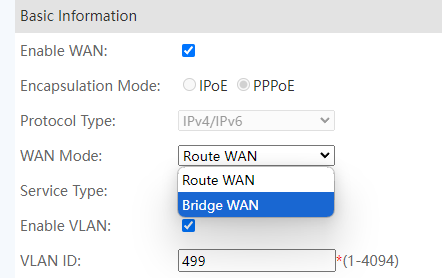
Just change this into bridge?

Configure Huawei ONT HG8145X6 as modem only, Time FB, Bridge Mode
|
|
 Aug 27 2024, 11:25 AM Aug 27 2024, 11:25 AM
|
 
Newbie
3 posts Joined: Jul 2018  
|
QUOTE(QuantumEdge @ Aug 27 2024, 10:45 AM) Just change this into bridge? |
|
|
|
|
|
Aug 27 2024, 11:45 AM
Show posts by this member only | IPv6 | Post
#42
|

Senior Member
1,597 posts Joined: Jan 2016
|
QUOTE(PRSXFENG @ Aug 27 2024, 11:24 AM) Also do disable the wifi on it QUOTE(cabuk @ Aug 27 2024, 11:25 AM) Yes.. change to bridge. make sure your setting configuration need to backup.. I will give it a try next time, thinking about buying this to replace the stock wifi... |
|
|
Oct 9 2024, 03:01 PM
Show posts by this member only | IPv6 | Post
#43
|
|
Senior Member
1,597 posts Joined: Jan 2016
|
QUOTE(cabuk @ Aug 27 2024, 11:25 AM) Yes.. change to bridge. make sure your setting configuration need to backup.. 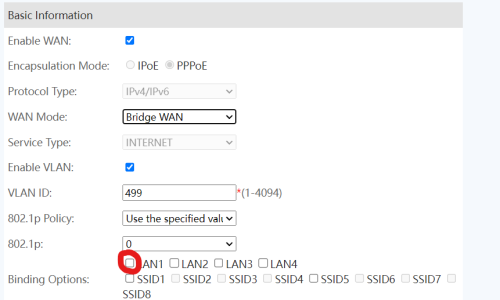 I just couldnt make it work somehow Do I need to bind the VLAN to LAN port as well? |
|
|
Oct 9 2024, 04:02 PM
|
|
Senior Member
1,597 posts Joined: Jan 2016
|
Ok, finally managed to setup this 2 in 1 into bridge mode
Step by step guide here: 1. Login to the router using admin username and pwd Username: telecomadmin Password: TIMExxxx 2. Under WAN, click Internet VLAN 3. WAN Mode change from Router WAN to Bridge WAN 4. Binding Options tick the box LAN 1 (most important step) 5. Connect your router of choice to 2 in 1's LAN 1 6. Key in your PPPOE credentials, VLAN ID not required 7. Tada, enjoy your new router One more thing, remember to turn off 2 in 1's WiFi Can be done pressing the button beside the router 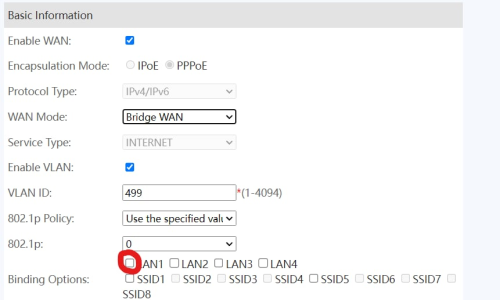 This post has been edited by QuantumEdge: Oct 30 2024, 11:38 PM |
|
|
Aug 9 2025, 05:17 PM
|

Newbie
1 posts Joined: Dec 2013
|
QUOTE(QuantumEdge @ Oct 9 2024, 04:02 PM) Ok, finally managed to setup this 2 in 1 into bridge mode How do you access your modem again after you did this? Lets say you want to go back to router mode. Because once the device change to bridge mode, the device ip at 192.168.100.1 no longer accessable.Step by step guide here: 1. Login to the router using admin username and pwd Username: telecomadmin Password: TIMExxxx 2. Under WAN, click Internet VLAN 3. WAN Mode change from Router WAN to Bridge WAN 4. Binding Options tick the box LAN 1 (most important step) 5. Connect your router of choice to 2 in 1's LAN 1 6. Key in your PPPOE credentials, VLAN ID not required 7. Tada, enjoy your new router One more thing, remember to turn off 2 in 1's WiFi Can be done pressing the button beside the router |
|
|
Aug 9 2025, 05:20 PM
|
 
Elite
8,415 posts Joined: Jul 2008 
|
QUOTE(yumm91 @ Aug 9 2025, 05:17 PM) How do you access your modem again after you did this? Lets say you want to go back to router mode. Because once the device change to bridge mode, the device ip at 192.168.100.1 no longer accessable. You can access it, just configure manual IP on your computer |
|
|
Aug 9 2025, 05:44 PM
Show posts by this member only | IPv6 | Post
#47
|
|
Senior Member
1,597 posts Joined: Jan 2016
|
QUOTE(yumm91 @ Aug 9 2025, 05:17 PM) How do you access your modem again after you did this? Lets say you want to go back to router mode. Because once the device change to bridge mode, the device ip at 192.168.100.1 no longer accessable.  Use this method, just change the IP address to the one you are using Double check your subnet as well, you can do that with any subnet calculator online |
| Change to: |  0.0221sec 0.0221sec
 0.16 0.16
 6 queries 6 queries
 GZIP Disabled GZIP Disabled
Time is now: 13th December 2025 - 02:53 AM |
 Quote
Quote