

 Aug 9 2025, 05:17 PM


QUOTE(QuantumEdge @ Oct 9 2024, 04:02 PM)
Ok, finally managed to setup this 2 in 1 into bridge mode
Step by step guide here:
1. Login to the router using admin username and pwd
Username: telecomadmin
Password: TIMExxxx
2. Under WAN, click Internet VLAN
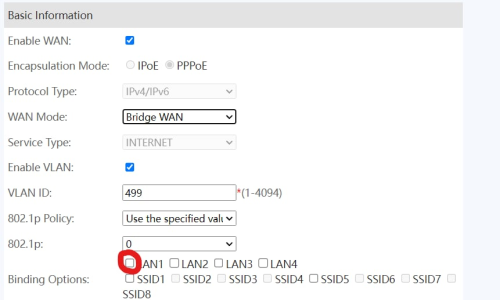
3. WAN Mode change from Router WAN to Bridge WAN
4. Binding Options tick the box LAN 1 (most important step)
5. Connect your router of choice to 2 in 1's LAN 1
6. Key in your PPPOE credentials, VLAN ID not required
7. Tada, enjoy your new router
One more thing, remember to turn off 2 in 1's WiFi
Can be done pressing the button beside the router

How do you access your modem again after you did this? Lets say you want to go back to router mode. Because once the device change to bridge mode, the device ip at 192.168.100.1 no longer accessable.Step by step guide here:
1. Login to the router using admin username and pwd
Username: telecomadmin
Password: TIMExxxx
2. Under WAN, click Internet VLAN
3. WAN Mode change from Router WAN to Bridge WAN
4. Binding Options tick the box LAN 1 (most important step)
5. Connect your router of choice to 2 in 1's LAN 1
6. Key in your PPPOE credentials, VLAN ID not required
7. Tada, enjoy your new router
One more thing, remember to turn off 2 in 1's WiFi
Can be done pressing the button beside the router
 Quote
Quote
 0.0147sec
 0.25
0.25
 7 queries
 GZIP Disabled