Biostar TForce6100-939 Moded BIOS DiscussionHope any feedback & any problem with using Mod BIOS can reply here, that I want to know the bug...
ok, my lastest bios update is mod BIOS for Biostar Tforce6100-939 <1128> version.
Change Log & What News :BIOS Setting Changes:- Memory Timing change to default 1T
- Graphic FrameSize sharing change to default 32MB (128MB TurboCache)
- Hidden System BIOS Cache [Set to disable]
- HyperTransport Multiplier to default 3x
- Remove BIOS Splash Screen
- Hidden BIOS Splash Screen Option from BIOS
- EPA logo change to SOYO Enet Edition
- Disable & Hidden MAC LAN Boot ROM (Crash with using SOYO Enet)
BIOS Modules Changes:- Upgrade Memtest to v1.65
- Add SOYO Enet RevA 1.0 Recovery Function
- Upgrade NVRAID to v7.03
- Upgrade NVIDIA Boot Agent to v229.0525 (Disable)
- Upgrade NVIDIA GeForce 6100 BIOS to v5.51.28.50.20 (HD Acceleration Ready & Up to 512MB TurboCache with setting 128MB FlameSize in BIOS)
- Ready for VGA modules 425Mhz, 475Mhz, 500Mhz, 525Mhz, 550Mhz, 575Mhz, 600Mhz
Biostar TForce6100-939 <1128> SOYO Enet EditionDownload Here :  1128_part1.zip
 ( 1.58mb )
Number of downloads: 184
1128_part2.zip ( 1.18mb )
Number of downloads: 244What is SOYO Enet?Actually SOYO Enet is a restore card function, all the fuction same as a real restore card... but... today, the restore card function already build-in to mainboard. Ok, dun't talk any more here, I will show you all to recovery back your data in 10 seconds with using SOYO Enet...
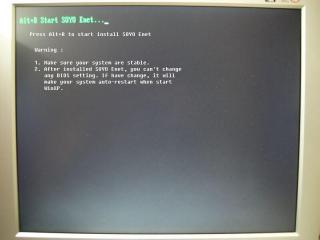
After you flashed the SOYO Enet Edition BIOS, you will see... the boot screen like this...

First, you need to install SOYO Enet Driver...
 Download:
EnetDri.zip
Download:
EnetDri.zip ( 254.83k )
Number of downloads: 21After you installed the Enet Driver, please restart your system...... Press Alt+R to start SOYO Enet setup before WinXP starting boot...

Then you will see the chinese SOYO Enet setup screen, but nvr mind, I already explain to english, see the picture...
Step 1The First Setup Screen
Please Enter at Setup button Step 2Please Select the Partition which you wanna to protect...
 Step 3Please Select the protect mode...
 Step 4
1. If you wanna change the admin password, just
enter at Second button (Resetting Administrator Password)

2.
Enter to First button to start the protection...
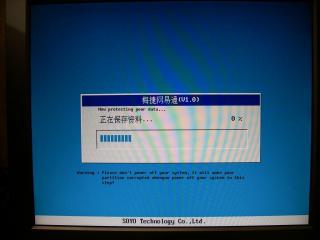
Ok, all done! your partition that you selected will start the protection, if you want to restore your partiton,
pls hit [F9] at black screen before WinXP Operating System startup...
This is SOYO Enet PDF guide book, just for our chinese members...
Download: manual_no_boot.pdf
 ( 965.39k )
Number of downloads: 972This post has been edited by Jian_yi: Dec 26 2006, 01:55 AM 

 Dec 9 2006, 12:12 AM


 ) and i havent try out the beta modded bios bcoz it is using different file format ( dun dare to take the risks)
  Quote
Quote


 0.0294sec
 0.74
0.74
 6 queries
 GZIP Disabled