I think as far as all owner concerned, i would like to share
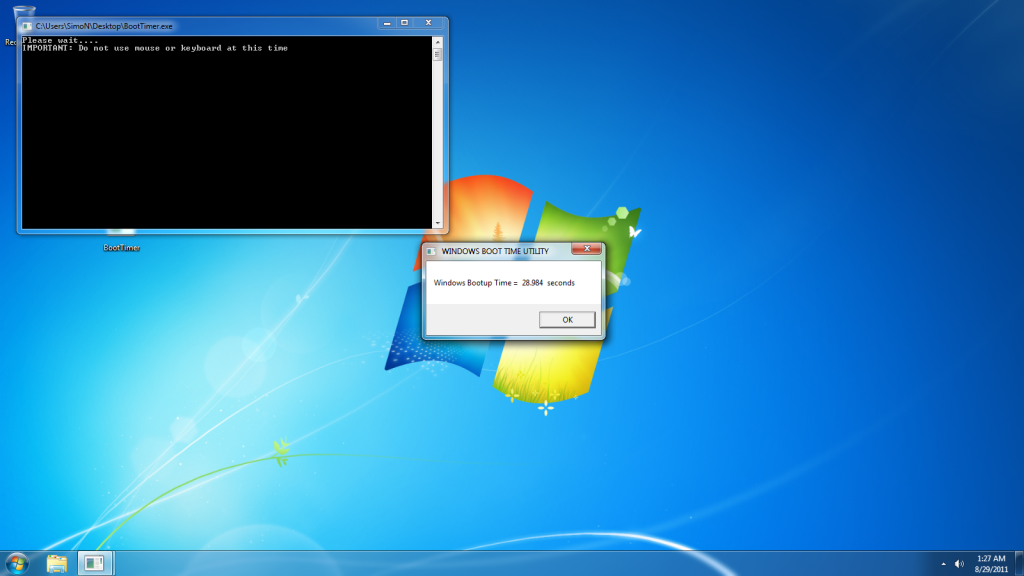
some tips and guide for decreasing boot time... first of all, i will highly recommend you go and do a CLEAN FORMAT for your window.. it's a best way to clean ur bloatwares or wat so ever programs and return your laptop to a clean state and u r the one who determine wat to install in your laptop... I, did you this way to decrease my boot time, and hypothesis accepted...

boot time significantly dropped...
well... first of all... You will need to do back-up... 5 DVDs' ai recovery burner... if u dont know how, you can refer to user manual, or e manual...

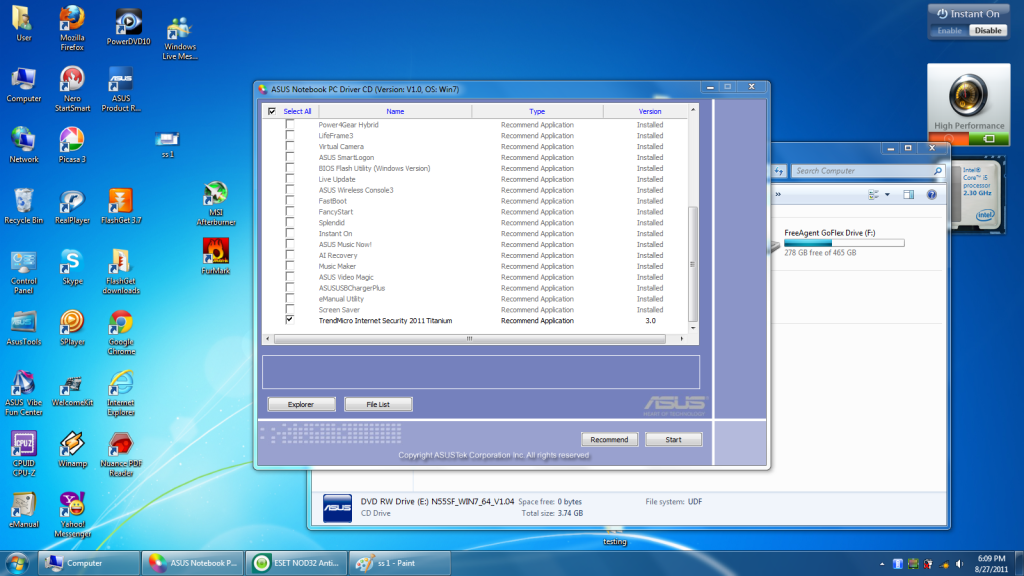
It's kinda easy,but it took 1 hour and twenty minutes for me... okay... wat's the purpose of doing tat back up? First, it's for your recovery in case ur recovery paritition not working, u can use those 5 dvd's to do recovery.... okay so... IF YOU DID BACKUP, then proceed to second step... It will be reformat your window 7 ... but before tat, there's a optional step before u reformat which is insert your driver disc, try to see list of program/drivers... i think u need to click advance in order to view the applications/drivers tat were preinstalled... okay.. so after u get to know and ideas on which programs or drivers u need to install, then u r good to go....
All rite, reformat is kinda easy...
First of all, you insert the win7 disc into your dvd room.
Download them from here if u don hav. burn them into dvd by using ImgburnThen you will reboot your laptop. when the black screen appear, press F2 to enter bios setting,
and then you will go to boot tab, and find boot option #1, hit enter and change it to ur dvd room or Blue ray room, for my model, for instance, it shuld be Slimtype DVD A..
Then you will hav to hit F10 to save and exit...
so well now it will reboot and then a black screen with following words should pop out "press any keys to boot from CD and DVD" then u will hav to press any keys,
then will enter the setup... windows will gonna load the files... and starting windows...
then it will gonna ask you for language u wanna install, time and currency format, and the keyboard and input method... set that, and click next...
(do note that the window resolution might get low, instead of HD+ during reformat for i5 sf) and then click on the install now.
then the screen will show setup is starting... read the license terms and accept it and click next....
and select custom (advance),
so well, at here... you shall see three partitions... first it should be
system recovery partition, 25gb of primary partition...
DO NOT DELETE THE SYSTEM RECOVERY PARTITION, you will need tat for system recovery... Accept if u really need tat 25gb... i would say no.
don touch the recovery partition...
and you should see second partition, usually named as OS (C:) and third partition Date (D:) for me...
so if u wan a clean format, you should delete tat two partitions, OS and Data D or wat so ever local disk or wat is named for your partition...
click drive option advance to delete the partition...
click okay if a warning pop out asking you whether u confirm wan to delete the partition...
all rite, then u should see Unallocated space... select it and click next...
once u clicked next, it gonna show window is installing... copying windows files, expanding window files, installing features, installing updates, and completing installation... (note that the expanding might take some time, so relax during window expanding the files) for me, it took around twenty minutes to done this process.
okay... now after the installation, the window is gonna restart,
PLEASE MAKE SURE TAT YOU DONT CLICK ANYTHING WHEN IT SAY PRESS ANY KEY TO BOOT FROM DISC OR DVD.
then starting windows,updating your registry settings, setup is starting services, completing installation,
setup will continue after restarting the computer,
AND REMEMBER DON CLICK ANYTHING AT THE "PRESS ANY KEYS TO BOOT FROM CD OR DVD" setup is preparing your computer for first use. then type in ur name and computer name, click next..
then for password, if u don wan any, leave it blank and click next.
your product key, key in the product key and click next, use recommended setting, set time and date click next and select your network...
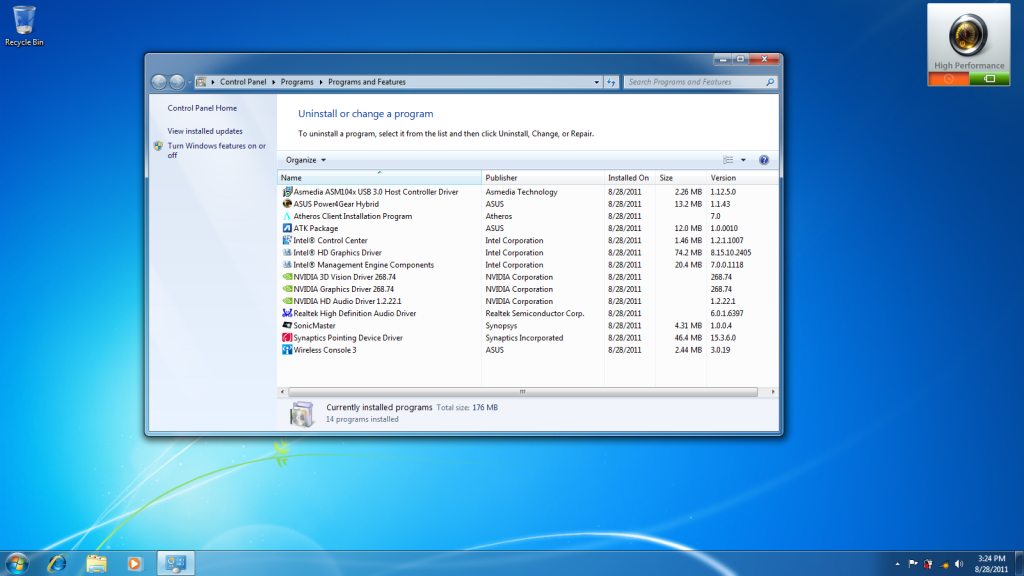
after u enter the window, congratz.. reformat is done... a clean installation of windows....
okay... so after reformat your window, you might wan to
repart your partition...
go start
then right click my computer
click manage
click disk management,
you will see the big partition.. it should be 25gb of primary recovery partition, then 100mb of system reserved after u reformat, then a big parition..
it should be 571gb
so you right click on the 571gb, then click shrink volume
enter the amount of volume you wan to shrink
then u will see free space,
right click and click new simple volume, click next, next again, then assign the letter u wan for the new drive, then click next then next then finish...
then u r done...

(
Dont forget to go in your BIOS and adjust back the boot option 1 back to ur HDD instead of slimtype DVD.blue ray) so tat u get rid of the "press any keys to boot from cd or DVD"All rite, lets proceed to the installation of driver/softwares from your disc.
tat's kinda easy...
first insert your disc into your dvd room/blue ray room
then run,
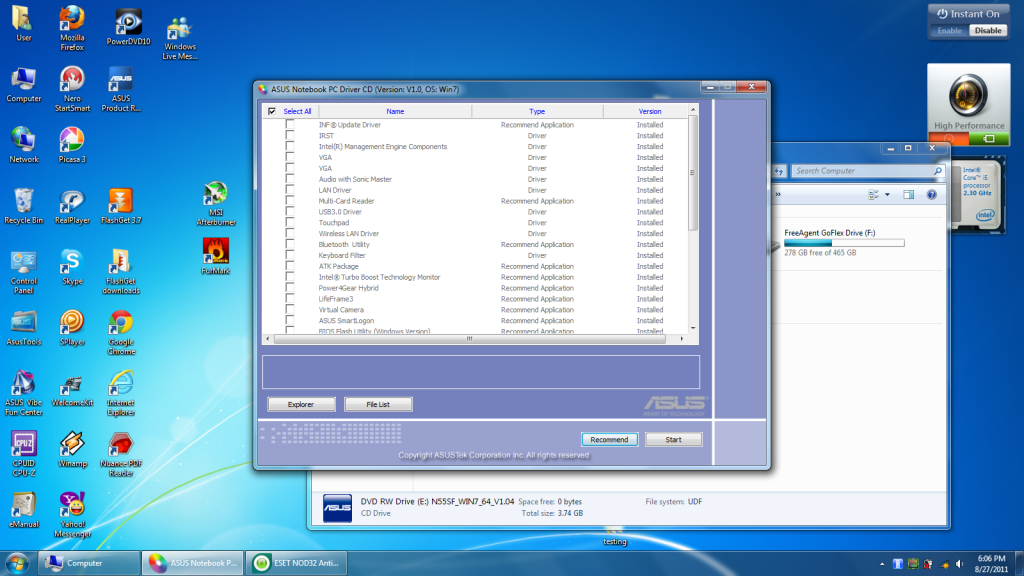
then u will see all the ticks on the recommended applications and drivers, from here u can tick or untick the programs u wan or don wan to installl
Personally, i installed all the drivers accept IRST, and then for recommended applications, i install INF update driver, touchpad, bluetooth, wireless console 3 and P4Gear...
that's all...
You may tick any program u need...
after tat, click start, then it will ask install now? you click yes, then wait for the drivers to be installed... it will be automatically installed, frequent reboots, and then you might need to get a cup of tea or coffee at the mean time, for some of the programs or driver, it needs you to click okay if it ask you whether you want to reboot or not...

after done, you can go start > then right click at my computer > then manage, then click device manager, see if any unknown device.. if no, then congratz.. reformat and install driver is done...
 Credits go to sifu lee_what2004.... Thank you for reading.. hope my guide can be useful for all of you...
  For new N45/N55 users, Below is a list of Asus utilities/bloatware that may come with your new Asus notebook. If you're unsure about which utilities are useful or safe to uninstall, this list should give you some insight.
Click hereand below is the
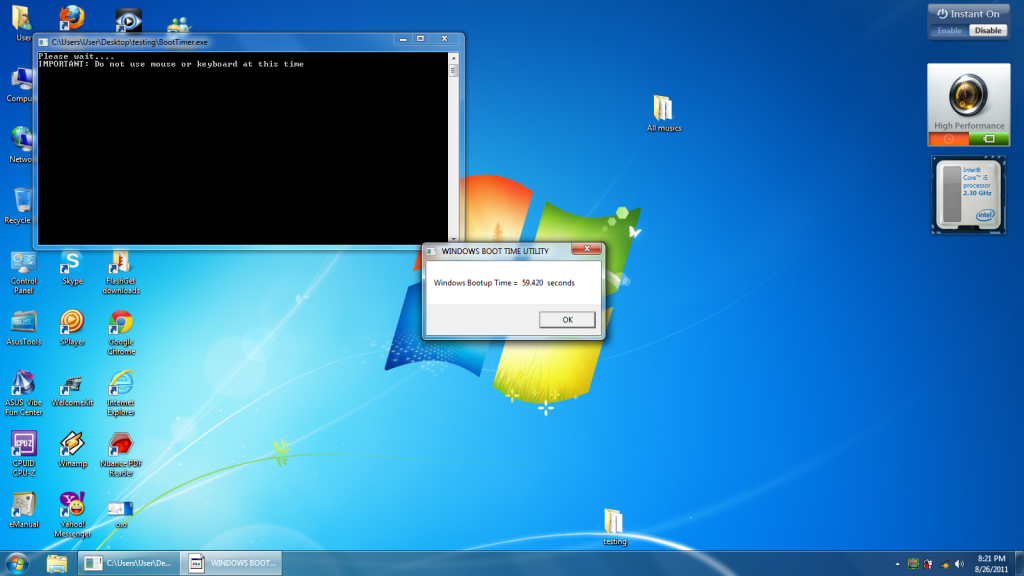
guide to decrease boot-up time for ur n45/n55 series laptop....
QUOTE
» Click to show Spoiler - click again to hide... «
1) go do backup dvd
2) reformat (can refer how to do backup and factory reset in asus manual book)
3) delete useless bloatwares
http://forum.notebookreview.com/asus/38068...ware-guide.htmloptional ( do backup registry file and clean error registry entry by using CCleaner)
4) uninstall ATK and reinstall back (dunno why some fn key will nt work after uninstall some bloatwares, after reinstall working fine again)
5) use msconfig to unable some useless startup
6) install 'Windows Performance Tool
Download WPT:
http://msdn.microsoft.com/en-us/performance/cc752957Instructions from sarf2k4 (at the bottom):
http://forum.lowyat.net/topic/1606856/+1940#entry403195547) Use Asus Fast boot to delay some program startup
Credits go to all sifu for sharing these tips
The following is the screenshot by our owner and the highlighted programs u can delete them if and only if u don need them
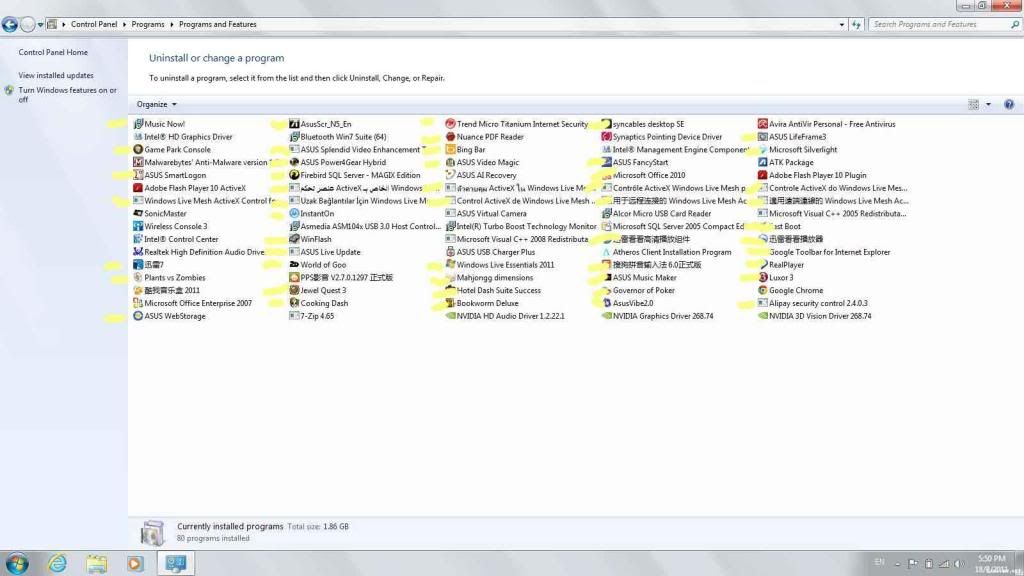
credit goes to sifu lee_what =)
This post has been edited by simon3041: Nov 10 2011, 02:18 PM 

 Sep 1 2011, 04:14 AM, updated 15y ago



 Quote
Quote
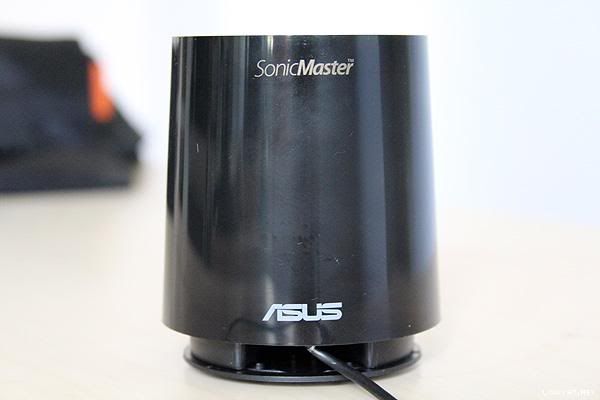
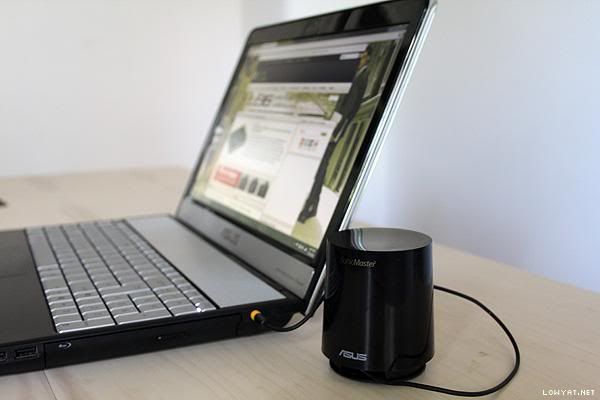


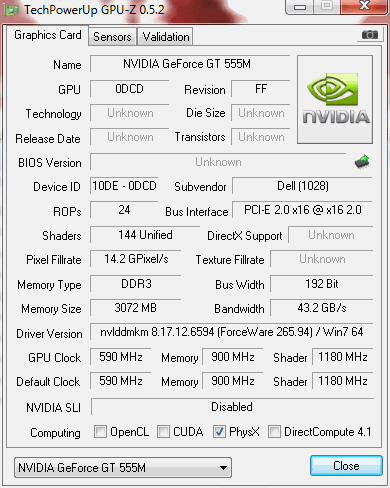

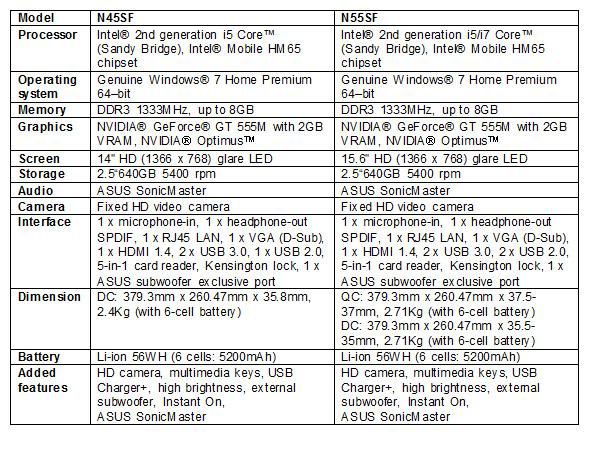
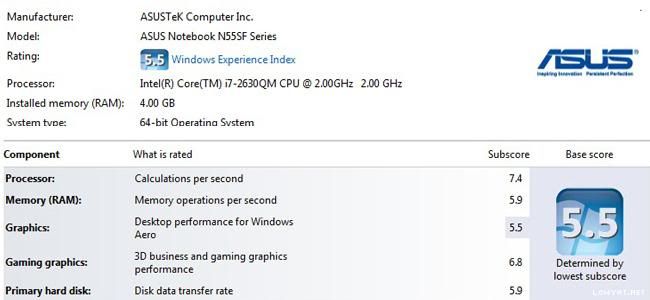
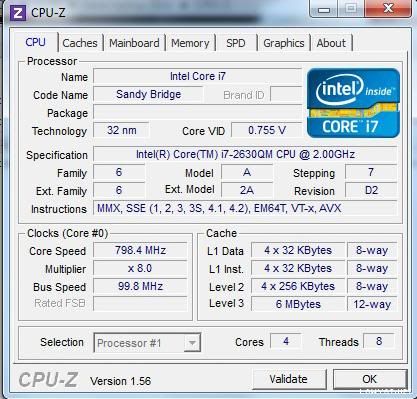
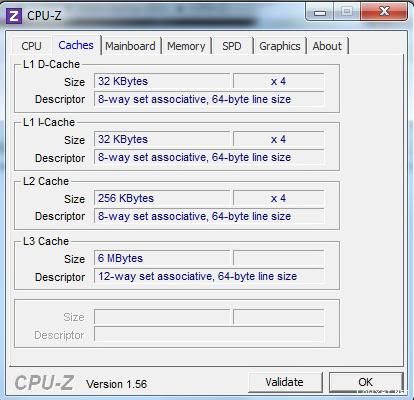
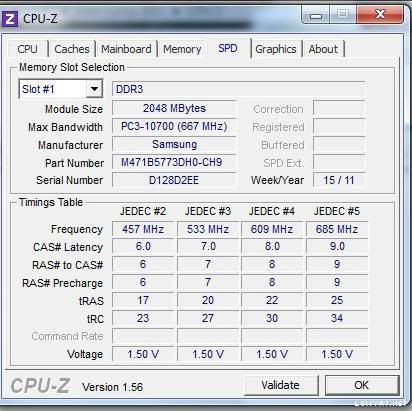
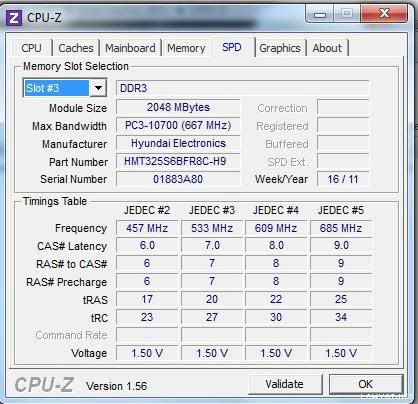
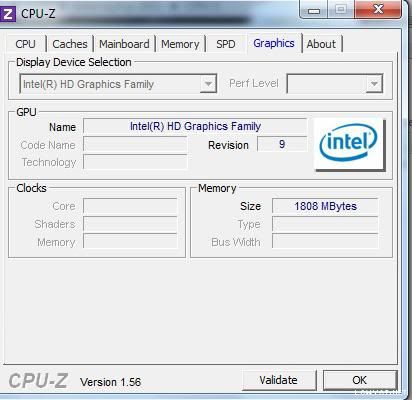
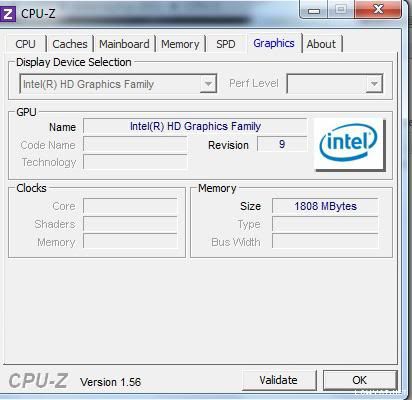

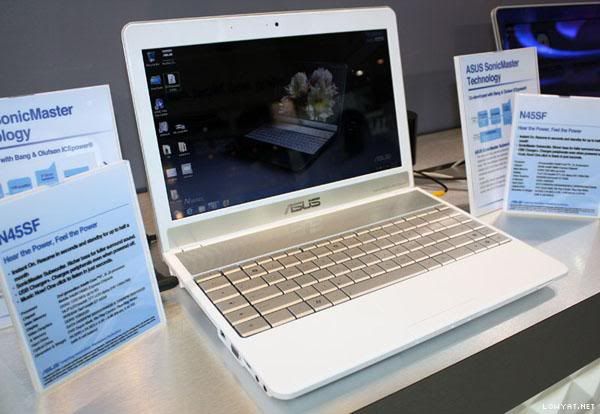
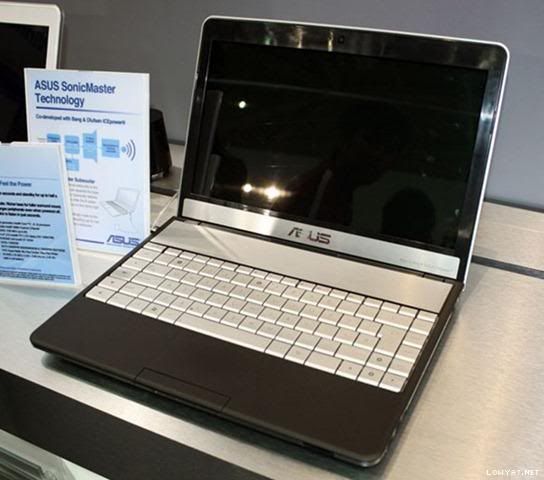
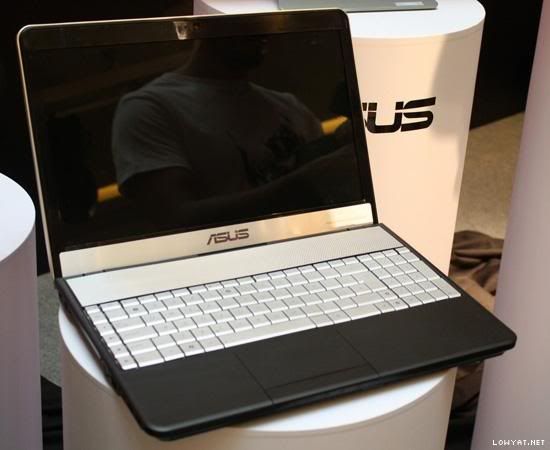
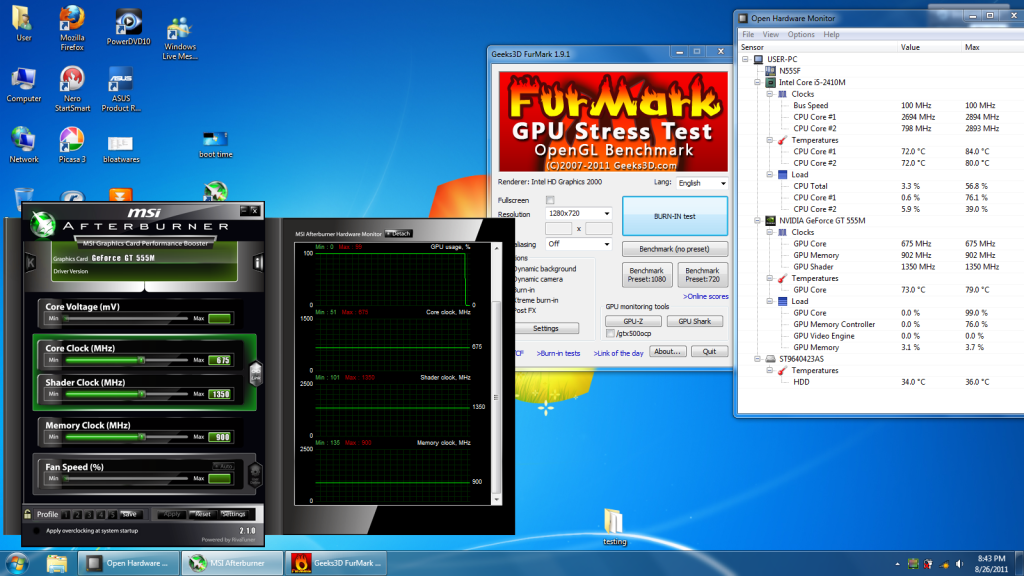
 all rite, erm, the promoter took sf out and turn it on... then i ask him can i feel the laptop? then i DXDIAG it, and also insert my external HDD to run cpu-z and gpu-z and test he 2 usb 2.0 ports and 2 usb 3.0 ports.... but one thing i hav to say is the desktop is full on programs and bloatwares... later i will provide relevant screenshots to support my statement here... haha
  then i check if there is any dead pixels.. i check for scratches.. hmmm... type on it... then i bought it home lol..... First nite, i apply the charging theory (8 hours charge) although i know tat's not necessary but i did it cause i arrived home at ten something and i slept after leave it charging overnite... haha...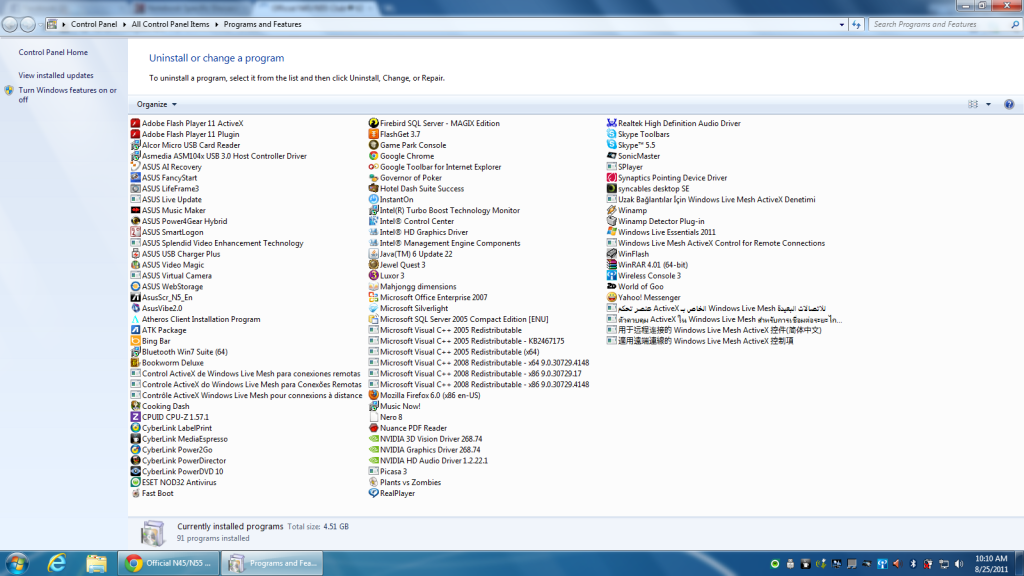







 0.0164sec
 0.47
0.47
 6 queries
 GZIP Disabled