Xperia™ arc takes the stunning design language that Sony Ericsson has become known for to a new level. Super slim and light, Xperia™ arc is just 8.7mm at its thinnest part and has a extra wide 4.2” multi-touch screen. Created from premium materials and with a stunning arc body, this smartphone is sleek, strong and designed to fit perfectly in the user’s hand. The best of Sony technology is inside Xperia™ arc. The Reality Display with Mobile BRAVIA® Engine delivers exceptional visual brilliance and a crystal clear image which enhances the overall entertainment experience. Furthermore, Sony’s award-winning Exmor R™ for mobile sensor with the f/2.4 lens enables the capture of high quality, bright pictures and HD videos even in low light. All pictures and videos can be shared in HD on your living room TV via the built in HDMI-connector.
SIZE Dimensions : 125 x 63 x 8.7 mm Weight 117 g DISPLAY Type LED-backlit LCD, capacitive touchscreen, 16M colors 480 x 854 pixels, 4.2 inches - Scratch-resistant surface - Accelerometer sensor for auto-rotate - Multi-touch input method - Sony Mobile BRAVIA Engine - Proximity sensor for auto turn-off - Timescape UI
MEMORY Phonebook Practically unlimited entries and fields, Photocall Call records Practically unlimited Internal 320 MB storage, 512 MB RAM Card slot microSD, up to 32GB, 8 GB included
DATA GPRS Up to 86 kbps EDGE Up to 237 kbps 3G HSDPA, 7.2 Mbps; HSUPA, 5.76 Mbps WLAN Wi-Fi 802.11 b/g/n, DLNA, Wi-Fi hotspot
Bluetooth Yes, v2.1 with A2DP Infrared port No USB Yes, v2.0 microUSB
CAMERA Primary 8 MP, 3264x2448 pixels, autofocus, LED flash, check quality Features Touch focus, image stabilization, geo-tagging, face and smile detection Video Yes, 720p@30fps, continuous autofocus, video light, check quality Secondary No
Messaging SMS (threaded view), MMS, Email, Push email, IM Browser HTML Radio Stereo FM radio with RDS Games Yes + downloadable, motion gaming Colors Midnight Blue, Misty Silver GPS Yes, with A-GPS support Java Yes, via third-party application - Digital compass - HDMI port - Active noise cancellation with dedicated mic - MP4/H.263/H.264/WMV player - MP3/eAAC+/WMA/WAV player - TrackID music recognition - NeoReader barcode scanner - Google Search, Maps, Gmail, YouTube, Calendar, Google Talk - Facebook and Twitter integration - Document viewer - Adobe Flash 10.2 - Voice memo/dial/commands - Predictive text input
BATTERY Standard battery, Li-Po 1500 mAh Stand-by Up to 430 h (2G) / Up to 400 h (3G) Talk time Up to 7 h (2G) / Up to 7 h (3G) Music play Up to 31 h
» Click to show Spoiler - click again to hide... «
Start with premium materials. Stir in some beautiful curvature. Squeeze down to 8.7 mm. And there it is, a perfect palm fit: the slim light weight and strong Sony Ericsson Xperia arc with state of the art Sony screen technology.
Your Sony Ericsson Android phone has an Exmor R sensor that lets you capture high-quality movies and stills in low light. So go ahead and shoot. Then show, in stunning HD direct onto your TV via the HDMI connector.
Your life in vivid colours. Videos and stills. Show it all off on the sharp crisp and clear 4.2" multi-touch Reality display with Sony Mobile BRAVIA Engine. The Xperia arc Android touch phone -- designed to be daring.
Check out the features of one of the new members of the Xperia family, the Xperia arc. Featuring Sony Ericsson's new Reality display with Mobile BRAVIA® Engine. A great new camera with Exmor R sensor and HDMI out.
Retail without contract : RM 2099 Phone cost tied to data package Free additional accessories worth RM 429 : HDMI cable, HiFi Wireless headset with FM radio MW600, AN401 car charger, 1 extra USB cable, Screen protector Standard accessories : Sandisk 8 gb micro SD card, wall USB port charger, handsfree kit, USB cable, 1500 mAH battery
» Click to show Spoiler - click again to hide... «
Please note that all data will be deleted from the Sony Ericsson Xperia Arc as a result of this procedure.
First, try this:
From the main home screen, tap menu Tap Settings, then Privacy Tap Factory data reset Tap Reset phone Enter your password if required, then tap Erase everything to confirm If that doesn't work, or if your phone is frozen:
Turn the power off. If your Sony Ericsson Xperia Arc is frozen, pull the battery out and reinsert it Hold the Left and right buttons located beneath the display Press and release the Power button Follow the on-screen instructions to hard reset your phone All data including third-party applications will be deleted from the Sony Ericsson Xperia Arc. Once the wipe is complete, the phone will reboot to its factory fresh state.
2. How to uninstall 3rd party apps ?
» Click to show Spoiler - click again to hide... «
Press SETTINGS key ( the last key on the right ) - Select Settings/Applications/Manage Applications Scroll down the list of apps shown. Tap on the app you wish to uninstall. In the new apps window , just select " Uninstall"
3. How to I enable apps to be installed on SD card ?
» Click to show Spoiler - click again to hide... «
Press SETTINGS key ( the last key on the right ) - Select Settings/Applications/Manage Applications Scroll down the list of apps shown. Tap on the app you wish to move to SD card : If the box " Move to SD card" is not greyed out - just tap on it . The app will be move to SD card OR you can download from Market and install the free app " App 2 SD" to do it
This is another lengthy way to enable it : To install an app to the SD card on Android Froyo, the application itself needs to support it. However, the Froyo system installs all new applications on your device’s internal memory by default, except for those that explicitly request external installation. Luckily, it’s possible to make your Android 2.2 phone put apps on the SD card by default instead. Here’s how:
First you have to enable USB debugging on your Android device from Settings > Applications > Development > USB debugging. Now you need to download and install the Android SDK on your computer from http://developer.android.com/sdk/. Once you’ve downloaded and extracted the package to the folder of your choice, run SDK Setup.exe and click on Available Packages to the left. If you get an error message at this point, enable “Force https://…” in the Settings. From the list of available packages, select “Usb Driver package”, click on the Install Selected button in the bottom right corner and follow the prompts. Connect your phone to your computer with a USB-cable. Your OS will prompt you to install new drivers. Choose to install them from the android-sdk/usb_driver folder. Do not mount your device; you only need to plug-in the cable. Next, run a command prompt and navigate to the Android-SDK\tools folder. In Windows, this is done by selecting Run from the Start Menu (or by pressing Win+R) and typing cmd. You change drives in the command prompt by entering the drive letter followed by a colon (, and change folders with the CD command. For example, to enter the Android-SDK folder, simply type cd android-sdk. In the Android-SDK\tools folder, type in adb devices and you should get a serial number starting with “H” in return. All you have to do next is entering adb shell pm setInstallLocation 2. Voilà, you’re done! Android will now install apps to the SD card by default. To switch back to storing software on the internal memory, enter adb shell pm setInstallLocation 0. I should point out that it’s preferable to install certain apps to the main memory, since it will take a while before the SD card becomes available when you start your phone. Applications installed on the memory card will also be unavailable to the system each time you mount your phone as a disk drive. The internal storage is probably quicker as well, even though Google claims that “there is no effect on the application performance so long as the external storage is mounted on the device.” In general, apps that integrate with the Android OS and that often run in the background is better to install on the internal storage, while games and most other applications will have no problem chilling outside on your SD.
Homescreen widgets should be installed to the internal storage as well
4. How do I transfer files through wireless from PC to the phone ?
» Click to show Spoiler - click again to hide... «
Before we go into the details, you need to install several applications on your Android phone:
ES File Explorer is an excellent file manager for Android. It comes with a built in search function, image viewer, and most importantly a LAN browser that we’ll use to transfer files to our computer through Wifi. swiFTP is a lightweight FTP server that lets you transfer multiple files from Windows, Linux, or Mac through a secure FTP connection. Both of them are available for free from the market Tutorial guide : http://www.howtogeek.com/howto/41583/how-t...one-wirelessly/
5. How can I make my battery life longer ?
» Click to show Spoiler - click again to hide... «
6. I am on a prepaid data plan and I worry I will exceed my data limit. What is the best app to monitor my usage?
» Click to show Spoiler - click again to hide... «
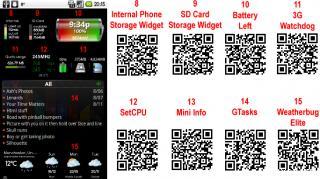
I would recommend 2 good apps for this purpose: 3G Watchdog and Data Counter Widget. These are widgets which you can display on the homescreen. 3G WD display your current usage for the current day while the Data counter display the monthly total to date. Both widgets when selected allows you to view your daily, weekly and monthly statistics. Download these from Market and explore it - there are free versions
7. Where can I download a full user guide manual for the Xperia Arc ?
» Click to show Spoiler - click again to hide... «
8. How do I access paid apps Market and how to I purchase apps ?
» Click to show Spoiler - click again to hide... «
First, you need a GMail account. If you don't have, just register one at www.gmail.com. - Browse to Google Checkout : https://www.google.com/accounts/ServiceLogi...1%3Cmpl=default - Sign in using your gmail account and you will be guided accordingly to setup a payment system using your credit card
Access Paid apps Market
Your phone need to be rooted for this. From the Market, download and install the free app " Market Enabler " . Launch the app. In the main interface, select "Backup Settings" - this will save your local APN settings. Move to the next tab, select "T-Mobile (US)" as foreign telco , hold down selection and a pop-up window " fake this provider now". Select it. Close the app. Launch Market and you will be able to view all the paid and free apps. Once you have completed your " marketing:, launch MarketAccess and select "Restore Value" so as to enable back your actual network provider OR you can just restart the phone.
9. What is the best app to take screenshot ?
» Click to show Spoiler - click again to hide... «
Use the free app screenshot. However your phone must be rooted
10. What is best app to backup my data ?
» Click to show Spoiler - click again to hide... «
MyBackupPro : non rooted phone - backup all your apps apk files only and system data . If phone is rooted, all data associated with apps will be backup too . You will have option too to backup system apps too
Titanium Backup : Backup and restore feature of all apps, system data - multi feature app . Your phone MUST be rooted to use it. You can also use this app to remove system apps
11. What are the default apps that can be safely removed ?
» Click to show Spoiler - click again to hide... «
You need to use Titanium Backup to remove these apps and your phone must be rooted. Please do a full backup using Titanium Backup before deleting. You can easily restored any of these in the event you need it from Titanium Backup restore function
Tips from user stevenx:
BELOW IS A LIST OF SYSTEM OR APP THAT CAN BE DELETE AFTER ROOT (using Titanium Backup)
Postcard Japanese Keyboard Chinese Keyboard Spotify extension for timescape Twitter extension for timescape Play Now Sonyericsson Sync Syncwizard Office Suite Omadatasyncservice Track ID Let's Golf HD Office Suite Support & Setup Guide News & Weather Whatsapp messenger LiveWare Manager HDMI (will probably disable the HDMI-functionality!) Widgets On/Off (can be removed if you use other powercontrollers, like extended/widgetsoid etc.) Setup guide Media server Sony Ericsson Sync Sony Ericsson Sync client wizard Kaixin plugin for Timescape com.sonyericsson.digitalclockwidget.apk (Digital Clock 1.0) com.sonyericsson.widget.digitalclock.apk (Digital Clock 1.11.0) com.sonyericsson.androidapp.microblog.apk (Weibo) com.sonyericsson.youku.apk (Youku) com.sonyericsson.eventstream.twitterplugin.apk (Twitter) android.tts (TTS Service 2.3.2) com.sonyericsson.androidapp.timescapefeedsplugin EventStream EventStreamPluginCallLog EventStreamPluginFacebook EventStreamPluginTelephony EventStreamPluginTwitter EventStreamPluginFoursquare* EventStreamPluginShowNearby* TimeScapeSpline TimeScapeWidget Digital Clock Map Livewallpaper Anonymous Usage Stats CrashMonitor Street View
This post has been edited by benny888: May 27 2011, 07:48 PM
1. What is ROOTING and how will I benefit from it ?
» Click to show Spoiler - click again to hide... «
Root allows you run as "superuser", effectively giving you total control over the OS. You can add/remove stuff from the device memory, change ROMS, recovery images, themes, backup installed apps...
NOTE: After extracting the exe file, You have to copy the NAVISEA folder into the external micro SD card
Update your free maps every month ( first week) from : http://www.malfreemaps.com/viewtopic.php?f=23&t=9969 Run the exe file in PC - copy all the extracted files and just copy over and replace those files in the SD card folder : Navisea/Maps/Malaysia
4. Do I need to use TASK KILLERS on my phone ?
» Click to show Spoiler - click again to hide... «
This is a debatable topic. Personally I don't use any Task Killers. The official stand from Google is Task Killers are unnecessary for Androids. I quote from Google :
By default, every application runs in its own Linux process. Android starts the process when any of the application's code needs to be executed, and shuts down the process when it's no longer needed and system resources are required by other applications. A content provider is active only while it's responding to a request from a ContentResolver. And a broadcast receiver is active only while it's responding to a broadcast message. So there's no need to explicitly shut down these components. Activities, on the other hand, provide the user interface. They're in a long-running conversation with the user and may remain active, even when idle, as long as the conversation continues. Similarly, services may also remain running for a long time. So Android has methods to shut down activities and services in an orderly way.
5. When surfing with default browser, if I have scrolled down many sections , is there a shortcut to go back to top taskbar, instead of having to scroll up many sections again?
» Click to show Spoiler - click again to hide... «
I would highly recommend Dolphin Browser HD as an alternative browser. Try it and 9.9/10 you will not want to use the default browser anymore. It is not only faster and have great Tab and bookmark features. As for your question, I don't think there is a solution for the default browser and quite few other browsers too. However Dolphin with its GESTURE features will help you greatly
QUOTE : Quote from Softpedia Gesture commander feature is one of the most useful functions of the browser, as it shortens the time to access a website or do another actions such as, go back, forward, go to the top or end of a webpage. Basically, you can draw a special sign on the screen and the application will recognize it and act accordingly by automatically sending you to the webpage you previously specified. To make a gesture command you will need to click on the small hand on the left bottom corner of you browser and then draw the sign on the screen.
The small hand icon can be moved on the right bottom side or you can hide it. There's a number of predefined gesture controls that you can check by going to going to Settings / Gesture settings. You can also create you own gestures by clicking on the Create a gesture option. From what I noticed, the sign are immediately recognized and greatly improves the functionality of the application. There's no need to scroll through your bookmarks or scroll from the top to the bottom of a webpage, as you can do it with only two clicks.
6. How do I download Gameloft games to my phone since most of the HD games are not available in the Market ?
» Click to show Spoiler - click again to hide... «
Select Country Key in : Carrier, Phone model, Phone number
In a few sec you will receive SMS with a link to download the game
How to download games from Gameloft Try Android HD games for free before purchasing. Here is our latest video of an in-depth tutorial.
How to download Gameloft's Android HD games
10 NEW Gameloft HD Games
7. I want to replace the default SE home launcher. Which 3rd party home launcher is the best ?
» Click to show Spoiler - click again to hide... «
The popular ones are Launcher Pro, ADW Launcher and Zeam. My favorite is Zeam. All these launchers has their own pros and cons. You should try out and see which suits your needs better. Overall I can say these alternative launchers is slicker and smoother than the SE default launcher You can read a review of these here: http://forum.xda-developers.com/showthread.php?t=807908
There is a new 3D launcher SpB Shell 3d - not recommended for the Xperia Arc - it lags terribly as this launcher requires ahuge amount of memory which the Arc lacks. It however works magnificently and flawlessly slick and smooth on the INcredible S
8. How do i test the Arc 's hardware from phone app ?
» Click to show Spoiler - click again to hide... «
Launch phone, enter the following : *#*#7378423#*#*
The following tests can be done - choose the one you are interested in : - Keyboard switch, touch screen display led/illumination, speaker, earphone, microphone, secondary microphone, vibrayor, camera, flash led, bluetooth, wlan, gps, compass, accelerometer, ambient light sensor, proximity switch, real time clock, total call time, external memory, security, fm radio, battery test, flip slider counter, verify certificates, irda test, hdmi test
9. How to reduce battery drain as the camera app when closed does not fully closed ?
» Click to show Spoiler - click again to hide... «
1. Install a 3rd party camera app, problem solved (e.g. Vignette)
2. Or reboot after using SE camera
3. Or kill camera task after using SE camera (Settings > Applications > Running Services > tap "free ram" area at the bottom right and look for camera task (I HAVE NOT USED THIS METHOD BEFORE, you can try)
In the meantime, wait for SE firmware update
ROM VERSION DETAILS :
» Click to show Spoiler - click again to hide... «
MALAYSIAN ORIGINAL : Android version 2.3.2 Baseband : 7X30A-AAABQMAZM-1290_14-10 Kernel : 2.6.32.9-PERF Build Number : 3.0.A.2.181
HOW to connect the phone with FASTBOOT to determine whether bootloader can be unlock ?
» Click to show Spoiler - click again to hide... «
All phones will have a locked bootloader by default. Unbranded and simlock-free phones will be unlockable through some tool Sony Ericsson will release (probably). You can check if your device is unlockable by connecting it to fastboot. If fastboot recognizes your phone, you will be able to unlock it when Sony Ericsson releases its tool.
1. download fastboot.zip (www.share.cx/files/216783534118/Fastboot.zip.html) 2. unzip fastboot.zip 3. power off phone 4. press and keep pressed menu key and plug in usb cable, notification led should be blue now 5. open cmd.exe 6. cd to the directory where fastboot.exe has been unzipped to 7. type "fastboot devices" and hit return 8. watch what happens
if you see something alphanumeric (see attachment) plus "fastboot" then you're lucky, your bootloader can be unlocked.
if nothing happened, try installing PdaNet (www.junefabrics.com/android/download.php) and retry. its installer comes with the needed driver files. still nothing happened, your bootloader cannot been unlocked the official semc method
UNLOCKING the Bootloader is now available : With these , it will mean one can installed customized roms when available. However do read SE grandma /grandpa warnings about unlocking : http://unlockbootloader.sonyericsson.com/
TUTORIAL : Unlocking the bootloader
» Click to show Spoiler - click again to hide... «
Warning! This procedure will wipe the /data partition of your phone.
1. Download: -fastboot package: http://www.multiupload.com/BMJ24IL6XY -x86/x64 drivers: http://www.multiupload.com/0XZV1LXRVA 2. Go to: http://unlockbootloader.sonyericsson.com/instructions 3. At the bottom click 'Continue' and enter your IMEI (type *#06# to find out), name and email address 4. You should now receive your unique unlock key 5. Extract fastboot.rar and open fastboot folder 6. Hold SHIFT and right click on the background of the folder 7. Select 'Open command window here' 8. Connect your phone in fastboot mode (turn phone off, hold menu button and plug in USB Cable) 9. In the cmd windows type in fastboot.exe -i 0x0fce getvar version 10. If a value is returned, it means the phone is correctly connected 11. Type in fastboot.exe -i 0x0fce oem unlock 0xKEY and replace KEY with the key provided in step 4. 12. You're device should now be bootloader unlocked
» Click to show Spoiler - click again to hide... «
UTILITIES
» Click to show Spoiler - click again to hide... «
1 Password 3G Watchdog Data Counter widget AdFree ADWLauncher EX Launcher Pro Astro Awesome Drop Backup to Gmail Barcode Scanner BatteryLife Bluetooth File Transfer Bookmarks to SD Bump Chrome to Phone ConvertPad - Unit Converter Currency converter plus Dropbox Fancy Widget Pro Beautiful Widgets Folder Organizer GoAruna Google Translate Handcent SMS Hanndy Safe Pro MarketAccess MarketEnabler MyBackup Pro Palmary Weather Pro People Widget Protector Quick Boot Quick System Info Root Explorer S2 Calendar Widget Smooth Calendar SMS Backup SMS Backup & Restore SMS Translate ProSpeed Test StopWatch & Timer SwitchPro Widget SystemPanel Zip Viewer
OFFICE Tools
» Click to show Spoiler - click again to hide... «
AK Notepad Documents To Go ezPDF Reader Google Pinyin Note Everything K-9 Mai Post it Desk Quickoffice Vlingo
MULTIMEDIA
» Click to show Spoiler - click again to hide... «
» Click to show Spoiler - click again to hide... «
Aldiko Books Comic Reader Mobi Google Reader iReader iSilo Laputa Pro PalmBookReader Repligo Reader Tapatalk XDA
NEWS
» Click to show Spoiler - click again to hide... «
BBC News Better Engadget BeyondPod CNN News DailyDilbert FT Mobile MobileKini Newsroom NYTimes TweetDeck Twidroyd PRO World Newspapers
REFERENCE
» Click to show Spoiler - click again to hide... «
ColorDict Concise Oxford Medical Dictionary Earth IMDB iPharmacy Oxford Dictionary of English WikiMobile
BROWSERS & COMMUNICATION/NAVIGATION
» Click to show Spoiler - click again to hide... «
Dolphin Browser HD Foursquare GPS Status GPS Test Plus MSN Talk Pro PAPAGO! Aura Skype XSCope 6
GAMES - please suggest
» Click to show Spoiler - click again to hide... «
User stevenX recommends : - Angry bird Rio - Zynga Poker - Asphalt 5 HD - Empire Defence - Robo Defence - Ninjump - ninja kaka pro - let golf HD - Krazy Kart Racing - Dungeon hunter HD
MALAYSIAN Telcos Settings
» Click to show Spoiler - click again to hide... «
MAXIS
1) Home -> Menu -> Settings -> Wireless & networks -> Mobile networks -> Access Points Name 2) Menu -> New APN
Name: Maxis 3G Internet
APN: unet Proxy: 202.075.133.049 Port: 80 User Name: maxis Password: *** (I don't know what is the password as it only shown *** on my SGT) Server: Not Set MMSC: http://172.16.74.100:10021/mmsc MMS Proxy: 202.075.133.049 MMS Port: 80 MCC: 502 MNC: 12 Authentication type: PAP APN type: internet + mms
DIGI
1) Home -> Menu -> Settings -> Wireless & networks -> Mobile networks -> Access Points Name 2) Menu -> New APN Name : DiGi Internet User name : digi APN: diginet MCC: 502 MNC: 16 APN Type: default (Others, blank)
NOTE : If you subscribed to Digi Internet Prepaid package ( RM2/day package ): the APN is : 3gdgnet
DIGI MMS
Name: DIGI MMS APN: digimms Proxy: no set Port: Not Set Username: mms password: mms Server: http://mms.digi.com.my/servlets/mms MMS proxy: 203.092.128.160 MMS port: 80 MMS protocol: WAP 2.0 MCC: 502 MNC: 16 Authentication type: not set APN type: mms
Digi Wap
Name: digiwap Apn: digiwap Proxy: 203.092.128.188 Port: 80 Username: digi Password: digi Server: Not Set MMSC: Not Set MMS proxy: Not Set MMS Port: Not Set MMS protocol: wap 2.0 MCC: 502 MNC: 16 Authentication Type: Not Set Apn Type: httpproxy
CELCOM
1) Home -> Menu -> Settings -> Wireless & networks -> Mobile networks -> Access Points Name 2) Menu -> New APN Name : Celcom 3G APN : celcom3g MMSC: http://mms.celcom.net.my MMS Proxy : 10.128.1.242 MMS Port : 8080
Can try this if above doesn't work:
Celcom 3g internet setting :
Name : Celcom 3G Internet APN : celcom3g MCC : 502 MNC : 19 APN type : default
Celcom 3g MMS setting :
Name : Celcom 3G MMS APN : celcom3g MMSC : http://mms.celcom.net.my MMS proxy : 10.128.1.242 MMS port : 8080 MCC : 502 MNC : 19 APN type : mms
Celcom 2g internet setting :
Name : Celcom 2G Internet APN : celcom.net.my MCC : 502 MNC : 19 APN type : default
Celcom 2g MMS setting :
Name : Celcom 2G MMS APN : mms.celcom.net.my MMSC : http://mms.celcom.net.my MMS proxy : 10.128.1.242 MMS port : 8080 MCC : 502 MNC : 19 APN type : mms
This post has been edited by benny888: May 27 2011, 07:59 PM
» Click to show Spoiler - click again to hide... «
Normal mode - Image Stabilizer ON
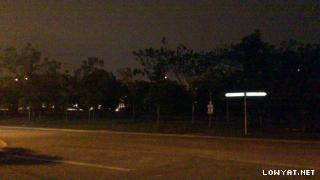
Night mode - Image Stabilizer ON
By user stevenX
» Click to show Spoiler - click again to hide... «
By user Lunar
» Click to show Spoiler - click again to hide... «
CAMERA Shots DAY mode
By user Ninja
» Click to show Spoiler - click again to hide... «
By user benny888
» Click to show Spoiler - click again to hide... «
VIDEO recording
By user benny888 Mid day , medium sunlight
» Click to show Spoiler - click again to hide... «
DEMO of the EXMOR R sensor technology during the preview held at Jayaone on 26 March. It was indeed impressive that under very low light conditions the picture inside the box were captured . The ARC will take superb photos with clarity on foreground and background under low light conditions. Most of us tested our phones on the Exmor box and all came out disappointed as we only see black screens on our phones Video from soyacincau.com
The official statement from SE : The first batch of models to benefit from the Exmor R technology is the Xperia Arc, Xperia Neo and the Xperia Pro. What this means is that these models will be able to take superior quality photos even in low lighting conditions.
For those technically inclined the Exmor R is able to produce these amazing photos because its metal wiring is located beneath the photo diode instead of above it. This results in less loss to image quality. Even with this enhancement the CMOS sensor still retains its low power consumption requirement and its fast operation, making you take more pictures at a faster rate and for a longer period of time.
If you love taking photos then you will definitely love the quality the Xperia models with Exmor R offers. The Xperia Arc, Xperia Neo and Xperia Pro are all upcoming models from Sony Ericsson which should be released soon.
» Click to show Spoiler - click again to hide... «
This post has been edited by benny888: May 27 2011, 08:13 PM
weird, just now trying to download the 3 free HD game, after trying 1 game, it says i have already downloaded 3 and can only re download the same game??
Not yet for global rom, expect on june.. Hk rom, o2 rom n generic uk rom oledi got 2.3.3 update.. Mine on hk rom now, a lot of improvement i can say.
QUOTE(stevenX @ May 27 2011, 08:09 PM)
gratz v2 finally haha
btw, i have a question .. im using thorus set .. i feel like wanna drop by sony service center for warranty or check up .. where should i go ?
Any sc can if urs is ori set..
QUOTE(ksangang @ May 27 2011, 10:26 PM)
weird, just now trying to download the 3 free HD game, after trying 1 game, it says i have already downloaded 3 and can only re download the same game??
If uve oledi dled 3 games, u shud hav the link to redonlod the game again..
Not yet for global rom, expect on june.. Hk rom, o2 rom n generic uk rom oledi got 2.3.3 update.. Mine on hk rom now, a lot of improvement i can say. Any sc can if urs is ori set.. If uve oledi dled 3 games, u shud hav the link to redonlod the game again..
yes got 3 links but i have only dl one. so i lost 2 choices to dl the game i wanted
2 minutes video to show how easy it is to root the Arc with Gingerbreak, how useful the Titanium Backup Pro (paid) is and how DANGEROUS it is to simply-simply suka-suka freeze (stop) a system service like the Home 1.0 service - which will hang the phone for which only a HARD FACTORY RESET may get your phone working again.
2 minutes video to show how easy it is to root the Arc with Gingerbreak, how useful the Titanium Backup Pro (paid) is and how DANGEROUS it is to simply-simply suka-suka freeze (stop) a system service like the Home 1.0 service - which will hang the phone for which only a HARD FACTORY RESET may get your phone working again. Gingerbreak the Gingerbread Arc - Youtube video by local Forum Member
erm latest update 2.3.3 for Arc cant b rooted using gingerbreak.. atm only using prerooted image for unlocked bootloader phone is available to get root..
QUOTE(Chip89 @ May 28 2011, 01:04 AM)
Eh guys i using 2 phone and i found out my Xperia arc have weak on detect WiFi signal compare to nokia N8... very sad 1 deh .
latest update seems to hav rectified the problems.. but i dunno, maybe u shud try it urself later, mine so far no prob..
erm latest update 2.3.3 for Arc cant b rooted using gingerbreak.. atm only using prerooted image for unlocked bootloader phone is available to get root..


 May 27 2011, 07:38 PM, updated 14y ago


 Quote
Quote , and change folders with the CD command. For example, to enter the Android-SDK folder, simply type cd android-sdk.











 0.0325sec
 0.38
0.38
 6 queries
 GZIP Disabled