Welcome Guest ( Log In | Register )

Bump Topic Topic Closed RSS Feed

Outline · [ Standard ] · Linear+

 [Tutorial] How to View + Create Offline Maps, 3G GPS Usage..Msian maps for d/load

views
     
TSMaverick Wil
post Nov 27 2008, 12:15 AM, updated 17y ago

Casual
***
Junior Member
303 posts

Joined: Nov 2008


Offline Maps 3

[Available Soon] more info: http://code.google.com/p/iphoneofflinemap/wiki/30HowTo

---

Offline Maps 2.x.x

Official Site: http://code.google.com/p/iphoneofflinemap/

View maps offline on your iPhone

This 1st part of the tutorial is on how to view maps offline on your iPhone. That means without the use of Wi-Fi, 3G or EDGE. A subsequent tutorial on how to create your own cached maps is located after this post.

Some notes before getting started:

* You will need to jailbreak your phone in order to apply these methods as it involves a jb function.

* The map files provided in this tutorial will only work for FW2.2 but the method of application is the same for previous firmware.
* Offline routes is supported for FW2.2.

*The Klang Valley map will be used to illustrate this tutorial but you can also download other cached maps I have created at the bottom of this post.

---------
OfflineMaps for FW2.2 & 2.2.1 Guide

Step 1:
Download+Install the "OfflineMaps" app which is now updated for FW2.2 & 2.2.1 from Cydia.

Step 2:
Download the cached map files for Klang Valley. Unzip that and you should get the folder (KV---KlangValley) with two files (com.apple.Maps & MapTiles.sqlitedb) inside. Now take note that you shouldn't try to rename any of the files or folders as this may cause errors later when loading the caches on your iPhone if you happen to pick a wrong name.

Step 3:
You will now have to copy the whole folder (KV---KlangValley) into your iPhone at /private/var/mobile/Media/Maps (Create the Maps folder if it's not available) directory via SSH or iPhone File Manager. Make sure it is the whole folder (KV---KlangValley) and not just the two files.

Step 4:
Once that's done, disconnect and load the OfflineMaps app on your iPhone. You should now be able to see "KV---KlangValley" under the maps list. You can also see WEM--West Malaysia here in my screen shot which is a separate cache maps loaded. That's just to show you can add more than one cached map at a single time to your iPhone.

» Click to show Spoiler - click again to hide... «


Step 5:
Ok, go ahead and tap on "KV---KlangValley" and tap on Link:

» Click to show Spoiler - click again to hide... «


Tap OK. This will bring you back to the list of maps.

» Click to show Spoiler - click again to hide... «


Step 6:
After that, simply tap on iPhone Maps Application to access your newly loaded cached map.

» Click to show Spoiler - click again to hide... «


That's that! thumbup.gif Enjoy!
>>>>>>>>>>>>>>>>>>>>>>>>>>>>>>>>>>>>>>>>>>>>>>>>>>>>>>>>>>

Cached Maps for Download: (Only for FW2.2) rclxm9.gif

01. Klang Valley - ( Mirror 1 )( Mirror 2 )( Mirror 3 )( Mirror 4 )
02. West Malaysia - ( Mirror 1 )( Mirror 2 )
03. East Malaysia - ( Mirror 1 )( Mirror 2 )
04. Johor (Coming Soon)
05. Kedah (Coming Soon)
06. Kelantan (Coming Soon)
07. Melaka (Coming Soon)
08. Negeri Sembilan - (Mirror 1)(Mirror 2)
09. Pahang (Coming Soon)
10. Perak (Coming Soon)
11. Perlis (Coming Soon)
12. Penang - ( Mirror 1 )( Mirror 2 )
13. Selangor ( Mirror 1 )
14. Terengganu (Coming Soon)
15. Sabah (Coming Soon)
16. Sarawak (Coming Soon)
17. Labuan (Coming Soon)
18. Putrajaya, Cyberjaya - (Mirror 1)
19. Singapore ( Mirror 1 )
20. Ipoh - (Mirror 1)
21. Kuching- (Mirror 1)
22. Australia Melbourne - (Mirror 1)


*WestMalaysia & EastMalaysia maps have limited zoom levels but are detailed enough to see all main roads/highways. It'll be useful for an overview map when on road trips or when you just simply need the bigger picture. All other maps have zoom levels all the way down to 2x. I have chosen to omit the max zoom at 1x for size reasons but also because I have found the information displayed on both 2x and 1x zoom layers to be almost indistinguishable.

*When you start seeing empty boxes while scrolling or zooming (in/out) without Wi-fi/3G/EDGE connection, it means that those areas were not included in the map cache.

----

For those who are still facing problems loading maps, please refer to forumer malboro13 post for solutions: http://forum.lowyat.net/topic/857684/+200


Updated and reedited with new screenshot (davidgary73)


-------

This post has been edited by davidgary73: Jul 12 2009, 11:36 AM
TSMaverick Wil
post Nov 27 2008, 12:18 AM

Casual
***
Junior Member
303 posts

Joined: Nov 2008


Create your own cached maps


This is the 2nd part of the tutorial which will touch on how to create your own cached maps for offline use on your iPhone.

Some notes before getting started:

*Offline maps are currently only workable on jailbroken phones.

*Offline routes is supported for FW2.2.

*This tutorial will concentrate on making cached maps for use with FW2.2 but those with FW2.1 and below may also follow the instructions here as the steps are pretty much the same except for the conversion part at the end.

* We will be utilising GMDL (Global Map Downloader Tool 0.5.08b by in7ane.com) so this will be a solution for Windows users only.

---------

Using GMDL to Create a Custom Offline Map Cache for Your iPhone


Step 1:
Download the "GMDL" program by in7ane.com from this link.

In order to be able to run this program, you will also need to make sure you have Microsoft .NET Framework (Version 2.0) installed for your pc. If you don't have it, you can go download it here.


Step 2:
Be prepared to keep your firewalls at bay because the program will need to access Google Maps. Proceed to open the GDML program (GMDL>bin>Debug>Global Map Download Tool). Now before we go any further, keep in mind that GMDL is not exactly the most user friendly program ever made. shakehead.gif It is still a work in progress so expect a beta like experience. Other than some annoying usability and display issues, it has been in my experience a stable application. Most importantly, it works. thumbup.gif

» Click to show Spoiler - click again to hide... «


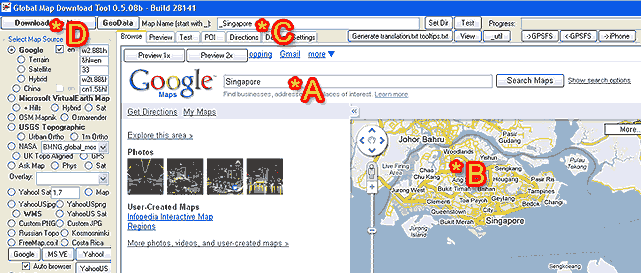
Ok, we are looking at the main GMDL interface here. As you can see, I have labeled the key areas we will be focusing on. For our purpose, you can pretty much forget about the other complicating looking array of settings. Mess around with it in your own time if you want to. Refer to the following steps with the help of the labels.

A : Type in the place you want and click on 'Search Maps'. For this tutorial, I will be using Singapore as an example.

B : The map of the area you want will show up here. Now this is the tricky part of the program and perhaps the most annoying. You have to adjust, zoom in/out and position the image to your liking because presumably, that will be the image area that your final map will look like. Only presumably so don't try to get it perfect the first time around. You can click on "Preview 1x" (on top of the Google Maps logo) to see what the final output area will be. There is a another preview screen which I'll get to in a bit. You will not be able to position exactly as you want as there are set grids that GMDL will download which you can again see by clicking on the Preview 1x button.

C : Now once you're done positioning, you will need to enter an output name in this field. Your output name must start with an underscore. I've decided to name my output map simply as Singapore so I would have to type in "_Singapore".

D : Next, click on the "Download This Map" button and the next image will come up:

» Click to show Spoiler - click again to hide... «


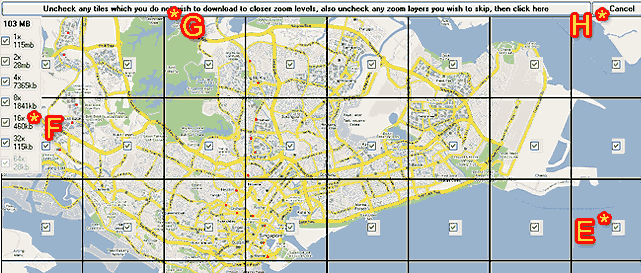
This is the preview screen. Let's look at what is on the above screen shot.

E : You get to choose which tiles you want in the final output. Check to include and un-check to discard. As you can see here this particular tile is just water so I might not want this in order to cut down on the final output size. This somehow does not work though as the final map output will still include all the area in the preview. Well, nothing you can do about it but I still recommend you un-check the tiles that you don't want.

F : These are the zoom levels you can select. 1x being the maximum zoom in and in this case 32x being the maximum zoom out. Fortunately, this feature actually does work. You can select multiple zoom levels to be included in a single map. File size of each zoom levels (as well as total size of all zoom levels selected) are shown so you can judge what is reasonable to include. As a note, in most cases, 2x provides more than enough close up detail as the information it provides is almost identical to a 1x zoom view.

G : If you are happy with what you have on this preview screen, go ahead and click this long button and downloading of the map will commence as in step I below.

H : If you want to re-position the map to a more suitable area, you can do so by clicking on cancel. A pop-up saying "Zoom level probably unavailable...." will appear. Just click 'OK' and proceed to click on the 'Browse' tab at the top-left to return to the previous screen.

» Click to show Spoiler - click again to hide... «


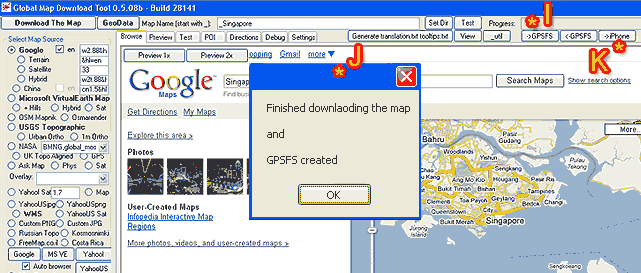
I : It will be as if nothing is happening but don't fret because the progress bar is silently running on the top right hand corner of the screen.

J : This message will pop-up once the download is finished. If a different window appears saying that you have incomplete tiles instead, simply try again to download the missing tiles as instructed on screen. It may not work instantly though as Google will sometimes misinterpret your mass download of map tiles and temporarily block your connection. You can also choose to not download those missing tiles if you want to.

K : The next step after the download is to get GMDL to process the downloaded image files into something your iPhone can understand. Click on the 'iPhone' button to do this.

» Click to show Spoiler - click again to hide... «


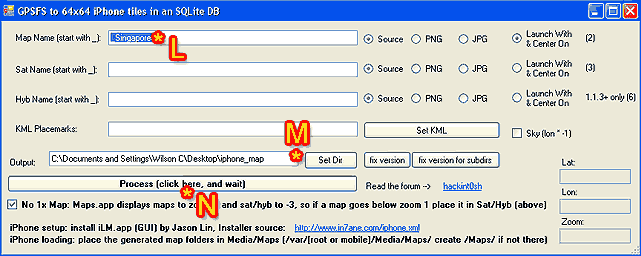
L : This will be the name of your map again. Leave this as it is.

M : This is the output directory. I suggest just leaving this as it is. If you are making more than one map after the other though, you will have to specify a different target folder or else an error message will come up saying that the directory already exists.

N : This is the final step on GMDL. Click this button and once the process has been completed, you can close the GDML program.

You will now have two finished files which are "com.apple.Maps" and "MapTiles.sqlitedb". If you remember from the first part of the tutorial on top, these are the two files you have to SSH to your iPhone (or 1 file for non-jb users using DiskAid). Users with FW2.1 and below should be able to use these files without any problem.

If however you are on the FW2.2, you're not quite finished yet because you still have one more step that is to convert "MapTiles.sqlitedb" into a FW2.2 compatible format. FW2.2 uses a 128x128 map tile which is different from the 64x64 map tile you now have. (GMDL has not yet been updated for this change).

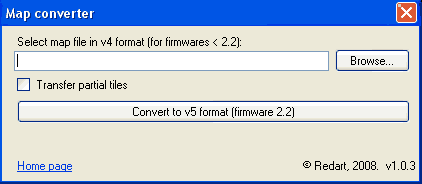
You need to download the MapConverter (Mapv4v5Converter.zip) from our Russian brothers here or here.. Unzip the file and install by executing the "Mapv4v5ConverterSetup.msi" file.

After installation has complete, run the program:

» Click to show Spoiler - click again to hide... «


Locate the "MapTiles.sqlitedb" file you wish to convert and click on "Convert to v5 Format". Specify an output location. Finally make sure you discard of the old MapTiles.sqlitedb file and replace it with this one. Make sure you rename this new file accurately as "MapTiles.sqlitedb" and put it into a single folder together with the existing "com.apple.Maps".

This is where the tutorial ends and connects with the first post on "how to view maps offline on your iPhone".

As a parting note, do mess around with GMDL when you have time. You will find that you can do stuff like place Points of Interests, manually name streets, etc so all these information will be available to you when you view your map offline without a data connection present.

Cheers! cool2.gif

This post has been edited by davidgary73: Apr 14 2009, 12:01 AM
TSMaverick Wil
post Nov 27 2008, 01:08 AM

Casual
***
Junior Member
303 posts

Joined: Nov 2008


Thnx again guys. I was wilsoncvt previously hehe...
TSMaverick Wil
post Nov 27 2008, 03:24 PM

Casual
***
Junior Member
303 posts

Joined: Nov 2008


@Shock. I've personally found MediaFire to be the quickest actually. hmm.gif You can recommend a different file hosting location to me and I can provide an alternative download link.
TSMaverick Wil
post Nov 27 2008, 03:47 PM

Casual
***
Junior Member
303 posts

Joined: Nov 2008


Ok, I'll post up alternative download links in a bit. Will be using rapidshare.
TSMaverick Wil
post Nov 27 2008, 04:20 PM

Casual
***
Junior Member
303 posts

Joined: Nov 2008


@blizzzy ...Let me just clear a few things first before I can help u:

1. You've loaded custom maps before on to your iPhone....yes/no?
2. You're jbroken and familiar with SSH?

This post has been edited by Maverick Wil: Nov 27 2008, 04:29 PM
TSMaverick Wil
post Nov 27 2008, 04:32 PM

Casual
***
Junior Member
303 posts

Joined: Nov 2008


@blizzzy...oh ar..ok ..

Well you don't really need to remove the cache because the cache is not exactly permanent. It's temporary. It's would be a nonsensical thing to do and an absolute waste of your time. sweat.gif laugh.gif But if you insist... once you load new custom maps, the old cache is automatically wiped. There is also an option to clear cache on the OfflineMaps app (More>Remove All Caches)

This post has been edited by Maverick Wil: Nov 27 2008, 04:34 PM
TSMaverick Wil
post Nov 27 2008, 04:41 PM

Casual
***
Junior Member
303 posts

Joined: Nov 2008


@blizzy

You can find a KL Map for 2.1 at http://forum.lowyat.net/topic/809207/+20
TSMaverick Wil
post Nov 27 2008, 07:12 PM

Casual
***
Junior Member
303 posts

Joined: Nov 2008


@stringfellow

Yea, as a non jb, you are at a big disadvantage on the forums haha...

..just kidding wit u... laugh.gif

Right as Shock said, GMDL allows you to download (in a single map file) varying levels of zoom that are available on Google Maps. You can choose which levels of zoom you want in your custom map.

Let's take for example the WestMalaysia map that I have provided for download. That map only has if I'm not mistaken 3 to 4 levels of basic zoom starting from the maximum zoom out layer that was available. Zoom in any more than that and you will get blank tiles. However, this was what I chose out of size concern. I actually did attempt to download the whole WestMalaysia map with every layers of zoom possible (approx 8 layers) but this amounted to a 5GB file size which is huge. It ended up not converting and I'm pretty sure it wouldn't load properly on the iPhone.

To solve this problem, I decided to provide a sort of an overview map of WestMalaysia where you can still zoom down to details that show you main roads and highways. It is still pretty detailed and is only a mere 11.5MB which is a fraction of the 5GB size. I then created separate maps for varying states like the Klang Valley area with pretty much all the zoom levels for when more information is needed. I can easily switch between the different maps using the OfflineMaps app on the iPhone itself relatively easily when I want to. I have so far managed to load 4 different cached map files on the iPhone at any one time but there has been no issues on limit that I know of thus far.

The KlangValley map at all zoom levels is approx 42MB and it includes a bit of the outskirts area as well. I may have left out the maximum zoom level though which doesn't really affect any loss of info as x1 zoom and x2 zoom has pretty much the same info set. The maximum zoom layer I left out would have added an extra 30mb to the file size for a total of 72MB which overall is not too bad. I've found that it's best though to keep each cached map file size to under 250MB for maximum performance (no lags, nothing).

I'm getting a bit sidetracked typing this up now because I just noticed some small discussion going on already so I hope the above answers your concerns and shows that it is still very useful for OfflineMaps existence. I personally am not a 3G subscriber and I'm managing pretty well with using maps on a casual basis.

This post has been edited by Maverick Wil: Nov 27 2008, 07:16 PM
TSMaverick Wil
post Nov 27 2008, 07:17 PM

Casual
***
Junior Member
303 posts

Joined: Nov 2008


Funny you should say so because it just finished and I'm updating the links right after this.
TSMaverick Wil
post Nov 27 2008, 07:30 PM

Casual
***
Junior Member
303 posts

Joined: Nov 2008


QUOTE(stringfellow @ Nov 27 2008, 07:21 PM)
Mav,

You can see where I come from in terms of a user level. I am a 3G subscriber, therefore the Klang Valley maps are not of substantial importance since I can do it the intended way, via Google Maps + 3G connection. It is on the areas where there are not 3G coverage, that your solution here becomes important.

Do these Offline maps have routing capabilities, or at least searchable street contents. Let' say I preload these offline maps of Paris, and I want to use these offline maps to look for Rue de Rivoli, can this be done? If the answer is yes, then you may have move me closer towards jailbreaking.
*
Yea I get exactly how this would be important to you in that way. I'm ecstatic that you will finally take the leap of faith into jb-ing your aifontriji haha laugh.gif but at this moment no...you cannot use the route function at all because of FW2.2 compatibility issues. I'm not sure if you can use it in tandem with 3G when the fix does arrive but I will find out. Unfortunately for now though as what I've read, the GMDL developer will not be free to work on his program until the end of December 08 so a solution whatever the case may be is still a few months away.

I'm sorry guys! cry.gif stringfellow is still not going to jb! cry.gif cry.gif cry.gif laugh.gif


ps...I totally missed your search question. The answer is No...not as I know of. The only alternative that I think Shock was refering to is that you can add POI's and custom info on a map in GDML before processing it but that would mean a hell of a lot of work. But if you do manage to manually label everything, I guess you could do a search without a connection but I can't confirm this as of now.


*tutorial has been updated slightly based on your feedback regarding zoom levels.

This post has been edited by Maverick Wil: Nov 27 2008, 07:40 PM
TSMaverick Wil
post Nov 28 2008, 10:50 AM

Casual
***
Junior Member
303 posts

Joined: Nov 2008


@cscheat

That depends on how fast your connection is. The areas that are covered by the offline map you have loaded into the cache will load as fast as an excellent wi-fi connection (which is pretty much instantly). Everything else not covered by the offline map will obviously load according to your connection speed.
TSMaverick Wil
post Nov 28 2008, 11:03 AM

Casual
***
Junior Member
303 posts

Joined: Nov 2008


@kazasho

What file are you referring to?
TSMaverick Wil
post Nov 28 2008, 11:07 AM

Casual
***
Junior Member
303 posts

Joined: Nov 2008


Oh...sorry bout that...there is no .exe file. I shouldn't have put "install". Go on to step 2 from there.
TSMaverick Wil
post Nov 28 2008, 06:09 PM

Casual
***
Junior Member
303 posts

Joined: Nov 2008


@ feizaiII : Coolness! smile.gif

@ jimnuz : Mediafire is working now. Maybe there was a que. Rapidshare has reached download limit so I'll update that in a bit tonight to a better server. Thnx for the heads up.

@ milky : Sure I'll add it to the list.

@ ahsin, Mike3300 : Actually, the GPS does work because the aifontriji itself has a built-in GPS chip that communicates with the satellites. With offline map caches however, you can only use the GPS to view where you are on the map a.k.a the blue dot. You won't be able to use search or find directions.


Added on November 28, 2008, 6:18 pm@ mamet : No reason you shouldn't!

@ twinkles : thnx.

@ siawgu : Don't make your file size too big but from what I've been reading around, there has been no problems so far loading a 1GB file. My personal max that I tested without problems is up to 500MB. I tried a 5GB file too but that didn't quite work out.


Added on November 28, 2008, 7:12 pmI have just updated the tutorial (1st Part) on how to view offline maps. I found a way for those who do not want to jailbreak so bro stringfellow, that fix was created for you in mind. You might want to make your own maps though because you can only load one file at a time. Anything below 1GB should be fine.

This post has been edited by Maverick Wil: Nov 28 2008, 07:12 PM
TSMaverick Wil
post Nov 28 2008, 07:44 PM

Casual
***
Junior Member
303 posts

Joined: Nov 2008


@kazasho

1. You can only use one map cache at a time.

2. Yup...or you could just create a big map. Of course file size will be much bigger but as from what I know, 1GB files do not lag up the phone in any way. 2GB files could actually also be possible but I think not more than that.
TSMaverick Wil
post Nov 29 2008, 01:39 AM

Casual
***
Junior Member
303 posts

Joined: Nov 2008


@kazasho : Not to say lag but if I were to load a 5GB map in, I would guess loading speeds will be rather slow. Same for any apps. The iPhone's processing capabilities can only do so much.

@frequency : erm.. I'll need more details than that... what do you mean by when you click the map? Which window is this at?
TSMaverick Wil
post Nov 29 2008, 05:25 PM

Casual
***
Junior Member
303 posts

Joined: Nov 2008


@ harmeet15 : Oh no. I must have forgotten to rename the Klang Valley file. Will fix it in a bit but you can do it yourself as well. Rename the folder as whatever you want but my format is "KV---KlangValley" because I've found that the front 2 initials will show up on SB and the rest of the name is for view in OfflineMaps. I chose to go with this refercne method.

but it seems like oni map is active at a given time ya... << I don't quite get this.


@pehkay

For real? How come? Which part doesn't work?
TSMaverick Wil
post Nov 29 2008, 09:15 PM

Casual
***
Junior Member
303 posts

Joined: Nov 2008


@pehkay

Damn thats a bummer. Give me a while to look back at that solution then. See what I can come up with.
TSMaverick Wil
post Nov 29 2008, 10:44 PM

Casual
***
Junior Member
303 posts

Joined: Nov 2008


@pehkay

Are you using Windows or a Mac?

I'm on Windows. I went and examined DiskAid and found that I can access the folders I specified. You can toggle to explore the 'root' directory instead of 'media' at the drop down menu on the bottom-left of the window. If files don't show up while you're browsing, hit F5 now and then to refresh. The MapTiles.sqlitedb file is most definitely there. Try again.

The non-jailbreak method works.

I'm not sure if the mac version of DiskAid has the same layout but it should. If anyone can confirm the same description as above, that'd be great. Cheers.

This post has been edited by Maverick Wil: Nov 29 2008, 10:54 PM

2 Pages  1 2 >Top
Topic ClosedOptions
 

Change to:
| Lo-Fi Version
0.0253sec    0.60    7 queries    GZIP Disabled
Time is now: 6th December 2025 - 02:11 AM