GuidesFirmware FlashingNote:
Before you begin, view the latest firmware for your region here
http://uiq3.sourceforge.net/wiki/index.php/CDA/P1i download these
SE NSE XS++SEUSWhat is CDA?
» Click to show Spoiler - click again to hide... «
Code used by Sony Ericsson to separate phones to different regions. Read first post to see which CDA region you have.
Why do I need to care?
» Click to show Spoiler - click again to hide... «
Not all CDAs are released latest firmwares. To be able to have the latest firmware everytime its released will require you to change your phone CDA to Generic World 1 (GW1) or Generic World 2 (GW2)
How to view my phone CDA/Firmware?
» Click to show Spoiler - click again to hide... «
Goto Main Menu and tap More then to System Information, scroll below
Changing CDA And Flashing Latest Firmware (GW1/GW2) by Shufflerz
» Click to show Spoiler - click again to hide... «
01. Download and install XS++
02. Download and install SEUS
03. Start XS++, check 'SMARTPHONE CONNECT', and press 'Connect'.
04. Turn off your phone, remove the battery for 2 seconds, and put it back, and hold on 'C' button, and connect your phone with USB cable.
05. Select 'GDFS', and press 'backup GDFS'.
06. After done, unplug the USB cable.
07. Restart XS++, check 'SMARTPHONE CONNECT', and press 'Connect'.
08. Remove the battery for 2 seconds, and put it back, and hold on 'C' button, and connect your phone with USB cable.
09. Under 'Write Smartphone CDA/Version change', select 'P1i_R9G007_R2A03_R6D23_CDA162022_1(GW1)_R6D22.gdfs', and press 'Run Script'.
10. After done, run SEUS and follow every steps given.
11. Wait
12. Wait
13. Done, unplug the USB cable, remove the battery for 2 seconds, and put it back, and turn on your phone.
14. Wait
15. Wait
16. You should have the latest firmware of installed in your phone already.
p/s/i: For safety, please do not miss any one step, or your phone will explode and half of the Earth will gone.
p/s/ii: FLASH AT YOUR OWN RISK.
Changing to Singapore (95 Chinese CDA) and Hong Kong (74 CDA) by fx_53_xt
» Click to show Spoiler - click again to hide... «
Singapore
i)Download XS++
ii) tick smartphone connect
iii) press connect
iv) turn off your phone, remove and put back the battery, connect the USB cable while holding C button.
v) select GDFS and press backup GDFS
vi) unplug the USB cable
vii) restart XS++ (not necessarily but i found my XS++ to be error without restarting it)
viii) turn off your phone, remove and put back the battery, connect the USB cable while holding C button.
ix) download the "cda95.zip" and unzip it into the text file
cda95.zipx) open XS++ and reconnect the phone as mentioned above
xi) go to GDFS section and load the txt file as script
xii) Run the script
xiii) Disconnect and run SEUS
xiv) Update your phone as usual and voila
--------------------------------------------------------------------------
Hong Kong
i)Download XS++
ii) tick smartphone connect
iii) press connect
iv) turn off your phone, remove and put back the battery, connect the USB cable while holding C button.
v) select GDFS and press backup GDFS
vi) unplug the USB cable
vii) restart XS++ (not necessarily but i found my XS++ to be error without restarting it)
viii) turn off your phone, remove and put back the battery, connect the USB cable while holding C button.
ix) select the Hong Kong /74 CDA from the drop down menu and execute.
x) disconnect the phone
xi) start SEUS and update the phone
Bricked Your Phone? Cannot Start? Try Voodoo
» Click to show Spoiler - click again to hide... «
There's always risk when messing around the ROM. General rule of thumb should be DO NOT disconnect USB or power off the pc during the process. All the steps mentioned above should serve as guidelines and you are on your own risk by doing them. Also keep in mind although updating firmware through SEUS is covered under warranty terms but altering the CDA using third party software (XS++) will VOID your warranty.
If you're so unlucky and got your phone bricked, follow the following resurrection steps :
i) Download XS++
ii) Download the P1i Ressurection package here :
P1i CCPUii) tick smartphone connect
iii) press connect
iv) connect the USB cable while holding C button.
v) go to flash section
vi) load the zip file under smartphone flashing section, DO NOT UNZIP THE FILE.
vii) tick flash CCPU (remember, ONLY TICK CCPU)
viii) Execute and wait it to finish
ix) you should now proceed to turn on the phone and see if it is resurrected
-------------------------------------------------------------------------------------------------------------------------------------
Index of Guides !Use this please!
Find using Ctrl-F [Example : Walkman 3.0 Ctrl-F type WM3]
Walkman 2.0 [WM2]Walkman 3.0 [WM3]W960 Startup Animation [W960]GDesk [GDK]Album Art [AA]System Font [SF]System Hack & Volume Hack [SHVH]IphoneLock [IPL]UIQ3 Tweak [TWK]G700 & G900 Menu Mod [GMM]SIS Signing Hack [SSH]Touch PowerOff [TPF]G900 Torch [G9T]Walkman System Icon [WSL]G900 Notes App V2 [GNA]Edit Status Bar Icons [ESB]Quickoffice and Pdf+ Upgrade [QOU]Vista Startup Animation [VSA]Pop Up Menu Mod [PUM]---------------------------------------------------------------------------------------------------------------------------------------
Walkman 2.0 Hack by fx_53_xt on R9K009 [WM2]
» Click to show Spoiler - click again to hide... «
Step by Step Guide :
1) Download the Walkman 2.0 software here :
Walkman 2.0 Zipand AppTRK file system unlocking tools here :
http://www.filefactory.com/file/06fbbc/ or here
http://rapidshare.com/files/109987458/Apps.zip.html*you need SE PC suite installed first
2) Connect your phone using PC suite under "phone mode"
3) unzip and Install AppTRK.sis on your phone
4) Install following software on your PC in order :
i) python-2.5.1 on your PC
ii) win32-py2.5
iii) pyserial-2.2.win32
5) copy 1.py to your C:\
6) Go to Device Manager on your PC, under "Ports (COM & LPT)", take note of your P1i connected port
7) open 1.py you copied previously on C:\ with notepad. search for the line "ser = serial.Serial(4) # I have COM5" (without quotation)
8) now, change the COM5 to the p1i connected port you noted from device manager earlier, and change serial(4) to the port number minus 1. Save it.
(example, you noted your p1i is connected to COM7, change the line to "ser = serial.Serial(6) # I have COM7")
9) Run AppTRK from your mobile phone with USB cable connected in "phone mode", it should be showing "connected"
10) go to DOS command prompt (type CMD in run for those who don't know) and change the directory to C:\
11) execute 1.py (just type 1.py and press enter), wait for it to run, until it showing Close, End+exit.
*you have now successfully unlocked the file system.
12) Unzip and copy the Walkman 2.0 files into your memory stick and then disconnect the USB cable
13) open a file explorer on your phone(i used Swiss Manager in this case), copy the file one by one from memory stick to C:\ drive according to their directory. REMEMBER DO NOT OVERWRITE THE WHOLE FOLDER IN C:\ IF THERE'S FILE INSIDE IT, you might screw up the whole phone.
14) Restart your phone and you'll notice a "Walkman" application under the tools menu. Enjoy.
# Credits :
1) Moherowy from iPmart for extracting this wonderful software
http://www.ipmart-forum.com/member.php?u=6307832) UIQ blog for providing the unlocking method/software
http://www.uiqblog.com/2008/03/27/access-u...ven-on-c-drive/ on R9K009 [WM3]
» Click to show Spoiler - click again to hide... «
ALL HAIL WALKMAN 3.0 ON ULTIMATE SMARTPHONE P1iI did it! My dream Walkman! I FINALLY DID IT.

Steps to do it. (PC Suite and all drivers installed,last time we had to install 3 programs to do it! Now your in luck theres no need! Updated)
1. Download
Swmail's Walkman Hack :
Link 1CapsSwitch 1.1.27 :
Link 12. Unzip the Walkman Hack and put the contents + CapsSwitch.sis (installer) into a folder. Copy them to your Memory Stick. (PC Suite File Transfer Mode)
3. Install CapsSwitch. Run and select "Capabilities OFF".
Note: If you had any earlier versions of CapsSwitch, uninstall them first. Also uninstall AppTRK if you have it.
4. Use something like SWISS MANAGER (refer to Software Links) OR X-PLORER to browse files.
Note:If your using Swiss remember to tick the view rom drives setting.5. Now point Swiss Manager to your Walkman Hack folder.
11. Copy the content INSIDE from the Walkman Hack folder to the corresponding directory on C:\ (phone). The "private" folder can be overwritten but I suggest you move the content manually for the other folders. Basically means copy each content inside the Walkmanpack into your phone's C:\ drive.
12. Restart your phone!
 Please consider donating to swmail! I am going to
  Donate By Paypal USDVolume Control and Playback Options
,
credits to shufflerz for the list
» Click to show Spoiler - click again to hide... «
* Button - Function
* E/R - Equalizer
* T/Z - Volume up [After pressing T/Z you can use the jog-dial to lower/increase volume]
* A/S - Stop
* D/F - Previous track
* G/H - Play / Pause
* J/K - Next track
* X/C - Shuffle
* V/B - Volume down
* N/M - Minimize
W960 Walkman Startup Animation by shufflerz [W960]
» Click to show Spoiler - click again to hide... «
W960i walkman startup & shut down animation screen on P1i
1. Download the startup & shut down pack |
Link 12. Just copy all those d*mn folder into phone C directory, and reboot your phone.
3. Done.
Credit to dark_skeleton [GDK]
» Click to show Spoiler - click again to hide... «
1. Download GDesk from
GDesk2. Install GDesk on your P1i
3. Download a theme
plus a gdesk design, make sure its compatible with P1i. (hello.utz - theme, hello.gdd - design)
4. Install and apply the theme
5. Load GDesk and apply the design. Viola!
[AA]
» Click to show Spoiler - click again to hide... «
Put in Picture -> Album Art(create this yourself) will do.
For default player, you have to resize those pic 1st. (16x16 if I'm not mistaken)
For WALKMAN 3.0, you just copy every thing in Album Art folder.
WALKMAN 3.0 will auto detect those with the same file name with the same album title.
E.g : If you have Mariah Carey - Touch My Body. You edit the song album title to E=MC2, and the album art your rename it to E=MC2. In no time, WALKMAN 3.0 will load it already.
Changing System Font by carbon14 [SF]
» Click to show Spoiler - click again to hide... «
To change system font there a few cases,ONLY TRUETYPE FONTS CAN BE USED.But before you do it you will need Swiss Manager or X-Plore to view the read only Z:\ drive.
From Z:\ goto Resource>Fonts. You should see:
1. Sans-Serif_Latin-Regular.ttf, Sans-Serif_Latin-Bold.ttf, Sans-Serif_Latin-Italic.ttf, Sans-Serif_Latin-BoldItalic.ttf
OR
2. Sans-Serif_Chinzi.v225.ccc (Chinese input firmware)
If you have (1)
1. Switch off your phone, attach USB cable and connect the cable to PC while pressing C on the phone.
2. Select a font that you want, if the font has a bold or italic version, rename each one Sans-Serif_Latin-Bold and Sans-Serif_Latin-Italic.
3. If your font doesn't have that, just make 4 copies of the same font while renaming it to the fonts you found in Z:\ drive.
4. Make a folder called Resource\Fonts in your M2 drive.
5. Copy the fonts into them.
6. Restart your phone, should have be able to see them now. If your phone fails to load/boot, just remove the M2 card and start the phone.
7. Then put back in the M2 and delete the fonts.
If you have (2)
1. You will lose the ability to read Chinese if you insert a non-chinese TTF font.
2. The same procedure as (1) but this time rename the font as Sans-Serif_Chinzi.v225.ccc
If you have (1) + (2) Special Case
1. You have both the fonts in 1 and 2 in your Z:\ drive.
2. You can change the fonts in (1) and the system will recognize it. But be sure to insert the original Sans-Serif_Chinzi.v225.ccc into your M2 fonts folder too.
3. Unconfirmed. Awaiting results from people who have both types of fonts in their Z:\ drive.
System Hack And Volume Hacking by Shufflerz [SHVH]
» Click to show Spoiler - click again to hide... «
System Hack (Old Way)
0. Download
Sony Ericsson PC Suite |
Link 11. Download
Hack_Pack.rar |
Link 1 :: Link 22. Download
1.py |
Link 13. Download
AppTRK.sis |
Link 1 :: Link 24. Install all the stuffs you've just downloaded by followings order:
* Sony Ericsson PC Suite
(PC)* python-2.5.1
(PC)* win32-py2.5
(PC)* pyserial-2.2.win32
(PC)* AppTRK
(Phone)5. After done installing, sync your phone with PC Suite.
6. Copy
1.py you've just downloaded to
C:\, or should I say
My Computer -> C: 
7. Right click
My Computer, select
Manage8. Under
Device Manager, expand
Ports(COM & LPT) and you should see [b]Sony Ericsson Application Port (COMX)9. Now, open
1.py with Notepad, and search
(ctrl+F) for this
CODE
ser = serial.Serial(x) # I have COM4
10. Replace the
(x) on step #9 with the X value on post #8 minus 1
CODE
this mean, if you have (COM10), your Serial(X) should be Serial(9)
11. Save and close the new
1.py12. Start
AppTRK on your phone, and press
Connect13. Open
Run from
Start, and type
CMD14. On CMD, type
CD\, you now should on
C:\>15. Type
1.py, and let it run until you see
C:\> again
16. And lastly, on your Swiss Manager or X-Plore, you can see a lot of new folders which you never see before
17. Congratulasi, System Hack : Success
Perma System Hack1. Download
CapsSwitch |
Link 1 :: Link 22. Install it into your phone, and copy the
trkdriver.ldd into
C:\sys\bin(you only can see this folder after you've done system hack)3. Reboot your phone
4. Launch CapsSwitch, and press
Switch once to turn off the Caps, or whatever it is.
5. Congratulasi, you can now view your system folders without AppTRK
Perma System Hack New Way1. Download CapsSwitch 1.1.27 :
Link 12. Install it
3. Run it and select "TURN OFF CAPABILITIES"
4. That was alot shorter huh? I tell you technologies are the shitnitz...
Volume Hack1. Download
se_uiq3_sound_mod_lite |
Link 1 :: Link 22. Copy the file
C:\Private\10202be9\persists\1020867a.cre from the your phone to computer
* You should know how to copy this already, if not, please put your head into toilet bowl and flush it, 3 times3. Run
se_sound_patcher(extracted from se_uiq3_sound_mod_lite you've just downloaded), and follow the instructions given
4. Copy the new
1020876a.cre back into the same folder you copied out from, which is
C:\Private\10202be9\persists\5. Restart your phone, and its done
Volume Hack 2 a.ka. Sound Mod Full V1.1Attention!
File 'C:\private\10202be9\persists\1020867a.cre' should be original.
If you've done sound mod lite, please revered it back to orignal.
Just replace back the orginal 1020867a.cre you've backed up during the mod.
00. Download se_uiq3_sound_mod_full.zip | Link 1
01. Copy mmmgmtserver.exe from Z:\sys\bin\ to C:\sys\bin\
02. Copy M3SAudioPolicyMgr.dll from Z:\sys\bin\ to your M2, then to your computer.
03. Run se_sound_patcher_full.exe, select the file M3SAudioPolicyMgr.dll you've copied to your computer from the phone, and press Install
04. Copy the newly patched M3SAudioPolicyMgr.dll back to your M2, then to C:\sys\bin\
05. Extract all the files the folder named AATFiles in AATFiles.zip(which included in se_uiq3_sound_mod_full.zip) to your M2(anywhere), then copy the whole folder to C:\private\10200b19\
06. Restart your phone
07. Done
Credit to mod's authors,
Sergey (aka VSV) and
SWmail (aka SW)
Iphonelock 0.5 by kwull [IPL]
» Click to show Spoiler - click again to hide... «
About the IPhonelock software, its really nice and its not as power consuming as before. Here is the link to the software.
Kwull's IphoneLockSign the sis file
Symbian Signed Online,
tick all the capability option. Send the file to Symbian Signed then activate the email sent to you for signing.
Changing the background picture and notifications1. Goto D:\Shared\Iphonelock\skin.mbm, copy it to your PC
2. Use this software to open it.
MBMTool3. Change the picture 000.bmp to your picture (Size of the original is 240x320)
4. After adding your picture, right click on the picture and change colour to "Colour 24pp". Name it as "skin.mbm"
5. Then goto your memory stick D:\Shared\IphoneLock, and find the "skin.mbm" file. Replace it with your modified one.
5. Same step applies to the icons (sms/mms/etc) , it is on skin_icons.mbm on the same folder.
Try my
Vista Skin.INI FIle Settings» Click to show Spoiler - click again to hide... «
AutoStartOnBoot - iPhoneLock runs after you restart the phone only works if StartOnBackground = 1
StartOnBackground - run in the background
idleTimeOut - until autolock time in seconds, if 0 - disabled autolock
ScreenBackground - an alternative path to the background picture
UseThemeBackground - used as a background, background from the current topic. Has a higher priority than ScreenBackground
AnimOnExitSpeed - the speed with animation unlock
SliderMoveCenterPos - react to touch on the center sliders if off - on the left side
ShowBatteryLevel - displays a level of battery %
TimeToDisplayOffAfterLock - time before switching off the screen after locking, 0 - disabled. Works with an accuracy of about 10 seconds.
ScreenBrightnesAfterLock - brightness level after blocking
TurnOnDisplayOnTouch - when locked, tapping the screen will make the display turn on
UsePowerSaving - energy-saving mode
HiddenTaskMode - hidden mode application [Will not be able to view it in Task Manager]
SystemTaskMode - treat as system application [Will not be able to view it in Task Manager]
ScreenActiveOnMobiReader, ScreenActiveOnCorePlayer - do not lock the screen with the active or MobiReader or CorePlayer
NotLockOnMobiReader, NotLockOnCorePlayer - not to lock the active MobiReader or CorePlayer
LockOnlyOnStandByOrGDesk - automatically block only with the active standby or GDesk [Works when you doesn't want Iphonelock to lock you when your using Walkman
[LockedKeys] [0-Disabled, doesn't lock the particular button]
LockVolume=1
LockPlayStop=1
LockWalkman=1
LockJog=1
ProblemsIf you have unread emails/sms/mms even though you have none, its due to the hidden/phantom sms on P1i.
1.Unread Emails - Connect to the Internet, open up your email account in Messaging. Click More>Get and Send. After that delete all emails. Then do the Get and Send function again. Your unread emails should have disappeared.
2.Phantom SMS by gogoman86 - Use this program 'SMS Firewall & Guard UIQ3'
Download Link -
Link 1Before install this, must install SIS Signing Hack 1st. Once installed, it will ask for Password, make it empty and tap Login. Then go to More > Register. Not need to type any registration code. Just tap on Register button. Voila... It's registered...
[TWK]
» Click to show Spoiler - click again to hide... «
1. Download this :
UIQ3 Tweak2. Install pips_uiq_1_2_ss.sis and stdioserver_uiq_1_0.sis
You should now notice your image gallery,contacts and messaging loads faster.
[GMM]
» Click to show Spoiler - click again to hide... «
Recommended Backing Up C:\ Before You Mod !!G700 Icons credit to the_gunners (
Ip-Mart Forum)
1. Download this :
Link 12. You need Swiss Manager :
Link 13. Copy the files to your memory stick.
3. Copy the the files in the archive to C:\Resource\Apps. (Phone) using Swiss Manager
G900 Icons credit to gapata (Ip-Mart Forum)
1. Download this :
Link 12. You need Swiss Manager :
Link 13. Copy the files to your memory stick.
3. Copy the files to your C:\ and D:\ drives (Phone) according to how they are in the archive. Use Swiss Manager to copy files from your Memory Stick (D:\) to your phone memory (C:\)
4. Official G900 Theme :
Link 1 SIS Signing Hack by squall_kay [SSH]
» Click to show Spoiler - click again to hide... «
Description
Mod: Sony Ericsson UIQ3-smartphones SIS installer
Mod's author: SWmail (aka SW)
Mod's version: 1.1 (22 May 2008)
Home page:
http://101swmail010.googlepages.com/uiq3modsThe mod is intended to
- installation unsigned SIS packages with any capability
- installation SIS packages with protected\unprotected UID
on UIQ3 smartphones.
Tested on: P1i (R9K009/GW1) and M600i
Thanks to wl, Hex and kwull
Installation
1. Unlock system files [Do system hack , refer to System Hack by Shufflerz]
2. Download this :
Link 13. Copy the file installserver.exe from the archive to 'c:\sys\bin\' on your phone
[TPF]
» Click to show Spoiler - click again to hide... «
Poweroffer
~Shutdown/Restart our mobiles~
All credits go to
dark_skeletonhttp://www.ipmart-forum.com/showthread.php?p=2093985Download link:
PowerOfferHope u guys enjoy! biggrin.gif
Important note: The installation requires SIS install MOD by swmail! Kindly refer to 1st page of the guide about "SIS Signing Hack by squall_kay" [G9T]
» Click to show Spoiler - click again to hide... «
Credits to author :
gapata http://imserba.com/forum/showpost.php?p=855134&postcount=1151. Download this :
Link 12. To use this, you need to have the software signed. There are two ways to sign this app.
3.
Method 1 : Goto
Symbian Signed Online. Tick all the capabilities on the "Capabilities" section boxes.
4.
Method 2 : Install Swmail's SIS Sign Hack (Refer to [SSH])
[WSL]
» Click to show Spoiler - click again to hide... «
MOD: 15 New Walkman system logos
For: All SE Symbian phones
All credits go to
dark_skeleton icon_rolleyes.gif
It changes the SE icon to Walkman icon when we enter Main Menu -> More -> System Info.How to do: Rename chosen mbm file to systemlogo.mbm, then copy it to c:\resource\apps in phone.
Important note: Must unlock system files
Do system hack, refer to System Hack by Shufflerz in 1st pageDownload :
Link 1 [GNA]
» Click to show Spoiler - click again to hide... «
All credits go to software author
gapataThis is Version 2 of G900 Notes Application.
The conflict between Default Notes Application and G900 Notes Application ha been resolved in this version.
What's New in Version 2:
Now Both Notes Applications have different Database Location.
The Interesting Feature is :
If one of any Notes Application is running in background, clicking on any link/icon of any Notes Application will bring the Notes Application which is running in background
Hence there will not be any conflict. However You cant access notes created on default Notes Application to G900 Notes Application or Vice-versa.
----------------HOW TO INSTALL-----------------------
1. First remove the following files:
a. C:\Resource\Plugins\NotesRecognizer.RSC
b. C:\SYS\BIN\NotesRecognizer.dll
c. C:\Private\10003A70\Jotter
d. C:\Private\10003A70\Jotter.ini
(Remember All previous Notes will get deleted)2. Download :
Link 1, Extract it & Copy the folders "Private, Sys & Resource" to C:\ Drive
[ESB]
» Click to show Spoiler - click again to hide... «
Credits to
Ryan Cullen's BlogEditing MBM1. Use Swiss Manager Pro or X-plore to copy the original files in the Z:\resource\ folder to your memory card. Then copying them to your PC.
2. The files which you can edit are the MBM files. These are multiple bitmaps files which can be opened and created with MBMTool.
3. In MBMTool open one of the files, then highlight all the numbers in the left and select “Copy image(s) to directory”. In the directory you give, you will now find a collection of BMP files. Using your favourite image editing tool you can change the picture.
4. Back in MBMTool, delete the old picture and then click on “Add image(s) to list”. Select the file you’ve changed. You will need to ensure with the green arrows at the bottom, that the file is in the same place as the original.
5. Finally highlight the file and press “Change color” and select Color 16bpp.
Creating Masks1. This will be the black and white file that is similar to the image you’ve just replaced (normally +1 in the file name)
CODE
Every pixel which is black makes the image transparent
Every pixel which is white will show the solid colour of your icon.
Any grey colour in between will be a mix of the background and the image
2. Then in MBMTool delete the old mask file, replace with the new mask file and this time “Change color” to Monochrome 8bpp.
3. Repeat for every icon you want to change and then Save your file (you may need to change the properities of the file to stop it being from Read-Only).
4. The final step is to copy the file structure onto your memory stick (create new folders), so you have something like
CODE
D:\resource\ZSBLIB\ZSBLIB.mbm
5. Reboot. If anything goes wrong, just delete the copied files from your Memory Stick.
Ryan's Status Bar Icons :
Link 1 [QOU]
» Click to show Spoiler - click again to hide... «
QuickOffice (version 4.0.256 SEMC HB106R3) UPGRADE
Pdf+ (version 1.80.09) UPGRADE
Credits to SWmail!Instruction: Just download and install in phone memory (Please Refer to Important Note below)! Both installers are unsigned SIS files!
Download link:
Quickoffice UpgradeDownload link:
PDF+ UpgradeImportant Note: The installation requires SIS install MOD by SWmail! Kindly refer to 1st page of the guide about "SIS Signing Hack"
[VSA]
» Click to show Spoiler - click again to hide... «
Download link:
Link 1Instruction: Extract the downloaded RAR file and copy both "private" and "sys" folder to C:\. Overwrite the files when been asked.
Important note: Must unlock system files (Do system hack, refer to System Hack in 1st page of this thread)
[PUM]
» Click to show Spoiler - click again to hide... «
PopupMenu with IconsDownload Link:
http://www.fileden.com/files/2008/6/17/196...ith%20Icons.rarInstruction: Copy the folders,
"Apps" and
"Zsbpopupmenu" in
"Resource" folder to your phone's "C:\Resource\" folder and restart your phone.
Important note: Must unlock system files (Do system hack)
-> Some info contains material from www.esato.com ! Visit them!
-> Some information above taken from The President's V2 thread. Many thanks to him. Da man!
Added on April 26, 2008, 2:34 amSoftware Links1.SONY Ericsson update service (SEUS) v2.6.12.4:
http://www.sonyericsson.com/cws/download/1...up-2.7.12.4.exe2.P1i Software Homepage (includes PC Suite, Language Pack, Exchange Active Sync, iSync for mac, Disc2Phone, Blackberry Connect)
http://www.sonyericsson.com/cws/support/pr...p1i?cc=my&lc=en3. Sony Ericsson Theme Creator (thanks to karlcheong)
http://developer.sonyericsson.com/site/glo...ate=ps3&zone=ps4. CorePlayer 1.2
http://www.fileden.com/files/2008/6/17/196...rePlayer1.2.rar5. PowerMovie 1.01
http://www.fileden.com/files/2008/6/17/196...ovie%201.01.rar6. Gdesk v0.24 (Read Previous Post For Guide)
GDesk7. Swiss Manager
http://invitel.hu/zolea/cps/1down.htmhttp://rapidshare.com/files/110367495/Swis..._v1.60.rar.html8. M3 (free video encoding for portable system)
http://www.mediafire.com/?702zmzmkkvtIf it shows an error, just drag it aside and continue using M3.
9. Opera Mini 4
http://www.operamini.com/download/pc/sonye...onyericsson_p1/10. SE Screen capture utility
http://developer.sonyericsson.com/getDocument.do?docId=8522911. Fring (Skype,MSN,Yahoo,AIM Chat and VOIP Client)
Fring.com12. Slick Messenger (Non-Java chat only IM)
http://www.fileden.com/files/2008/4/26/188...se_bdiq2uxr.sis13. Mobiola Webcam for Symbian Phone
http://www.fileden.com/files/2008/4/26/188...0.3rd_Patch.rar14. Others
» Click to show Spoiler - click again to hide... «
FAQ,
by fx_53_xt updated by carbon14
Q :
Why i couldn't login into some of the hotspot while other just work fine?A : P1i doesn't not support flash and therefore hotspot login tat is using flash interface will not be useable. also note that if hotspot is operating under Wifi-G only mode, P1i will not be able to connect to the network.
Q :
How do i view system information / firmware version?A : go to main menu > more > system information
Q :
how do i access the service menu?A : by scrolling the jog dial up and down, do the following combination trick : up,*,down,down,*,down,*
Q :
How do i calibrate the touch screen like the one in windows mobile?A : go to Main menu > Control Panel > Other > setup wizard. It is available at the last step.
Q :
How do i setup the phone for receiving Gmail?A : Taken from UIQ3 thread :
» Click to show Spoiler - click again to hide... «
Messenging > Settings > Email accounts
Add a new gmail.
Account name: Gmail
Your name: anything
Connection type: POP3
-Inbox-
Incoming Server: pop.gmail.com
Username: username@gmail.com
Password: your password
Download restrictions: anything
Receive using group: Preferred group (your working inet connection - wifi or gprs)
-Outbox-
Outgoing Server: smtp.googlemail.com
Use Smtp authentication
Use Inbox login details
Then under Advanced in the menu option:
-Incoming-
SSL
995
NO secure password authentication
-Outgoing-
SSL
465
Use MIME encoding
Q :
can i enable chinese support without messing the firmware?A : you can add support to view chinese fonts but not input. download the file here unzip and then create a folder called resource/font inside your memory card and put the files there. restart your phone and voila, you should be able to read chinese words (credits to the author at
http://secentral.net/forum/index.php?topic=12325.0)Q :
Why i'm not able to stream the video from the mobile youtube using wifi but it works fine with 3G?A : The reason behind this is the port is not forwarded. If you accessing using home network, simply forward the port from the router. Public network currently has no solution yet
Q :
What is the different between P1, P1i and P1cA : There's no such thing as P1. P1i is what we're getting, the i suffix stands for international. P1c is specifically meant for china, with 3G radio taken off due to licensing problem
Q :
What is the difference between P1i and W960?A : They basically share the same hardware structure except W960i comes with 8GB flash memory, memory card slot taken off, pre-installed with Walkman 3.0 software and using normal 0-9 keypad while P1i has QWERTY keyboard, M2 slot and has business card scanner.
Q :
Nokia N95 (Symbian S60) versus SE P1i (UIQ3) versus WM6 device, who wins?A : a very subjective issue and each of them have their own strength. Suggest that visit a proper Nokia/SE/HTC retail store and test them by urself. N95 has weaker battery life (not sure about 8GB version though), no touch screen while P1i is a lil hard to get used to for first timer and slower response time while WM6 is known for strong software library and being expensive
Q :
Is there any way i can turn my p1i into W960i?A : the current answer is, no. but there are people working on it, at the mean time, you can have the Walkman 2.0 installed with some hacks. refer below.
Q :
Does P1i support GPS?A : P1i doesn't have GPS antenna and therefore have to rely on external hardware. Currently the only which has compatible hardware and malaysia map is Garmin and SONY Ericsson HGE-100 GPS adapter. There are other compatible GPS out there but i cant seems to find one with Malaysia map.
- Use Garmin Mobile10x with MalSingmaps, free updated maps by the locals.
Q :
Can my P1i play .xxx files?A : Use the M3 encoder found in the software links post and convert them to W950 or UIQ3 safe in the dropdown box.
Q :
The media player sucks man! Can I have something better?A : Good for you, came in time for two full guides. Read the Guides section for conversion to Walkman 2.0 (W950) or Walkman 3.0 (W960)
Q :
The Wi-Fi doesn't seem to connect! / Connected but can't find server!A : Ask Atih.. And download OperaMini, the built in one didn't get the DNS server correctly for me the first time.
QUOTE(atih007 @ Apr 19 2008, 09:26 AM)
i think u're not really connected although it says connected. if u are using the latest firmware, u have to group ur internet account accordingly. for example Celcom 3G, Maxis 3G and Digi Wap into default
Internet group account. for Hotspot, DefaultWifiAccount, etc into a new internet group account..
Wifi. make sure u set the
Wifi as default group group account when u want to use wifi.


 Apr 26 2008, 01:57 AM, updated 18y ago




 ]
]

 Quote
Quote


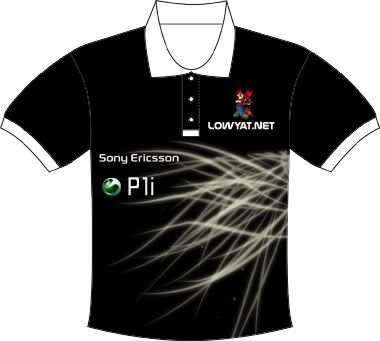

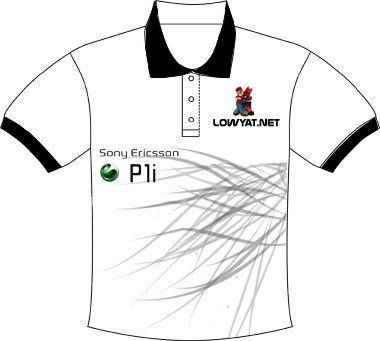

 it will be ontop of the curved lines to the right of the shirt.


 hahahah.. dont have courage to do it myself.. hahaha..


 any way to solve it? i'm already on the latest R9K009.


 0.0579sec
 0.73
0.73
 7 queries
 GZIP Disabled