I think since there is a lot of people who are having problems to install Android Auto, I'll be using this post to share how I install the latest Android Auto from APK Mirror. If you don't know what is Android Auto, or APK Mirror - go Google it, I won't spend time explaining any of this to you. If you don't trust APK Mirror, stop here, and wait until Google releases it for Malaysia officially. If you fully understand this and wish to proceed to install, read on! - Caveat - I'm using the Chrome browser and Galaxy Note 3. Your experience may differ slightly.
1. Browse to APK Mirror (Android Auto) on your phone via this link:
http://www.apkmirror.com/apk/google-inc/android-auto/2. Scroll down, and choose the latest version (the latest release is
Android Auto 2.5.7286 dated on 5 August 2017)
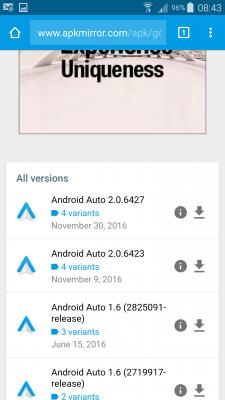
3. Scroll down, and choose the correct version for your Android - this may be confusing for some.
Galaxy Note 3 uses arm. My guide here shows what happens if you download and install arm64 - completely safe, but installation will fail. You would just need to choose again - or download Droid Hardware Info to find our your Android's CPU architecture type. You only need to do this once and remember your CPU architecture type. More information here
http://android.wonderhowto.com/how-to/andr...64-x86-0168051/ CPU/Kernal Architecture Type:arm:
 "ARM", "armeabi"
arm64: "arm64", "AArch64"
x86: "x86", "x86abi"
x86_64: "x86_64"
4. Scroll down, and choose
Download APK
5. Click
OK to download

6. Wait for the download to complete, then go to your file manager (or My Files in Samsung) and
click on the downloaded APK file - I usually just go to Download History as it lists all recently downloaded items.

7. A pop-up will come out saying "Install Blocked - For security, your phone is set to block installation of apps obtained from unknown sources". Click on
Settings. (Can't screenshot this though...)
8. Click on
"Unknown sources - Allow installation of applications from both trusted and unknown sources".
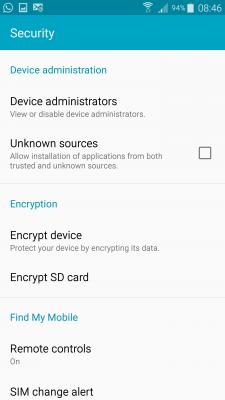
9. Leave the
"Allow this installation only" checkbox. Click on
OK.
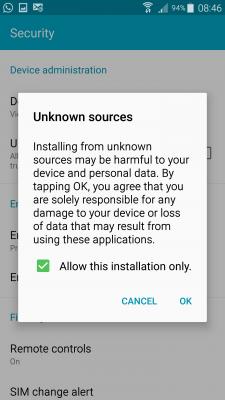
10. Android Auto should install now. If it fails, it means that you installed the wrong version/architecture type. You need to select the right APK for your CPU type. Below is a screenshot of Droid Hardware Info on my Samsung Galaxy Note 3.
 CPU/Kernal Architecture Type:arm:
 "ARM", "armeabi"
arm64: "arm64", "AArch64"
x86: "x86", "x86abi"
x86_64: "x86_64"
You can use Android Auto even if your car isn't connected. Waze integration is not here yet, but will arrive in Q1 2017. Be patient.
Hope the guide above helps you all install Android Auto on your phone. It needs Android 5 and above though... So if your Android version is lower than 5, you need to update your OS, or get a new phone
 This post has been edited by isr25: Aug 6 2017, 08:24 AM

 Nov 29 2016, 02:32 PM


 Quote
Quote



 , i tot i kena chop head by them , become water fish .
 0.1006sec
 0.49
0.49
 7 queries
 GZIP Disabled