Outline ·
[ Standard ] ·
Linear+
** Google Nexus 4 Official Thread V9 **, 4.3 Jelly Bean spotted in da wild!
|
TSpolarzbearz
|
  Apr 19 2013, 03:19 PM, updated 13y ago Apr 19 2013, 03:19 PM, updated 13y ago
|

|
IMPORTANT Announcement & Highlights - To view the checklist upon purchasing the device (Along with many other questions), see 'Alright, I'm in! So what do I check for when I'm purchasing one unit?' under FAQs post.
- To report in & add yourself to the owner list, fill in the form [CLICK HERE].
- For more advanced knowledge, read through FAQs, Tips & Tricks and Nexus 4 Unleashed posts below.
 General Rules General Rules- ALWAYS READ the first page's information before asking. They are created, collected and summarized to benefit the community and not for decoration purposes only!
- Search before asking. At bottom-left of the thread. See sample:
 - CTRL+F is your best friend; apart from the search function of the forum.
- Respect each other. We do not want flame wars here.
- Obey rules in LYN Forum.
- Strictly no warez / crack / forbidden discussion as stated in LYN rules.
 - Enjoy yourself here along with other members. We are a big family.
- Read the instructions on how to add yourself to the user list below in post#6 before asking.
Nexus 4 Mini Directory (links are clickable) Nexus 4 Previous Threads» Click to show Spoiler - click again to hide... « Archive of previous discussions: V1 Discussions - by benny888V2 Discussions - by tcmean V3 Discussions - by DoomsdayV4 Discussions - by tcmeanV5 Discussions - by tcmeanV6 Discussions - by polarzbearzV7 Discussions - by polarzbearzV8 Discussions - by polarzbearz Nexus 4 Tech Specs» Click to show Spoiler - click again to hide... « NETWORK BAND: GSM 850 / 900 / 1800 / 1900 / HSDPA 850 / 900 / 1700 / 1900 / 2100 NETWORK SPEED: DC-HSDPA, 42 Mbps; HSDPA, 21 Mbps; HSUPA, 5.76 Mbps SIM: Micro-SIM DIMENSION: 133.9 x 68.7 x 9.1 mm (5.27 x 2.70 x 0.36 in) WEIGHT: 139 g (4.90 oz) DISPLAY TYPE: True HD IPS Plus capacitive touchscreen, 16M colors SCREEN SIZE: 768 x 1280 pixels, 4.7 inches (~318 ppi pixel density) SCREEN PROTECTION: Corning Gorilla Glass 2 ALERT TYPE: Vibration; MP3, WAV ringtones MEMORY: 8/16 GB internal storage, non-expandable memory, 2 GB RAM WIRELESS: Wi-Fi 802.11 a/b/g/n, dual-band, DLNA, Wi-Fi hotspot BLUETOOTH: Yes, v4.0 with A2DP NFC: Yes CAMERA: Primary 8 MP, 3264 x 2448 pixels, autofocus, LED flash; Secondary 1.3 MP FEATURES: Touch focus, geo-tagging, face detection, photo sphere VIDEO: Yes, 1080p@30fps, check quality PROCESSOR: Qualcomm APQ8064 Snapdragon, Quad-core 1.5 GHz Krait, Adreno 320 BATTERY CAPACITY: 2100mAh http://www.google.com/nexus/4/specs/ Nexus 4 Availability» Click to show Spoiler - click again to hide... « Officially available in Malaysia starting from Jan 14, 2013. Only 16GB available @ RM1649 (RRP) Nexus 4 Purchasing Channels» Click to show Spoiler - click again to hide... « And many other shops. If you have any to recommend, feel free to inform me to add it here!  |
|
|
|
|
|
TSpolarzbearz
|
Apr 19 2013, 03:20 PM
|
|
|
Nexus 4 FAQsAlways do a search first. Answer could be in the previous version of discussion threads too. Do note that this section will only cover basic stuff related to Nexus 4. For advanced features, see the Nexus 4 Unleashed section. A. PURCHASING RELATED QUESTIONS (BEFORE)- A1. Why Nexus 4 and not other models? Pros and Cons?
» Click to show Spoiler - click again to hide... « Various opinions / posts regarding this question are collected and shown below: posted by billy_overheat» Click to show Spoiler - click again to hide... « posted by Norameen» Click to show Spoiler - click again to hide... « user preferences..test n pick what suit u.not what others thing..my stock rom..stock kernel..can last a day with 3g on and average 3 hours screen on time..which in my opinion and comparison..note 2 have a better battery life almost double...this is out of the box usgae..no modification and etc...
in term of lag..i would say pure android without and added ui is the advantage of nexus...very minimal lag..as 0 lag in nexus 4..nexus 4 with better cpu...make my old gnex look not smooth enough..damn..now really eager to get 2nd unut of nex4..but bdget permitted..so stick with my gnex..
why nexus?for a user like me..with no interest yet in custom rom and kernel..it is purely for the updates from google..coming from dhd..the updates fail me big time..after that..give up on other brand of android and get nexus as i personally feel that my nexus will not look old as the software is up to date to the latest..so u feel like u get the latest software..so i can keep my money and my desire in getting a new phone..at least for 2 years minimum..
why not to buy nex4..no sd slot which i dont care as 16gb is enough for me..even 8gb will serve me well..as i auto upload my photo to dropbox...i didnt listen to music using phone..i watch movie on my tab and laptop..i only play games to kill my time..play a casual games such as subway surfer and temple run...
2nd is camera..camera is performing so..so...if want better camera u can take lumia or pureview..me..i just need camera for a pictures..decent picture is enough..if i want a great picture..i have dslr which i shot a night landscape picture..
base on my usage why i didnt choose iphone?because iphone is boring for me..as i need a widget on my homescreen and as far as i know..iphone u cant add widget..so i settle for nexus devices...
last is the design..which i find it very2 subjective...btw the money is yours...go buy the devices use your hard earn money and be happy with it...even i buy my old dhd for 2.3k..i still happy with my previous dhd..and i did miss the ui of sense..some of it is useful such as t9 dialer (i cant find a good t9 dialer in gplay yet)..the appdrawer sort design..the fb and contact sync..the gallery and etc...
its just me...so make your call.. posted by polarzbearz » Click to show Spoiler - click again to hide... « | PROS | CONS | | Official Google line-up. It means that Nexus series will ALWAYS be the first to receive official updates DIRECTLY FROM Google. To put it simply, if you're not the type which loves to constantly flash ROM on daily/weekly/monthly basis, you don't have to do anything but sit back and wait for Google's official updates. | Being the first to receive updates have its disadvantages such as where we're always the white rats to test out major / minor bugs in new software versions | | The hardware specifications on this device is lovely and almost completely top-tier (e.g. S4 Pro processor chipset, etc); with way cheaper price as compared to other flagships with similar specifications. | Although the specs sheet of Nexus 4 is very nice, some of its disadvantages of hardware that are most notable are such as its camera which is very average or the lack of external SD card slot. These issues may be subjective depending on person. |
Do remember that these are only the subjective opinions of various forummers regarding this question; and as everyone will definitely have different usage, lifestyle, preferences and priorotisations, if you still have doubt it's best to try out the devices and pick the one you love the most and never regret with your choice! - A2. Where can I buy phone only without any telco's plans bundled (Contract-free)?
» Click to show Spoiler - click again to hide... « You can purchase it outright at RRP (RM1649) at retails like HotSpot @ LYN or SenQ/SenHeng. For more information please visit their official website or walk-in their retail stores for inquiries. Please visit their Facebook for most updated info on the stock availability and pre-orders. OR LYN Garage Sales @ http://forum.lowyat.net/MobilePhonesandRelatedAccessories - A3. What are the purchase options for DiGi? Price? Rebates?
» Click to show Spoiler - click again to hide... « The calculation below are estimated only and by no means to be 100% correct and confirmed, as many of us have gotten the phone via Zero Contract BEFORE DiGi decides to remove it. The total cost sums up to be the same as the previous Zero Contract (calculations available in post#10 Information Archive) for on-the-spot terminations. For the new DiGi Smartplan, I have not tested it yet but seems that the calculation should be this way for SKMM rebate: | DESCRIPTION | PRICE | | Nexus 4 | RM1169 | | Upfront Payment* | RM240 | | SKMM Rebate | - RM200 | | Advanced Payment | RM58 | | Early Termination Fee** | RM200 | | TOTAL | RM1467 |
*This is actually the rebate in order to have the discounted Nexus 4 price shown above, which will be given over 24 months. For on-the-spot termination, the device price would be RM1169 + RM240 as shown above.
**An early termination fee of RM200 (inclusive of administration fee) is applicable to the DG Smart Plan™ device bundles.Original post hereRefer to http://www.digi.com.my/PhonesDevices/LG_Nexus_4.do for more information regarding DiGi's new smartplan. - A4. Alright, I'm in! So what do I check for when I'm purchasing one unit?
» Click to show Spoiler - click again to hide... « So you've decided to purchase one unit? Here are some guidelines which may help you to perform tests / checks for potential defects during your purchase. Do note that these are just a guideline and feel free to perform even more extensive tests at your wish  Note: These guidelines are written based on local sets but I believe the package will not vary too much, even if you have ordered from US. Do correct me if I'm wrong, tho. Note: These guidelines are written based on local sets but I believe the package will not vary too much, even if you have ordered from US. Do correct me if I'm wrong, tho.- Here, the main packaging in which your new baby resides in

» Click to show Spoiler - click again to hide... « - Make sure that the package is sealed when you accept it. If it's not sealed when you receives it, chances are someone else have already opened the package prior to passing it to you. The sealed stickers are shown in the picture below:
» Click to show Spoiler - click again to hide... « - Checklist of package contents
- Nexus 4 with default screen protector applied (slightly different with the photo taken below; as the stock SP was removed)
- USB Cable
- Charger Plug
- SIM Ejection Tool (a really tiny pin)
- User Manual
- Warranty Card
- Some sort of sticker with serial number, IMEI and other information.
» Click to show Spoiler - click again to hide... « - Turn on the device now to test it! Best if you have a micro-sim ready to test out calls. A few things to note when testing are:
- Check the device's IMEI (see the sticker at the back of the phone) and compare it with the box. By right it should match. Alternatively, dial *#06# to check.
- Check the screen for dead pixels, turn on maximum brightness and see if there are any dead pixels.
- Try to make a call and listen on the phone speaker clearly. There should not be any buzz-ling sounds (apart from bad signal receptions etc)
- Try to snap photos with your camera.
- Check your accelerometer and ensure that it's working fine (Easiest way to test is to enable Auto Rotate Screen and launch an application, such as Camera. It should rotate according to how you rotate your phone. There are rare hardware defects where the accelerometer are Dead on Arrival)
- Check and ensure the set you receive is local original set instead of overseas original set (if you're purchasing from shops etc). LG Malaysia will only accept local sets for servicing purpose. Currently the only known way to identify local / oversea set is via the Warranty Card included in the box; local sets will have "LG Malaysia" written on it.
Basically these are just a basic guideline for you to use when you first purchase your device. If you have any suggestions or ideas, feel free to PM me or reply me!
(Prepared by polarzbearz)
- A5. How to differentiate between Original set and Oversea (AP) set?
» Click to show Spoiler - click again to hide... « Currently the only known way to identify local / oversea set is via the Warranty Card included in the box; local sets will have "LG Malaysia" written on it. - A6. How to identify production batch? Which batch have new camera lens cut-out and rubber nips?
» Click to show Spoiler - click again to hide... « Based on the Serial Number on your box (Not IMEI); note the first 4 characters: First character is for year: (e.g. 1 for 2011, 2 for 2012, 3 for 2013, etc...) Second character - Third character is for month: (e.g. 01 for January, 11 for November, etc...) Forth character for Country of Production: (e.g. C for China, K for Korea) Most probably batches from March 2013 onwards will have the newer design. Read more: http://forum.xda-developers.com/showthread.php?t=2055351Read more: http://www.androidpolice.com/2013/03/28/di...exus-4s-design/
B. PURCHASING RELATED QUESTIONS (AFTER)- B1. What about warranty for this phone? How long? By who? Need to register?
» Click to show Spoiler - click again to hide... « The warranty are different depending on which set you purchase: For local sets, it is directly under LG Malaysia's warranty, register your warranty here after you purchase it by creating a LG account and fill in the details. All LG Nexus 4 will have 1-year warranty; except some SenHeng member purchases will have 2 years (1 year under LG, 1 year under Senheng). For US Playstore Sets, the currently known warranty is to send it back to US to claim for warranty. High chances are LG Malaysia will not accept non-local sets for servicing. Additional note (thanks to cjlai): According to one of the forummer here, he bought the Nexus 4 from US Play Store and is able to register the device under LG Malaysia's website. However, it is still unclear that whether if LG will accept International Sets for servicing & repairing without charges (under warranty). - B2. My unit is defective! Where is LG Warranty centre?
» Click to show Spoiler - click again to hide... « LG Service Centre Location:
Level 1, Wisma AmFIRST 2 (formerly known as Kelana Brem Towers 2)
Jalan Stadium, SS7/15,
Kelana Jaya,
Selangor.
GPS Coordinates: 3.097024,101.593558
Working hours: Monday to Friday, 9am to 6pm.
Telephone Number:
1800-822-822 - B3. My front-screen got cracked
 . How much will it cost to repair for local / US sets? . How much will it cost to repair for local / US sets?
» Click to show Spoiler - click again to hide... « As front-screen cracking are not within the warranty's coverage, both local and US sets will be charged RM350 by LG Malaysia (at Kelana Jaya Service Centre) for repairing, according to most forummers here whom had repaired their cracked screen.
C. DEVICE-SPECIFIC QUESTIONS (Note: All advanced FAQs / information regarding N4 are shown in the next-next post of Nexus 4 Unleashed)- C1. How is the battery life of Nexus 4? What's SOT?
» Click to show Spoiler - click again to hide... «
This question is really subjective and it all boils down on how you use and configure your device. However you can get a brief idea by looking at other member's battery life. As many members have posted many times, it's best if you can search it yourself using the search function within the thread.
Search for the keyword "battery life" and make sure you search the previous threads as well because there are posts about battery life in previous threads, too.
SOT = abbreviation for Screen-on Time
- C2. Why some other members have received latest version update but I have not received it yet?
» Click to show Spoiler - click again to hide... « Firstly, make sure that you are eligible for OTA update (see previous question regarding OTA / Official updates). If you're eligible and have yet received any OTA update notifications but some other members have already received it, do not worry. This is mainly because Google rolls out update by batches instead of all at once; which presumably that they chooses this method to prevent the server from overloading during the release of the new version.
You may try the steps below if you're impatient and hopes to receive update faster:
For those on stock ROM and have yet receive OTA notification, try these steps: Go to Settings > Apps > All Apps > Google Framework Services > Force Stop > Disable > Clear Data > Enable > Go back to settings > About Phone > System Updates > Check now > 4.2.2 is available! (credits to stormlcc). - C3. Can I still receive OTA / Official updates from Google if I root / unlock / flash kernel / ROM / etc?
» Click to show Spoiler - click again to hide... « Requirements to receive OTA:CODE Stock ROM
Stock Kernel [i](might or might not work with custom kernels)[/i]
Stock Bootloader
Stock Recovery
No modifications
All system apps present. posted by polarzbearz:» Click to show Spoiler - click again to hide... « (Original Post)For those who are curious / unsure; I just received OTA update notification on my second Nexus 4 (my first did not receive it yet  ). And yes, it's unlocked, rooted, stock rom, stock kernel. So it's confirmed to be a myth for those that says "rooted" or "unlocked" couldn't receive OTA Just to add on, you'll most likely lose your root access after installing the OTA. So make sure you leave your bootloader unlocked (if you do not have custom recovery installed) and re-flash the root after updating. Alternatively you may try OTA Rootkeeper (thanks ronaldlim91) and see if it's able to retain your root access after an OTA.  Add-ons by cowithgun: » Click to show Spoiler - click again to hide... « Custom Kernel should still work. OTA will most likely replace your kernel (boot.img). Add-ons by annoymous1234: » Click to show Spoiler - click again to hide... « one more thing. cannot remove any system apps or else OTA wont work Add-ons by ronaldlim91» Click to show Spoiler - click again to hide... « hey @polarzbearz, might wanna add this to app to those who want to do OTA update but still want to keep their root. OTA RootKeeper.., dont know if this has been mentioned before, but saw the first page and this piece of important information isn't there, at least quite useful to me cheers! Refer to Nexus OTA Help-desk thread in XDA for more information - C4. I kept receiving error message when downloading / updating apps in Play Store
» Click to show Spoiler - click again to hide... « Can't download apps from Play Store after updating to 4.2.2 and receives the error message Error retrieving information from server. [RPC:S-5:AEC-0]? Try this solution posted by nightwalkertzs. - C5. Does this device supports NFC?
» Click to show Spoiler - click again to hide... « In short, YES. However, do note some compatibility issues with the tags used. Nexus 4 can only read NFC-approve-standards tag (such as NTAG203). Non-approved standards will not be readable (such as MiFare Classic 1k tags). Read more - C6. My phone froze! How do I restart / shut down / reset? Can't pull battery!!11
» Click to show Spoiler - click again to hide... « Don't panic! Just hold your power button for ~10 seconds and your device will be forced to reboot (it's hard coded into the device).
D. DEVICE-SPECIFIC USEFUL TIPS- D1. Battery savings
» Click to show Spoiler - click again to hide... « - Turn Google Currents background sync off if you don't need it (it is on by default)
> Open up Google Currents > Settings > untick Enable background sync - Turn off location reporting, location sharing and location history (**Google Now requires Location reporting and location history enabled)
> Open up Google Maps > Settings > Location settings > untick Location reporting, Report from this device, Enable location sharing and Enable location history - Turn off Google sync-ups that are not needed
> Settings > Accounts > Google > tap on your ACCOUNT eg. xxx@gmail.com > untick those service that are not needed
- D2. Phone freezing/hang but unable to pull battery out?
» Click to show Spoiler - click again to hide... « > Hold the power button for 10 seconds to restart the phone. - D3. Chinese input?
» Click to show Spoiler - click again to hide... « > Nexus 4 come preloaded with Google Pinyin. Enable it at Settings > Language & input > make sure Google Pinyin is checked. After that, you could choose it from the input methods by holding the spacebar of the default English keyboard or through input method selector notification under notification bar if it's enabled. - D4. The infamous 'Red Blinking Light of Death' issue
» Click to show Spoiler - click again to hide... « - D5. Recommended Drivers for Nexus 4?
» Click to show Spoiler - click again to hide... « Universal Naked DriverHead over to the link above to download the drivers, and then use google's instructions to install the driver and browse for the folder extracted from the .zip file you downloaded (instead of Google's driver). - D6. I want to set my music for my ringtones / notifications / alarms / etc.
» Click to show Spoiler - click again to hide... «
Use these directories to store your music / ringtone of your choice:-
/sdcard/Alarms to be used by any "Alarm" applications.
/sdcard/Ringtones to be used by calling "Ringtones".
/sdcard/Notifications for any other notifications (e.g. messaging, whatsapp, facebook, etc.)
To change your alarm, head over to Clock > Alarms > click on any existing / create new alarm > change the alarm tone.
To change your notifications or ringtones, head over to Settings > Sounds > Phone Ringtone / Default Notification sound; alternatively you can head over to your application and set the custom notification specific to the application.
Note: If the audio that you transferred to respective directory (e.g. Notifications) does not shows up in the respective category of audio selection (e.g. selecting notification tones), try rebooting your device and check again.
- D7. Where did the 'Developer Options' go?
» Click to show Spoiler - click again to hide... « Go to Settings > About > Tap on 'Build Number' 7 times and viola! Developer Options will now be available at your Settings page - D8. Can I hide the 'Developer Options' after showing it?
» Click to show Spoiler - click again to hide... « To someone who wants to re-hide 'developer options' follow this step but root needed. 1. If you already root just install root explorer. 2. Open it and navigate to data/data/com.android.settings/shared_prefs/development.xml. Edit and change value "true" to "false". Save and exit. 3. Then delete development.xml.bak. 4. After that go to settings>apps>all>Settings. Open it then force stop. 5. Lastly open Settings app to check it. Voila! developer options re-hide again! (posted by phadly) - D9. How do I change my Play Store to US Version to bypass region restrictions?
» Click to show Spoiler - click again to hide... «
(posted by polarzbearz)
I'm not sure which of this had worked but feel free to try them all! As I've tried all of the said method before it finally worked (after I left it there for like 1 or 2 days, without doing anything).
1. Changing Credit Card address to US
2. Changing Google Accounts setting (https://www.google.com/settings/account) to US (click the "Edit" button next to EMAIL)
3. Installing Market Access on your Android Device and emulate T-Mobile [US]
4. Using DroidVPN (combined with Market Access), clear Play Store Cache + Data, and re-launch it
5. Using HotSpotShield on PC and try to browse the play store (without cache)
Basically these are what I have done and even I myself are not sure which had helped me. But if my guesses are correct, it's the US billing address + Market Access that helped.
Hope it helps!
- D10. Full-coloured notification lights for all apps?
» Click to show Spoiler - click again to hide... « Try using Light Manager (FREE) or Light Flow ($2.99). Both allows you to fully customise your notification lights, the colours and the apps.
This post has been edited by polarzbearz: Jun 5 2013, 09:59 PM
|
|
|
|
|
|
TSpolarzbearz
|
Apr 19 2013, 03:20 PM
|
|
|
- TO BE REMOVED IN NEXT VERSION. MERGED WITH POST#2 : FAQs -
This post has been edited by polarzbearz: May 29 2013, 02:30 AM
|
|
|
|
|
|
TSpolarzbearz
|
Apr 19 2013, 03:20 PM
|
|
|
Nexus 4 UnleashedDon't like stock feels? Want to have it your way? Unleash your Nexus 4 starting with basic bootloader unlocking & rooting and flashing custom ROMs / files / etcs as you wish! Warning: If you don't know what you're doing, have no clue, or don't like to take risks, avoid this section at all cost as it is not for faint-hearted ones. Unlocking & Rooting may void your warranty so if you are not an advanced users, avoid it at all cost! Additionally, it is recommended for you to learn and do these using manual way via adb / fastboot so that you can learn the underlying processes / procedures before using Toolkits or Softwares which does it for you. With this way, you will have at least basic understanding on how it works which may help you in the future such as when you encounter problems; these basic understanding may come in handy.
Click here to view the full simplified guide to unlock / root your device!A. GETTING STARTED WITH BASIC KNOWLEDGE
All answers here are obtained from http://forum.xda-developers.com/showthread.php?t=2010338 in order to benefit the community here. Credit goes to the original author. Head on to the link to read the full version as those that are listed here are only the important/main points. Some additional points which are not available on the original thread are added, tho.- A1. What is a "bootloader"?
» Click to show Spoiler - click again to hide... « Without getting into too many technicalities, the bootloader is essentially the program that gets loaded first when starting your device, and it is responsible for booting the Android kernel. Think of the bootloader as the BIOS of a computer. - A2. What does it mean if my bootloader is locked/unlocked?
» Click to show Spoiler - click again to hide... « Most (if not all) devices are shipped from the manufacturer with locked bootloaders. This is for security reasons. A locked bootloader does not allow easy flashing of images, which means that it is difficult to change or modify the operating system. Unlocking a bootloader (using fastboot) on most Nexus devices results in a complete loss of all personal data from the device. Having a locked or unlocked bootloader has no bearing on the functioning of the device. Unlocking it gives you more options to play around with the OS. Additionally, an unlocked bootloader means that you can easily root your device no matter what -- unlike most non-Nexus devices, if you lose root, it is trivial to get it back. - A3. What is “root”?[
» Click to show Spoiler - click again to hide... « Root essentially means that you have root (or superuser) access to the file system on Android. It is similar to being “administrator” on a Windows PC. It has nothing to do with your device or the bootloader, it has to do with the Android OS (i.e., you cannot “root” your device – you root the Andoid build that you are running). To have root, you need to be booted into the Android OS that you have rooted. If you are in fastboot mode, root is irrelevant. In order to perform root, you will most likely have to unlock your bootloader first (see above) - A4. What is "recovery"?
» Click to show Spoiler - click again to hide... « Recovery is like a mini OS, which allows you to perform various functions, usually related to flashing files to your device, or updating files, or backing things up, etc. The stock image has a recovery included, but its functionality is very limited. There are a number of custom recoveries available, but the two most popular for the Nexus 4 are CWM and TWRP. There are various versions of each. More details to come in this section. - A5. What is a "ROM"?
» Click to show Spoiler - click again to hide... « A ROM is slang for an mobile OS build. - A6. What is the difference between a "stock ROM" and a "custom ROM"?
» Click to show Spoiler - click again to hide... « A stock ROM is a ROM that is built by Google and is signed by Google’s platform keys. Everything else is a custom ROM. - A7. If I unlock my bootloader, is that the same as root?
» Click to show Spoiler - click again to hide... « No, as was mentioned above, unlocking the bootloader allows you to (among a few other things) flash images easily to the device when not booted into the Android OS. Root allows you access to manipulate the files WITHIN the Android OS. - A8. If I want to root, do I have to unlock my bootloader?
» Click to show Spoiler - click again to hide... « Yes. Because you will have to flash custom recovery in order to flash a file which grants you root access. For more information on rooting, refer to following points in spoilers within this post. - A9. If I unlock my bootloader, does that mean that I have to root?
» Click to show Spoiler - click again to hide... « No. - A10. If I unlock my bootloader, do I have to flash a custom ROM?
» Click to show Spoiler - click again to hide... « No. - A11. Do I need to root to flash a ROM?
» Click to show Spoiler - click again to hide... « No, but it is recommended as some custom ROMs will have additional features which require root access. - A12. Custom kernels? Stock kernels? What are these? Any differences?
» Click to show Spoiler - click again to hide... «
B. FREQUENTLY ASKED QUESTIONS - UNLEASHED EDITION- B1. What is the process flow in general for unleashing my Nexus 4?
» Click to show Spoiler - click again to hide... « While these steps might not be definite; these are however common approaches used by fellow owners.
1. Unlocking the bootloader
2. Flashing Custom Recovery (Either temporary or permanently)
3. Rooting (via Recovery)
4. Flashing Custom Kernel
5. Flashing Custom ROM
As shown above, the common process flow for unleashing our device. Step 1 is easily reversible via fastboot commands (or BootUnlocker apps via PlayStore which requires Root); whereby Step 2 - 4 can be reversed by flashing stock images via fastboot.
- B2. I want to go back to stock ROM for warranty purposes / OTA / dislike custom ROM / any other reasons
» Click to show Spoiler - click again to hide... « Head over to this link to read on what steps are required to revert to stock: http://forum.xda-developers.com/showthread.php?t=2010312 - B3. ADB couldn't detect my devices / detected in normal conditions, but not in bootloader / etc
» Click to show Spoiler - click again to hide... « Ensure that you install Universal Naked Drivers instead of the default LG / Nexus drivers. Head over to the link above to download the drivers, and then use google's instructions to install the driver and browse for the folder extracted from the .zip file you downloaded (instead of Google's driver). Read section C > Manual ways of doing it for a detailed instructions / guides - B4. Alright so I have heard that there are different CPU binnings like slow, nominal, fast or faster. How do I check?
» Click to show Spoiler - click again to hide... « In order to check your CPU bins, you must be rooted and have Android Terminal Emulator installed, then follow the steps below: 1. Launch the 'Terminal Emulator' application. 2. Type ' su' and hit Enter. 3. If there are any pop-up prompts requesting for SuperUser access, GRANT it.3. Type ' dmesg | grep PVS' and hit Enter. 4. It should return a line and show you whether if yours are SLOW, NOMINAL, FAST or FASTER. If it does not return these values, try rebooting your device and try again. Note: This might not work on custom kernels as kernel developers might have changed the return value.Credits to XDA Community for the original thread. - B5. I have seem some ROMs or Kernels offering Krait Optimization or Bionic Optimisation. What are these?
» Click to show Spoiler - click again to hide... « (Originally posted by cowithgun)Kraits and bionic optimization speed up 2 things in your phone: 1. string / memory operation. these operation including string copy, memory copy, compare, etc. even a simply file copy uses these operation. all these implemented in a library known as bionic library in android. it's similar to libc in pc. this is the bionic optimization. 2. after Qualcomm introduce krait core (since S4), they release new code that allow you to use extended instructions that can only be found in Krait core to do some math operation. by implementing these new code, some math function such as sin(), cos(), etc will be faster. Many heavy graphic app uses math functions. What custom ROM/kernel developer do is to get these code from Code Aurora, and implement in their ROM/kernel then recompile it. You may not notice performance improvement if you just swipe homescreen, etc but if you do benchmark, you will see a huge improvement. For example, before any optimization, most N4 getting like 17k Antutu score. After Bionic optimization around you will get around 19k. You should see huge improvement in the RAM score, in this case 3274. Also check out the CPU floating point score, 2139, in this case, not optimized yet. 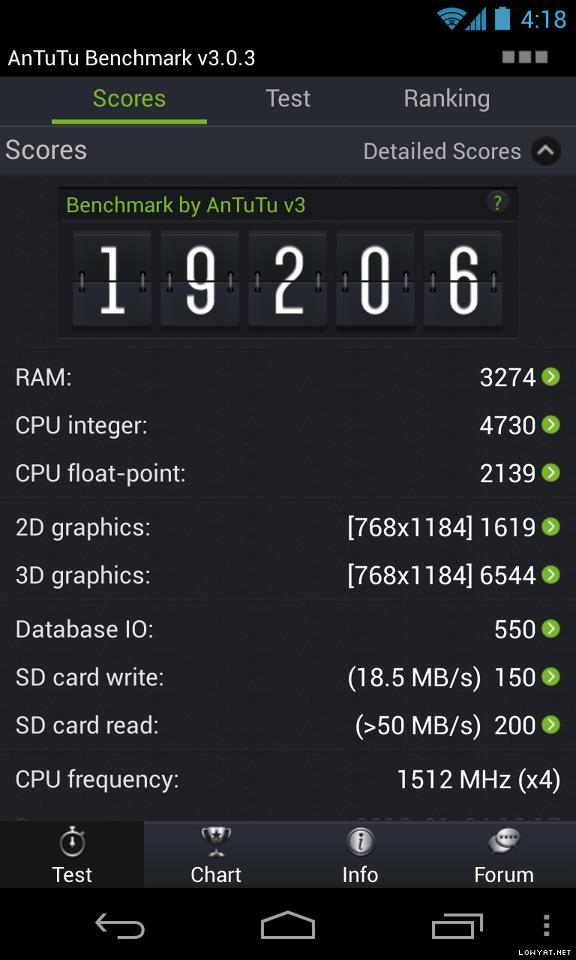 Now, if you optimize the math library with Krais extended instruction, you should see huge improvement in CPU floating point score, in this case 4182. With both optimized, you see a jump from 17k Antutu score to 21k, around 30% improvement at the same CPU speed. - B6. Can I compile my own kernel?
» Click to show Spoiler - click again to hide... « (Originally posted by cowithgun)WARNING: A word of caution, proceed only if you're clear of what you are doing. No one should be held responsible for any mishaps that happened for following this tutorial.1) Download and install VMware player (or any VM you like) - http://www.vmware.com/products/player/2) Install Ubuntu 12/13 as long as it is 64 bit. To compile JellyBean you need 64 bit OS. - http://www.ubuntu.com/3) Setup the VM - http://source.android.com/source/initializing.html4) Download the source - http://source.android.com/source/downloading.html- get mako-kernel android-4.2.2_r1.2 (latest, newer than OTA 4.2.2) - leave it overnight 5) Build it. - make -j4 - leave it for an hour or so - If you wanna use Linaro compiler, get this: http://www.linaro.org/6) You will get a working zImage if compiled without error 7) Unpack the ori boot.img using this: http://forum.xda-developers.com/showthread.php?t=9158088) Replace the zImage and pack it back. 9) Make sure you have backup your phone 10) Flash into your phone: dd if=newboot.422.oc.img of=/dev/block/platform/msm_sdcc.1/by-name/boot 11) reboot, voila! 12) Once you successfully compiled your own kernel, make the appropriate changes, depending on feature you want: - To calibrate the color, change file /arch/arm/mach-msm/lge/devices_lge.c accordingly: https://github.com/franciscofranco/mako/com...0f931085952bfd2- To overclock/undervolt, change file /msm/arch/arm/mach-msm/acpuclock-8064.c My freq table: http://forum.lowyat.net/index.php?showtopi...&#entry59139540Note that, i have "Faster" CPU binding. 13) Bionic / Krait optimization required you to recompile libc.so and libmath.so using code from Code Aurora. 14) Linaro gcc optimization, change make file to use -O3 and you need to fix a few compiler errors. It's do-able, not rocket science and the experience will make you know your phone even more. Good luck! ps: standard disclaimer; i m not responsible for sh1t...
C. UNLEASHING HANDS-ON, TUTORIALS & GUIDES- C1. Easy Way to Unlock bootloader & Root with toolkit
» Click to show Spoiler - click again to hide... « Wug's Nexus Root Toolkit http://forum.xda-developers.com/showthread.php?t=2015469Video tutorial: » Click to show Spoiler - click again to hide... « OR.. mskip's Nexus 4 Toolkit http://forum.xda-developers.com/showthread.php?t=1995688 - C2. Manual Way to Unlock bootloader & Root Recommended!!!!
Instead of relying on toolkits; Why not learn new things whilst doing it?
» Click to show Spoiler - click again to hide... « View simplified / summarised guide written by polarzbearz here. For original guide on XDA, refer to this link: here - C3. Okay. Now I'm rooted & unlocked; where can I get custom ROMs / custom kernels to flash?
» Click to show Spoiler - click again to hide... « Head over to Nexus 4 @ XDA-Developers and have glimpse at all the available custom ROMs, kernels, customisations, themes, applications and etc. - C4. Index to more guides available in XDA forum
» Click to show Spoiler - click again to hide... «
This post has been edited by polarzbearz: Jun 2 2013, 05:22 PM
|
|
|
|
|
|
TSpolarzbearz
|
Apr 19 2013, 03:21 PM
|
|
|
Nexus 4 Accessories- Casings/Covers/Bumpers
» Click to show Spoiler - click again to hide... « Ultra light protection & ultra sleek design- Rearth Ringke Google Nexus 4 SLIM Case
- Poetic Borderline Bumper Case
- SGP Ultra Thin Air
Medium protection & sleek design- Diztronic Matte Back Black Flexible TPU Case
- Cruzerlite TPU Case
- Nillkin Frosted Super Shield/Tree-Texture Leather Case
Heavy duty protection & thick design
- Wireless Chargers
» Click to show Spoiler - click again to hide... « Google Nexus Wireless Charger
LG WCP300 Wireless Charger
- Screen protectors
» Click to show Spoiler - click again to hide... « - SGP Stenheil Ultra Oleophobic/Crystal/Crystal DUAL (Dry application) > Only Crystal DUAL includes front & back » Click to show Spoiler - click again to hide... « SGP Ultra Oleophobic 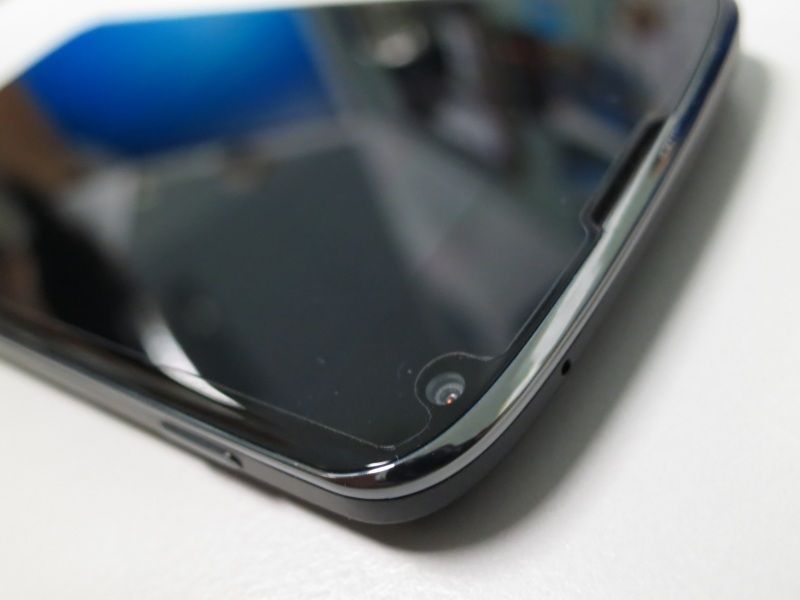 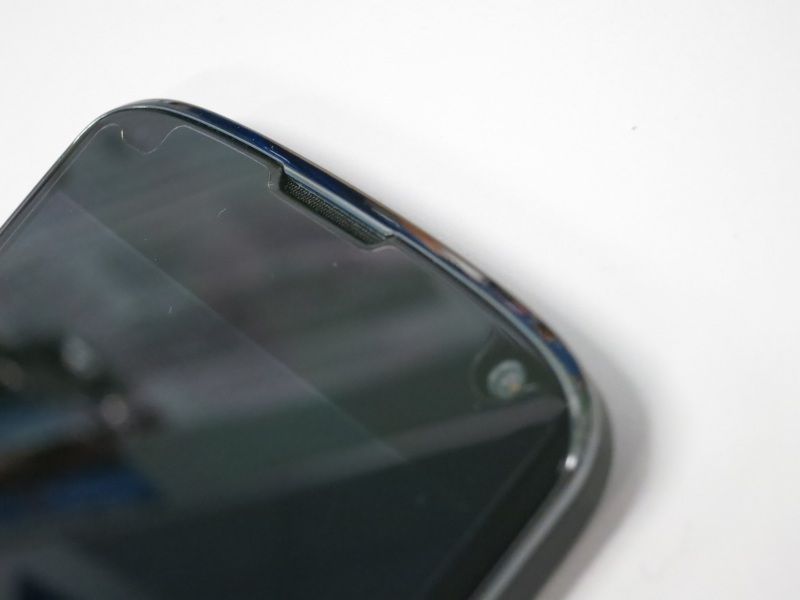 - Nilkin Crystal/Matte (Dry application) > Comes with front-back and front only pack (confirm with seller) » Click to show Spoiler - click again to hide... « Nilkin Crystal  - Best Skins Ever Total Body Skin/Total Body Skin with Case Optimized Screen Skin/Screen Skin/Case Optimized Screen Skin/Body Skin (Wet application)
- Nexus 4 accessories bulk orders/selling thread in Bulk Orders and Garage Sales forum
» Click to show Spoiler - click again to hide... « *These are all gathered through search from Bulk Orders and Garage Sales. I might not have included all of them but you can always do a search for "Nexus 4" for more accessories selling threads. Feel free to PM me your thread link if you are selling accessories for Nexus 4.Disclaimer: Do note that by no means the thread starter is associated with any of the seller below. The link is collected and put up in order to provide conveniences to users in this thread. At any given time that warning of taking down the links are given; they will be removed without any objections.Search Garage SalesSearch Bulk OrdersKeywords: Nexus 4, Nexus 4 accessories, Nexus 4 screen protector, Nexus 4 casing, etc....This post has been edited by polarzbearz: May 29 2013, 03:02 AM
|
|
|
|
|
|
TSpolarzbearz
|
Apr 19 2013, 03:21 PM
|
|
|
Nexus 4 Proud Owner ListInstructions:To add yourself to the owner list, fill in the form [CLICK HERE]To view detailed owner list, view the spreadsheet [CLICK HERE]The owner list in this thread will be occasionally updated, based on the speadsheet (Credits to tcmean for the spreadsheet & form)Note: Names added between 19 - 23 January 2013 are mostly lost tracked. Check the spreadsheet here to see if your name is in there. If not, just re-add your name by filling in the form.Note#2: All the duplicated entries in the spreadsheet will be treated as one (e.g. multiply entry for a single LYN username).Note#3:Please only add your name into the list ONCE, even if the side-infos (e.g. Bootloader unlocked? Rooted? ROM? Kernel? CPU binning? Hardware version) are inaccurate, it doesn't matter as long as your entry is there. Duplicated entries will only incur more works to the thread starter. Your cooperation is much appreciated!Total of 315++ proud owners and it's still growing strong.. 16GB» Click to show Spoiler - click again to hide... « 8GB» Click to show Spoiler - click again to hide... « - BrunoWong
- heLL[tuRt]
- bloodplasm18
- plecil
- vcheam
- RcykZai
- Robottoes
- GreenSamurai
- chokolato
- Fatyao
Proud to be part of the Nexus 4 Club? You may use these userbars in your signature! » Click to show Spoiler - click again to hide... « This post has been edited by polarzbearz: May 18 2013, 12:38 AM
|
|
|
|
|
|
TSpolarzbearz
|
Apr 19 2013, 03:22 PM
|
|
|
- TO BE REMOVED IN NEXT VERSION. MERGED WITH POST#6 : PROUD OWNER LIST -
This post has been edited by polarzbearz: May 10 2013, 01:07 AM
|
|
|
|
|
|
TSpolarzbearz
|
Apr 19 2013, 03:22 PM
|
|
|
Homescreen GalleryLove customising your Android experiences? Want to show it to others? You can request to have your homescreen design posted here by using the following format! » Click to show Spoiler - click again to hide... « Instructions: Copy the entire CODE BLOCK below and paste in your new reply; modify the fields according to Note#1 and Note#2.CODE
[@THREAD_STARTER_NAME] [i](e.g. [@polarzbearz])[/i]
[code]
[b][color=purple]Screenshots By YOUR_USERNAME[/color][/b]
[spoiler]
[center][url=LINK_TO_YOUR_POST]Screenshots 1[/url][/center]
[center][url=LINK_TO_YOUR_POST]Screenshots 2[/url][/center]
[/spoiler]
[ /code] << (REMOVE_THE_SPACE_INFRONT)
Note: Fill in THREAD_STARTER_NAME with the current threadstarter's name; YOUR_USERNAME with your forum's name and LINK_TO_YOUR_POST with the direct link to your homescreen's post. To obtain the post direct link, click on the Post #number at your post (see screenshot below)Note#2: Please make sure that you modify the REMOVE_THE_SPACE_INFRONT section, by removing the space infront of the [ /code] closing tag.How to obtain your post link?» Click to show Spoiler - click again to hide... « Note: Please use the above format to make requests of adding your screenshot here. Requests that does not adhere to the template/format will be ignored Screenshots By polarzbearz» Click to show Spoiler - click again to hide... « Screenshots By TwoJay» Click to show Spoiler - click again to hide... « Screenshots By anarchy2cruo» Click to show Spoiler - click again to hide... « Screenshots By louyea» Click to show Spoiler - click again to hide... « Screenshots By Someonesim» Click to show Spoiler - click again to hide... « This post has been edited by polarzbearz: May 25 2013, 04:29 PM
|
|
|
|
|
|
TSpolarzbearz
|
Apr 19 2013, 03:22 PM
|
|
|
Customisation StrategiesWant to customise your device to have unique experiences of Android? Don't know what to use? Here are some recommended applications, tools or basic guides to give you a head start! - Home Launcher Replacements
» Click to show Spoiler - click again to hide... «
- Clock, Date, Time & Weather-related widgets
» Click to show Spoiler - click again to hide... «
- Customisation inspiration & idea generation
» Click to show Spoiler - click again to hide... « Head over to MyColorScreen to have a glimpse at other's work to have inspirations; or directly use their customisations (if they provides tutorial or files required). Alternatively, view the previous post Homescreen Gallery to look at other member's customisation work
Need more tools / applications / widgets; appreciated it if anyone can recommend some to be added to the list here This post has been edited by polarzbearz: May 10 2013, 12:54 AM
|
|
|
|
|
|
TSpolarzbearz
|
Apr 19 2013, 03:23 PM
|
|
|
Information ArchiveAll the old posts and obsolete information which are no longer applicable / usable but might be useful to be reserved as a reference will be dumped here. This post has been edited by polarzbearz: May 10 2013, 12:54 AM
|
|
|
|
|
|
TSpolarzbearz
|
Apr 19 2013, 03:26 PM
|
|
|
Alright folks~ you may now start posting!  If you want to reply-to / quote some of the posts in the previous thread, you are still able to do so by using the multi-quotes option of the forum (refer to the image below for details) If you want to reply-to / quote some of the posts in the previous thread, you are still able to do so by using the multi-quotes option of the forum (refer to the image below for details)» Click to show Spoiler - click again to hide... « |
|
|
|
|
|
nsg86
|
Apr 19 2013, 03:32 PM
|
|
|
Yahoo , V9 ..i'm using light manager now, seems working better than lightflow. *and anybody getting the nexus 4 earpiece ? This post has been edited by nsg86: Apr 19 2013, 03:33 PM |
|
|
|
|
|
teckyang97
|
Apr 19 2013, 03:34 PM
|
|
|
Actually I think no need keep creating new thread,just leave it like usual
|
|
|
|
|
|
olygopoly
|
Apr 19 2013, 03:34 PM
|
|
|
Yahoo V9 already
This post has been edited by olygopoly: Apr 19 2013, 03:34 PM
|
|
|
|
|
|
poad
|
Apr 19 2013, 03:36 PM
|
|
|
first page |
|
|
|
|
|
TSpolarzbearz
|
Apr 19 2013, 03:37 PM
|
|
|
QUOTE(nsg86 @ Apr 19 2013, 03:32 PM) Yahoo , V9 ..i'm using light manager now, seems working better than lightflow. *and anybody getting the nexus 4 earpiece ? Gotta give LightManager a try soon, since it's free as opposed to Light Flow (free version limits functionality  ) The earpiece seems to be overpriced IMO, might as well as spending it on other earpieces QUOTE(teckyang97 @ Apr 19 2013, 03:34 PM) Actually I think no need keep creating new thread,just leave it like usual Just a standard practice in Lowyat.net's forum, if you did not notice |
|
|
|
|
|
ineser
|
Apr 19 2013, 03:37 PM
|
|
|
Reporting on V9!
Time to try lightmanager since its free!
This post has been edited by ineser: Apr 19 2013, 03:38 PM
|
|
|
|
|
|
poad
|
Apr 19 2013, 03:38 PM
|
|
|
in ur opinion should i stick with stock rom or flash the other one..
|
|
|
|
|
|
silver311
|
Apr 19 2013, 03:39 PM
|
Getting Started

|
haha.. its nice to see its already V9 now =D and even though i previously said i'm gonna use the stock rom for a while before going custom, I think... im gonna go flash the Franco Kernel later tonite |
|
|
|
|
|
TSpolarzbearz
|
Apr 19 2013, 03:40 PM
|
|
|
QUOTE(poad @ Apr 19 2013, 03:38 PM) in ur opinion should i stick with stock rom or flash the other one.. Depends on what you need. Do you want the extra functionalities offered in custom ROMs (e.g. T9 Dialers in some AOKP ROMs, etc); or do you prefer staying stock and not having to do any extra work (e.g. to flash, to download and flash again, etc). It's all up to your preferences But I do recommend flashing custom kernels tho, in order to slightly improve battery life by undervolting. Nevertheless, it might be a good idea to unlock your bootloader first if you're unsure whether to proceed or not (since unlocking will wipe every data in your device, might as well as do it early when there aren't much data residing in it). This post has been edited by polarzbearz: Apr 19 2013, 03:40 PM |
|
|
|
|



 Quote
Quote











 0.1463sec
 0.53
0.53
 6 queries
 GZIP Disabled