Outline ·
[ Standard ] ·
Linear+
** Google Nexus 4 Official Thread V8 **, Stock Android's Awesomeness!
|
TSpolarzbearz
|
 Mar 23 2013, 04:08 PM Mar 23 2013, 04:08 PM
|

|
 Nexus 4 Tips & Tricks Nexus 4 Tips & TricksFeel free to PM me if you have more tips/tricks to share - Battery savings
» Click to show Spoiler - click again to hide... « - Turn Google Currents background sync off if you don't need it (it is on by default)
> Open up Google Currents > Settings > untick Enable background sync - Turn off location reporting, location sharing and location history (**Google Now requires Location reporting and location history enabled)
> Open up Google Maps > Settings > Location settings > untick Location reporting, Report from this device, Enable location sharing and Enable location history - Turn off Google sync-ups that are not needed
> Settings > Accounts > Google > tap on your ACCOUNT eg. xxx@gmail.com > untick those service that are not needed
- Phone freezing/hang but unable to pull battery out?
» Click to show Spoiler - click again to hide... « > Hold the power button for 10 seconds to restart the phone.
- Chinese input?
» Click to show Spoiler - click again to hide... « > Nexus 4 come preloaded with Google Pinyin. Enable it at Settings > Language & input > make sure Google Pinyin is checked. After that, you could choose it from the input methods by holding the spacebar of the default English keyboard or through input method selector notification under notification bar if it's enabled.
- The infamous 'Red Blinking Light of Death' issue
» Click to show Spoiler - click again to hide... «
- Recommended Drivers for Nexus 4?
» Click to show Spoiler - click again to hide... « Universal Naked DriverHead over to the link above to download the drivers, and then use google's instructions to install the driver and browse for the folder extracted from the .zip file you downloaded (instead of Google's driver).
- I want to set my music for my ringtones / notifications / alarms / etc.
» Click to show Spoiler - click again to hide... «
Use these directories to store your music / ringtone of your choice:-
/sdcard/Alarms to be used by any "Alarm" applications.
/sdcard/Ringtones to be used by calling "Ringtones".
/sdcard/Notifications for any other notifications (e.g. messaging, whatsapp, facebook, etc.)
To change your alarm, head over to Clock > Alarms > click on any existing / create new alarm > change the alarm tone.
To change your notifications or ringtones, head over to Settings > Sounds > Phone Ringtone / Default Notification sound; alternatively you can head over to your application and set the custom notification specific to the application.
Note: If the audio that you transferred to respective directory (e.g. Notifications) does not shows up in the respective category of audio selection (e.g. selecting notification tones), try rebooting your device and check again.
- Where did the 'Developer Options' go?
» Click to show Spoiler - click again to hide... « Go to Settings > About > Tap on 'Build Number' 7 times and viola! Developer Options will now be available at your Settings page
This post has been edited by polarzbearz: Mar 25 2013, 09:09 PM |
|
|
|
|
|
TSpolarzbearz
|
Mar 23 2013, 04:09 PM
|
|
|
Nexus 4 UnleashedDon't like stock feels? Want to have it your way? Unleash your Nexus 4 starting with basic bootloader unlocking & rooting and flashing custom ROMs / files / etcs as you wish! Warning: If you don't know what you're doing, have no clue, or don't like to take risks, avoid this section at all cost as it is not for faint-hearted ones. Unlocking & Rooting may void your warranty so if you are not an advanced users, avoid it at all cost!  Additionally, it is recommended for you to learn and do these using manual way via adb / fastboot so that you can learn the underlying processes / procedures before using Toolkits or Softwares which does it for you. With this way, you will have at least basic understanding on how it works which may help you in the future such as when you encounter problems; these basic understanding may come in handy. Additionally, it is recommended for you to learn and do these using manual way via adb / fastboot so that you can learn the underlying processes / procedures before using Toolkits or Softwares which does it for you. With this way, you will have at least basic understanding on how it works which may help you in the future such as when you encounter problems; these basic understanding may come in handy.A. GETTING STARTED WITH BASIC KNOWLEDGE
All answers here are obtained from http://forum.xda-developers.com/showthread.php?t=2010338 in order to benefit the community here. Credit goes to the original author. Head on to the link to read the full version as those that are listed here are only the important/main points. Some additional points which are not available on the original thread are added, tho.
- A1. What is a "bootloader"?
» Click to show Spoiler - click again to hide... « Without getting into too many technicalities, the bootloader is essentially the program that gets loaded first when starting your device, and it is responsible for booting the Android kernel. Think of the bootloader as the BIOS of a computer.
- A2. What does it mean if my bootloader is locked/unlocked?
» Click to show Spoiler - click again to hide... « Most (if not all) devices are shipped from the manufacturer with locked bootloaders. This is for security reasons. A locked bootloader does not allow easy flashing of images, which means that it is difficult to change or modify the operating system. Unlocking a bootloader (using fastboot) on most Nexus devices results in a complete loss of all personal data from the device. Having a locked or unlocked bootloader has no bearing on the functioning of the device. Unlocking it gives you more options to play around with the OS. Additionally, an unlocked bootloader means that you can easily root your device no matter what -- unlike most non-Nexus devices, if you lose root, it is trivial to get it back.
- A3. What is “root”?[
» Click to show Spoiler - click again to hide... « Root essentially means that you have root (or superuser) access to the file system on Android. It is similar to being “administrator” on a Windows PC. It has nothing to do with your device or the bootloader, it has to do with the Android OS (i.e., you cannot “root” your device – you root the Andoid build that you are running). To have root, you need to be booted into the Android OS that you have rooted. If you are in fastboot mode, root is irrelevant. In order to perform root, you will most likely have to unlock your bootloader first (see above)
- A4. What is "recovery"?
» Click to show Spoiler - click again to hide... « Recovery is like a mini OS, which allows you to perform various functions, usually related to flashing files to your device, or updating files, or backing things up, etc. The stock image has a recovery included, but its functionality is very limited. There are a number of custom recoveries available, but the two most popular for the Nexus 4 are CWM and TWRP. There are various versions of each. More details to come in this section.
- A5. What is a "ROM"?
» Click to show Spoiler - click again to hide... « A ROM is slang for an mobile OS build.
- A6. What is the difference between a "stock ROM" and a "custom ROM"?
» Click to show Spoiler - click again to hide... « A stock ROM is a ROM that is built by Google and is signed by Google’s platform keys. Everything else is a custom ROM.
- A7. If I unlock my bootloader, is that the same as root?
» Click to show Spoiler - click again to hide... « No, as was mentioned above, unlocking the bootloader allows you to (among a few other things) flash images easily to the device when not booted into the Android OS. Root allows you access to manipulate the files WITHIN the Android OS.
- A8. If I want to root, do I have to unlock my bootloader?
» Click to show Spoiler - click again to hide... « Yes. Because you will have to flash custom recovery in order to flash a file which grants you root access. For more information on rooting, refer to following points in spoilers within this post.
- A9. If I unlock my bootloader, does that mean that I have to root?
» Click to show Spoiler - click again to hide... « No.
- A10. If I unlock my bootloader, do I have to flash a custom ROM?
» Click to show Spoiler - click again to hide... « No.
- A11. Do I need to root to flash a ROM?
» Click to show Spoiler - click again to hide... « No, but it is recommended as some custom ROMs will have additional features which require root access.
- A12. Custom kernels? Stock kernels? What are these? Any differences?
» Click to show Spoiler - click again to hide... «
B. FREQUENTLY ASKED QUESTIONS - UNLEASHED EDITION- B1. What is the process flow in general for unleashing my Nexus 4?
» Click to show Spoiler - click again to hide... « While these steps might not be definite; these are however common approaches used by fellow owners.
1. Unlocking the bootloader
2. Flashing Custom Recovery (Either temporary or permanently)
3. Rooting (via Recovery)
4. Flashing Custom Kernel
5. Flashing Custom ROM
As shown above, the common process flow for unleashing our device. Step 1 is easily reversible via fastboot commands (or BootUnlocker apps via PlayStore which requires Root); whereby Step 2 - 4 can be reversed by flashing stock images via fastboot.
- B2. I want to go back to stock ROM for warranty purposes / OTA / dislike custom ROM / any other reasons
» Click to show Spoiler - click again to hide... « Head over to this link to read on what steps are required to revert to stock: http://forum.xda-developers.com/showthread.php?t=2010312
- B3. ADB couldn't detect my devices / detected in normal conditions, but not in bootloader / etc
» Click to show Spoiler - click again to hide... « Ensure that you install Universal Naked Drivers instead of the default LG / Nexus drivers. Head over to the link above to download the drivers, and then use google's instructions to install the driver and browse for the folder extracted from the .zip file you downloaded (instead of Google's driver). Read section C > Manual ways of doing it for a detailed instructions / guides
- B4. Alright so I have heard that there are different CPU binnings like slow, nominal, fast or faster. How do I check?
» Click to show Spoiler - click again to hide... « In order to check your CPU bins, you must be rooted and have Android Terminal Emulator installed, then follow the steps below: 1. Launch the 'Terminal Emulator' application. 2. Type ' su' and hit Enter. 3. If there are any pop-up prompts requesting for SuperUser access, GRANT it.3. Type ' dmesg | grep PVS' and hit Enter. 4. It should return a line and show you whether if yours are SLOW, NOMINAL, FAST or FASTER. If it does not return these values, try rebooting your device and try again. Note: This might not work on custom kernels as kernel developers might have changed the return value.Credits to XDA Community for the original thread.
- B5. I have seem some ROMs or Kernels offering Krait Optimization or Bionic Optimisation. What are these?
» Click to show Spoiler - click again to hide... « (Originally posted by cowithgun)Kraits and bionic optimization speed up 2 things in your phone: 1. string / memory operation. these operation including string copy, memory copy, compare, etc. even a simply file copy uses these operation. all these implemented in a library known as bionic library in android. it's similar to libc in pc. this is the bionic optimization. 2. after Qualcomm introduce krait core (since S4), they release new code that allow you to use extended instructions that can only be found in Krait core to do some math operation. by implementing these new code, some math function such as sin(), cos(), etc will be faster. Many heavy graphic app uses math functions. What custom ROM/kernel developer do is to get these code from Code Aurora, and implement in their ROM/kernel then recompile it. You may not notice performance improvement if you just swipe homescreen, etc but if you do benchmark, you will see a huge improvement. For example, before any optimization, most N4 getting like 17k Antutu score. After Bionic optimization around you will get around 19k. You should see huge improvement in the RAM score, in this case 3274. Also check out the CPU floating point score, 2139, in this case, not optimized yet. 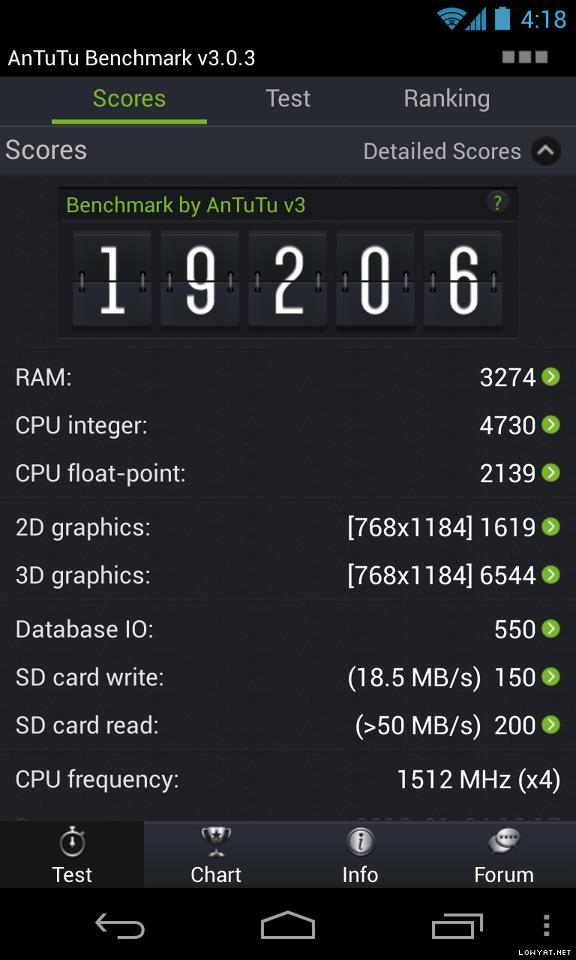 Now, if you optimize the math library with Krais extended instruction, you should see huge improvement in CPU floating point score, in this case 4182. With both optimized, you see a jump from 17k Antutu score to 21k, around 30% improvement at the same CPU speed.
C. UNLEASHING HANDS-ON, TUTORIALS & GUIDES- C1. Easy Way to Unlock bootloader & Root with toolkit
» Click to show Spoiler - click again to hide... « Wug's Nexus Root Toolkit http://forum.xda-developers.com/showthread.php?t=2015469Video tutorial: » Click to show Spoiler - click again to hide... « OR.. mskip's Nexus 4 Toolkit http://forum.xda-developers.com/showthread.php?t=1995688
- C2. Manual Way to Unlock bootloader & Root Recommended!!!!
Instead of relying on toolkits; Why not learn new things whilst doing it?
» Click to show Spoiler - click again to hide... « NOTE: Win+R is the shortcut of pressing the Windows Key on your keyboard + R, which will bring up the "RUN" commandPART 1: Prerequisites before unlocking & rooting: The Drivers Installation- Download Universal Naked Driver
- Uninstall any current existing drivers for your Android Devices (Right click Computer > Properties > Device Manager; or just use the RUN COMMAND (Windows Key + R) and type 'devmgmt.msc. Reboot your PC after uninstalling these previous drivers.
- Plug-in your android device to your computer, and then follow the instructions listed by Google; except replace the driver selection with the Universal Naked Driver you previously downloaded.
- Congratulations! Universal Naked Drivers setup is now complete.
PART 2: Android SDK Installation- Next, you'll need to have Android SDK installed (or extracted) to your computer. Go to this link, click on 'DOWNLOAD FOR OTHER PLATFORMS' and look under 'SDK Tools Only' (unless you're a developer
 ) and download the correct file matching your OS. ) and download the correct file matching your OS. - If your downloaded file is .zip - extract them to C:\ and you should end up with a 'android-sdk-windows' folder within C:\; but if your downloaded file is .exe, install it as you usually would and set the path pointing directly to C:\.
- By right, your C:\android-sdk-windows\platform-tools will now have fastboot.exe and adb.exe, then you're clear to proceed! If you do not have these files yet, go back to previous directory and run "SDK Manager"; download the 'platform tools' and exit the manager.
- To test if everything is working well, start up Command Prompt from your start menu (or Win+R > cmd > ENTER); and type 'adb help' and 'fastboot help'. If it returns you with tons of help information, it works as it should. But chances are the system do not know recognize these commands (as they do not know the directory of these SDK files). Thus, you'll have to point the system to your SDK path within the Computer's Environment Variable. To do this:
- Congratulations! Android SDK setup is now complete.
PART 3: Nexus 4 Unlocking & RootingSince this part is pretty simple I'll leave it to the original thread to guide you there . Refer below. For full guide, refer to this link: http://forum.xda-developers.com/showthread.php?t=2018179
- C3. Okay. Now I'm rooted & unlocked; where can I get custom ROMs / custom kernels to flash?
» Click to show Spoiler - click again to hide... « Head over to Nexus 4 @ XDA-Developers and have glimpse at all the available custom ROMs, kernels, customisations, themes, applications and etc.
- C4. Index to more guides available in XDA forum
» Click to show Spoiler - click again to hide... «
This post has been edited by polarzbearz: Apr 7 2013, 11:50 PM
|
|
|
|
|
|
TSpolarzbearz
|
Mar 23 2013, 04:09 PM
|
|
|
Nexus 4 Accessories- Casings/Covers/Bumpers
» Click to show Spoiler - click again to hide... «
- Screen protectors
» Click to show Spoiler - click again to hide... « - SGP Stenheil Ultra Oleophobic/Crystal/Crystal DUAL (Dry application) > Only Crystal DUAL includes front & back » Click to show Spoiler - click again to hide... « SGP Ultra Oleophobic 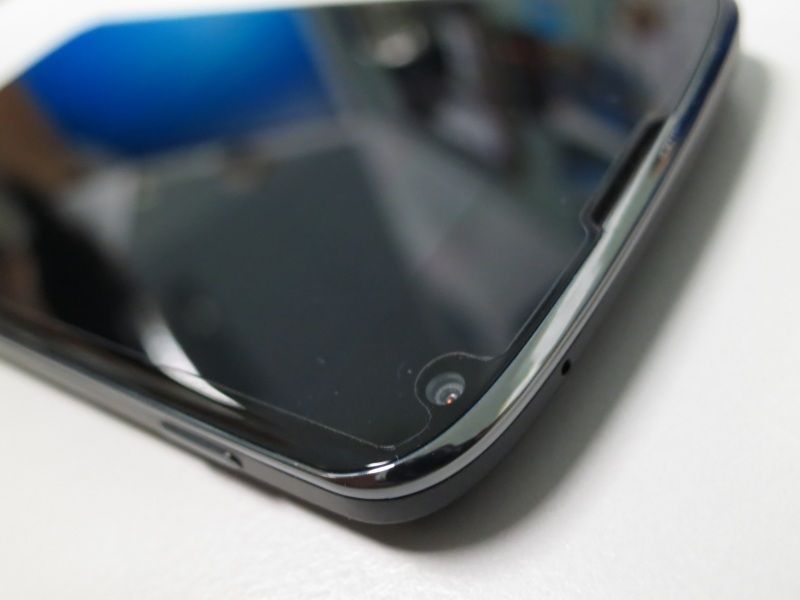 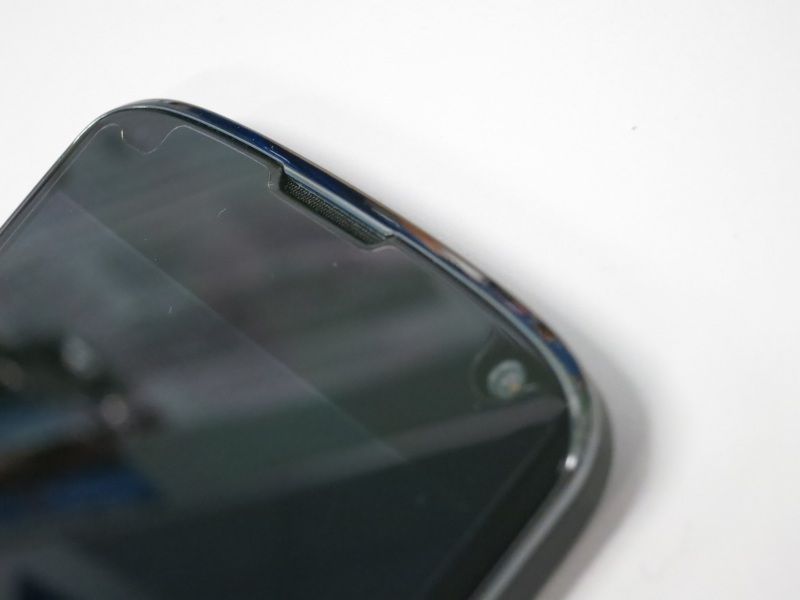 - Nilkin Crystal/Matte (Dry application) > Comes with front-back and front only pack (confirm with seller) » Click to show Spoiler - click again to hide... « Nilkin Crystal  - Best Skins Ever Total Body Skin/Total Body Skin with Case Optimized Screen Skin/Screen Skin/Case Optimized Screen Skin/Body Skin (Wet application)
- Nexus 4 accessories bulk orders/selling thread in Bulk Orders and Garage Sales forum
» Click to show Spoiler - click again to hide... « *These are all gathered through search from Bulk Orders and Garage Sales. I might not have included all of them but you can always do a search for "Nexus 4" for more accessories selling threads. Feel free to PM me your thread link if you are selling accessories for Nexus 4.Disclaimer: Do note that by no means the thread starter is associated with any of the seller below. The link is collected and put up in order to provide conveniences to users in this thread. At any given time that warning of taking down the links are given; they will be removed without any objections.Garage Sales:Nexus 4 Screen ProtectorsNexus 4 CasingNexus 4 AccessoriesYou can search more items here by yourselfBulk OrdersNexus 4 related bulksYou can search more items here by yourself
|
|
|
|
|
|
TSpolarzbearz
|
Mar 23 2013, 04:09 PM
|
|
|
Nexus 4 Proud Owner ListInstructions:To add yourself to the owner list, fill in the form [CLICK HERE]To view detailed owner list, view the spreadsheet [CLICK HERE]The owner list in this thread will be occasionally updated, based on the speadsheet (Credits to tcmean for the spreadsheet & form)Note: Names added between 19 - 23 January 2013 are mostly lost tracked. Check the spreadsheet here to see if your name is in there. If not, just re-add your name by filling in the form.Note#2: All the duplicated entries in the spreadsheet will be treated as one (e.g. multiply entry for a single LYN username).Note#3:Please only add your name into the list ONCE, even if the side-infos (e.g. Bootloader unlocked? Rooted? ROM? Kernel? CPU binning? Hardware version) are inaccurate, it doesn't matter as long as your entry is there. Duplicated entries will only incur more works to the thread starter. Your cooperation is much appreciated!Total of 275++ proud owners and it's still growing strong.. 16GB» Click to show Spoiler - click again to hide... « 8GB» Click to show Spoiler - click again to hide... « - BrunoWong
- heLL[tuRt]
- bloodplasm18
- plecil
- vcheam
- RcykZai
- Robottoes
- GreenSamurai
|
|
|
|
|
|
TSpolarzbearz
|
Mar 23 2013, 04:10 PM
|
|
|
Nexus 4 Userbars» Click to show Spoiler - click again to hide... «
|
|
|
|
|
|
TSpolarzbearz
|
Mar 23 2013, 04:10 PM
|
|
|
Homescreen GalleryLove customising your Android experiences? Want to show it to others? You can request to have your homescreen design posted here by using the following format! » Click to show Spoiler - click again to hide... « Instructions: Copy the entire CODE BLOCK below and paste in your new reply; modify the fields according to Note#1 and Note#2.CODE
[@THREAD_STARTER_NAME] [i](e.g. [@polarzbearz])[/i]
[code]
[b][color=purple]Screenshots By YOUR_USERNAME[/color][/b]
[spoiler]
[center][url=LINK_TO_YOUR_POST]Screenshots 1[/url][/center]
[center][url=LINK_TO_YOUR_POST]Screenshots 2[/url][/center]
[/spoiler]
[ /code] << (REMOVE_THE_SPACE_INFRONT)
Note: Fill in THREAD_STARTER_NAME with the current threadstarter's name; YOUR_USERNAME with your forum's name and LINK_TO_YOUR_POST with the direct link to your homescreen's post. To obtain the post direct link, click on the Post #number at your post (see screenshot below)Note#2: Please make sure that you modify the REMOVE_THE_SPACE_INFRONT section, by removing the space infront of the [ /code] closing tag.How to obtain your post link?» Click to show Spoiler - click again to hide... « Note: Please use the above format to make requests of adding your screenshot here. Requests that does not adhere to the template/format will be ignored Screenshots By polarzbearz» Click to show Spoiler - click again to hide... « Screenshots By TwoJay» Click to show Spoiler - click again to hide... « Screenshots By anarchy2cruo» Click to show Spoiler - click again to hide... « Screenshots By louyea» Click to show Spoiler - click again to hide... « This post has been edited by polarzbearz: Mar 24 2013, 12:14 AM
|
|
|
|
|
|
TSpolarzbearz
|
Mar 23 2013, 04:11 PM
|
|
|
Customisation StrategiesWant to customise your device to have unique experiences of Android? Don't know what to use? Here are some recommended applications, tools or basic guides to give you a head start! - Home Launcher Replacements
» Click to show Spoiler - click again to hide... «
- Clock, Date, Time & Weather-related widgets
» Click to show Spoiler - click again to hide... «
- Customisation inspiration & idea generation
» Click to show Spoiler - click again to hide... « Head over to MyColorScreen to have a glimpse at other's work to have inspirations; or directly use their customisations (if they provides tutorial or files required). Alternatively, view the previous post Homescreen Gallery to look at other member's customisation work 
Need more tools / applications / widgets; appreciated it if anyone can recommend some to be added to the list here 
|
|
|
|
|
|
TSpolarzbearz
|
Mar 23 2013, 04:11 PM
|
|
|
Information ArchiveAll the old posts and obsolete information which are no longer applicable / usable but might be useful to be reserved as a reference will be dumped here.
|
|
|
|
|
|
TSpolarzbearz
|
Mar 23 2013, 04:37 PM
|
|
|
Alright folks~ you may now start posting!  If you want to reply-to / quote some of the posts in the previous thread, you are still able to do so by using the multi-quotes option of the forum (refer to the image below for details) If you want to reply-to / quote some of the posts in the previous thread, you are still able to do so by using the multi-quotes option of the forum (refer to the image below for details)» Click to show Spoiler - click again to hide... « |
|
|
|
|
|
sebastianX11
|
Mar 23 2013, 04:40 PM
|
|
|
woo hoo new house!
|
|
|
|
|
|
Xirality
|
Mar 23 2013, 04:47 PM
|
10k Club

|
Hope in V8 i will be able to own Nexus 4. Ohsem phone
|
|
|
|
|
|
NightFelix
|
Mar 23 2013, 05:03 PM
|
|
|
first post checking in this thread.
|
|
|
|
|
|
cjlai
|
Mar 23 2013, 05:04 PM
|
|
|
QUOTE(sexbomb @ Mar 23 2013, 12:09 PM) i read that on andriod forums too. gonna get a universal one soon~ thanks!  I just bought one from Mr. DIY @ RM1.80 only Attached thumbnail(s)
|
|
|
|
|
|
TwoJay
|
Mar 23 2013, 05:05 PM
|
Getting Started

|
+1 Nexus 4!
|
|
|
|
|
|
zennasyndroxx
|
Mar 23 2013, 05:06 PM
|
|
|
Not bad v8 already.
|
|
|
|
|
|
billy_overheat
|
Mar 23 2013, 05:21 PM
|
|
|
Anybody usin xylon? Do you guys experience jumping back and forth from normal xylon and dark xylon?
|
|
|
|
|
|
ArthurMickey
|
Mar 23 2013, 05:33 PM
|
|
|
congrate..v888
|
|
|
|
|
|
Norameen
|
Mar 23 2013, 05:38 PM
|
|
|
congrats on v8...btw..on nex4 if want to capture in hdr mode..there are a bit of lag...is it normal?
|
|
|
|
|
|
TSpolarzbearz
|
Mar 23 2013, 05:41 PM
|
|
|
QUOTE(Norameen @ Mar 23 2013, 05:38 PM) congrats on v8...btw..on nex4 if want to capture in hdr mode..there are a bit of lag...is it normal? Yes, it should be pretty normal as HDR requires longer time to capture images. In fact I prefer HDR's photo over normal shots due to the quality, especially in low-light conditions |
|
|
|
|




 Quote
Quote
 prior to adding the path, if it is not already existing. After adding, your path would look something like this (example):









 0.0281sec
 0.91
0.91
 6 queries
 GZIP Disabled