

 May 28 2011, 07:55 AM


QUOTE(blue16 @ May 28 2011, 01:38 AM)
how to directly use F1 F2 F3
instead of having those volume adjust, brightness adjust thingy@@

Switching Off HP Action Keysinstead of having those volume adjust, brightness adjust thingy@@
Action Keys is HP code for "let's take a standard keyboard layout and make the keys do things that people don't expect them to do". In the context of the dv6, this means that pressing F2 will cause the screen brightness to go down instead of, you know, triggering whatever command F2 is supposed to trigger normally, like Rename File. The dv6 has this enabled out of the box, and it can be very confusing. I don't know how many people actually like it, but I'm certainly not one of them, which is why I turned it off.
This is how I did it:
1) Reboot computer. Keep pressing the Escape button as the screen turns on. This will lead you to a screen with a few text options that look something like this:
CODE
F6 - Boot Device Select
F8 - Advanced Startup
F10 - BIOS Setup
F11 - Recovery
...
etc.
F8 - Advanced Startup
F10 - BIOS Setup
F11 - Recovery
...
etc.
I can't remember what the options are, so pick the one that leads to BIOS setup or similar.
2) Look for the option called Action Keys. It should be under either Advanced or Miscellaneous.
3) Set it to "Off" or "Disabled". If the option is called "Disable Action Keys", then obviously set it to "On" or "Enabled". The point is you want to turn Action Keys off; PMR level English will help you greatly here.
4) Go to the last screen of the BIOS menu and select "Exit and Save Changes". When prompted, choose "Yes". This will save the changes to your BIOS and reboot your computer.
And that's it: your function keys will now be accessible without pressing the Fn button, and the special functions are accessible by pressing Fn+F<whatever>. As it should be.
QUOTE(SomaCruz89 @ May 28 2011, 04:03 AM)
Everything is so slow even I open warcraft 3 also need to wait 10s!!! Wtf is wrong with mine dv6?!?! Hard-disk problem ah?! I tried to copy files from d drive to c drive...the speed is about 16-20Mbps. Normal speeh eh? Mine hard disk is Samsung. How about you guys?
It may interest you to know that my hard drive (also the Samsung one) also suffered a huge slowdown out of stock whenever I tried to copy a lot of files from my external HDD to my internal HDD. Windows slowed down, everything slowed down. It was insane, but it sped back up as soon as the file copy was done. So, check these things first:1) Are there any big files copying/downloading/torrenting? If there are, try stopping it first and see if your system speeds up.
2) Try defragging the hard drive. I use Auslogics Disk Defrag because it's bloody billions of times faster than the built-in Windows defragger. A fragmented hard drive (one where lots of files have pieces everywhere instead of being ordered in one sequential line) will always suffer slowdowns as the hard drive head will have to go everywhere instead of just following a simple line whenever it's reading or writing files.
3) Run Scandisk. Open Windows Explorer/My Computer, right click on your hard drive, Properties -> Tools, Error-checking, Check now. This will scan your hard drive for serious problems. Pray that it doesn't find any because it would mean your hard drive has serious problems that cannot be fixed.
Anyway, because I screwed up my initial setup, I ended up recovering to factory settings using the recovery disks. After redoing my setup properly, there was no huge slowdown when copying stuff. Consider doing this; it takes a long time (about 3 hours minimum to recover if you deleted the recovery partition like I did), but it seemed to fix the issue.
This post has been edited by ThisIsBoletaria: May 28 2011, 08:19 AM
 Quote
Quote




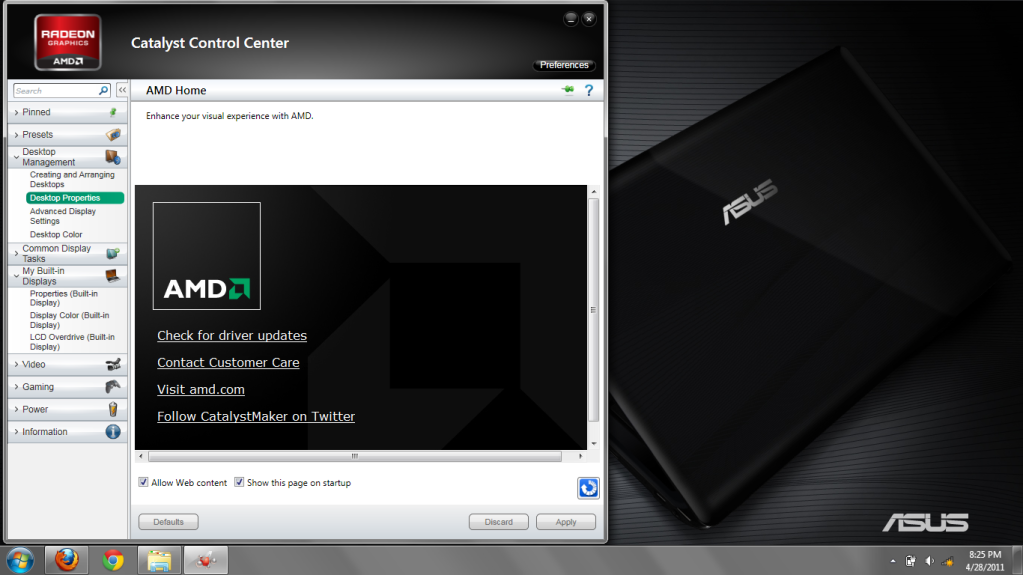
 i have already chg to advanced view d


 0.0192sec
 1.15
1.15
 6 queries
 GZIP Disabled