

 Jan 31 2021, 03:57 PM


QUOTE(misk94 @ Jan 20 2021, 01:27 PM)
Step 2D: Optional upgrade to Advanced Tomato firmware
• This is an optional step.
• Advanced Tomato present a more pleasant GUI that some of us would appreciate.
• Download the latest Advanced Tomato firmware.(Last version is 3.5-140. No update since.)
• Last version is 3.5-140. https://advancedtomato.com/downloads/router/dir868l
• Unzip the file.
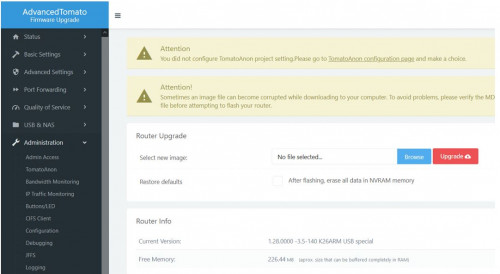
• Go to Administration -> Upgrade Firmware and browse to select the file.
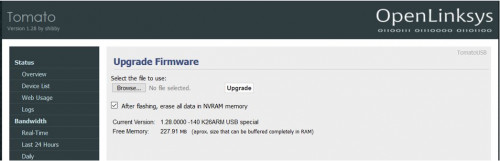
• Then flash the tomato-DIR868L-AT-ARM-3.5-140-special.trx file with Reset to Default Settings.
• As usual the process will take a few minutes.
• Once complete, the new Tomato firmware should boot up.
• Right after this, go to Administration -> Configuration ->Restore Default Configuration and choose Erase all data in NVRAM memory (thorough) option.
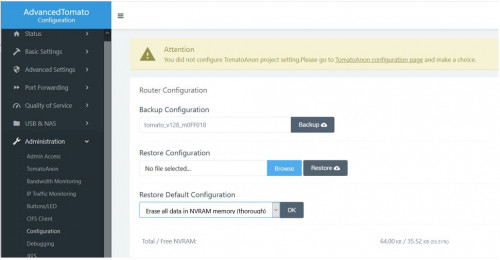
• Click OK button.
• This will take a few more minutes. Once done, you are all set!
Recovery Mode:
D-Link DIR-868L provides an easy way to recover using Recovery Mode (Also a useful and a recommended way to install third-party firmware)
• When the Power LED keeps blinking on boot, the router has entered the recovery mode.
• This usually happens when flashing a firmware went wrong, or the configuration has been corrupted.
• It is also possible to (force) boot into recovery mode to restore a soft-bricked router or flashing back to the factory firmware.
• Download the latest available firmware on the official D-Link website of the router revision. https://www.dlink.com.sg/dir-868l/#firmware
• Unplug all cables (incl. power cable) from the router
• Connect the router to the PC using one of the 4 LAN ports. Please do not plug to the WAN port (yellow colour) or use WiFi.
• Set the PC TCP/IPv4 address to 192.168.0.2 and use 255.255.255.0 as the Subnet mask
• Power-on the router while pushing a paperclip to the hidden reset button located at the bottom of the device for a few seconds.
• When the Power LED starts blinking, release the reset button
• Use Mozilla FireFox browser and navigate to http://192.168.0.1. Other browser will give you problems.
• Upload the D-Link firmware, when completed the router should reboot.
• The router should now be running factory D-Link firmware and accessible on the default address. (http://192.168.0.1).
• Please note that if you encounter problems going back to the latest factory D-Link firmware, it is suggested to start with an early firmware for example FW1.03.
• Each time you need to reset to factory defaults to clear the NVRAM memory of the router, before you upgrade to a newer firmware.
• The last step seems to be necessary when you are upgrading from FW110 to FW122, you may encounter a warning that size of the firmware is too big.
• Another problem you may encounter when going from FW110 onwards are the default Admin password. It is not the same as before.
• Please use the password listed on the label at the bottom of the router. Each router will have a unique password which will only work for that particular router.
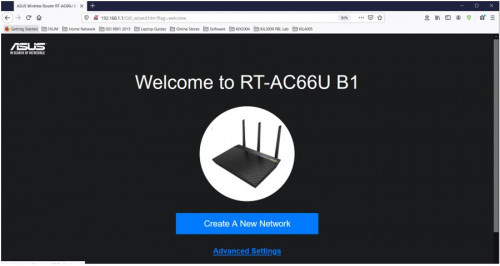
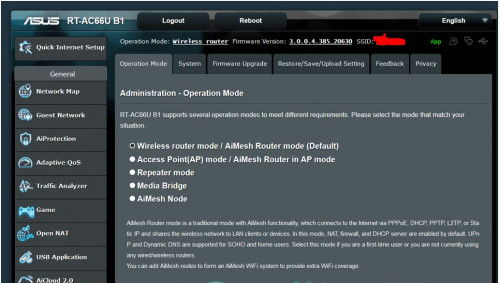
• Alternatively, you could migrate your DIR-868L to Asus RT-AC66U B1 firmware.
• Click the link below to see the step by step guide.
https://forum.lowyat.net/topic/5079525
Last Updated - 21/1/2021

Hi! First of all, thanks for your detailed guide. I have managed to flash my 868L with Advanced Tomato successfully. It's really a beautiful UI. I need some assistance on settings for Unifi. I have entered the username and password for my account but the status seems to always be stuck at connecting. Any help is greatly appreciated. Thanks!• This is an optional step.
• Advanced Tomato present a more pleasant GUI that some of us would appreciate.
• Download the latest Advanced Tomato firmware.(Last version is 3.5-140. No update since.)
• Last version is 3.5-140. https://advancedtomato.com/downloads/router/dir868l
• Unzip the file.
• Go to Administration -> Upgrade Firmware and browse to select the file.
• Then flash the tomato-DIR868L-AT-ARM-3.5-140-special.trx file with Reset to Default Settings.
• As usual the process will take a few minutes.
• Once complete, the new Tomato firmware should boot up.
• Right after this, go to Administration -> Configuration ->Restore Default Configuration and choose Erase all data in NVRAM memory (thorough) option.
• Click OK button.
• This will take a few more minutes. Once done, you are all set!
Recovery Mode:
D-Link DIR-868L provides an easy way to recover using Recovery Mode (Also a useful and a recommended way to install third-party firmware)
• When the Power LED keeps blinking on boot, the router has entered the recovery mode.
• This usually happens when flashing a firmware went wrong, or the configuration has been corrupted.
• It is also possible to (force) boot into recovery mode to restore a soft-bricked router or flashing back to the factory firmware.
• Download the latest available firmware on the official D-Link website of the router revision. https://www.dlink.com.sg/dir-868l/#firmware
• Unplug all cables (incl. power cable) from the router
• Connect the router to the PC using one of the 4 LAN ports. Please do not plug to the WAN port (yellow colour) or use WiFi.
• Set the PC TCP/IPv4 address to 192.168.0.2 and use 255.255.255.0 as the Subnet mask
• Power-on the router while pushing a paperclip to the hidden reset button located at the bottom of the device for a few seconds.
• When the Power LED starts blinking, release the reset button
• Use Mozilla FireFox browser and navigate to http://192.168.0.1. Other browser will give you problems.
• Upload the D-Link firmware, when completed the router should reboot.
• The router should now be running factory D-Link firmware and accessible on the default address. (http://192.168.0.1).
• Please note that if you encounter problems going back to the latest factory D-Link firmware, it is suggested to start with an early firmware for example FW1.03.
• Each time you need to reset to factory defaults to clear the NVRAM memory of the router, before you upgrade to a newer firmware.
• The last step seems to be necessary when you are upgrading from FW110 to FW122, you may encounter a warning that size of the firmware is too big.
• Another problem you may encounter when going from FW110 onwards are the default Admin password. It is not the same as before.
• Please use the password listed on the label at the bottom of the router. Each router will have a unique password which will only work for that particular router.
• Alternatively, you could migrate your DIR-868L to Asus RT-AC66U B1 firmware.
• Click the link below to see the step by step guide.
https://forum.lowyat.net/topic/5079525
Last Updated - 21/1/2021
 Quote
Quote
 0.0132sec
 0.43
0.43
 6 queries
 GZIP Disabled