Introduction to GuideThis guide was developed from various online resources and personal experience on D-Link DIR-868L router.

Credits are due to all contributions.

I hope this guide will help others wishing to try DD-WRT and Tomato firmware on their DIR-868L router.
I know how difficult this process can be.

The units were purchased from Shopee Malaysia in November 2019. So it’s a recent model with HW A1 and FW 1.22SHC.
I managed to migrate all of them to DD-WRT and Tomato/Advanced Tomato.
Also, I am able to migrate back to D-Link factory firmware FW-1.22SHC.
Altogether, there are three to four steps that you need to follow in order to migrate your DIR-868L to custom firmware like DD-WRT or Tomato with minimal problems.
Good Luck.
 Step 1: Downgrade DIR-868L factory firmware to FW1.003SHC
• Bear in mind that it is not recommended to install third-party firmware such as DD-WRT or Tomato though D-Link normal firmware upgrade. You will encounter all kind of problems. Something that you really want to avoid.
• You need to perform migration at
Recovery Mode. Please refer to the steps at
Recovery Mode, last section of this guide.
• First, you need to downgrade from your existing firmware (e.g. FW1.22SHC) to FW1.03SHC. This is important for successful migration to DD-WRT or Tomato firmware.
• Download FW1.03SHC firmware from D-Link Singapore website
https://www.dlink.com.sg/dir-868l/#firmware.
• Unplug all cables (incl. power cable) from the router.
• Connect the router to the PC using one of the 4 switch ports. Please do not plug to the WAN port (yellow colour) or use WiFi.
• Set computer IP address to 192.168.0.3 and use 255.255.255.0 as the Subnet mask.
• Power-on the router while pushing a paperclip to the hidden reset button located at the bottom of the device for a few seconds.
• When the Power LED starts blinking, release the reset button.
• Use Mozilla FireFox browser and navigate to
http://192.168.0.1. Other browsers will give you problems.
• You will see a text-based firmware update page where you can select the firmware file you want to upload.
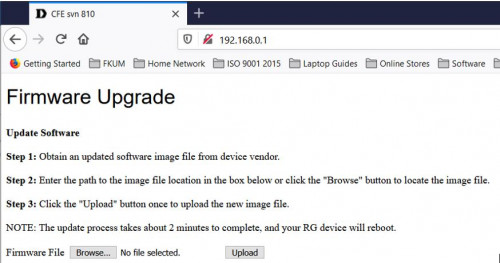
•Upload the FW1.03SHC firmware when completed the router should reboot.
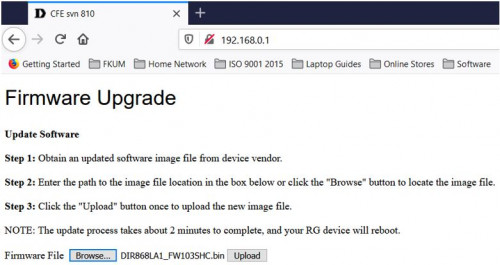
•When completed the router should reboot.
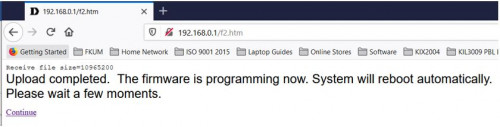
•The router should now be running FW1.03SHC firmware and accessible on the default address. (http://192.168.0.1). Default user is admin and no password i.e. blank.
•Next, click to Tools menu, then system menu and click on Restore Factory Defaults button
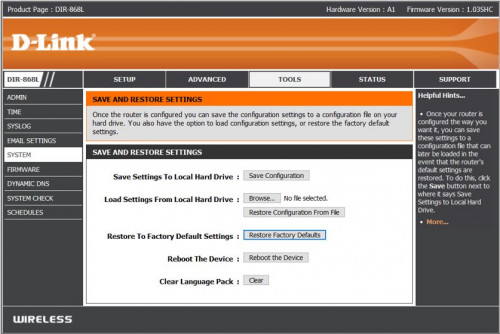
•The router will reboot again.
•The router is ready to be migrated to DD-WRT firmware.
•It is important to note that it is necessary to migrate the router to DD-WRT first before you migrate to Tomato firmware.
Step 2A: Migrate to DD-WRT firmware
• First, you need to download DD-WRT firmware.
• DD-WRT version r25974 was used with great success repeatedly on a few separate units.
• Download the r25974 files here.
https://dd-wrt.com/support/other-downloads/...link-dir868l%2F • Download two files factory-to-ddwrt.bin and dir868a-webflash.bin.
• First, flash the factory-to-ddwrt.bin file using the D-Link router’s firmware upgrade page.
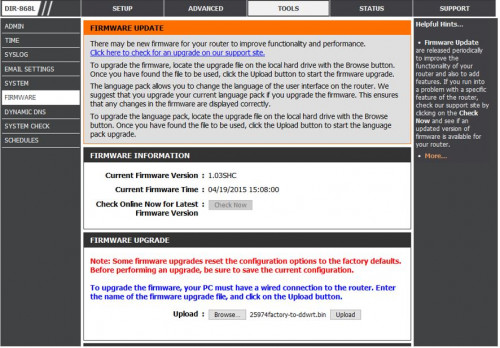
• The process will take up a few minutes. Once successfully flashed, the router will reboot.
• Next, go to the router main page (default is 192.168.1.1).
• You should see DD-WRT and will be asked to enter new user and new password.
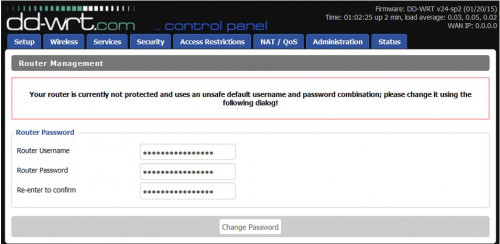
• I suggest root and admin, respectively. You can change them when you complete the whole migration process.
• Go to Administration -> Firmware Upgrade and browse to select the dir868a-webflash.bin file.
• Then flash the file with Reset to Default Settings.
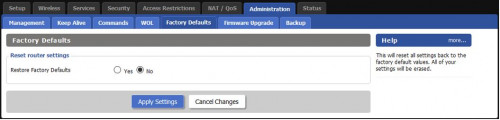
• The router will reboot once again.
• At this point you have a choice to upgrade to newer DD-WRT firmware version (Step 2B) or migrate to Tomato firmware (Step 2C).
• The following link may help you to decide to choose between DD-WRT or Tomato firmware.
https://techstorify.com/dd-wrt-vs-tomato-vs...outer-firmware/Step 2B: Upgrade to newer DD-WRT firmware• Download the latest DD-WRT firmware
https://dd-wrt.com/support/other-downloads/?path=betas%2F• Choose 2021 folder.
• Latest in July 2021 is version r47074
https://dd-wrt.com/support/other-downloads/...dir868l-reva%2F• Download the dir868a-webflash.bin file.
• Next, go to the router main page (default is 192.168.1.1)
• Go to Administration -> Firmware Upgrade and browse to select the dir868a-webflash.bin file.
• Then flash the file with Reset to Default Settings.
• As usual the process will take a few minutes.
• Once complete, the new DD-WRT firmware should boot up.
• This will take a few more minutes. Once done, you are all set!
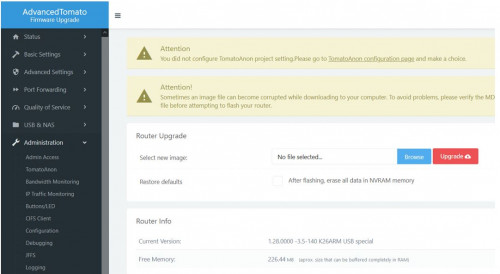
Step 2C: Migrate to Tomato firmware• Download the latest Tomato by Shibby firmware. (Last version 140. No update since)
• Last version is 140.
http://tomato.groov.pl/download/K26ARM/140-MultiWAN/• Unzip the file.
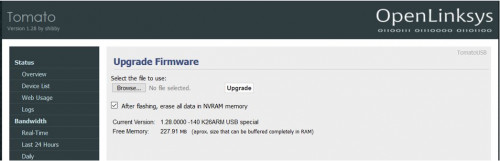
• Go to Administration -> Firmware Upgrade and browse to select the file.
• Then flash the tomato-DIR868L-ARM--140-special.trx file with Reset to Default Settings.
• As usual the process will take a few minutes.
• Once complete, the new Tomato firmware should boot up.
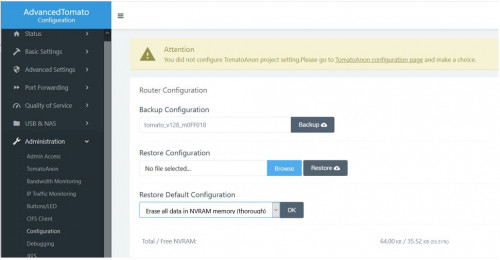
• Right after this, go to Administration -> Configuration ->Restore Default Configuration and choose Erase all data in NVRAM memory (thorough) option.
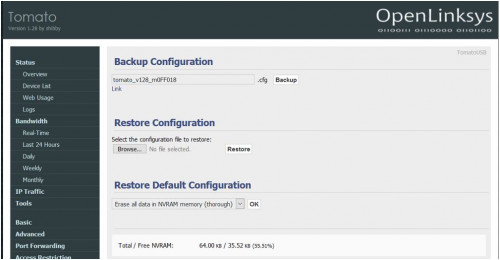
• Click OK button.
• This will take a few more minutes. Once done, you are all set!
• Browse to Step 2D for Upgrade to Advanced Tomato firmware.
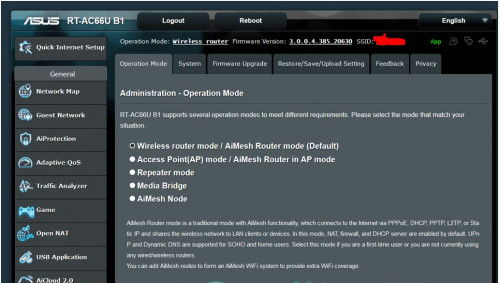
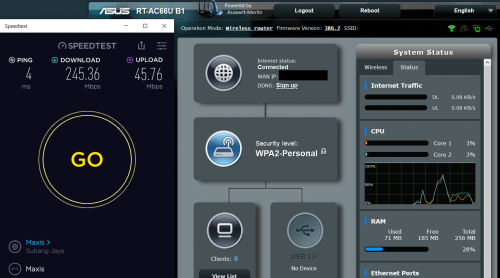
• Alternatively, you could migrate your DIR-868L to Asus RT-AC66U B1 firmware.
• Click the link below to see the step by step guide.
https://forum.lowyat.net/topic/5079525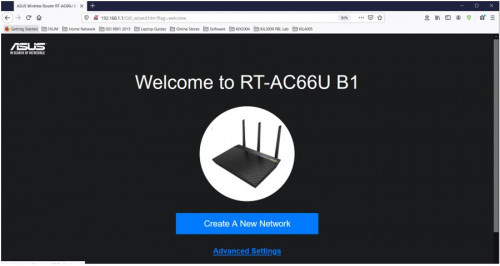
Last updated - 23/4/2021 * Links to DD-WRT downloads changed.
This post has been edited by misk94: Jul 21 2021, 08:14 AM 

 Dec 26 2019, 01:19 PM, updated 5y ago


 Quote
Quote






 0.0234sec
 0.69
0.69
 5 queries
 GZIP Disabled