Welcome Guest ( Log In | Register )

13 Pages < 1 2 3 4 > » Bottom

Outline · [ Standard ] · Linear+

 MSI Gaming Notebook Thread V3

views
     
TSMSI-NB
post Oct 28 2014, 03:10 PM

Getting Started
**
Junior Member
120 posts

Joined: Apr 2011
GS60 vs. GT72 – Performance to weight ratio

We’ve done a couple of articles on the monstruous NVIDIA GeForce GTX 980M graphics card, since we’ve been fiddling around with a GT72 quite a lot lately. However, as strange as it may sound, we (us writing these articles) haven’t actually had any access to samples with the equally impressive, but better-value-for-money GTX 970M. Until now.

We got hold of a GS60, which as you probably know is a slim machine at only 19.9mm thick. Due to some clever engineering, we can run a GTX 970M in it without any problems, and since it also uses the same CPU as the GT72 we previously used for performance tests, we can compare them side by side. You can probably see where this is going… Yes, it’s obviously going to be about 3D benchmark performance, GS60 vs. GT72. GTX 970M vs. 980M. Finesse vs. Bulk.

In any case, below are the specs of the two machines. The benchmarks used are 3DMark 11 and 3DMark Firestrike, as these put graphics performance to the test.

user posted image

Starting off with Firestrike, we notice that the GTX 970M in the GS60 will go as far as the drivers will allow us: 135MHz above stock levels: a GPU frequency of 1059MHz and boost at 1173MHz. Obviously, the 970M is down on shaders compared to the 980M as well, but it also won’t overclock as high. The 980M in the GT72 reaches 1173MHz GPU with a boost frequency of 1262MHz, while its memory also overclocks better, to over 6GHz. The GS60 and 970M falls some 80MHz short of the 6GHz mark.

user posted image

At stock frequencies, we hit over 9200 points in 3DMark 11, with the GS60 and 970M, wheras the GT72 with its 980M clears 11000. With overclocking, the 970M comes close to the 10k mark, which no doubt would have fallen with higher frequencies if it hadn’t been for the driver limitations.

user posted image

Moving on to Fire Strike, we see a similar picture. The 980M is comfortably clear of the 970M, but the 970M still offers impressive performance for a mobile chip. Over 6500 points in Fire Strike, and an additional comfortably achieved 800 points with overclocking.

user posted image

Not enough to touch the 980M in the GT72, but there’s more… Remember us bringing up weight in the spec tables? You bet, we’ve come up with another graph with more stats for you folks:

user posted image

The GS models were designed for people on the go who still want to do some serious gaming every now and then, while the GT series is more performance focused. This is what we want to highlight with the graph above: the performance/weight ratio in the GS60 is probably among the highest in notebooks everywhere right now.


TSMSI-NB
post Nov 6 2014, 02:31 PM

Getting Started
**
Junior Member
120 posts

Joined: Apr 2011
QUOTE(EdenHazard17 @ Nov 2 2014, 12:41 AM)
Hi, proudly the owner of GT72 2QD Dominator here! Do include me.  biggrin.gif
*
Welcome! Updated to the list rclxms.gif
TSMSI-NB
post Nov 6 2014, 02:33 PM

Getting Started
**
Junior Member
120 posts

Joined: Apr 2011


GS60 – Thermal Performance

During our previous overclocking tests of the GS60 we discovered that it comes with a nice performance to weight ratio, but we were also slightly surprised by the fact that the computer had no trouble supporting quite serious overclocking of the graphics card either.

Logic dictates that the slimmer a notebook is, the harder it is to fit large cooling solutions – that’s why we can cool the 980M and any mobile CPU in the GT72 with ease, while keeping it quiet. The GS60 though, is under 20mm thick including screen, meaning that space for cooling is critical.

The obvious way is to throw in a couple of fans with massive RPMs, but that would be extremely noisy. Another way would be to make the system thicker to allow more space for the cooling fins, allowing for a larger convection area helping you exhaust the heat, which of course makes the system bigger, heavier and less mobile. Instead, we’ve worked with the space available and managed to create a system that stays surprisingly cool even under full load.

Yes, we’ll have to admit – it’s not whisper quiet, but nowhere near as bad as you might imagine by looking at how slim the GS60 is. All things considered, we believe it is at a sweet spot where it stays quiet for everyday use, while making itself known during gaming, which is when you have a headset on anyway, right?

We’re always partial to a benchmark, so we set about finding how hard we can push the GS60’s thermal solution… In doing so, we got nowhere near the limits of the GTX 970M, despite a 20 minute loop of game test 4 in 3DMark 11, meaning constant 100% load on the GPU. In 22°C room temperature, we maxed out at 85°C on the GPU, despite overclocking it to the max, thus creating extra ”excess” heat.

user posted image

Of course the system was audible, but even when set in an office landscape with people working all around during the benchmarks, nobody as much as lifted an eyebrow.

In case you’re worried about the cooling of the GS60, you shouldn’t be, it leaves plenty of headroom for the processors.


TSMSI-NB
post Nov 6 2014, 02:42 PM

Getting Started
**
Junior Member
120 posts

Joined: Apr 2011


Dragon Gaming Center – an introduction

Dragon Gaming Center is a nifty tool to set a bunch of settings that are available on the G series MSI Notebooks. The idea with this article is to break down the settings and explain them.

The first thing that meets you when you launch the Dragon Gaming Center is the System Monitor screen:

user posted image

It does pretty much what the name says – it gives you system parameters in real-time, such CPU load, RAM use, battery status, etc. You can also switch SHIFT profiles and monitor your temperatures and network usage.

user posted image

Screen 2 is the Utility screen – from here, you can launch applications, with the ones you see in the screenshot are preset. In addition to these, you can add your own applications.

user posted image

Instant Play comes with four tabs – the first one is ”Instant Play”. Here you can assign the P1 key shortcut to launch a specific application or game.

user posted image


Tab 2 is Display & Audio, where you can adjust speaker volume and microphone levels, as well as display brightness and gamma.

user posted image

Tab 3 is Mouse – you can set pointer speed, double-click speed and scrolling properties.

user posted image

The last Instant Play tab is Resource Release where you can choose which applications will be automatically closed when you launch your preset game with the P1 key combo.

user posted image

Lastly, Device Setting comes with the possibility to turn on/off the Windows key on the keyboard, and enabling/disabling the high performance profile. Finally, you can once more choose SHIFT modes.


This post has been edited by MSI-NB: Nov 6 2014, 02:46 PM
TSMSI-NB
post Nov 10 2014, 02:03 PM

Getting Started
**
Junior Member
120 posts

Joined: Apr 2011
QUOTE(EdenHazard17 @ Nov 6 2014, 11:12 PM)
Hello there, just to confirm it, for GT72 (i believe it's the same for other models) the warranty sticker is attached to one of the screw hole at the back cover, so if I plan to clean the fan or doing any upgrade, the warranty will be voided?

Btw, here's some pic of my beast.  biggrin.gif

user posted image

user posted image
*
Hi, please make sure to upgrade via MSI Authorized Resellers (http://bit.ly/mymsinb_wheretobuy) or service centre to enjoy warranty service.

TSMSI-NB
post Nov 10 2014, 02:05 PM

Getting Started
**
Junior Member
120 posts

Joined: Apr 2011
QUOTE(maru&box @ Nov 9 2014, 01:10 PM)
Just to update to the "resolution" of this customer service nightmare I had a long time ago in the last thread.

1.I brought in my unit as promised and it was "fixed".

2.Checked the speakers and was happy.

3.Flew back to Penang.

4. Over the weekend I decided to use my headphones again after enjoying the speakers for a few days. I only use headphones recently because the speakers sound bad.

5. Headphones and mic jack doesn't work anymore.

6. Complain the the center messed up my laptop audio/mic jacks and forced to send in laptop again for 1 week.

7. I requested for the service report to state that the latest report is made because they did a bad job on the first report and caused this issue. They tried to make it look like the laptop so ngam ngam have 2 problems in 2 weeks in the 2nd service report. Genius.

8. Also requested they find who is responsible and ask to issue an apology. -- Nobody wants to take any blame.

9. Waiting for response now --> I think they will just ignore.
Quite fed up of this nonsense already.
They even have to force me to personally ask for an apology when it is obviously their fault. First time I heard of this.Don't even want to say "sorry lah".

Probably will need to ask around if Asus or Lenovo has better CS before buying new laptop when the next GPU refresh comes out.
*
Hi Maru, we're sorry to hear about your experience. Please check pm and we will assist you.
TSMSI-NB
post Nov 10 2014, 02:47 PM

Getting Started
**
Junior Member
120 posts

Joined: Apr 2011


GT72 Cooling layout

The GT72 comes with a much improved dual-fan cooling solution compared to its predecessors. Thanks to advanced thermal engineering and features such as the thermal bridge (the heatpipe connecting the CPU cooling block to the VGA exhaust fins), the GT72 has a world-class cooling system. Anyone can keep a system cool by blasting the fans on max RPM, but the dual-fan Cooler Boost 3 solution also manages to keep the revs and thereby the noise levels down.

user posted image

As we already touched on a couple of weeks ago, we know that the temperatures never reach above 80°C, even with a grossly overclocked GTX 980M – the Cooler Boost 3 design you see above is the reason for this.


TSMSI-NB
post Nov 11 2014, 09:48 AM

Getting Started
**
Junior Member
120 posts

Joined: Apr 2011
QUOTE(EdenHazard17 @ Nov 10 2014, 05:48 PM)
Hi, is that service only available for upgrading? How about cleaning?
Yeah, for now mostly I played MaxPayne 3, WatchDog, Dota 2 and Fifa14. Even when I forgot to switch on the Cooler Booster, the highest temperature only around 70/71°C. The temperature maintains 60-64°C when Cooler Booster is on. But well, just for precaution. Probably in next 6 months the fan will be dusty, that's why I want to confirm whether MSi have cleaning service without voiding the warranty or not.

Thanks TS!
*
Kindly visit our service centre for cleaning smile.gif
TSMSI-NB
post Nov 12 2014, 04:44 PM

Getting Started
**
Junior Member
120 posts

Joined: Apr 2011


Graphics card memory – how much is enough?

How much memory do you really need? With the introduction of the GTX 900 series graphics from NVIDIA, we’ve seen a leap in two things: performance, and especially on the mobile graphics side, memory size. Simply put, the higher your resolution is, the more memory you’re going to need in addition to high raw processing power. But how much?


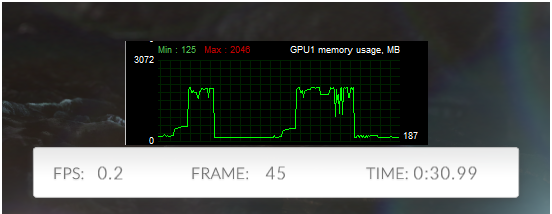
For example, Futuremark recently updated its latest 3DMark to support 4K benchmarking. Trying to run this benchmark on any graphics card with what is now the de facto standard amount of graphics card memory, 2GB, will give you a really hard time with the FPS figures generally below 2 (yes, two) FPS in Game Test 2, whereas 3GB will be barely enough to get you by.

user posted image

This is with 4K (3840x2160) of course, and just one benchmark, but it gives you an indication of where things are heading. That’s why we’ve chosen to equip our GTX 970M and 980M graphics cards with double the amount you’d expect – future proofing, and for high-res external monitors.

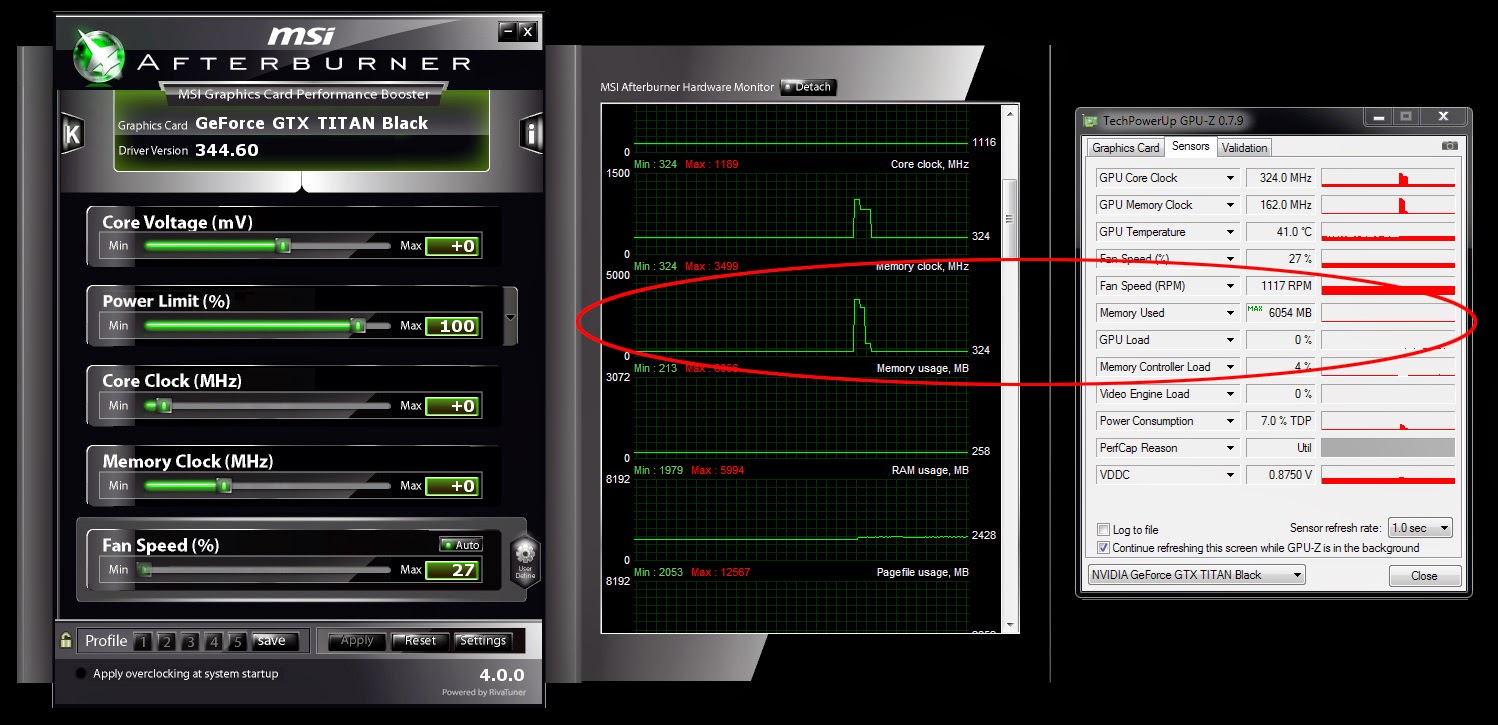
A real-world example on the subject was written up by Swedish media NordicHardware on Nov 7th. During its testing of Call of Duty: Advanced Warfare, they discovered that the game, even with a perfectly normal 1080P (1920x1080) resolution, would use all graphics memory at its disposal, all 6GB of the NVIDIA GeForce Titan Black.

user posted image

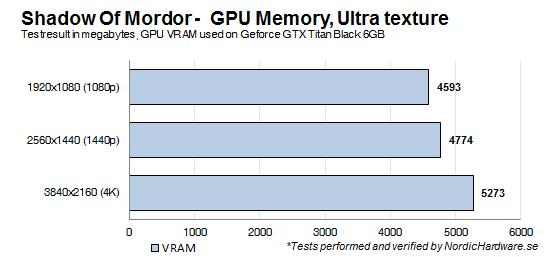
Other games are going in the same direction as well. Games such as Shadow of Mordor also require a whole lot of VRAM, also eclipsing the 4GB barrier with 1080P resolution (tests once more courtesy of NordicHardware):

user posted image

With even regular games, 2GB of VRAM is barely enough right now, and is simply not going to be enough in a future that is closer than you might think. The high-resolution revolution is closing in fast, do you have enough graphics memory?


TSMSI-NB
post Nov 12 2014, 04:50 PM

Getting Started
**
Junior Member
120 posts

Joined: Apr 2011
QUOTE(mental007 @ Nov 11 2014, 05:20 PM)
I don't think your Penang Service Centre will be able to help clean btw. They are just representative that don't have the power to check the laptop etc. Everything need call/refer to HQ. I even asked them whether can open to upgrade RAM and they also said need to refer HQ for it. LOL
*
Hi there, we suggest you may call to our service centre for more information: 1300-88-2273 (operating from Mon-Fri, 9am-6pm, except public holiday). Alternatively, you may also contact our product info centre @ 1300-22-1986 for assistance. Hope this helps! smile.gif

TSMSI-NB
post Nov 13 2014, 12:16 PM

Getting Started
**
Junior Member
120 posts

Joined: Apr 2011
QUOTE(mental007 @ Nov 12 2014, 06:13 PM)
Its no use. The last time I took my laptop for repair also called their service centre hotline. And they asked me to bring to Penang service centre. And then penang service centre said need refer HQ and send to KL HQ for upgrades/repair. Everything need send to HQ. Its like there is no technician in Penang service centre.

Maybe need improve on that.
*
Thanks for your feedback. We will continue to improve our service.

For your information, currently the only repair centre is at Kelana Jaya as other branches help to collect and pick up. The standard working period is 14 working days. Should you require any assistance, feel free to contact our product info centre @ 1300-22-1986 smile.gif
TSMSI-NB
post Nov 13 2014, 04:31 PM

Getting Started
**
Junior Member
120 posts

Joined: Apr 2011
QUOTE(LostAndFound @ Nov 13 2014, 04:08 PM)
... Just called KJ service center and received a really dissatisfying answer. I want to buy an mSata SSD for my brother as a present, but one stupid sticker over a screw prevents me from installing myself (which I've already done for my own other-brand laptop).

Service center quote me at RM140 for installation labour charges! Even my car workshop also don't charge so high for 2-3 hours of work, this 5 minute task want to charge RM140.

Anyone knows how to self-install without voiding warranty?
*
Hi, you may also upgrade via MSI Authorized Resellers (http://bit.ly/mymsinb_wheretobuy) to enjoy warranty service.
TSMSI-NB
post Nov 14 2014, 05:02 PM

Getting Started
**
Junior Member
120 posts

Joined: Apr 2011
QUOTE(LostAndFound @ Nov 14 2014, 09:14 AM)
Good idea. I'll check out TechArmory. If my own laptop I'll do it myself, but since not mine....
Thanks, that's useful. I think you all should reconsider how the sticker is placed though. I'm a loyal ASUS fan and their laptops (and the Dells/Toshibas my family had before) always are capable to be opened, for those of us who know how. Warranty service also not an issue, and doesn't cost 3 digit for simple 5 minute task. How much money can you earn this way vs the customer being pissed off with your brand?
*
Hi, we usually advise customers to do the upgrade via our authorized resellers and service centres as installing an SSD requires reconfiguring the Bios (only for creating RAID 0 volume) and backing up the OS to port it over to the SSD.

Customers may also upgrade SSD themselves however we usually discourage this due to if customer cause any damage to the unit they might not enjoy warranty service anymore.

Our service centre always charges a flat rate so we suggest you to always check with your local MSI dealer for better rates.

This post has been edited by MSI-NB: Nov 14 2014, 06:02 PM
TSMSI-NB
post Nov 17 2014, 09:57 AM

Getting Started
**
Junior Member
120 posts

Joined: Apr 2011
QUOTE(EdenHazard17 @ Nov 15 2014, 01:20 AM)
Hi maru, can u share to us the method to contact MSi directly? And who did u contact? Just for precaution. Thanks  smile.gif
*
Hi Eden, you may contact our product info centre @ 1300-22-1986.
TSMSI-NB
post Nov 17 2014, 10:04 AM

Getting Started
**
Junior Member
120 posts

Joined: Apr 2011
QUOTE(giovanni @ Nov 14 2014, 09:32 PM)
May I know the warranty of  msi gaming laptop is how long? I was told two years but second year only cover labour but not parts. Is it true?
*
Total of 2 years warranty (being first year international warranty) for local MY set.

Local MY set should comes with a MY warranty sticker on the notebook, you may check from the Serial Number if it belongs to local MY set.
Attached Image

Please take note there will be RM200 handling charges for non-local set.
TSMSI-NB
post Nov 17 2014, 12:20 PM

Getting Started
**
Junior Member
120 posts

Joined: Apr 2011
Q4 2014 Bundles

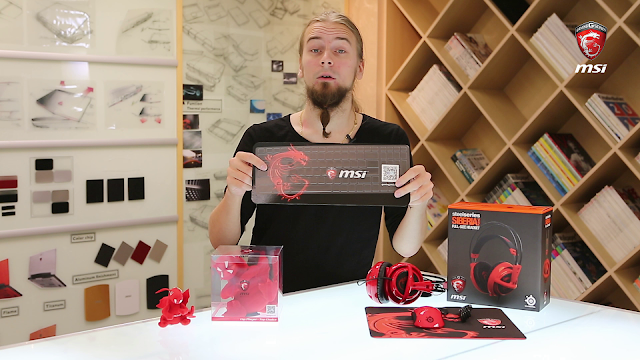
Nowadays, when you buy a gaming notebook from MSI, chances are you’ll end up with a little something on the side, apart from the notebook and the usual accessories. The tricky bit is that what extras you get vary quite wildly from region to region, making it close to impossible to summarize what’s bundled where, and for you as an end-user, even harder to know what you’re getting.

user posted image

Recognizing this little dilemma, we decided to take a look at a selection of things you will find bundled in a little video presentation of the Q4 2014 bundles, including plushies, mouse pads and backpacks. The video is found on Youtube:


TSMSI-NB
post Nov 20 2014, 11:19 AM

Getting Started
**
Junior Member
120 posts

Joined: Apr 2011
QUOTE(giovanni @ Nov 17 2014, 12:23 PM)
Ya, it's local set. So it means two years of parts and labours as long as I am in Malaysia rite?
*
Yes, as long as under warranty.
TSMSI-NB
post Nov 20 2014, 11:44 AM

Getting Started
**
Junior Member
120 posts

Joined: Apr 2011
QUOTE(EdenHazard17 @ Nov 19 2014, 02:25 AM)
I don't know about other series. But to be fair, for GT72, personally i think this machine is top notch in term of performance & quality. I played quite heavy game (Watchdog, COD AW and others) for few hours in non-aircond condition and my temperature only maxed around 60 to 64 celsius with cooler boost on. My older brother using GE70 with 765m GPU is also quite heavy gamer and already used that machine around 1.5 year without any problem. Not to back MSi up, but just sharing my experience.

As for GS series, I also did quite many survey before buying GT72 as I plan to buy GS series at first. But canceled due to many overheat complaints. Even GT70 also has several complaints about overheating issues. But with GT72 now, I think for GT series, MSi have truly upgraded their machine. Don't know about the new GS series with 900m series GPU. Not yet check any review about it.

Therefore, let us give them chance to upgrade their products. With these many complaints, hope MSi really look into this matter seriously especially in their after sales service as this will affect their products selling.

(Personally, I kind of hope MSi have agent like PrinceJ, where he knows everything about his products and ready to serve & assist, not just tell customer "Please contact our service centre...etc", for every single problem or question)

Edited : Btw to TS, for local set do we get red dragon plushie included in the super pack too? Because I don't get one from buying GT72. Seems nice  blink.gif
*
Currently the super pack doesn't include the red dragon plushie, stay tune for our coming activities biggrin.gif
TSMSI-NB
post Nov 20 2014, 11:47 AM

Getting Started
**
Junior Member
120 posts

Joined: Apr 2011
QUOTE(ZRong223 @ Nov 17 2014, 09:10 PM)
Ok... I have experimented my laptop for 2 weeks, and I would like to conclude that:
MSI GE60 2PE... Not recommended. The cooling system is very bad, causing constant CPU and GPU throttling.
Even Notebookcheck review also shows GPU throttling.
*
Hi ZRong, we would like to understand more about your laptop on the throttling issue. Please check PM. Thank you.
TSMSI-NB
post Nov 20 2014, 11:55 AM

Getting Started
**
Junior Member
120 posts

Joined: Apr 2011
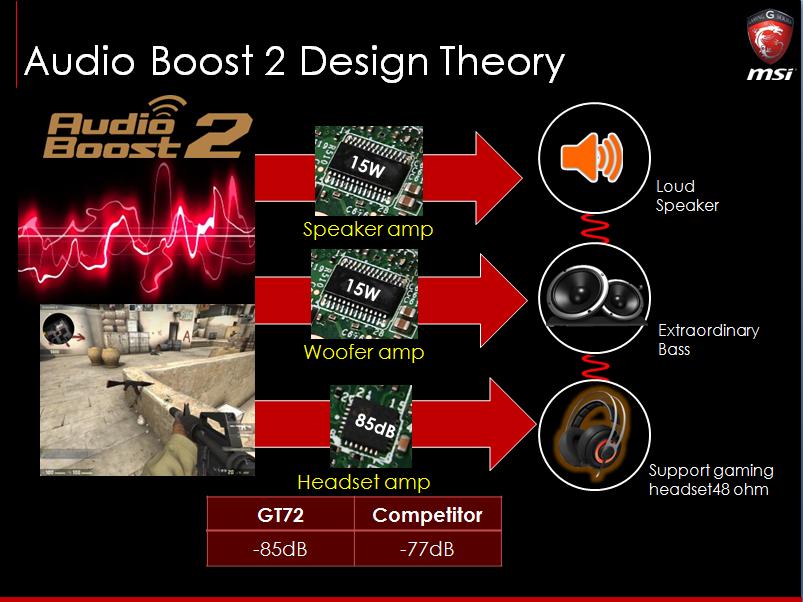
Audio Boost 2 – theory and practice

Audio Boost and Audio Boost 2 are just one of many MSI-exclusive features on the G-series notebooks, but most importantly, it’s one of few audio related. Audio Boost 2 enhances your sound experience, whether you’re using a headset or the built-in Dynaudio speakers.

GT72 is currently the only MSI notebook to feature Audio Boost 2 – which is a collective name for the use of triple amplifiers, an isolated audio jack PCB, gold-plated audio jacks and the use of Sound Blaster Cinema 2. The point of this article is to explain to you what this all really is.

user posted image

Triple amplifiers is a pretty self-explanatory name – it’s got three separate amplifiers. The GT72 with Audio Boost 2 amp is capable of delivering a full 15W to the 1” speakers, another 15W to the built-in 36mm woofer, as well as also utilizing a dedicated headset amplifier.

The isolated audio jack PCB is again what it says. Electrically separated from the rest of the motherboard for signal separation, it comes with gold-plated jacks and is optimized for headsets with 32-48 ohm impedance.

Additionally, the GT72 employs a superior audio codec compared to the competition – with full 7.1 output, the ALC892 beats the likes of ALC668 and ALC282 used by others.


Sound Blaster Cinema 2 is also part of the Audio Boost 2 package, letting you fiddle around with your sound settings for optimum gaming sound. Another software feature is Ear Protection, which lets you set a maximum sound level, to guard your ears against any sudden bursts of loud noises, potentially preventing hearing damage.


13 Pages < 1 2 3 4 > » Top
 

Change to:
| Lo-Fi Version
0.0205sec    0.84    7 queries    GZIP Disabled
Time is now: 15th December 2025 - 01:30 PM