Welcome Guest ( Log In | Register )

Outline · [ Standard ] · Linear+

 TIME Router changed, big problems

views
     
TSColada
post Jan 13 2025, 04:38 PM, updated 12 months ago

Getting Started
**
Junior Member
71 posts

Joined: Sep 2015
Hi All, we have been with TIME a few years, on the basic package. I noticed they are offering a good deal to upgrade to the 600mbps package and I decided to take it.
The new package required an upgraded WiFi7 router, which they supply - it's a Huawei Optix HG8145B7N. Our old router was an ancient TP Link Archer 1200, but it was nicely configured for all our network clients.
We have a Smart Home system on the network, plus some Hikvision CCTV and D-Link cams. I fully expected some hiccups in the change over, but felt I could easily resolve them since I know a bit about networking, and I have all the config settings noted.

Anyhow, it seems I was over optimistic. Once the new router was installed (by a TIME techie who didn't hang around long!) we had functioning internet access and WiFi we could log into. The speed test was great, 550mbps over WiFi. But....most of my networked peripherals weren't working. As expected.
I logged into the router to make the necessary config changes.

First off - the Huawei Router uses login IP 192.168.100.1, not the 192.168.0.1 more commonly used, which my old TP Link Archer was set up on. So one of the first things I did was to change that IP to the one I'd been familiar with on the Archer (192.168.0.1). I'm not dead sure if that was necessary, but I wanted to keep as much of the same settings as I could in order to avoid unexpected issues.

The Huawei Router interface is totally different from the Archer. It is 'branded' with TIMEs shocking pink banner logo, and the set up options are not quite as nice as the Archer (for instance, no option to set up a Guest Network). I started digging through the interface looking for the config changes I needed to do.

Having completed the task (I thought) I re-booted and checked my peripherals. They were still offline. Showing error messages as before. Some were accesible on the LAN (the Home network) but anything requiring external access (like Cams) remained unreachable.

The Hikvision Cams are set up with a free DDNS service (no-ip) and I had already entered the DDNS service details in the Huawei router. It could still be a DDNS related issue - maybe.
Alternatively it could be something to do with Porting, which is one of my weak knowledge areas. But the old router doesn't seem to have any Port Forwarding on it - so I have nothing to copy over.

I'm at a loss now. I spent 2 days digging around for a solution to this but I'm getting nowhere. It also doesn't help that the Huawei Router Interface on the TIME version is quite different from that in the Huawei manuals I've found online. When the techie was installing the router I asked him for the (printed) router manual. He handed me the little paper 'safety info' on how not to electrocute yourself, and don't put the device in water etc (lol). No, I said, I mean the MANUAL. I don't have one was his reply.
So it seems TIME have changed the router interface, there's no manual to be found, or they don't want you to have one. I think they clearly don't want people messing with their config.

In the end I gave up and switched back to my old Archer router. Everything works with it. But the speed is only about 100mbps.

This has got to be just some stupid config setting, but what?
Has anyone else run into this same issue? Any advice?

This post has been edited by Colada: Jan 13 2025, 04:41 PM
pysh
post Jan 13 2025, 04:46 PM

Casual
***
Junior Member
382 posts

Joined: Jul 2008
From: Penang


is your access point configuration the same like SSID, security, encryption type, password etc?
kevinlim001
post Jan 13 2025, 04:50 PM

Ethical Hacker
*******
Senior Member
6,142 posts

Joined: May 2006
From: Planet called "EARTH"


my worried is not only on your router but your devices might not be running on DHCP which there are some IP/Gateway/Subnet Mask which had been configured based on your old network set
spectrum17
post Jan 13 2025, 04:51 PM

Getting Started
**
Junior Member
66 posts

Joined: Jul 2017
have u checked port-forwarding?
spectrum17
post Jan 13 2025, 04:55 PM

Getting Started
**
Junior Member
66 posts

Joined: Jul 2017
btw, ur lucky to be able to use the old router.
I have the new Times, which they have the integrated BTU & router..

joey2000
post Jan 13 2025, 04:55 PM

Casual
***
Junior Member
387 posts

Joined: Sep 2005
QUOTE(Colada @ Jan 13 2025, 04:38 PM)
Hi All, we have been with TIME a few years, on the basic package. I noticed they are offering a good deal to upgrade to the 600mbps package and I decided to take it.
The new package required an upgraded WiFi7 router, which they supply - it's a Huawei Optix HG8145B7N. Our old router was an ancient TP Link Archer 1200, but it was nicely configured for all our network clients.
We have a Smart Home system on the network, plus some Hikvision CCTV and D-Link cams. I fully expected some hiccups in the change over, but felt I could easily resolve them since I know a bit about networking, and I have all the config settings noted.

Anyhow, it seems I was over optimistic. Once the new router was installed (by a TIME techie who didn't hang around long!) we had functioning internet access and WiFi we could log into. The speed test was great, 550mbps over WiFi. But....most of my networked peripherals weren't working. As expected.
I logged into the router to make the necessary config changes.

First off - the Huawei Router uses login IP 192.168.100.1, not the 192.168.0.1 more commonly used, which my old TP Link Archer was set up on. So one of the first things I did was to change that IP to the one I'd been familiar with on the Archer (192.168.0.1). I'm not dead sure if that was necessary, but I wanted to keep as much of the same settings as I could in order to avoid unexpected issues.

The Huawei Router interface is totally different from the Archer. It is 'branded' with TIMEs shocking pink banner logo, and the set up options are not quite as nice as the Archer (for instance, no option to set up a Guest Network). I started digging through the interface looking for the config changes I needed to do.

Having completed the task (I thought) I re-booted and checked my peripherals. They were still offline. Showing error messages as before. Some were accesible on the LAN (the Home network) but anything requiring external access (like Cams) remained unreachable.

The Hikvision Cams are set up with a free DDNS service (no-ip) and I had already entered the DDNS service details in the Huawei router. It could still be a DDNS related issue - maybe.
Alternatively it could be something to do with Porting, which is one of my weak knowledge areas. But the old router doesn't seem to have any Port Forwarding on it - so I have nothing to copy over.

I'm at a loss now. I spent 2 days digging around for a solution to this but I'm getting nowhere. It also doesn't help that the Huawei Router Interface on the TIME version is quite different from that in the Huawei manuals I've found online. When the techie was installing the router I asked him for the (printed) router manual. He handed me the little paper 'safety info' on how not to electrocute yourself, and don't put the device in water etc (lol). No, I said, I mean the MANUAL. I don't have one was his reply.
So it seems TIME have changed the router interface, there's no manual to be found, or they don't want you to have one. I think they clearly don't want people messing with their config.

In the end I gave up and switched back to my old Archer router. Everything works with it. But the speed is only about 100mbps.

This has got to be just some stupid config setting, but what?
Has anyone else run into this same issue? Any advice?
*
Some screenshot on TP Link Archer compare to Huawei might help people to understand more.

dcheah
post Jan 13 2025, 05:20 PM

OldSkool
******
Senior Member
1,457 posts

Joined: Jan 2005
From: Kajang


QUOTE(Colada @ Jan 13 2025, 04:38 PM)
Hi All, we have been with TIME a few years, on the basic package. I noticed they are offering a good deal to upgrade to the 600mbps package and I decided to take it.
The new package required an upgraded WiFi7 router, which they supply - it's a Huawei Optix HG8145B7N. Our old router was an ancient TP Link Archer 1200, but it was nicely configured for all our network clients.
We have a Smart Home system on the network, plus some Hikvision CCTV and D-Link cams. I fully expected some hiccups in the change over, but felt I could easily resolve them since I know a bit about networking, and I have all the config settings noted.

Anyhow, it seems I was over optimistic. Once the new router was installed (by a TIME techie who didn't hang around long!) we had functioning internet access and WiFi we could log into. The speed test was great, 550mbps over WiFi. But....most of my networked peripherals weren't working. As expected.
I logged into the router to make the necessary config changes.

First off - the Huawei Router uses login IP 192.168.100.1, not the 192.168.0.1 more commonly used, which my old TP Link Archer was set up on. So one of the first things I did was to change that IP to the one I'd been familiar with on the Archer (192.168.0.1). I'm not dead sure if that was necessary, but I wanted to keep as much of the same settings as I could in order to avoid unexpected issues.

The Huawei Router interface is totally different from the Archer. It is 'branded' with TIMEs shocking pink banner logo, and the set up options are not quite as nice as the Archer (for instance, no option to set up a Guest Network). I started digging through the interface looking for the config changes I needed to do.

Having completed the task (I thought) I re-booted and checked my peripherals. They were still offline. Showing error messages as before. Some were accesible on the LAN (the Home network) but anything requiring external access (like Cams) remained unreachable.

The Hikvision Cams are set up with a free DDNS service (no-ip) and I had already entered the DDNS service details in the Huawei router. It could still be a DDNS related issue - maybe.
Alternatively it could be something to do with Porting, which is one of my weak knowledge areas. But the old router doesn't seem to have any Port Forwarding on it - so I have nothing to copy over.

I'm at a loss now. I spent 2 days digging around for a solution to this but I'm getting nowhere. It also doesn't help that the Huawei Router Interface on the TIME version is quite different from that in the Huawei manuals I've found online. When the techie was installing the router I asked him for the (printed) router manual. He handed me the little paper 'safety info' on how not to electrocute yourself, and don't put the device in water etc (lol). No, I said, I mean the MANUAL. I don't have one was his reply.
So it seems TIME have changed the router interface, there's no manual to be found, or they don't want you to have one. I think they clearly don't want people messing with their config.

In the end I gave up and switched back to my old Archer router. Everything works with it. But the speed is only about 100mbps.

This has got to be just some stupid config setting, but what?
Has anyone else run into this same issue? Any advice?
*
This is very common when you change/replace the Router, still the concept are the same.

Do the following troubleshooting steps :-

1. Configure the NEW Router to use the old IP Address = 192.168.0.1

2. Check the old router's DHCP Range (eg. 192.168.0.2 ~ 192.168.0.200), make the same changes at the new router.

3. At the old router, check the SSID's Name, both on the 2.4Ghz 5Ghz. Make the same SSID name in the new router.

4. Take note that the Naming Syntax will always be different between Manufacturer, some will called Wireless, while others will called it WLAN. But its the same thing.

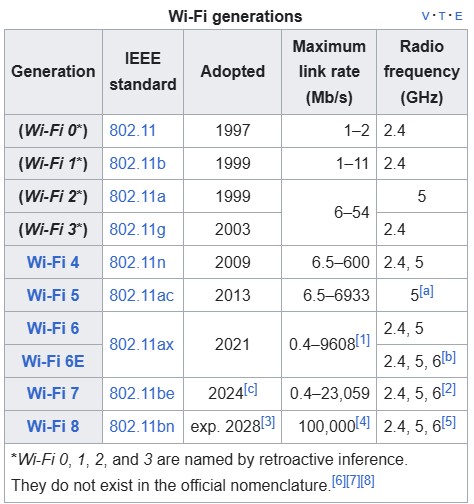
5. Also since the new router is Wifi-7, you might want to check compatibility. Such as 801.11 a/b/g/n/ac/ax/be, your CCTV devices might running on old protocol (eg. 802.11agn) thus you need the configure the SSID to run on that protocols only.

user posted image


Hope this helps... cool2.gif

BladeRider88
post Jan 13 2025, 05:23 PM

On my way
****
Junior Member
554 posts

Joined: Nov 2006


QUOTE(Colada @ Jan 13 2025, 04:38 PM)
Hi All, we have been with TIME a few years, on the basic package. I noticed they are offering a good deal to upgrade to the 600mbps package and I decided to take it.
The new package required an upgraded WiFi7 router, which they supply - it's a Huawei Optix HG8145B7N. Our old router was an ancient TP Link Archer 1200, but it was nicely configured for all our network clients.
We have a Smart Home system on the network, plus some Hikvision CCTV and D-Link cams. I fully expected some hiccups in the change over, but felt I could easily resolve them since I know a bit about networking, and I have all the config settings noted.

Anyhow, it seems I was over optimistic. Once the new router was installed (by a TIME techie who didn't hang around long!) we had functioning internet access and WiFi we could log into. The speed test was great, 550mbps over WiFi. But....most of my networked peripherals weren't working. As expected.
I logged into the router to make the necessary config changes.

First off - the Huawei Router uses login IP 192.168.100.1, not the 192.168.0.1 more commonly used, which my old TP Link Archer was set up on. So one of the first things I did was to change that IP to the one I'd been familiar with on the Archer (192.168.0.1). I'm not dead sure if that was necessary, but I wanted to keep as much of the same settings as I could in order to avoid unexpected issues.

The Huawei Router interface is totally different from the Archer. It is 'branded' with TIMEs shocking pink banner logo, and the set up options are not quite as nice as the Archer (for instance, no option to set up a Guest Network). I started digging through the interface looking for the config changes I needed to do.

Having completed the task (I thought) I re-booted and checked my peripherals. They were still offline. Showing error messages as before. Some were accesible on the LAN (the Home network) but anything requiring external access (like Cams) remained unreachable.

The Hikvision Cams are set up with a free DDNS service (no-ip) and I had already entered the DDNS service details in the Huawei router. It could still be a DDNS related issue - maybe.
Alternatively it could be something to do with Porting, which is one of my weak knowledge areas. But the old router doesn't seem to have any Port Forwarding on it - so I have nothing to copy over.

I'm at a loss now. I spent 2 days digging around for a solution to this but I'm getting nowhere. It also doesn't help that the Huawei Router Interface on the TIME version is quite different from that in the Huawei manuals I've found online. When the techie was installing the router I asked him for the (printed) router manual. He handed me the little paper 'safety info' on how not to electrocute yourself, and don't put the device in water etc (lol). No, I said, I mean the MANUAL. I don't have one was his reply.
So it seems TIME have changed the router interface, there's no manual to be found, or they don't want you to have one. I think they clearly don't want people messing with their config.

In the end I gave up and switched back to my old Archer router. Everything works with it. But the speed is only about 100mbps.

This has got to be just some stupid config setting, but what?
Has anyone else run into this same issue? Any advice?
*
Hi there
I believe you need to contact Time Customer Service and informed them that you needed to use your own TP Link router Archer 1200, they will remotely help you to convert the Huawei Optix HG8145B7N into bridge mode and all you need to do is plug in your TP Link router to the Huawei Optix HG8145B7N and god bless your settings shall be back to normal again.

Give my method a try and update us.
TSColada
post Jan 13 2025, 08:24 PM

Getting Started
**
Junior Member
71 posts

Joined: Sep 2015
Hi All, Thanks for all those comments and suggestions. Yep, the basic stuff like SSID names/passwords has all been correctly inserted, and those are the bits I was confident I could handle myself. But it's the 'deeper' configuration that is the problem.
Anyhow there are some good ideas there that I'm going to try out, and I promise to get back and update you all on progress. Thanks!
TSColada
post Jan 14 2025, 03:21 PM

Getting Started
**
Junior Member
71 posts

Joined: Sep 2015
Hi All, good news, I got it to work, thanks to your suggestions!
The easiest thing to check first was PYSH's suggestion to have a closer look at the ENCRYPTION standard on the new router. They were different, and I had noticed that before, but I hadn't expected it to make much difference. The new router was set to "802.11b/g/n/ax/be" and the old one was "802.11b/g/n mixed". When I switched the encryption on the new router to the old standard I immediately started getting back all the old cams and home networking controls (via WAN too).
The only thing that hasn't come back yet is the HikVision CCTV via WAN (it's working on LAN) so I'm sure it's something in the configuration I just have to find. I'll keep digging.

Thanks again for your help!
PRSXFENG
post Jan 14 2025, 05:20 PM

Look at all my stars!!
*******
Senior Member
2,613 posts

Joined: Nov 2020


QUOTE(Colada @ Jan 14 2025, 03:21 PM)
Hi All, good news, I got it to work, thanks to your suggestions!
The easiest thing to check first was PYSH's suggestion to have a closer look at the ENCRYPTION standard on the new router. They were different, and I had noticed that before, but I hadn't expected it to make much difference. The new router was set to "802.11b/g/n/ax/be" and the old one was "802.11b/g/n mixed". When I switched the encryption on the new router to the old standard I immediately started getting back all the old cams and home networking controls (via WAN too).
The only thing that hasn't come back yet is the HikVision CCTV via WAN (it's working on LAN) so I'm sure it's something in the configuration I just have to find. I'll keep digging.

Thanks again for your help!
*
Ah, probably related to WPA2/3 and Protected Management Frames
some old devices just don't like that
dcheah
post Jan 17 2025, 05:02 PM

OldSkool
******
Senior Member
1,457 posts

Joined: Jan 2005
From: Kajang


QUOTE(Colada @ Jan 14 2025, 03:21 PM)
Hi All, good news, I got it to work, thanks to your suggestions!
The easiest thing to check first was PYSH's suggestion to have a closer look at the ENCRYPTION standard on the new router. They were different, and I had noticed that before, but I hadn't expected it to make much difference. The new router was set to "802.11b/g/n/ax/be" and the old one was "802.11b/g/n mixed". When I switched the encryption on the new router to the old standard I immediately started getting back all the old cams and home networking controls (via WAN too).
The only thing that hasn't come back yet is the HikVision CCTV via WAN (it's working on LAN) so I'm sure it's something in the configuration I just have to find. I'll keep digging.

Thanks again for your help!
*
thumbsup.gif Good to hear that.

As for the HIKVision CCTV, I believe its the port forwarding. If not mistaken its was something like 8000 / 7000. Check the CCTV port number under "Network" & configure the same port number at router's port forwarding.

The name might be different but its the same, look for something called Port Forwarding / Virtual Server / NAT.

Also you might be interested in looking at HIK-Connect platform, that way you do not need to do port forwarding and works with Dynamic IP too. So you do not need to maintain a DDNS, oh... its work on Android & iOS.


Hope this helps... cool2.gif

This post has been edited by dcheah: Jan 17 2025, 05:03 PM
westlife
post Jan 22 2025, 07:57 AM

10k Club
********
All Stars
14,308 posts

Joined: Jan 2011
QUOTE(spectrum17 @ Jan 13 2025, 04:55 PM)
btw, ur lucky to be able to use the old router.
I have the new Times, which they have the integrated BTU & router..
*
Can call them to ask to switch to switched mode, the u can use ur own wifi router.
spectrum17
post Jan 23 2025, 02:19 PM

Getting Started
**
Junior Member
66 posts

Joined: Jul 2017
QUOTE(westlife @ Jan 22 2025, 07:57 AM)
Can call them to ask to switch to switched mode, the u can use ur own wifi router.
*
I see, cos I asked the tech (installer) he told me now all integrated =(
N9484640
post Aug 12 2025, 11:19 AM

Chasing Electric
******
Senior Member
1,297 posts

Joined: Aug 2014
I just received this same Time Huawei WiFi 7 router myself. I didnt have the installer do anything cause I am using back my old router. But I wanted to test this new router so I plug it in. I cant find where to set PPPoE - where ah?

Btw this thing seems to be not only a wifi router but also act as a Gpon terminal? I can see got a socket for the fibre cable to go in. And it also have a telephone port. I wonder if this thing can serve as a switch as well?
leezhijiang
post Aug 20 2025, 10:47 AM

Getting Started
**
Junior Member
273 posts

Joined: Jan 2010


QUOTE(N9484640 @ Aug 12 2025, 11:19 AM)
I just received this same Time Huawei WiFi 7 router myself. I didnt have the installer do anything cause I am using back my old router. But I wanted to test this new router so I plug it in. I cant find where to set PPPoE - where ah?

Btw this thing seems to be not only a wifi router but also act as a Gpon terminal? I can see got a socket for the fibre cable to go in. And it also have a telephone port. I wonder if this thing can serve as a switch as well?
*
Yes, it can be served as a switch technically if you know how to do bridging. You will need to create one additional WAN interface.

1. Identify the port that is used to connect to your old router. For eg Port 1.
2. Create a new WAN interface as bridge mode . Untick any VLAN option. Tick Port 2 and Port 3 , and those SSID ports if you want to make use of it as additional access point.
Why I leave Port 4 empty is, you will need that to access the Time router.

Connect another cable from your LAN port of your own router to Port 2 of the Time router.


The outcome form this setup is, for any device that is connected to Port 3 or the SSID from the Time router, it will obtain the IP address from your own router.
spectrum17
post Aug 26 2025, 11:49 AM

Getting Started
**
Junior Member
66 posts

Joined: Jul 2017
QUOTE(leezhijiang @ Aug 20 2025, 10:47 AM)
Yes, it can be served as a switch technically if you know how to do bridging.  You will need to create one additional WAN interface.

1. Identify the port that is used to connect to your old router. For eg Port 1.
2. Create a new WAN interface as bridge mode . Untick any VLAN option. Tick Port 2 and Port 3 , and those SSID ports if you want to make use of it as additional access point.
Why I leave Port 4 empty is, you will need that to access the Time router.

Connect another cable from your LAN port of your own router to Port 2 of the Time router.
The outcome form this setup is, for any device that is connected to Port 3 or the SSID from the Time router,  it will obtain the IP address from your own router.
*
thanks! will try this!


Change to:
| Lo-Fi Version
0.0204sec    0.75    5 queries    GZIP Disabled
Time is now: 18th December 2025 - 05:49 PM