

 Mar 13 2022, 02:17 PM, updated 4y ago


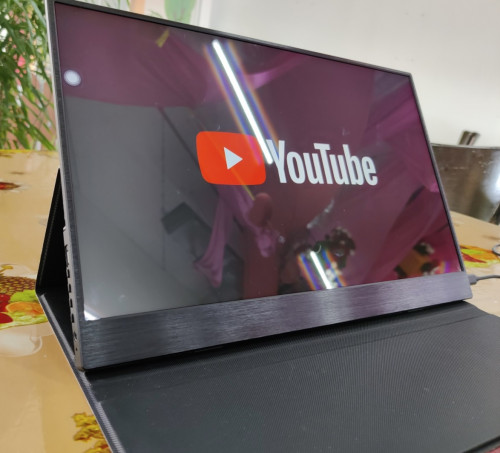
Design
The monitor come attached together with screen cover by adhesive at the lower part of the cover on the back. It can be peel off and stick back when needed but I think if always take off and put back, it will become less sticky.
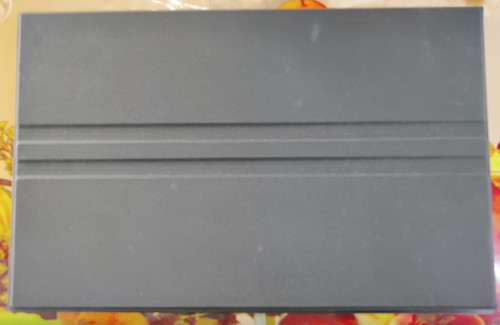
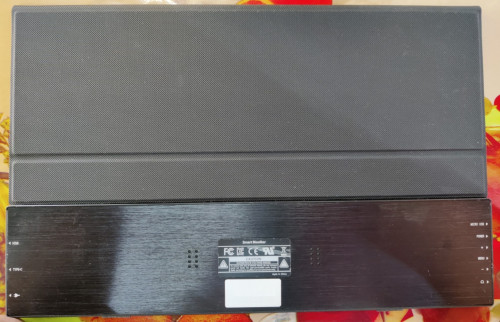
With the cover attached, the total weight is 1.03 kg while just the monitor alone is 695gm. The cover also act as a stand with 2 incline steps. There's 2 small rubber feet at below the monitor to help it grip the surface it is being put on. With the cover attached, the back sit flush with the bottom part of the monitor, good design for compactness and aesthetic.
The whole monitor frame is made of brushed aluminum. It give a nice texture and good rigidity, a very important aspect since it will always be moved around and sometimes put in not so ideal place.
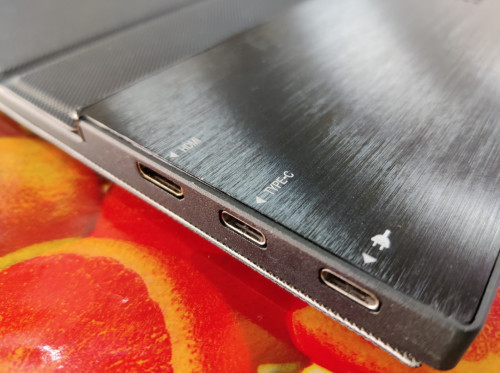
On the right side of the monitor, there's mini HDMI and USB type-C connector for display and another type-C solely for powering the monitor. It doesn't have internal battery so it always need power when in use. If use type-C for display it can draw enough power from it to power up the monitor but it will operate in low power mode, just enough power for display. But if want to use it's internal speaker or touch screen it might cause the monitor to keep restarting due to not enough power. I also was able to power it by just using powerbank, it need a device that can supply 5v 2A power.
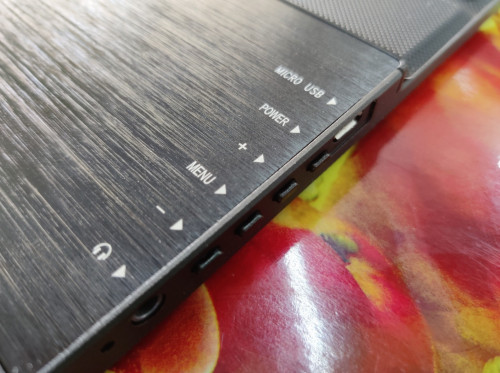
Moving on to the left side, from the top, it have micro USB for OTG (the package come with micro-USB to type-A dongle), power button, volume up and down button, menu button for switching between HDMI, type-C or Android TV dashboard. Below it there's 3.5mm headphone jack and the bottom is LED indicator light to show the monitor status, red is off and green is when powered.
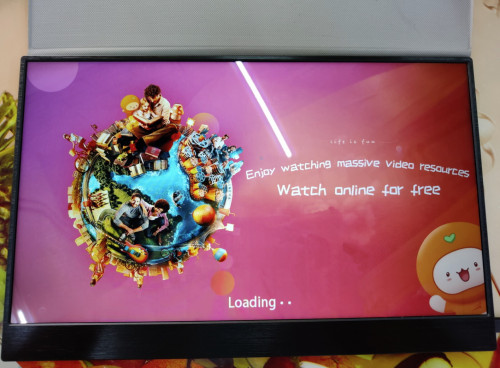
The screen is 15.6" size with 16:9 aspect ratio. It is 1080p resolution with max 60Hz refresh rate. The screen is glossy type so the display look very sharp, just don't have any direct light facing the front of the screen as it is very reflective. The monitor backlight also very bright at it's maximum.
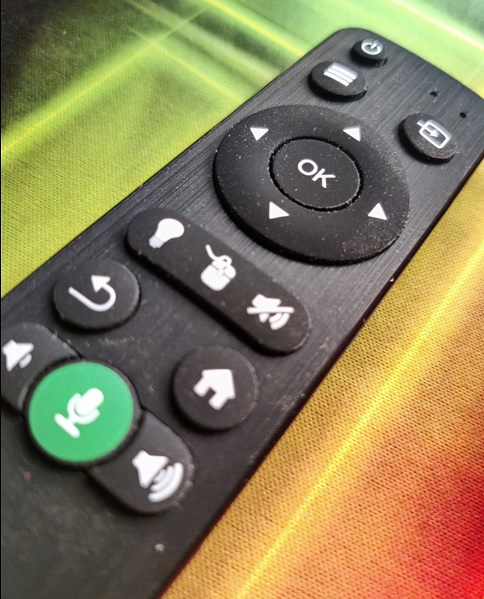
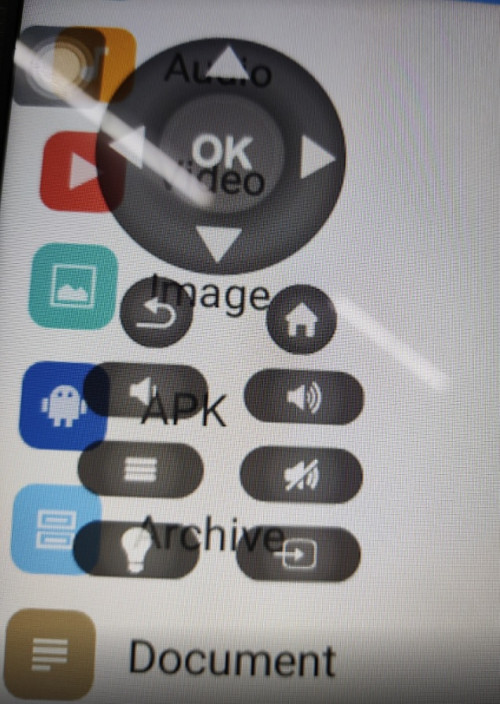
The monitor came with a remote. It have power button, selection for the display input, menu, navigation, volume adjust, back and home button. It also have voice input, you can use it with app that support it, for searching as an example. The monitor also have on-screen display (OSD) remote, but less button that hardware remote.
USAGE AS MONITOR
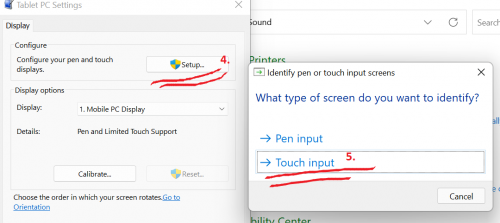
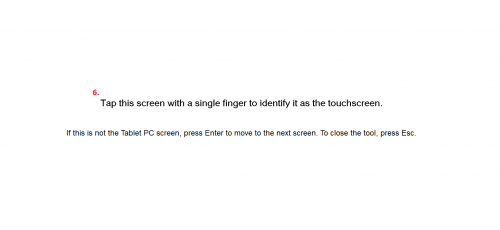
As mentioned, there's mini HDMI and USB type-C connector for display input. Trying with HDMI as input, I also need to connect type-C to USB port on my laptop to get the touch screen function. On Windows 10 and Windows 11, it automatically detect when USB is connected and install the driver to make touch screen work. The monitor is identified as MStar Demo when connected to Windows. When use type-C out from my laptop to type-C input on the monitor, touch screen function also will work. Text on screen appear as sharp as any good monitor. I can set the refresh rate to either 60/50/30/24Hz. This is useful for matching refresh rate with video so that can get the smooth looking playback. It doesn't have support for G-sync or Freesync though.
One thing to note when using as extended monitor, the color is different than my laptop monitor. My laptop have slightly warm tone with green and red color looks very rich. The monitor is very white with green and red doesn't look as rich but blue is very rich. The image option can change brightness, contrast, color, backlight but the option for sharpness and tint is greyed out. Changing the settings on my laptop, still not able to make both displays color to be exact. It's not a big difference but noticeable for bright green or red. If use as single monitor will not feel any issue with the color.
There's stereo speaker in this monitor, the sound can get very loud but the quality is not great. There's almost no bass but I guess it's expected for a small internal speaker.
I tried connect my phone to the monitor using type-C, it can mirror the phone and also can use touch function. This will depends on the phone though, some phone doesn't support display output, especially those older phone. Turning on desktop mode on the developer setting on my phone, it will display as desktop but the experience is not that great. Some app can resize the window but some app have fixed vertical window. I assume if using Samsung phone that support for Dex mode, you can get better desktop experience with it seeing how good Samsung have designed their Dex mode. This is something I hope Google can start implement on OS level, good desktop mode when connected to external display and resizable window for every app. Imagine having your phone that also can turn into computer when connected to external monitor, keyboard and mouse. One device to rule them all!
USAGE AS ANDROID DEVICE
The monitor is running on Android TV version 9 as it's OS. As an Android TV, this means it support many apps that usually available for this OS. It come preinstalled with YouTube, Spotify, TED, Facebook, Netflix, to name a few. In the app store there a lot more apps that can be downloaded. I found Disney, Disney Hotstar, YouTube Kids, VLC, MX Player, Kodi, Plex, Emby, and many others. Checking on it's Widevine, it is reported as L1 so that means no problem to stream 1080p video to this monitor. With the preinstalled Youtube app, I able to sign-in with the app. But since this app is designed for Android TV, it look different than how YouTube usually looks on phone or tablet. Swiping gesture also doesn't work on the app, you need to use the hardware or OSD remote to navigate. Tapping to select does work though. I assume other apps will have same experience if it is for Android TV instead of app for phone or tablet.
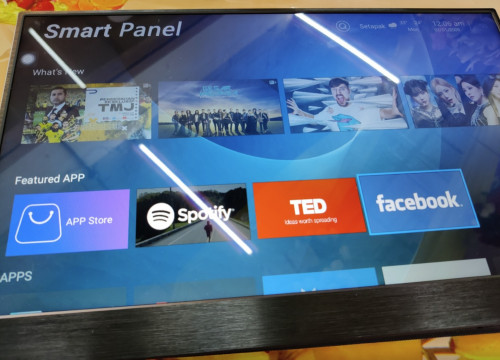
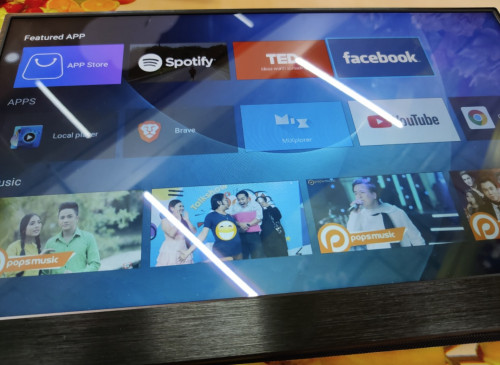
Now since this is Android and it have touch screen, how about sideloading apk and use it as large tablet? The device have 4GB internal storage and about 1.5GB used. I first try Mixplorer and it installed without any issue. I can now browse the content of the internal storage. I also able to configure it to access my network storage and stream video from it.
The monitor come preinstalled with Google Chrome. I can use it to browse internet. I can use touch gesture on the app. Can't sign in to Google account though, the security key never come. Chrome prompt me for an update and when I click it, it give choice whether to open App Store or Google Play Store. I was surprised there's Google Play Store as the app can't be found on the home screen or in App Store. But when open Google Play Store, it says my device is not supported anymore for Chrome, so I was unable to update it.
I tried sideload Brave apk and it can be installed. With it no issue to browse the internet. I can use the touch screen just like using tablet. Maybe due to it's limited RAM, sometimes Brave will notify it stop loading the page. This happen more on heavy website and video site, and I need to reload the page to get it back to normal. I also was not able to sign in to Google site such as YouTube, it say the browser or app is not secure, possibly since this is mobile phone apk running on Android TV, Google block from signing-in to their service. I was able to install Vanced though and sign in to my Google account.
One thing that irk me when using it as equivalent to tablet is it's display can't be set to portrait. It is always stuck in landscape. For viewing video that is good but when browsing the web, having it stuck in landscape feels weird and sometimes waste of space. Try browsing Lowyat forum full screen on widescreen monitor, when reading paragraph the eye need to go from most left to most right. If connected to computer then no problem to rotate it as portrait using Windows display setting. I hope Android TV can expand it's management of display. As how people use Windows, not all display always use horizontally. Android phone/tablet also doesn't have the ability to set vertical for external display is a limitation for the OS since these days it's easy to connect to external monitor/TV and use it as secondary/expanded display.
CLOSING
Overall I found this monitor usage is more than just as extended display for my laptop. I also use it as portable video player when I'm doing something that is not in front the computer or TV. I can also use my laptop instead of this monitor, but 1.) The laptop screen is not this big and 2.) It would be cheaper to replace this monitor than laptop screen if damage due to prolong use. I also use it for displaying guides when playing games, the big screen makes it easy to glance and read compare to using phone. It having a touch screen means I can just click or swipe on the screen to play video or read additional text.
Another thing I think that it can be useful if have remote desktop which can be accessed through browser. I don't have my computer running as remote desktop but those that have it surely will find it useful. I do use it to access my Synology NAS and other self hosted service that I run on my NAS, it's useful as separate device for constant monitoring and can be easily moved anywhere.
If you're looking for an external monitor or large screen device, my suggestion is to consider external monitor such as this if it fits your usage.
This post has been edited by xxboxx: Mar 13 2022, 02:26 PM
 Quote
Quote


 0.0168sec
 0.62
0.62
 5 queries
 GZIP Disabled