Welcome Guest ( Log In | Register )

Outline · [ Standard ] · Linear+

 Restart Issue

views
     
SFX
post Jan 29 2021, 05:29 PM

Getting Started
**
Junior Member
236 posts

Joined: Nov 2006
Asrock B550M Steel Legend has 4 post status checker LEDs for diagnostics.
  • CPU (labelled CPU on the motherboard)
  • Memory (labelled DRAM on the motherboard)
  • VGA (labelled VGA on the motherboard)
  • Storage (labelled BOOT on the motherboard)
When the system cannot boot up, you mentioned BOOT and VGA LEDs lights up. Do they stay light up until you power cycle?

BOOT - Most probable cause:
  • Your NVME drive loose connection to the socket. Assuming this is your OS drive.
  • The system cannot find the bootloader.
Solution:
  • Enter BIOS and check in the boot menu if it was able to find the UEFI installed OS on your NVME drive?
VGA LED light up is a strange case. If this lights up, are you able to check if your monitor show anything on the screen, like boot up picture?

Also, what is the exact part number of your memory modules?

This post has been edited by SFX: Jan 29 2021, 05:30 PM
SFX
post Jan 29 2021, 06:18 PM

Getting Started
**
Junior Member
236 posts

Joined: Nov 2006
Your memory modules is in the qualified list.

QUOTE(igx0908 @ Jan 29 2021, 05:38 PM)
Yes, the LEDs do stay light up. I can see my NVME drive and "Windows Boot Loader" is there. When the system can't boot, it just stuck at the boot up picture there (Asrock logo), F2 can't enter BIOS also, need to switch off then on again to go in Windows.

Edit: The RAM is HX432C16PB3AK2/16
*
When it stuck at the boot up picture (Asrock), does the post status checker LED light up? The way you describe the issue lead me to think that something is wrong during the POST of the motherboard.

What is the BIOS version of your motherboard? Latest version released was 1.80 (10/12/2020).

QUOTE(igx0908 @ Jan 29 2021, 06:11 PM)
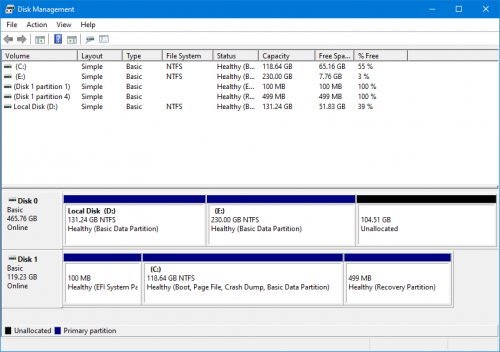
I disabled CSM and try again but still the same. I checked Disk Management and my HDD only have 2 data partitions I'm currently using.
*
Windows 10 installation? Can you check if it is in UEFI mode?

Also, can you please screenshot your disk manager?
SFX
post Jan 29 2021, 06:55 PM

Getting Started
**
Junior Member
236 posts

Joined: Nov 2006
QUOTE(igx0908 @ Jan 29 2021, 06:41 PM)
Yes, the post status checker LED light up when stuck.
BIOS version is 1.80.
Windows 10 in UEFI mode
user posted image
*
This narrows down the issue when the post status checker LED light up when stuck. Was it the same BOOT and VGA LEDs both light up at the same time when it stuck?

We are going to perform some experiments to find out the root cause:

Experiment 1
For this experiment, please disconnect both NVME and HDD. Do multiple boot ups and check if it still stuck at the POST screen? And when it stuck, what are the LEDs that light up?

If it get past the "stuck" stage and it cannot find the OS to boot up, that is fine because you don't have any storage (NVME or HDD) connected.

Experiment 2
Please move your graphic card to the second PCIe slot. Do multiple boot ups and check if it still stuck at the POST screen.

SFX
post Jan 29 2021, 11:28 PM

Getting Started
**
Junior Member
236 posts

Joined: Nov 2006
QUOTE(igx0908 @ Jan 29 2021, 10:53 PM)
Experiment 1 straight boot to BIOS. Experiment 2 is the same results.
*
So, experiment 1 and 2 both able to boot into BIOS successfully and repeatedly, i.e. Power down, boot up, able to go into BIOS, not "stuck" multiple times? What does the LED indicators show?

How many times did you try it? Can you try it 20 times?

This post has been edited by SFX: Jan 29 2021, 11:31 PM
SFX
post Jan 30 2021, 01:44 AM

Getting Started
**
Junior Member
236 posts

Joined: Nov 2006
QUOTE(igx0908 @ Jan 29 2021, 12:28 PM)
Hello, I faced an issue of my recently build PC.

Every time when I switch on PC power and turn on my PC, I hear a short beep once but I managed to boot to Windows and use. But upon restart from Windows, the BIOS will stuck (corner shows A0) and the post LED from motherboard lights up BOOT and VGA. However, if I turn off using case power switch and turn PC on again, it can boot to Windows but with a short beep again.

CPU: AMD R5 5600X
GPU: Zotac GTX 1050 Ti OC
RAM: HyperX Predator 8GB x2
MOBO: Asrock B550M Steel Legend
NVME: Kingston 128GB
HDD: WD Blue 500GB
*
QUOTE(igx0908 @ Jan 30 2021, 12:24 AM)
My bad, for experiment 2, I faced the same issue as before, I can go to Windows but when restart in Windows, I will then stuck in BIOS again until I power cycle it or wait for 5 minutes and let it go inside BIOS doh.gif. Sorry...
*
Now that I re-read your problem statement, I am now thinking that it is not a hardware issue, but rather the OS behaviour causes it to behave erratically. It was mentioned in your very first post and I didn't notice it until your latest post, which makes me try to understand the problem description carefully.

Let me know if I'm reading your problem faced correctly.
1. Switch on power to your PC → Press power button on your computer chassis → Motherboard POST successfully → Load Windows 10 → Able to go into the desktop.

2. From Windows 10 itself → Press Start -> Power -> Restart → System goes to restart (with Restarting... wording) → Unable to go past BIOS' POST stage, hence "stuck"?

If my understanding and I describe the problem statement correctly, then it could be problem with the OS and drivers interaction.

In 1., Windows 10 (and 8) implement something called Fast Startup feature. When you shutdown your PC from the Start Menu, Power, Shutdown route, Windows transferred the RAM contents to storage (NVME/HDD). The next time you start up your PC again, it just read back the written file and put it back to RAM and boot up from there.

In 2. however, if you restart your PC via the Start Menu, Power, Restart route, it power down the system and then power up. After it power up, during the booting process, it actually reload Windows kernel and all the driver files from scratch (i.e. it didn't use that file mentioned in 1.)

Solution
1. Open up command prompt in administrator mode and run sfc /scannow to fix Windows files. Restart like how you do in 2. and check if it works.
2. Driver for your components could be an issue. Start -> devmgmt.msc and check if there is any issue with any of the hardware components you installed. Updating the drivers could probably help.
3. Reset Windows 10, a new feature that will reinitialise your system from scratch without reinstalling the OS. Last option if solution 1 and 2 doesn't work.

This post has been edited by SFX: Jan 30 2021, 01:45 AM

SFX
post Feb 1 2021, 02:10 PM

Getting Started
**
Junior Member
236 posts

Joined: Nov 2006
QUOTE(igx0908 @ Jan 30 2021, 11:07 PM)
I reinstalled Windows without HDD plug in, still cannot. Somehow Windows Boot Manager will disappear on every reboot
*
Reinstalling Windows on the same NVME drive still encounter the same issue? By the way, can you please confirm my previous reply if that is your actual problem?

And where did you see Windows Boot Manager disappear on every reboot? Any pictures you can take to show exactly where did it disappear?
SFX
post Feb 3 2021, 05:36 PM

Getting Started
**
Junior Member
236 posts

Joined: Nov 2006
QUOTE(igx0908 @ Feb 3 2021, 02:27 AM)
So on every restart, I will need to wait on the AsRock boot screen for about 5 minutes and it will go to BIOS itself. From there, if I go to Storage Configuration there, I can see my NVME drive (Kingston ....) listed with correct capacity but when I go to Boot Option there, it will be empty (if don't restart, normally Windows Boot Manager (Kingston ...) will be listed).
*
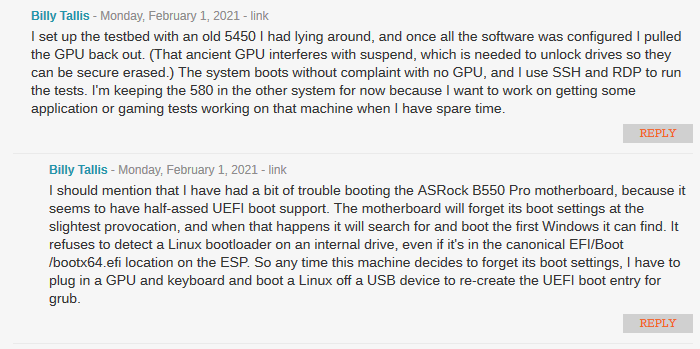
You are lucky. I was reading some articles at Anandtech website and apparently, one of the site author (Billy Tallis) encounter the same issue as you. Article here, check comments section

user posted image

Although the author has ASRock B550 Pro4 motherboard, the base code will still be the same, in terms of UEFI support for booting.

So, there are some experiments you can try:
1. Clear CMOS (Section 2.5 Jumpers Setup in your motherboard manual) to reset the BIOS into default state, reconfigure your Kingston NVME in the Boot Option, save the configuration. Try to perform multiple reboots to check if you still encounter the same issue.
2. Get a spare SATA drive, doesn't matter if it is good old mechanical HDD or SSD, install a fresh copy of Windows 10 and perform multiple reboots. Check if when you go into Boot Option inside the BIOS, if the entry is empty, causing it unable to boot up.
3. If both experiments still fail, worst case scenario is to change motherboard to a different brand.


Change to:
| Lo-Fi Version
0.0210sec    0.62    6 queries    GZIP Disabled
Time is now: 17th December 2025 - 12:20 AM