Welcome Guest ( Log In | Register )

3 Pages  1 2 3 >Bottom

Outline · [ Standard ] · Linear+

 Build your own NAS and Homelab with cheap PCs!, UnRaid, Xpenology, NAS4Free, Freenas,OMV

views
     
TSC-Fu
post Apr 24 2018, 10:42 PM, updated 5y ago

Ninja-Fu
******
Senior Member
1,051 posts

Joined: Apr 2005
From: Brisbane, QLD, Ostolia


C-Fu's LYN guide for NAS & Homelab solutions

23/4/2018: First release
27/4/2018: Added Download and installation steps
3/5/2018: Added hardware considerations, and sixth step (almost final step)
28/11/2018: Updated to use simpler, easier tools, and newer DSM 6.2 version. Change name from NAS4Free > XigmaNAS (same thing)
29/10/2019: Added Table of Contents
21/07/2020: Added google drive integration via rclone


QUOTE(1kokies @ Nov 3 2019, 12:46 AM)
First rule of NAS

1. Secure your data
2. Back up your data
3. Take care of your data

Second rule of NAS

1. Choose OS wisely
2. Choose hardware wisely
3. Have back up hardware that is repeatable

Third rule of NAS

1. Contribute to community
2. Expand network relevant to the chosen OS
3. Pool resources

*
Table of Contents
Intro & Guide: this post
Docker & VM
LSI card for extra sata ports

I've been building and selling NAS solutions for many years now, exploring most of the options available in the market and DIY. Since my 60TB RAID is slooooowly building, verifying, parity checking (whatever they call them), I decide to make this guide. I've now come to the conclusion that DIY is the best.

But seems to me that not many people here have a clue, especially when it comes to deciding which DIY NAS solutions that you like. So here's what I know. A different kinda guide than what you can google, I think.

Guide level: Beginner and intermediate. This guide isn't for lazy people. You still need to google and read up. And if what I write here is not true because you're a pro, you're absolutely right. I wrote it in such a way that's easy for noobs to understand, that's all. Feel free to argue, I don't mind tongue.gif

Why go with NAS instead of traditional, typical shared storage (external HDD, windows share)?
- Centralised storage access, with/without cloud (anywhere) access
- Reliability of your data, because honestly, my data is much more expensive than the price of harddisks
- Low power, low cost
- More features than just "share files" (more on this in a bit, and the best thing about NAS in 2018)
- Flexibility in choosing the method (old servers, old pcs, old harddisks)
- Fun to explore and try out. You might just realize that NAS features are the exact thing that you need for a long, long, time but never knew existed for cheap (or free).

DIY, or ready-made solutions?
- ready-made for peace of mind, access via USB (DIY method uses ethernet/wlan only) but really lacking in features or hardware -> buy Synology, QNAP, other RAID-in-a-box devices like Seagate NAS (please, please don't)
- DIY for learning, experimenting, and because you're kedekut and wanna use existing stuff lying around, or even because you got cash to spare and wanna get the best bang for your buck and peace of mind.
- Various ways of RAID-ing your drives - RAIDz2,RAID 5/6/10,SHR,DriveBender,DrivePool,Linux MDADM,etc
- Can do more than just share folders - host servers, become media centers, download stations, automatic torrent downloaders, run multiple OSes at the same time, etc.

DIY NAS features that you don't know you want:
- Personal Google Drive
- Virtualization - also run a bunch of OS and appliance on the same PC. Think a PC with 8 Core CPU & 16GB RAM can do
2C+4GB: NAS OS
2C+4GB: Windows 10
1C+1GB: Webserver/Plex media center manager/Firewall OS/Point-of-sale via browser/Automatic Torrent downloader/Odoo ERP and CRM/Owncloud/Another NAS/other appliances
2C+4GB: Ubuntu/Raspbian/Linux Mint
1C+2GB: Android

All at the same time, accessed via the browser (think Windows 10 from browser), via VNC (TeamViewer/RealVNC) or via GPU's HDMI/VGA out (1 GPU outputs Windows 10, another GPU outputs Linux Mint).
- Containers - Run prebuilt,preinstalled apps ready to go without having to setup and configure shit, especially if you know next to nothing about Linux. Want your own Visio via browser? download draw.io container. Want a collaborative-based Office via browser? download Feng Office container (think 2 people opening the same file on the NAS, and both edits are updated in real time with each other). Want Odoo but dowan to reserve 1C+1GB of your resource? Can also.
- Need to do automatic backup to your preferred choice without nas-in-a-box company limitation, like Thecus with their Microsoft-centric solution.
- Want NAS and other OS in a virtualized (esxi) environment - think esxi as the host OS, and from there you deploy 2C+4GB+HDD abcd for NAS, 2C+4GB+1TB of HDD e for Windows 10 #1, 2C+4GB+1TB of HDD e for Windows 10 #2, etc.
- TONS of things that you can do!

----------Steps!-------------

FIRST STEP - storage
See the storage that you have - a bunch of old harddisks, or buying new mechanical hdds, or if you're rich, got yourselves a bunch of 500GB SSDs for storage :x

Old hdds will die. My experience, if you have old seagates, don't bother and get new hdds. YMMV.

Some solutions and methods demand same hdds only. some can mix. some have compatibility issues with certain hdd models and serials and date. So decide on what you have and want to use for this project. Benefit with Xpenology is, you can (sort of) mix and match harddisks with various capacities into one RAID, so if you have a bunch of harddisks lying around, only go with Xpenology (note that you need to add the smallest harddisks first into your SHR Raid, then add bigger and bigger capacity HDDs after that. Limitation is once older smaller hdd dah kong, can only replace with the biggest hdd in that RAID).

SECOND STEP - hardware
The hardware that you have/want to buy. In all intents and purposes of this guide, minimum requirements for a NAS (but not exactly bad performance!) is LGA775-grade, 4GB DDR2 RAM, Core2Duo PCs. Perfectly fine to run Windows 10 for basic usage on this ancient junk. Can get one whole PC for less than RM500. Most ready-made NAS boxes are using cheap old pc-grade stuff in them.

But if you want to get more benefit out of your NAS, then you need a PC/processor/motherboard with these features built-in: VT-d, HyperThreading, AES-NI (to run a bunch of windows 7/10), AVX (for video transcoding on the fly) 4 RAM slots, 4 or more SATA ports, PCIe 1x (for extra gigabit lan card, or USB3 card) and 16x slot (for GPU and/or additional SATA cards for more storage option), PCI slots (for SATA cards) and so on.

Also don't forget! Since your NAS uses gigabit ethernet, you would also need Cat5E/Cat6 cable AND a gigabit switch/router for best file transfer performance (around 60MB/s to 120MB/s file transfer speed).

Expansions for your old board:
PCIe slots can give you
- [PCI-e x1, x4] Extra gigabit ethernet cards (around RM20-100 each). Most NAS OS allows you to group a few ethernet ports into one, either for load-balancing (if one port transfer speed is full, the other card can take over), bonding (combine all cards' transfer speeds for double/triple the transfer rate) or failover (if one card dies, the other takes over). Personally I just load-balance the ports, better than failover. Bonding requires all of the cards to have bonding feature. Can also add USB 3.0 card just for some fast USB (RM30 at lowyat).
- [PCI-e x4] RAID/sata cards, 4/8 ports are pretty cheap, from RM20-RM250. LSI SAS3081E-R is a very famous name for you to find. better get the splitter cables as well. I got 2 of these in one NAS, giving me space for 16 hdd in addition to 4 hdd from the mobo (and 1 IDE hdd).
- [PCI-e x8] Some RAID/sata cards need x8. Some 10 gigabit cards need x4 or x8.
- [PCI-e x16] if your mobo has 1 x1 & 1 x16 PCI-e slots, use x16 la. Can also be used for (old) GPU, which you can use/reserve for VM use. For example: I use an old nvidia Quadro 512MB for 2 Win10 VMs, 256MB each in NAS4Free, so 1 machine runs a NAS & 2 OS at the same time (the NAS has no use for GPU). I got one very old Win98-grade PC at the office that on startup I open chrome fullscreen to one Win10 VM url.
[PCI] Pretty old, but I bought a PCI 4 port sata raid card that works well for this. But some older mobos have compatibility issues with this card. It's cheap though (RM45).

THIRD STEP - NAS OS/Filesystem
Choosing the filesystem will determine the NAS solution that you can choose. But one thing for sure, you HAVE to use RAID to take full functionality.
hardwareRAID - must have hardware/chip for the RAID to function. Hardware rosak, then hopefully all you have to do is to replace the RAID SATA card, or worse, the motherboard.
softwareRAID - the NAS OS (and your processor, and maybe RAM) will handle the RAID. Hardware rosak, just reinstall the NAS OS and import your RAID array.

Windows 10|NTFS is "free" in a sense that you don't need a serial, and don't need to activate. Just will have a watermark at the bottom right of your screen. Since NAS boxes are most of the time have no monitor attached to it, it doesn't matter la.
Pros: Familiar, easy to setup (initially). You're probably are running Win10 already. Can install Hyper-V for free (see Virtualization), easiest way to set up compared to esxi, proxmox, etc
Cons: Mafan, difficult to extend features other than having Windows fileshare, and have to pay for good things
Things to have/buy/search: DriveBender/DrivePool for modern-style softwareRAID

NAS4FreeXigmaNAS/FreeNAS/FreeBSD|ZFS is the enterprise-grade filesystem. Rock solid like crazy. FreeNAS needs more resource than XigmaNAS, but both are similar in terms of featureset.
Pros: https://www.youtube.com/watch?v=naKd9nARAes. Got VirtualBox built-in via plugin (see Virtualization). Easy to install
Cons: A bit of a learning curve, but not too difficult. Less flexible, and need to plan way ahead. The HDDs must be the same. For every few TB of storage you have, need to have 1GB of ECC RAM (if possible). So if you have 100TB of storage, you'd need about 128GB of ECC RAM. Although, for small-medium companies I've deployed NAS4Free with a few TB of storage with less-than-recommended RAM with no issue.

Xpenology/OpenMediaVault/UnRAID|btrfs/ext4 - Best of the best in terms of overall ease and functionality. I personally choose Xpenology over any other for home/sme use. Basically Synology uses open source codes for their Synology DSM, so people took the opensos code and made it run on consumer PCs. UnRAID is not free, but is a very close second. If you want to use it for playing games (GPU Passthrough), then UnRAID is your only sensible choice - think 2Core+2GB RAM for UnRAID, 6C+14GB+1GPU for Win10.

Xpenology
Pros: Most functionality built-in via packages - Plex for media, Office for collaboration, a bunch of ways to backup, google drive integration, super easy to setup (just use the DS3615xs package if you're unsure)
Cons: Very difficult to setup, need hours of reading, understanding and doing things that are not normally what you want to know in computing, like your USB PID & VID. But once you understood did it, it's actually not difficult at all. No GPU passthrough, so if you want to setup a virtual Windows 10 machine with Steam, you cannot make use of your GPU.

OpenMediaVault
Pros: Similar to xpenology, but less user-friendly, and less package. Much easier to install.
Cons: Not as feature-packed as Xpenology

UnRaid
Pros: Gaming-friendly, GPU passthrough, quite easy to setup, runs off USB (like most of the NAS OS above)
Cons: Not free

GPU passthrough example:
8 Core CPU, 16 GB RAM, 2 GPU, 2 monitor, 2 keyboard, 2 mouse can be splitted like this:
NAS OS: 2 Cores, 2GB RAM, access via browser
Windows 10 #1: 3 Cores, 7GB RAM, connect to 1 LCD with GPU #1, use keyboard #1 & mouse #1
Windows 10 #2: 3 Cores, 7GB RAM, connect to 1 LCD with GPU (or browser, kinda like TeamViewer or VNC) #2, use keyboard #2 & mouse #2

FOURTH STEP - Downloading necessary software & extra hardwares
Below are the common generic (free) softwares that you will need for any/all of the NAS OS above. Most NAS OS rely on installing the OS onto your USB, so you can free up sata ports for your data. You don't need a big USB drive, most can do with 8GB or even 4GB USB if you have that lying around as most OSes will be in your RAM.
ALL IN ONE TOOL FOR XPENOLOGY: https://mega.nz/#F!BtViHIJA!uNXJtEtXIWR0LNYUEpBuiA
1. Win32DiskImager - this is to flash (copy) the .img files directly into your USB drive
2. 7-Zip, download the 64bit x64 version
3. Rufus or Etcher.io, this is to flash .iso images into your USB drive
4. OSFMount, if there's a need to edit the .img file, usually to set boot options for certain NAS OSes
5. A browser, to view the dashboard/desktop of the NAS. Everything is headless, so no need for a monitor, just a spare pc connected to your home network via ethernet (no installation via wifi for now)
6. Ethernet (mobo built-in or ethernet card) & a monitor just for the initial view of the installation, and to find out the IP of the OS so we can login.
7. Putty & WinSCP - this is for post-installation, so not important. Putty is to enter the NAS OS punya terminal/command line, and WinSCP to view the files on your drive for some special purpose (normal use, can just browse via My Computer>Network)
That's it!

Download links

Name Xpenology NAS4Free OpenMediaVault
Requirements LGA775 ECC RAM/Servers preferred (not necessary), DDR2 min. Any common PC minimum
Current Version ALL IN ONE TOOL FOR XPENOLOGY 11.2.0.4, get liveUSB .img.gz file or liveCD .iso file 4.1.3, get the amd64/x64 file and flash to USB via Etcher
Notes See FIFTH STEP Extract, flash .img using Win32DiskImager Flash .iso using etcher/rufus


FIFTH STEP - Installing and booting your NAS OS
When you boot your pc, you need to set your BIOS to boot from the USB (Changer the boot order).

XigmaNAS & OMV : This is a live image, meaning everything is ready to run WITHOUT INSTALLING. So you can check out the web interface and all, and as long as you don't change any setting related to the hdd in your machine, nothing will be saved and everything will be wiped out after reboot.

Xpenology setup:

Download the all-in-one tool and run it. if Windows SmartScreen says can't run, click on info, and Run Anyway (it's safe). Refer this image for each steps.
user posted image

user posted image
STEP 1: Click DOWNLOADS. Choose DS3617XS Loader (.zip file/synoboot.img file) and DSM 6.2 (.pat file) for the same version.
Note: If you are using 4th gen processor, like i7-4790 then it's best to use DS916+ as it supports hardware transcoding for video... if you need it. works with apps like Emby and Plex (Plex needs Plex Pass, about 110USD)

user posted image
STEP 2. While downloading, use USB IMAGE TOOL to find your USB Drive's VID and PID. Xpenology's bootloader pelik sikit, it checks your USB info to successfully boot from it.

user posted image
STEP 3: Unzip the loader zip file that has synoboot.img. Open OSFMount, find the synoboot.img and open partition 0 only (not entire image). We need to open usbdriveletter:\grub\grub.cfg file using notepad++.

user posted image
STEP 4: Generate a new serial for your DS3617XS (or whatever model you choose to use). Not really needed, but since it's there why not.

user posted image
STEP 5: Open usbdriveletter:\grub\grub.cfg file using notepad++ and change these three values. OPTIONAL you can change set timeout='1' to set timeout='5' if it's too fast for you during booting. Save in notepad++.

STEP 6: In the main OSFMOUNT window, click DISMOUNT ALL & EXIT.

STEP 7: Use USB IMAGE TOOL > Restore button and select your synoboot.img file. Your USB Drive needs to be formatted as FAT32, and there's no point in using a USB Drive more than 4GB so get the cheapest possible.

STEP 8: Boot your PC into the USB drive. Wait few minutes while your system boots (no need a monitor after the first time). Use SYNOLOGY ASSISTANT tool or http://find.synology.com to scan and find the IP of your machine. Follow instructions, pick the .pat file you've downloaded in STEP 1. DO NOT CHOOSE TO UPDATE AUTOMATICALLY. DO NOT USE QUICKCONNECT. Remember the IP, and you're done!
-----------------

Hopefully with these infos you can get started. This is not meant as a thorough guide, but merely an introduction to get you up and runningresearching. Feedbacks are welcome, and I might expand this later. Donations of old pc hardwares like CPU, RAM, are very much welcome tongue.gif

This post has been edited by C-Fu: Jul 21 2020, 12:15 AM
TSC-Fu
post Apr 25 2018, 03:06 AM

Ninja-Fu
******
Senior Member
1,051 posts

Joined: Apr 2005
From: Brisbane, QLD, Ostolia


SIXTH STEP: The fun begins

You can find these in Xpenology's app store and various docker images.
Prerequisites for you to know:
Port forward from your router
» Click to show Spoiler - click again to hide... «


Media Centers & Managers - catalog, stream your media locally or remotely, automatic transcoding (convert to whatever video format your device/phone/tv can accept automagically while playing, very CPU intensive)
Plex - Most SMART TVs can download Plex from the TV's app store
This is mine
» Click to show Spoiler - click again to hide... «

Emby - Similar to Plex, but can use GPU for transcoding
This is mine
» Click to show Spoiler - click again to hide... «


Documents & Office
Office - Very similar to MS Office, runs in your browser. If you convert into it's own format, all opened browsers of the same document will get live editing, best for collaboration
Draw.io - Visio-like diagramming and technical drawing software
» Click to show Spoiler - click again to hide... «


Book/Comic/Manga reader
Ubooquity - mostly for comics and manga
» Click to show Spoiler - click again to hide... «

Calibre/Calibre Web - for your ebooks, magazines, etc
» Click to show Spoiler - click again to hide... «

OS
Ubuntu - since Xpenology is linux based, we can also use docker version of ubuntu. Access the OS via browser.
» Click to show Spoiler - click again to hide... «


DOCKER vs VM
A very basic explanation is this:
with Docker, you share your PC's resources (like CPU, RAM, etc) with both the NAS and the appliances, mostly web-based. NAS and appliances share the same underlying OS (Xpenology uses Linux, so your applications must be Linux jugak).
with VM, you partition a subset of your PC's resources dedicated for that machine, kinda like a (few) smaller PCs inside a big PC (your NAS). So your NAS can be Xpenology or XigmaNAS, then use 2 Cores + 8GB RAM for a Windows 10 VM, usually accessible using TightVNC or web browser as the "monitor/display". The choice is yours! My reasoning for using Docker is simply because (one of) my Xpenology PC only has 12GB of RAM, and only 4 Cores so not enough to dedicate for a few VMs. Most of these specialized/dedicated OS (like webserver/wordpress OS) are also available as Docker, and in my use-case, most of my web-based apps are used by less than 50/100 people so no need to dedicate resources for multiple VMs.

A curated list of famous, good applications:

https://github.com/Kickball/awesome-selfhosted
Selfhosting is the process of locally hosting and managing applications instead of renting from SaaS providers.
This is a list of Free Software network services and web applications which can be hosted locally. Non-Free software is listed on the Non-Free page.

https://bitnami.com/stacks
Bitnami is the leader in application packaging providing the largest catalog of click to deploy applications and development stacks. Quickly and easily launch your favorites on your own servers or deploy to every major cloud environment. Choose from local installers, single VMs, multi-tier VMs, container images or Kubernetes Helm charts.

EXAMPLE: WORDPRESS APPLIANCE
VM Version: https://bitnami.com/stack/wordpress/virtual-machine
Docker Version: https://hub.docker.com/r/bitnami/wordpress/


DOCKER EXAMPLE
Basically, Docker is pretty cool, services/softwares are prebuilt, preinstalled with all the necessary configs and tools in an image. You download the image, create a container with that image, and access the image via ports (like http://yournasIP:portnumber). No need to install, configure this that and what you traditionally do before running the software. For example, if you wanna run a wordpress webserver, first you need to install the OS, then install the webserver, configure whatever, then install wordpress. With docker, download the wordpress image, and launch. That's it!

With xpenology, the GUI is pretty powerful, can do 99% of the time from the GUI itself. I'll show an example by installing draw.io.
1. From the package center, install Docker
2. Run docker, go to Registry, and search for draw.io. get the one with the most stars (the top one). If you want more info, click on the link next to the image name. Choose the latest version. We will need to consult the link for additional installation steps (if needed).
user posted image
3. If you go to Image, you can see the download progress. Once it finishes, click Launch. Give it a name. Click Advanced Settings.
4. Go to Port Settings. From the image's docker hub page, we see that it uses port 8080 and 8443 (80 for http, 443 for https). You can change the Local Port to whatever you want/need. In my case, I already use 8080 for some other image, so I change it to 11080 and 11443.
user posted image
5. Go to Advanced Settings and create a shortcut on desktop. point it to your NAS IP with the http port.
user posted image
6. You're done! Turn on via Docker>Container or Xpenology Desktop icon.

This post has been edited by C-Fu: Nov 29 2018, 12:41 AM
TSC-Fu
post Apr 27 2018, 02:25 PM

Ninja-Fu
******
Senior Member
1,051 posts

Joined: Apr 2005
From: Brisbane, QLD, Ostolia


added installation steps. Most NAS OS are quite straightforward - download the img/iso file, flash/burn to USB, boot from the USB, choose install, follow instruction. With the exception of Xpenology la, but a more straightforward way will be released soon.

Note that while we're using old pc, I would personally recommend to max out the RAM and the proc if possible. one LGA775 Core2Duo Acer machine that I got, I use 8GB DDR2 RAM (RM60 for 4x2GB RAM sticks).

QUOTE(lin@lowyat @ Apr 25 2018, 02:42 PM)
nice post...
Reading and try to understanding...
sorry, uncle old liao.. a bit slow.
but want to build my own nas.
*
ako pon uncle biggrin.gif took me 1+ hour to do & understand the whole xpenology setup from the tutorial link hahaha the first time. 2nd time, 5 mins. Good luck biggrin.gif

This post has been edited by C-Fu: Apr 27 2018, 02:30 PM
TSC-Fu
post May 1 2018, 12:46 AM

Ninja-Fu
******
Senior Member
1,051 posts

Joined: Apr 2005
From: Brisbane, QLD, Ostolia


QUOTE(ArthurHew @ Apr 30 2018, 08:40 AM)
So it that meant, the PC running 24hour?
*
it's up to you really.

it's like any/most cloud-based service like google, with the exception that you control everything - from your data that you put there, to the services that you have.

you want it to auto turn on at 8am and shutdown at 12am, up to you.

you want it to turn on whenever you want (via WOL), up to you.

you wanna store movies, download movies, up to you.

you wanna have an online microsoft office, up to you.

wanna have visio-like software but web-based, up to you.

wanna have a comic book reader, up to you.

wanna have a windows 10/osx machine on the nas, but access via web browser, up to you.

minute 3:20

as I'm going to focus on xpenology more, in the next update i'll walk through some of the features I think most of you will really like.

This post has been edited by C-Fu: May 1 2018, 12:47 AM
TSC-Fu
post May 3 2018, 11:59 AM

Ninja-Fu
******
Senior Member
1,051 posts

Joined: Apr 2005
From: Brisbane, QLD, Ostolia


correct.

most of the time, NAS feature sets depend more on RAM than CPU speed. CPU matters during times like indexing your files and running VM OS, like you assign few CPU cores dedicated to that VM.

your power consumption consists more on the drives IMO.... which is very little. and disable spindown of your hdds, as the power saving that you get is very very little compared to the wear & tear of the drives from spinning up and down repeatedly.

QUOTE(TristanX @ May 3 2018, 10:17 AM)
I want everything! Currently got IIS, PHP, MySQL, MSSQL, Python, Activeperl, Windows File Sharing.
*
can (with the exception of IIS since it's microsoft's)! Few ways to do it from Xpenology:

1. Install from the app store
2. Docker (easiest, fastest, most flexible)

I'll add some docker intros. edit: DONE! thumbup.gif


This post has been edited by C-Fu: May 3 2018, 02:47 PM
TSC-Fu
post May 3 2018, 05:32 PM

Ninja-Fu
******
Senior Member
1,051 posts

Joined: Apr 2005
From: Brisbane, QLD, Ostolia


QUOTE(mastermindsos @ May 3 2018, 04:51 PM)
I have tried both XPenology and OpenMediaVault.
I like XPenology very much.
But in the end I go for OMV.
Something about XPenology, I can't see how long it will last.
There are also cases where synology update may also stall your server.
I recalled the dev (jun loader) has gone missing, some hardwares do not work with it especially AMD.
With docker, OMV has so much to offer.
But I agree that OMV UI is less user friendly especially for first time user.
*
You can use anything you want, that's the beauty. Most of the additional features and services are the same across most NAS OSes, like Windows Share, Plex, Docker, etc.
I haven't tried any AMD machines before, but from what I've read AMD and xpenology works quite flawlessly.

The only main major advantage of Xpenology is SHR, which you can just dump any hdd of mixed sizes and it'll just work. Other than that, everything is pretty much the same.

Add anything you know to the guide, I'll add it to the post.

This post has been edited by C-Fu: May 3 2018, 05:38 PM
TSC-Fu
post Jun 2 2018, 03:20 AM

Ninja-Fu
******
Senior Member
1,051 posts

Joined: Apr 2005
From: Brisbane, QLD, Ostolia


QUOTE(lol4291 @ Jun 2 2018, 12:37 AM)
Nice write up smile.gif

I see you using both Plex and Emby. Is it purely for example purpose or you are using both of them?
*
i do use both. I'm still evaluating the best ones for my needs, and here's what I've found:

plex
- very fast, responsive UI
- most smart tvs got plex app in their own app store, for free
- android app have to buy, but I bought one years ago for RM1 when got sale
- plex won't correctly find some movies and tv shows, and difficult to make sure plex correctly catalogues the media
- some movies cannot be converted, but probably because of my old processor lacking in certain instructions

emby
- not so fast UI
- a lot more plugins
- only some tvs have emby app
- easier to match media, like i could go to anidb, search for the specific anime, copy the ID in url, and point the media to that url
- got CPU AND GPU transcoding, and more transcoding options available
TSC-Fu
post Sep 6 2018, 03:37 PM

Ninja-Fu
******
Senior Member
1,051 posts

Joined: Apr 2005
From: Brisbane, QLD, Ostolia


QUOTE(xxboxx @ Sep 6 2018, 10:52 AM)
I read somewhere the tech guy say make sure have hardware raid controller, if just software raid it is too unreliable. How true is that?
*
you should ask amazon, google, oracle, as to why they almost exclusively use software RAID biggrin.gif

generally yes, but in the computing world, you can't really use "generally" la.

the thing about hardware raid is that hardwares fail all the time, especially in enterprise situations. performance also are limited to the chips that are present, some are super fast (and super expensive, especially if it uses some proprietary battery), some are inconsistent (still needs SSD as cache, and that also tengok pada the type of SSD u got, AND hopefully your OS/NAS got the driver for it), and some are just fake hardware RAID that depends on your processor (like software RAID).

only major advantage is that it has memory built-in that stores your currently-used data if suddenly no power. software RAID solves this somewhat by leveraging on your RAM and CPU.

rule of thumb: if you're willing to spend thousands for a hardware raid card, and don't mind paying hundreds more for a fresh new battery for it, and can guarantee your OS got the drivers, then go for it.

rule of thumb #2: if you plan on using only SSDs for your NAS and demand max performance, get a hardware raid (since you've already spend tens of thousands for the SSDs anyway, so the total cost of ownership after adding hardware RAID isn't that much extra), or get a fast CPU.


in this case, ZFS, Synology RAID, Linux MD RAID is far superior overall. flexibility and free alone makes it much better than hardware RAID. dulu2 yes la hardware card is needed. ZFS was built because of the limitations and problems of hardware RAID after all.

in 2018:
H/ware RAID: not use in enterprise or data center anymore
S/ware RAID: used from your laptop to enterprise and data centers
TSC-Fu
post Sep 7 2018, 07:02 PM

Ninja-Fu
******
Senior Member
1,051 posts

Joined: Apr 2005
From: Brisbane, QLD, Ostolia


QUOTE(xxboxx @ Sep 6 2018, 11:10 PM)
Thanks for the detailed explanation.

So if using software raid only it's better to use ecc ram.

But how software raid solve the issue of when write half the OS crash or power outage, how do it know whether the date was compromised or failed?
*
good question.

like hardware raid also, it depends on the implementation.
generally speaking of there's a corruption, two things will occur:
- the NAS OS/raid will trigger a scrubbing process, data will be restored from parity
- no error will be reported

xpenology/synology/btrfs will trigger. ZFS will trigger. others I can't remember. But it's likely that by now most software RAIDs will trigger some sort of error that error-checking/fixing will occur either automatically or you'd be notified in some ways.


one common mistake is that people think ZFS needs ecc. that's not true. ECC is very important in an enterprise situation, but normal usage you won't see any difference between ECC and normal RAM. there IS a chance that you'll get flip bits - 1 in 115,792,089,237,316,195,423,570,985,008,687,907,853,269,984,665,640,564,039,457,584,007,913,129,639,936 tongue.gif


tl;dr version: a bad ram stick will damage your data faster than power outage.
TSC-Fu
post Sep 15 2018, 12:44 AM

Ninja-Fu
******
Senior Member
1,051 posts

Joined: Apr 2005
From: Brisbane, QLD, Ostolia


QUOTE(tippman @ Sep 12 2018, 01:14 PM)
Hi

I would like to ask, can I put movie in NAS and stream it across on Apple TV 4K? Most of the file are 4k movie average about 70gb size. How efficient is this in the of speed and etc?

Thanks
*
yes. it depends on your NAS really. if your NAS can stream 4k then it'll work. a tip:
- your NAS' CPU capable of decoding 4K - nothing really in the market, although getting a beefy CPU that can handle H264 H265 is a must, provided
- your file is also H264 H265 encoded to avoid transcoding, so it'll be direct play.
- Gigabit connection from NAS to your gigabit router/switch to your Apple TV. Wifi will be a hit/miss thing.

if your 4K media comes from bluray, then most likely it's actually 2K upscaled, as that's pretty much how most 4K bluray are currently.

if you really want 4K, consider using Emby with it, as only Emby (currently) uses GPU for transcoding or 4K.


but if you're using 4K, there's no point to transcode really. just make sure your media are mp4/h265/ac3 and a current/previous gen PC should do fine.
TSC-Fu
post Sep 16 2018, 12:56 AM

Ninja-Fu
******
Senior Member
1,051 posts

Joined: Apr 2005
From: Brisbane, QLD, Ostolia


QUOTE(tippman @ Sep 15 2018, 07:33 AM)
Thank you for the information. I will do more study on this
*
no worries. 4K is really an uncharted territory, kinda like how 1080p back then needs something like GeForce 8800 10 years ago in order for it to play smoothly. once CPUs have built-in AVX and AVX2 instructions then and only then 1080p medias started being common. so at the moment the "best" we have is H265, so if your medias are encoded as H265, should be relatively OK with semi-current hardware setup.
TSC-Fu
post Nov 28 2018, 10:07 PM

Ninja-Fu
******
Senior Member
1,051 posts

Joined: Apr 2005
From: Brisbane, QLD, Ostolia


There's a new tool that has everything that you need to install quite a bit easier. I'm gonna test it out and update the tutorial later biggrin.gif ALL DONE! flex.gif

Also, I just tried installing DS3671xs on a haswell/4th gen machine, and it is super, super fast compared to DS3615 on a socket 775 machine biggrin.gif

Also, there's a new bootloader for a new NAS machine based off DS918+ that's reportedly are far faster (if you have a newer machine for this).

This post has been edited by C-Fu: Nov 29 2018, 12:28 AM
TSC-Fu
post Jan 8 2019, 08:18 PM

Ninja-Fu
******
Senior Member
1,051 posts

Joined: Apr 2005
From: Brisbane, QLD, Ostolia


QUOTE(chanti-sama @ Jan 8 2019, 02:03 PM)
Hi.... if in event of power trip. how do u keep the nas intact?

do u let the nas box trip and reboot when power comes back?

the buffalo was hit a few times, end up the hdd went dead.
*
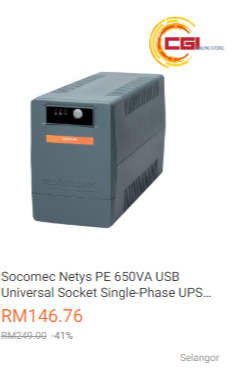
best way is by using UPS with USB.

plug the UPS into your PC's USB port, and some/most NAS OSes like Xpenology will detect it.


As for auto reboot, there are a few ways.

In BIOS, enable
Wake On LAN - you can ping the machine, and it'll reboot. you can set a cheap PC/machine like Raspberry Pi to auto ping your NAS every few minutes to bring it back to life once the RPi is also back to life biggrin.gif
Wake On RTC/Clock/Alarm - auto turn on machine at a set time everyday, so even if everything else fails, your machine will at least turn on once at a specified time once a day everyday.
On Power Loss - Always Turn On - so whenever power is back on, machine is turned on.

If you DIY and use battery-powered RAID card, then your data is safe in the event of power failure. this is one of the big reason why I chose the DIY way - I hate how we pay premium price, especially here in Msia, for a really crappy (essentially) PC.

as for to save your HDD's life, best way is via UPS IMO. No other better way. After 7 years and frequent power trips for the last few months, one of my 3TB WD Red started showing bad sectors. One of the reason why I gladly pay premium and only use NAS-grade HDDs like IronWolfs and WD Reds and HGST Heliums. I rather get NAS-grades than risk using normal/consumer grade harddisks and get peace of mind.
TSC-Fu
post Jan 9 2019, 01:31 PM

Ninja-Fu
******
Senior Member
1,051 posts

Joined: Apr 2005
From: Brisbane, QLD, Ostolia


QUOTE(chanti-sama @ Jan 8 2019, 10:13 PM)
Thank you. I did thought about setting up a small nas for home archiving purpose and also serve as some repository for my dvr files.

Apc smart ups iirc are those active ups that has those agent that graceful shutdown the nas rite?

Isnt these ups costs quite prohibitive for home use?
*
user posted image

just search for usb ups in lazada or shopee or wherever. The cost is more less about the same as a cheap 80+ PSU. I think 150-200 is a small price to pay for peace of mind smile.gif
TSC-Fu
post Jun 11 2019, 03:28 AM

Ninja-Fu
******
Senior Member
1,051 posts

Joined: Apr 2005
From: Brisbane, QLD, Ostolia


QUOTE(Two5Kid @ Jun 10 2019, 06:34 PM)
Correct me if I'm wrong, I'm looking to run concurrently Windows 10 (for gaming) and MacOS Mojave (for the rest), is this HomeLab build the right path or am I heading in the wrong direction.
*
lebih kurang. apart from needing two gpus for each OS (for best performance), the base OS needs to be xcp-ng, esxi or unraid. setup a VM with resources that you want for Win10 and Mojave, and perhaps another VM for Xpenology.
TSC-Fu
post Jun 12 2019, 03:33 PM

Ninja-Fu
******
Senior Member
1,051 posts

Joined: Apr 2005
From: Brisbane, QLD, Ostolia


QUOTE(Two5Kid @ Jun 11 2019, 01:15 PM)
Thanks for the quick reply. Have you heard about ProxMox? What I want to build is something like this YouTube video, just less resource intensive. I don't do 4K video editing nor do I play graphics-intensive games.

*
proxmox is also fine. just that in most comparison promox is often considered to be for a more advanced user. you can use whichever host OS that you want.

personally after trying them all (with my limited skillset), in order of ease of use to paling mafan:

esxi
xcp-ng (can use xen tutorial)
unraid (once you understand this should be the best IMO)
proxmox

but if proxmox makes sense to you, use it! nobody's stopping you biggrin.gif

doesn't matter if you're an exclusively solitaire player, if you want your VM OS to see your GPU, you need a host OS with GPU passthrough. in this sense, Xpenology can only passthrough intel iGPU. and while all of the above OS can indeed do software RAID, it's just not as good as a dedicated NAS OS like freenas or xpe. hence, my earlier reply

QUOTE(C-Fu @ Jun 11 2019, 03:28 AM)
lebih kurang. apart from needing two gpus for each OS (for best performance), the base OS needs to be xcp-ng, esxi or unraid. setup a VM with resources that you want for Win10 and Mojave, and perhaps another VM for Xpenology.
*
Note that if you like your hair, only use radeon with hackintosh.

This post has been edited by C-Fu: Jun 12 2019, 03:39 PM
TSC-Fu
post Jun 12 2019, 05:10 PM

Ninja-Fu
******
Senior Member
1,051 posts

Joined: Apr 2005
From: Brisbane, QLD, Ostolia


QUOTE(Two5Kid @ Jun 12 2019, 03:56 PM)
Thanks for the heads-up. Interesting to know. Will research on it further.
*
no worries.


OS like unraid and esxi are a different purpose than a NAS OS. although in the case of unraid and proxmox, it does have some of NAS OS's features, there are features that are not readily available (like offsite backup methods for instance, or a built-in web office suite like google docs).
TSC-Fu
post Jun 14 2019, 12:27 PM

Ninja-Fu
******
Senior Member
1,051 posts

Joined: Apr 2005
From: Brisbane, QLD, Ostolia


QUOTE(TristanX @ Jun 14 2019, 09:10 AM)
I'm considering moving to Ryzen 3 3200G with MSI X470 Gaming Plus setup. My Corsair Carbide 400R has 6 + 4 bays. Intel security issue is scary.

Currently running IIS, PHP 5 and 7 (can set PHP version per folder), MySQL, Windows File Transfer, Universal Media Server, Media Streaming, Torrent.
*
From what I know, with Xpenology:
IIS - only on windows, no linux version, no docker version
PHP 5 and 7 - built in once you install a few of the core apps like calendar, or just install extra ones via docker
MySQL - syno app is available, but I prefer using via docker for each project. plus can easily shift to MariaDB with docker with no issues
Windows File Transfer - turn on samba/windows file sharing
Universal Media Server, Media Streaming - there's the official synology video station, but I prefer the super powerful Plex. there's a bunch more of DLNA apps available anyway.
Torrent - the official Download Station is more than enough, supports torrent youtube and so much more. but can always install deluge, transmission, and a few others.

Xpenology with Ryzen has more issues than with Intel, so put temporary hdds and the usb boot disk to see if everything works. Start with 3617, if that doesn't work, 3615. if 3617 works, try ds918.
TSC-Fu
post Jun 22 2019, 03:31 PM

Ninja-Fu
******
Senior Member
1,051 posts

Joined: Apr 2005
From: Brisbane, QLD, Ostolia


QUOTE(UsernameCopied @ Jun 22 2019, 12:43 PM)
Is there a video tutorial to set up and build my own NAS?
*
Probably

but the fifth step is super easy, can't get any easier than that
TSC-Fu
post Aug 20 2019, 02:24 PM

Ninja-Fu
******
Senior Member
1,051 posts

Joined: Apr 2005
From: Brisbane, QLD, Ostolia


Placeholder for VM tutorial biggrin.gif

3 Pages  1 2 3 >Top
 

Change to:
| Lo-Fi Version
0.0292sec    0.70    6 queries    GZIP Disabled
Time is now: 16th December 2025 - 01:02 AM