Video is called mosaiced when some part of image (or whole image) is represented in big squares where all pixels within one square have the same color. This is an example of mosaic in video:
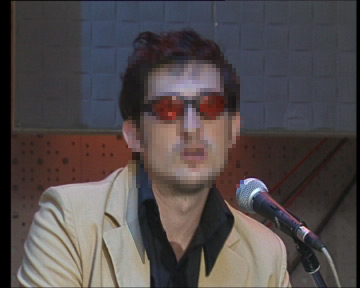
Same effect is also called pixellation.
I am often asked how to remove mosaic from videos using Video Enhancer.
Video enhancer
» Click to show Spoiler - click again to hide... «
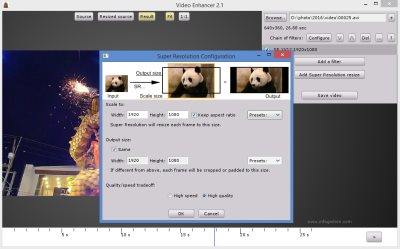
With Infognition Video Enhancer you can:
1. Increase resolution of your video with motion-search-based Super Resolution method, where each frame is upsized using information from a number of neighbor frames to extract maximum details for outstanding results. All the other resize algorithms use information from one current frame only. Now you can convert low res videos to high definition (HD) or HD to 4K!
2. Use more than 220 VirtualDub filters for powerful and flexible video editing: deinterlacing, denoising, deblocking, color correction, stabilizing, sharpening, visual effects etc. On multiprocessor systems, multicore or hyperthreading CPUs, Video Enhancer performs much faster than VirtualDub because all filters, decoders and coders work in separate threads, simultaneously.
3. Open virtually any video and re-compress it with any video codec (DirectShow, DMO and Video for Windows) installed in your system to AVI or MP4.
With Video Enhancer you can perform all these tasks together or just some of them.
1. Video Super ResolutionVideo Enhancer can upscale digital videos to any resolution with superb quality: be it 480p to 720p, 720p to 1080p, 480p to 1080p or anything else. Super Resolution is a method to upscale video and images, i.e. increase resolution of a video or picture (terms "upsize", "up-convert" and "uprez" are also widely used). To upsize each frame, information from this very frame and from a number of neighbor frames is effectively used. If picture in your video is not changing too fast, then information from several frames is added to create a larger and more detailed picture. No algorithm of ordinary image resize/resample is capable of providing this quality just because of the lack of information in one frame. Here you can find examples of Super Resolution technology in action:
Original video (zoomed 4x, actual size is 4 times smaller!):

After Video Enhancer:
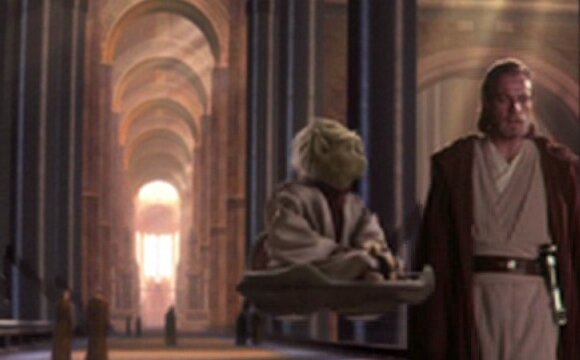
Original video (zoomed 4x):

After Video Enhancer:

We performed extensive testing of different upscaling options. The result is a comparison of Infognition's technology with other resizing methods, including vReveal by MotionDSP, Instant HD by Red Giant, Boris FX Uprez, Genuine Fractals etc. Sample videos used in comparison are available for download and sceptics are welcome to check our results.
To ensure the above pictures are real, you can download the test video clip (2.9 MB), upsize it 4 times in Video Enhancer and see it for youtself. The clip is compressed with Lagarith lossless video codec.
Our super resolution video upscaling technology is also available as a VirtualDub plugin as well as AviSynth plugin and Adobe After Effects / Premier Pro plugin. OpenFX version is coming soon!
2. Two hundred filters for video editingYou might be familiar with VirtualDub - a powerful video editing application. What makes it so powerful is a vast collection of video and audio filters. Over two hundred filters for VirtualDub provide limitless possibilities: use Subtitler filter to subtitle videos, logoaway filter to remove annoying logos, deshaker to stabilize shaky video, denoise for noise reduction, or cartoonizer to make a movie look like cartoon. You can crop and rotate a video scene, deinterlace, adjust brightness or correct video with frame luminance variations using deflicker. A disadvantage, however, is that VirtualDub reads AVI files only and works with Video for Windows codecs only.
Video Enhancer allows you to use most of the VirtualDub filters (90% now) combining with power to open any video file (AVI, WMV, MPEG, RM, MOV - see documentation for details) and use any video codec either Video for Windows or DirectShow.
Unlike VirtualDub, in Video Enhancer all filters, coders and decoders work simultaneously in separate threads (model known as multithreading). For example, if you process a video with two filters, then at the time coder compresses the first frame second filter is already processing second frame, first filter is processing third frame and decoder decompresses fourth frame. Simple test with processing DV video with 3 filters and compressing it with XviD showed 1.9 times higher speed than VirtualDub on Dual Core AMD Opteron.
Here is a list of VirtualDub filters that proved to work well with Video Enhancer. Choose any filters from that list, download them, unpack and put *.vdf files to "plugins" directory in the Video Enhancer folder. If you have VirtualDub installed, then Video Enhancer will find installed filters automatically.
In Video Enhancer you can create chains with any number of VirtualDub and Super Resolution filters. It means you can filter your video before resizing, after resizing, between or even instead.
 3. Convert your video
After you've decided what to do with your video, you can choose any video codec to compress your output video to reduce the output file size. Video Enhancer lets you use not only VfW codecs (like VirtualDub) but also DirectShow and DMO ones, i.e. any video codecs.
Frequently people ask what filter to use to remove mosaic. Most of these people are Chinese lovers of adult content which they often have with most interesting parts pixellated.
Some sites and forums even advertise Video Enhancer as a tool for removing mosaic. I think they are mislead by pictures from Video Enhancer's main page, where we see low resolution video frame enlarged 4 times, so it looks like it's a big mosaiced frame. That's not the case actually, it's just zoomed small picture.
In general, Video Enhancer is not for removing mosaic and there are no filters capable of doing it. There is a way to improve mosaiced parts, but this will also degrade heavily quality of unmosaiced part of image. This is what one should do if he or she wants to get rid of mosaic in video:
1. Get VirtualDub and Video Enhancer.
2. Open your video in VirtualDub, zoom in your video and measure the size of squares in mosaiced part. Let's call this number N. In example above each square is 4x4 pixels, so N=4.
3. Apply resize filter, make new size N times smaller (so 360x288 video from example would become 90x72) and choose bilinear method.
4. Choose a lossless codec (like Huffyuv, Lagarith or MSU Lossless Codec) and save your video in AVI file. You'll have a small video with no squares in it:

5. Open it in Video Enhancer, go to Advanced mode and add SR (Super Resolution) filter several times, each time doubling the size of video, each time in high quality mode. If N=4 you need 2 SR filters, if N=8 you need 3 SRs and so on.
6. After you made this chain of SRs, choose output compression for video and optionally for audio and press Start.
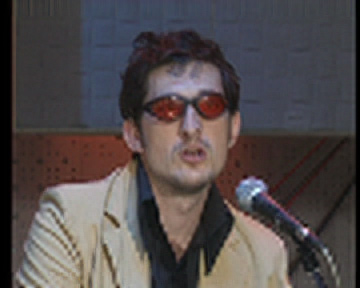
If you successfully performed all steps and you're lucky enough, you'll get your video with the same dimensions as original mosaiced video, but processed with Super Resolution. You'll lose details of unmosaiced parts, but in many cases increase quality of mosaiced part. Here is an example of what you'll have:
One may ask: why downsize video in VirtualDub if Video Enhancer also can downsize video (just set small size in SR filter)? The answer is if you downsize video in Video Enhancer it uses Lanczos3 method which makes a sharper image. This image is harder for super-resolution to restore, you'll get more artifacts, result will look worse.


 Come, i teach u how to remove mosaic.
  Sep 16 2017, 07:48 PM, updated 9y ago


 Quote
Quote





 0.0115sec
 0.46
0.46
 5 queries
 GZIP Disabled