Welcome Guest ( Log In | Register )

Outline · [ Standard ] · Linear+

 Resizing AVI using VirtualDubMod, Using GSpot, DixV & XviD codec, Lame MP3

views
     
TSkeyz
post Nov 21 2006, 02:19 PM, updated 20y ago

Regular
Group Icon
VIP
1,271 posts

Joined: Jan 2003
From: Terengganu


This guide is written based on this article. There is difference between the original article & this guide :
  • Using VirtualDubMod instead of VirtualDub.
  • This guide focusing on resizing the video but at same time include the step to ensure compatibility with home divx player.
Note for home dixv player user :
  • Refer your manual for specification & any restriction that apply like max allowable bitrate, allowable audio bitrate (Constant Bitrate or Variable Bitrate), prefered 4CC & aspect ratio.
Software you need :
  1. VirtualDubMod
  2. DivX 6 or XviD 1.1
  3. GSpot Codec Appliance
  4. Lame ACM MP3
You can download those software from free-codecs.com.

This post has been edited by keyz: Nov 22 2006, 10:42 PM
TSkeyz
post Nov 21 2006, 02:26 PM

Regular
Group Icon
VIP
1,271 posts

Joined: Jan 2003
From: Terengganu


First, we need information from AVI. Use GSpot. Write down the info (we need this later) :

user posted image

* Original bitrate - 855kb/s
* Runtime (hh:mm:ss) - 23:10
* FPS (frame per second) - 23.976
* Audio bitrate - 160kbps, 48kHz, CBR

In this guide, I will resize the sample movie from 640 x 480 to 640 x 440.

Launch VirtualDubMod & load AVI. I assume you have AVI with CBR (Constant Bitrate) audio. If you get msg like below, click "No".

user posted image

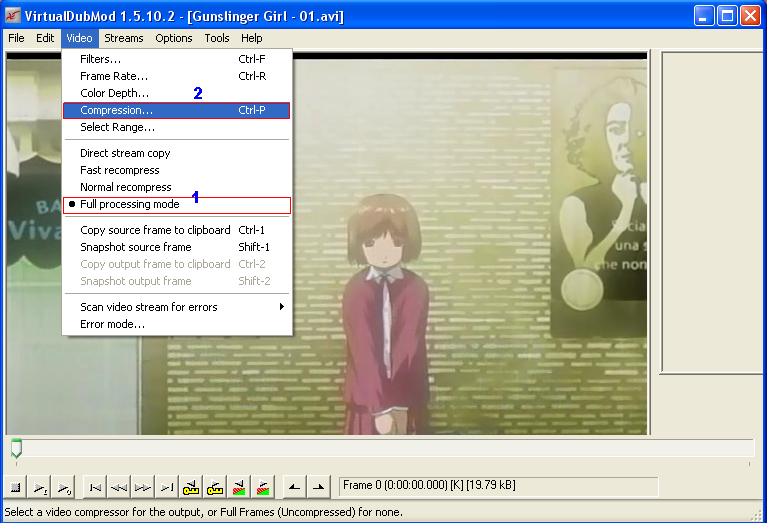
Click "Video". Ensure "Full processing mode" is selected. Then click "Filters" :

user posted image

You'll see the blank dialog box. Click "Add"

user posted image

Scroll down for "Resize". Double click it or click "Ok".

user posted image

Put the size here. As earlier, I want to resize into 640 x 440. Select "Bicubic". For more info about filter mode, use Google. Click "Ok".

user posted image

List of the "Filter" you're going to use. Click "Ok" to proceed.

user posted image

You'll back to the VirtualDubMod windows. Select "Video". Then "Compression" (ensure "Full processing mode" is selected).

user posted image

List of available compression on my system. You can use DivX or XviD.

user posted image

This post has been edited by keyz: Nov 22 2006, 10:47 PM

TSkeyz
post Nov 21 2006, 09:23 PM

Regular
Group Icon
VIP
1,271 posts

Joined: Jan 2003
From: Terengganu


Using DivX codec :

Select DivX codec then click "Configure". You'll see this screen :

user posted image

Enter the original bitrate (you obtained it earlier using GSpot). Select "Home Theather Profile". Leave "Codec" & "Video" tab at default setting.

You can also use built-in calculator for precise bitrate calculation. This is where the information in the beginning of this guide comes handy. Click the "calculator" icon. Enter the required information here. Click "Accept" when done. Click "Ok" to exit into codec list. Click "Ok" again to exit into VirtualDubMod window.

user posted image

Note:
  • The final bitrate is calculated up to 3 decimal. Adjust it so it will be no decimal.


This post has been edited by keyz: Nov 22 2006, 10:24 PM
TSkeyz
post Nov 21 2006, 09:32 PM

Regular
Group Icon
VIP
1,271 posts

Joined: Jan 2003
From: Terengganu


Using XviD codec :

Select XviD and click configure. You'll see a "XviD Configuration" screen. Click "Target quantizer" to switch into "Target bitrate". Enter the "original" bitrate. Then, adjust using the following setting :
  • Profile @ level : Advanced Simple @ L5 . Click "more" to access "Profile" tab:
    • Profile tab :
      • Quantization type : H263
      • Leave "Quartel Pixel" & "Global Motion Compensation" unchecked ! (for home DivX player compatibility)
Click other options :
  • Encoder tab : FourCC use "DX50" (most home dixv player prefer this)
  • Decoder tab : leave as it is
  • Common tab : leave as it is
user posted image

For bitrate calculation, use above setting but this time click "calculator" icon & enter the data which you got earlier using GSpot :

user posted image

Click "Ok" twice to exit in main dub window.

This post has been edited by keyz: Nov 22 2006, 10:20 PM
TSkeyz
post Nov 22 2006, 10:28 PM

Regular
Group Icon
VIP
1,271 posts

Joined: Jan 2003
From: Terengganu


This step will convert your audio bitrate from VBR into CBR (report says some home divx player only support CBR MP3).

If you have video with CBR, skip this step. Again, you can use GSpot to identify the whether it has CBR or VBR audio.

You're now in main VDubMod window. Click "Streams" then select "Stream list". You'll se the available stream. You need to enable "Full processing mode". Right click to enable that. Then, right click and select "Compression".

user posted image

You'll see the audio compression codecs here. You need to install LAME ACM MP3 if you want to convert VBR into CBR. BTW, ABR is Average Bitrate. It is essentially a constant bit rate, but using a bit reservoir.

user posted image

Note :
  • The video bitrate may changed if you increase or reduce the audio bitrate. The file size may or may not changed. It is advise to calculate video bitrate using build-in calculator if the changes is significant.
  • If the original audio is 48kHz and you try to encode it into 44.1kHz (or vice versa), you'll get an error.
  • Select CBR for full compatibility with home divx player. Use ABR at your own risk !.
Click "Ok" to return to main VDubMod window. You almost done. Just select "File" then "Save as". You're going to save this file as AVI. Put new name for this file & click "Save". You'll see the "dub in progress" window.

That should ended this guide. Quite long, huh ?

Note/information :
  • To be updated when applicable
  • PM me for any feedback or error encounter so I can ammend this guide accordingly


This post has been edited by keyz: Nov 23 2006, 07:54 AM


Change to:
| Lo-Fi Version
0.0165sec    0.58    5 queries    GZIP Disabled
Time is now: 18th December 2025 - 05:56 AM