Using Merlin 376.48_3 on my RT-N16. Working fine over here. Though I am on UniFi.
Consider restoring the router to factory default before flashing Merlin. Also, don't restore the saved configuration from ASUS stock firmware, it may not work on Merlin.
It'll be better if you set everything up from scratch.
if i do upgrade firmware ASUS Merlin i think Void Warranty ASUS Right
please help i using ASUS AC68U router my bro still downloading via wifi my internet very slow my streamyx 4mbps u see screenshot that MAC address and highest that is my PC not my bro PC its MY PC LAN RJ45 only but why still very slow my pc internet surfing very slow setting wrong ???? i looking my pc must be internet faster then my bro pc wifi
May I know is your brother using torrent client such as utorrent to do the download?
If yes, then it is hard to block it because torrent client provide random port service in their apps. Like uTorrent, when you go to Option -> Preference-> Connection. You can randomly generate a port number for incoming connection.
And from the QoS image that you have provided, try to erase the value from the Transferred field.
The Destination port that you have keyed in only apply to http://(80) and https://(443).
i have ASUS RT-AC68U last time i bought since i think oct 2014 my ASUS RT-AC68U LAN PORT 1 Death LAN PORT 2 3 4 WORKING so i already send RMA Asus they already send out Replacement NEW ONE tomorrow i get received soon
I just bought RT-N14UHP, I follow below youtube guides on quick setup for unifi, but when I try access to internet, below page appear and cannot connect to internet, but in the Asus router page (192.168.1.1) network map the internet status show connected, any ideas how to fix this?
i did set White list but all computer cannot access internet
i looking one computer block internet
other computer access internet just one computer no internet
i did set Network Service Filter one pc ip address source IP i fill 192.168.1.243 and Destination IP 192.168.1.243 and i set protocol TCP ALL and submit done
White list means a reverse of Black list, you are only allowing IP address 192.168.1.243 to be able for accessing the Internet, while block all other devices.
So in your case, it should be Black list added, not White list added.
Also remember to block the UDP as well, or he can try bypass via UDP.(like QUIC, DNS, VPN with UDP) ---- And I think you should use Parent Control, not Network Service Filter, because you need to block that device with MAC Address that unchanged, a IP address is easy to change on any devices.
Just saying, the MAC Address can be spoof if it is a PC, but normally people don't know how to do it for the WiFi adapter as it have rule since Windows 7. TL;DR: Anyways, Parent Control should be enough for your case, unless there is no such function for your model. https://www.asus.com/my/support/FAQ/1008720/
i looking block 192.168.1.243 not able for accessing the Internet
that PC ip 192.168.1.243 for using LAN Cable not Wifi
What other forumer trying to said is, you can use phone to do the blocking. Download the ASUS Router app, in the video below, after 38 second of the video, you can see the Block Internet Access after you choose the PC you want to block. Enable it.
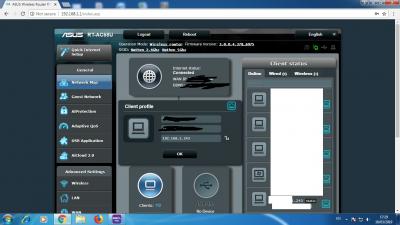
This can be done using PC too. Log in to 192.168.1.1. At Network Map, Click the Clients icon, click on the PC you want to block the Internet Access on right side. Please refer to the image below.
Thank you
see screenhot
This post has been edited by pakji: Mar 18 2019, 05:35 PM
Let me try to help you. Now I understand that you want to block 1 IP address (192.168.1.243) to go to Internet while other IP addresses are okay. Correct? If that is the case, you can use the following steps:
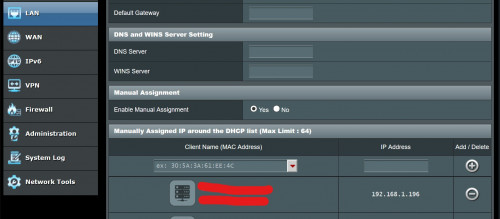
1. Use your PC browser and open http://192.168.1.1 or access setting page via https://192.168.1.1:8443 (if you set to use only https) 2. If DHCP is enabled on your router, you must go to LAN (on left Menu under Advance Settings). You must choose the PC that you want to block and manually assign the IP address.
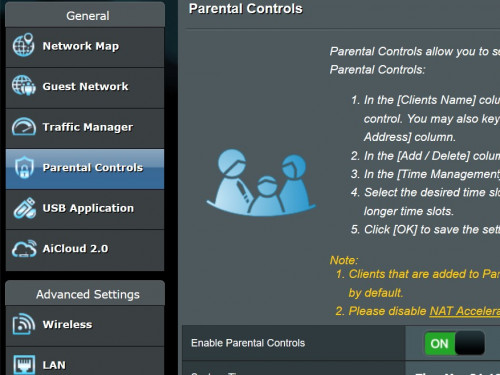
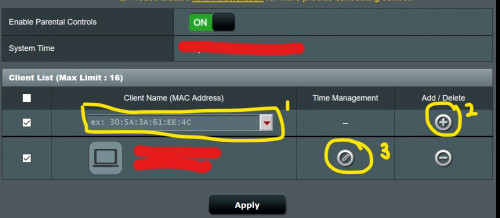
3. Go to Parental Control and enable it.
4. Choose the PC you wanted to block (192.168.1.243) or whatever IP address that you have assigned in Step 2. Click on the Add or plus sign + on the right (number 2). The PC you selected will appear in the column below. Then click on the Time Management (number 3)
5. Select the time that you allow/disallow that PC from connecting to the router.
OR
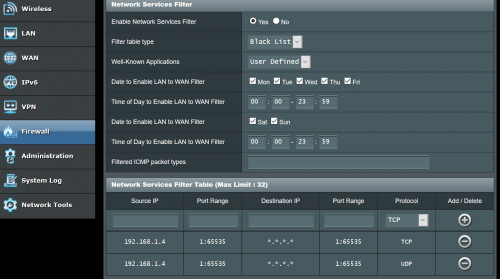
You can use Network Service Filter by choosing Firewall menu on the left. And then choose option "BlackList". At the "Network Services Filter Table", key in the IP address of the PC you wanted to block in the Source IP and do it for TCP and UDP. Please follow the picture below.
Hope that helps....
Let me try to help you. Now I understand that you want to block 1 IP address (192.168.1.243) to go to Internet while other IP addresses are okay. Correct
the seller wanted sell me super expensive rm2230 but I only manage to get sikit discount so around RM2150 since I can't wait anymore i malas want to bargain further.
anyway like you said setup was as easy and also thanks to sifu Jayce Ooi for this helpful video good for noob like me lol
anyway got everything up. hopefully its stable!
this is connected to one of my wifi6 AX enable laptop. 1.2gbps wifi!!... not bad lahhhh too bad my unifi only 100mbps lmaooo will probably upgrade when 800mbps or 1gbps arrived.
coming from dir 842 going straight to high end ax11000 wooowww I must admit at first I thought not much big deal difference but boy was I wrong about why is this thing so expensive but man multiple p2p 4k 5k 6k 8k youtube multiple device all ok!!! wowwwwww the stupid dlink dir842 cannot handle this many traffic all at the same time one. this is my first time using high end wifi router so really feel the power.
hopefully the ax11000 will keep working like a champ! also what still make me blur is why the asus ax11000 no have vlan tagging option but still work with unifi, means the ax11000 must have configured vlan tagging using the ISP profile but no option provided for further vlan customization in setup menu.
overkill 100mbps because you need take 800mbps unifi i also using 100mbps i waiting 800mbps i using RT-AC68U too old was already i think i bought 2014 i think too old its was use streamyx 4mbps so overkill i hard wait my area arrive fiber project complete was may 2019 so my house installed 30may2019 unifi 100mbps hard to wait
i will buy high end router later because i waiting 800mbps once launch 800mbps then i will upgrade 800mbps then i will buy new router high end powerful ax11000 or ax88u
I was looking at buying ac86u but doing research online got people complain overheating and 2.4g radio going kong so decided to look at tplink but got got complain say cannot handle multiple user last last malas man just get the ax11000 so far so good hopefuuly its reliable! No way in hell im going to touch dlink again!!! Lol
Since ur planing to get high end router can aim for next gen rt-ax89x even more power!!! But its unrelease yet so have to wait.
yes you correct ac86u is overheat i know i will not take yah i don't have problem to wait to buying next gen because i have RT-AC68U enough for 100mbps once arrive 800mbps i will upgrade then buy new router will not overkill 800mbps for high end next gen router
QUOTE(nasilemaksedap @ Sep 28 2019, 05:03 PM)
Oh yeah for those planing getting the ac86u I just found out can get cooling fan for it just search on shopee
no need fan because if use fan abit reduce heat but not much so not worth
my rtac68u i don't use cooling fan but stable for 100mbps


 Nov 29 2014, 12:30 AM


 Quote
Quote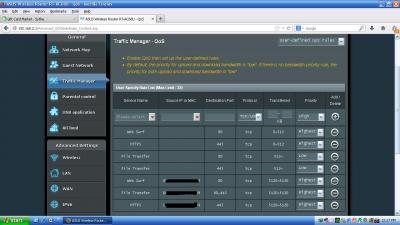




 for this helpful video good for noob like me lol


 0.0388sec
 0.59
0.59
 7 queries
 GZIP Disabled