

 Sep 29 2012, 12:34 AM


1. Change your PC IP address to 192.168.1.2, subnet mask 255.255.255.0
2. Connect your PC to port 1
3. Open a browser and enter the IP address 192.168.1.1
4. Enter the username: admin, and password: hs5711Bbvl
5. Before any changes, it is a good practice to make a backup of your modem configuration.
Click on Administration>System Management>User Configuration Management, and on your right, click the "Backup Configuration" button to save the configuration setting to your PC.

6. So let's get the work started, click on Network>Port Binding, at the WAN connection drop down list, select HSBA_621, and also tick on LAN4 checkbox. Click Submit to save it.

7. Click on VLAN Trunk, click on "Select LAN Interface" and select LAN2 from the dropdown list, and make the changes as shown in the picture. Remember to click "Submit" to save the changes.
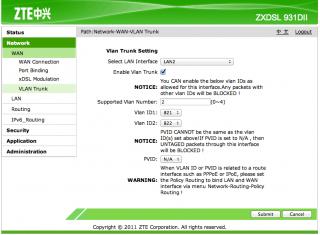
8. Once completed step 7, click on "Select LAN Interface" again and select LAN4 from the dropdown list. Make the changes as shown in the picture, and click "Submit" to save the changes.

9. Reboot your ZTE modem.
9. Configure your own router(I am using TP-Link router), just the same in the step posted in the first thread.
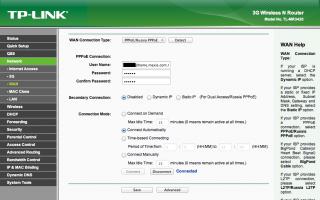
10. Hook up your router to port 4 of your ZTE modem, and now you are able to surf the net peacefully. You might want to let the Thomson router up for your VOIP.
 Quote
Quote

 0.0444sec
 0.72
0.72
 7 queries
 GZIP Disabled