

wish 2 undervolt my lappy but no idea even though search in the forum?
any1 will help?
Guide to undervolt lappy correctly
Guide to undervolt lappy correctly
|
|
 Sep 3 2009, 07:13 PM, updated 17y ago Sep 3 2009, 07:13 PM, updated 17y ago
Show posts by this member only | Post
#1
|
 
Junior Member
34 posts Joined: Jun 2008 
|
wish 2 undervolt my lappy but no idea even though search in the forum?
any1 will help? |
|
|
|
|
|
Sep 3 2009, 09:11 PM
Show posts by this member only | Post
#2
|
|
Senior Member
761 posts Joined: Aug 2006
|
I'm assuming when you say undervolting you laptop, you meant undervolting your CPU. Let's start with the tools to download, if you do not possess them already.
1) Orthos, a CPU stress tester (Or any other CPU stress testing program, actually, like for say, intel burn?) » Click to show Spoiler - click again to hide... « 2)RMClock » Click to show Spoiler - click again to hide... « After which you've gotten them installed on your laptop. The first step would be configuring RMClock's default settings. If it's the mobile radio button is not selected by default, do so before doing anything else. » Click to show Spoiler - click again to hide... « Next, expand the profile selection, to reveal the profiles. Notice that the content on the right side of the window has changed. This would be your selection of profile depending on the current state of your laptop (plugged in or unplugged) This area here, would be where you choose the multiplier state in which you would like to alter the VID of said state This, of course, is where you alter the voltage of a particular multiplier state As you can see in the picture, I had the lowest and highest multiplier checkboxes ticked. You may choose to select all states, it depends on the user's preference. make sure you have the bottom checkbox ticked as well. » Click to show Spoiler - click again to hide... « Moving along, select the profile which you would be using, in this case, I'll be selecting the maximal performance profile for when my laptop is plugged in. Tick the PST checkbox. Depending on which checkboxes you've ticked in the previous screen, you may or may not be able to tick some of the checkboxes in the sub-window. As I'd said, I'd only choose the highest multiplier because I intend to use the maximal performance setting, in which my system would not throttle even when idling. » Click to show Spoiler - click again to hide... « After all that, go back to the general profiles screen. Select the desired profile in the drop down list for 'current' under the AC Power category. Alter the voltage for the P-states, and there, an undervolted CPU. » Click to show Spoiler - click again to hide... « I've undervolted mine to 1.0250 from 1.1375, that's a whole 0.1v! Please note that it is not wise to use the profile on startup until you've stress tested the CPU running on that voltage with Orthos, or any other stress testing program. If and when you're sure it would not crash into BSOD, select the profile under the startup list and allow RMclock to start up automatically everytime you boot your laptop. On another note, if your processor's highest multiplier is not a full integer, you'd probably have to do a little registry editing. I have a p8400 proc, which highest multiplier is 8.5, but in the pics above, you'd be seeing 9 instead. That doesn't mean I've unlocked any multiplier or so, but a little trick to have my proc performing at its full capacity even while undervolted. First off, run > regedit. then navigate yourself to HKCU\software\rightmark\rmclock, there, find a dword value named PStatesData. Now, what I did was change the highest multiplier value recognized by rmclock, which was 8 at the time, to 9, as you can see in the pic below, it is circled in red. The green circles is enveloping the other multiplier states. » Click to show Spoiler - click again to hide... « And there you have it, a rough guide to undervolting a CPU in a laptop. Now, if you were to say GPU, that is a different story altogether. Unless your NVIDIA GPU is compliant to the MXM standards, which makes extracting its VBIOS, altering it via NIBITOR and flashing the modded bios into said card with NVFLASH in dos, I'd say the chances are slim. This post has been edited by 22: Sep 3 2009, 09:15 PM |
|
|
Sep 3 2009, 09:58 PM
Show posts by this member only | Post
#3
|
|
Junior Member
34 posts Joined: Jun 2008
|
i run theOrthos CPU stress tester,but in the half way my laptop shutdown itself..
and my laptop sometimes is in temp 70+ celcius eventhough i am browsing internet and it will autoshutdown and my mobo is new.. i jz wonder wat happen.. this is the ss for undervolting my lappy without run a stress tester..can i just undervolt it withour running a stress tess? 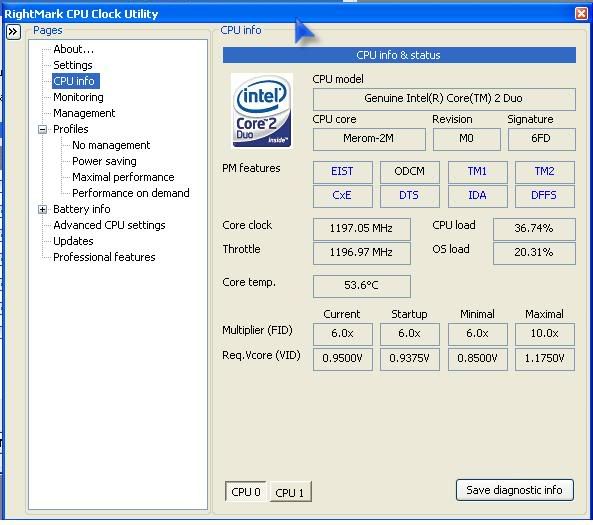 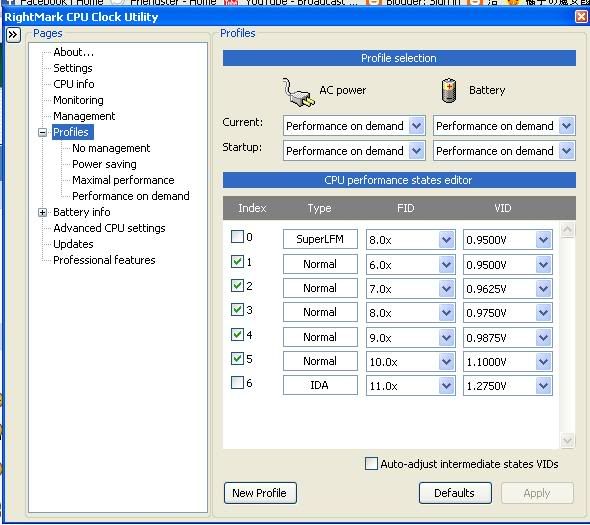 i duno y my temp is so high and fan blowing like hell but my load just 10-20%.. any idea? i m using benq s41 with core2duo T7250 at 2.2GHZ,any1 noe how to undervolt it? This post has been edited by wavemech: Sep 3 2009, 10:26 PM |
|
|
Sep 4 2009, 01:25 AM
Show posts by this member only | Post
#4
|
|
Senior Member
761 posts Joined: Aug 2006
|
When Stress testing, what is the temp of your CPU? Anyway, Disable the automatic restart so as to confirm that the restart wasn't because of a BSOD. You've already undervolted your CPU btw.
Just because the laptop's fan is producing a loud sound, doesn't mean that the cooling system is effective or efficient. Do a comparison between an undervolted state and a stock state to see if there really is a difference. HWmonitor is really good for recording down your max temps. Stress testing is done for stability checking, it's fine if you don't do it, but there might be a chance that you've undervolted the CPU a tad too much and cause the system to crash. Another thing, how long is 'half-way'? On a side note, disassemble the system and blow out the vents as well as reapply the thermal paste. Maybe that will solve your problem. This post has been edited by 22: Sep 4 2009, 01:26 AM |
|
|
Sep 4 2009, 11:51 AM
Show posts by this member only | Post
#5
|
|
Junior Member
34 posts Joined: Jun 2008
|
QUOTE(22 @ Sep 4 2009, 01:25 AM) When Stress testing, what is the temp of your CPU? Anyway, Disable the automatic restart so as to confirm that the restart wasn't because of a BSOD. You've already undervolted your CPU btw. hmm..1min i think..but it was not a BSOD,it was just a sudden autoshutdown and the temp is around 80 sumthg...Just because the laptop's fan is producing a loud sound, doesn't mean that the cooling system is effective or efficient. Do a comparison between an undervolted state and a stock state to see if there really is a difference. HWmonitor is really good for recording down your max temps. Stress testing is done for stability checking, it's fine if you don't do it, but there might be a chance that you've undervolted the CPU a tad too much and cause the system to crash. Another thing, how long is 'half-way'? On a side note, disassemble the system and blow out the vents as well as reapply the thermal paste. Maybe that will solve your problem.  |
|
|
Sep 4 2009, 02:15 PM
Show posts by this member only | Post
#6
|
|
Senior Member
761 posts Joined: Aug 2006
|
QUOTE hmm..1min i think..but it was not a BSOD,it was just a sudden autoshutdown and the temp is around 80 sumthg... Perhaps your CPU die has no good contact with the heatsink. Undervolting can only help so much, if even after undervolting the CPU, your on load temp is still 80+c, something is definitely wrong, that, or s41 just has a bad cooling.As I've stated before, you'd have to provide more informations and screenshots for us to pin point the problem. As of now, the only thing I can advise you is to take it apart if warranty is not an issue and make sure everything is is affixed properly, especially the heatsink. |
|
|
Jun 28 2021, 11:05 PM
Show posts by this member only | IPv6 | Post
#7
|

Senior Member
1,712 posts Joined: Aug 2009
|
QUOTE(22 @ Sep 3 2009, 09:11 PM) I'm assuming when you say undervolting you laptop, you meant undervolting your CPU. Let's start with the tools to download, if you do not possess them already. does the link still work1) Orthos, a CPU stress tester (Or any other CPU stress testing program, actually, like for say, intel burn?) » Click to show Spoiler - click again to hide... « 2)RMClock » Click to show Spoiler - click again to hide... « After which you've gotten them installed on your laptop. The first step would be configuring RMClock's default settings. If it's the mobile radio button is not selected by default, do so before doing anything else. » Click to show Spoiler - click again to hide... « Next, expand the profile selection, to reveal the profiles. Notice that the content on the right side of the window has changed. This would be your selection of profile depending on the current state of your laptop (plugged in or unplugged) This area here, would be where you choose the multiplier state in which you would like to alter the VID of said state This, of course, is where you alter the voltage of a particular multiplier state As you can see in the picture, I had the lowest and highest multiplier checkboxes ticked. You may choose to select all states, it depends on the user's preference. make sure you have the bottom checkbox ticked as well. » Click to show Spoiler - click again to hide... « Moving along, select the profile which you would be using, in this case, I'll be selecting the maximal performance profile for when my laptop is plugged in. Tick the PST checkbox. Depending on which checkboxes you've ticked in the previous screen, you may or may not be able to tick some of the checkboxes in the sub-window. As I'd said, I'd only choose the highest multiplier because I intend to use the maximal performance setting, in which my system would not throttle even when idling. » Click to show Spoiler - click again to hide... « After all that, go back to the general profiles screen. Select the desired profile in the drop down list for 'current' under the AC Power category. Alter the voltage for the P-states, and there, an undervolted CPU. » Click to show Spoiler - click again to hide... « I've undervolted mine to 1.0250 from 1.1375, that's a whole 0.1v! Please note that it is not wise to use the profile on startup until you've stress tested the CPU running on that voltage with Orthos, or any other stress testing program. If and when you're sure it would not crash into BSOD, select the profile under the startup list and allow RMclock to start up automatically everytime you boot your laptop. On another note, if your processor's highest multiplier is not a full integer, you'd probably have to do a little registry editing. I have a p8400 proc, which highest multiplier is 8.5, but in the pics above, you'd be seeing 9 instead. That doesn't mean I've unlocked any multiplier or so, but a little trick to have my proc performing at its full capacity even while undervolted. First off, run > regedit. then navigate yourself to HKCU\software\rightmark\rmclock, there, find a dword value named PStatesData. Now, what I did was change the highest multiplier value recognized by rmclock, which was 8 at the time, to 9, as you can see in the pic below, it is circled in red. The green circles is enveloping the other multiplier states. » Click to show Spoiler - click again to hide... « And there you have it, a rough guide to undervolting a CPU in a laptop. Now, if you were to say GPU, that is a different story altogether. Unless your NVIDIA GPU is compliant to the MXM standards, which makes extracting its VBIOS, altering it via NIBITOR and flashing the modded bios into said card with NVFLASH in dos, I'd say the chances are slim. |
| Change to: |  0.0158sec 0.0158sec
 0.69 0.69
 6 queries 6 queries
 GZIP Disabled GZIP Disabled
Time is now: 20th December 2025 - 12:12 PM |
 Quote
Quote


