

 Feb 13 2012, 08:25 AM


QUOTE(ivanting89 @ Feb 13 2012, 07:45 AM)
found some Chinese translation files which last updated at 13-Nov-2011.
i guess translation progress more than the one come with game client. i saw all newbie quest was come with Chinese too.
anyone can read and need it can go to below link to download YGO550.ttf for font and xml.dat for translation

i guess translation progress more than the one come with game client. i saw all newbie quest was come with Chinese too.
anyone can read and need it can go to below link to download YGO550.ttf for font and xml.dat for translation
» Click to show Spoiler - click again to hide... «

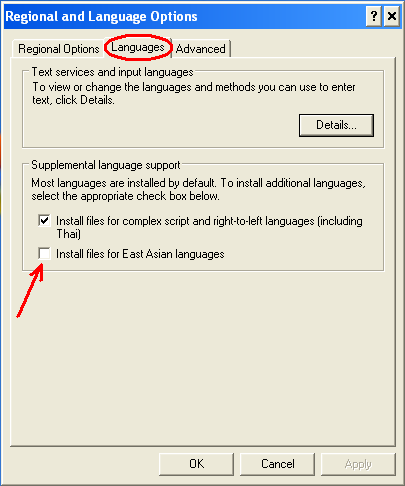
 Didn't work on my case, all text either turn back into Korean or "scrambled"...
The Chinese translation is most probably from China's Blade & Soul closed beta client, the official NCSoft Blade & Soul Chinese edition a.k.a. 剑灵. Well that means Chinese edition (hosted in China of course...) may come earlier than English edition.
This post has been edited by M1X: Feb 13 2012, 08:43 AM
 Quote
Quote




 0.0217sec
 0.86
0.86
 7 queries
 GZIP Disabled