

 Mar 11 2008, 10:50 AM, updated 18y ago


See http://www.pixelraves.com for full step by step guide with picture.
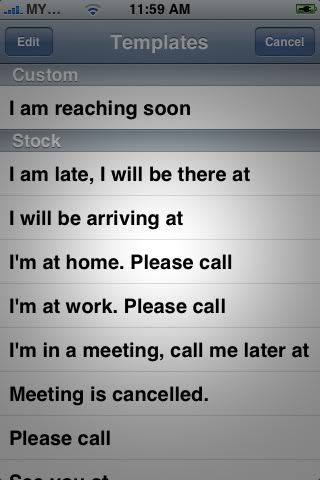
After we got our iPhones unlocked, we are so busy exploring additional software. I have seen so many guide with the screen capture of iPhone screen so i wonder how they did that.
So i was starting to search from Google on how to do that, but so far I didn't see any complete guide on how to install the screen capture tool, capture, and get the captured picture file in iPhone to PC desktop.
I got some tips from peeInMyPantz and continue my research from Internet. Finally, I got it.
Step 1: Add http://repo.smxy.org/iphone-apps to your iPhone's Installer Sources and let your iPhone refresh the sources. Go to: Installer -> Sources.
Step 2: Once the refresh done, go back to Install to Erica's Utlities from Utilities category and wait for the installation complete.
Step 3: Download and install the below 2 software:
* PuTTY (for SSH connection to execute the snap command)
* WinSCP (for copying, moving and deleting your iPhone files from Windows PC)
Step 4: Run and configure PuTTY. Type in Host Name: Your iPhon's IP address, Port: 22, Connection type: SSH then click Open.
Login as: root / Password: alpine. If you see can see the screen below, you are done for PuTTY.
Step 5: Next, you need to run and configure WinSCP. Type in Host Name: Your iPhon's IP address, Port: 22, User name: root, Password: alpine, File protocol: SCP then click Login.
Now you are exploring your iPhone file system and browse to /var/root which your captured screen shot will store here.
Step 6: Now you are ready to screen capture your iPhone. Go back to PuTTY, type snap <filename> eg: snap sciphone-08. PuTTY will display a message: "About to capture screen" and you will hear a shutter sound from your iPhone. Your iPhone screen has been captured.
Step 7: After the screen captured, you need to download to your PC. Go back to WinSCP and click refresh button, you will see <filename>.png (eg: sciphone-08.png) stored in /var/root. So now you can download to your PC
iPhone Screen Capture from iPhone, Step by Step guide
 Quote
Quote



 0.0150sec
 0.61
0.61
 5 queries
 GZIP Disabled