

 Apr 22 2023, 05:34 PM, updated 2y ago


1. Migration Assistant
2. Hyper Backup
3. Moving the Hard Disk Drive (HDD)
With Migration Assistant and Hyper Backup, the new NAS need to have HDD with space same or bigger than the old NAS. Since I'm limited by the HDD that I have, I opted for moving the HDD method. There are limitations for this method, such as can't move from single bay to multi bays and vice-versa. Also some CPU architecture can't be migrated to different type of CPU architecture. So make sure you check it properly if choosing this method. Synology have a detailed information in this page to fully understand which method is suitable for different cases.
How do I migrate data between Synology NAS (DSM 6.0 and later)?
To ensure least likely of encountering any problem, update both NAS DSM to latest version that's available at the time. Also update all app packages to ensure better compatibility for moving to another NAS.
Since I'm changing from DS920+ to DS1522+ and both have same type of tray, I just need to take out the tray with HDD from DS920+ and slot it into DS1522+. Synology tutorial mentioned that when slot in to the new NAS, need to follow the same slot sequence as the old NAS. I stick numbered sticker to each tray as way to identify each tray which will help to avoid it from being mixed up.
Synology mentioned that NVME cache can also be migrated but I don't want to add more possibility for something to go wrong so I opted to remove the cache from storage pool before doing the migration.
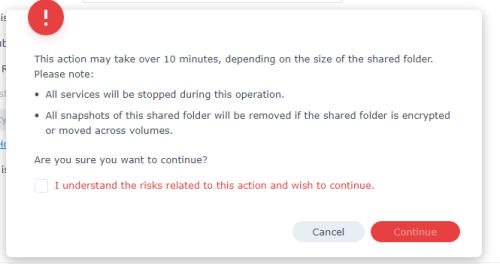
I have 1 SATA SSD that I configure as single storage pool in my old NAS. I don't want to use it on the new NAS so I choose to remove the storage pool but when it prompt me things that will be removed then only I remember that I have installed few Synology packages on this pool and these packages will also be removed together. There's no option to move these packages into different pool. It would be better if Synology added the support for moving packages to different pool in same way as moving shared folders.
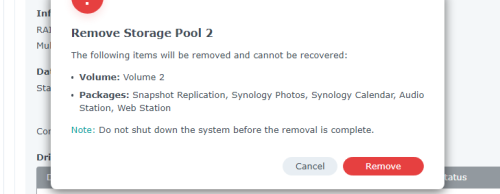
I made backup of those packages using Hyper Backup, after uninstall these packages then I installed back but this time I choose the HDD's storage pool as the location and then use Hyper Backup to restore the data and settings. I also moved shared folders from SSD's storage pool to HDD's storage pool but doing so will delete all snapshots of the shared folders.
Synology tutorial also ask to make a backup of system configuration and then export it to other device, such as to PC. After complete the migration and login into DSM, I use the system configuration backup to restore the system configuration.
Now I can start the process of moving to the new NAS. Shut down the old NAS, and also new NAS. Take out the HDD from old NAS and put at same slot number in new NAS. Power on the new NAS and wait it to finish boot up, then type http://find.synology.com/ on the web browser. Once it found the NAS it will show option to Migrate as below
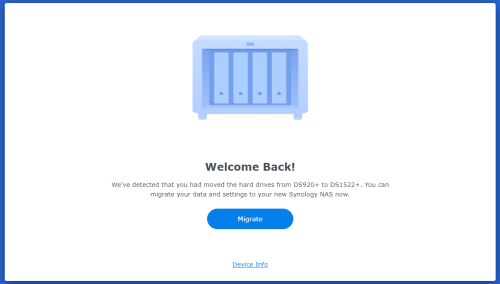
Important! If it show something else and a warning message similar to all or some drive's data will be deleted, that means something is wrong. Maybe the drive is not arrange in correct order. Power it off then try to arrange it in the correct order. If still cannot, Synology recommend to perform migration by Hyper Backup instead. If you still proceed, it will wipe clean the data on those HDD. So remember, Migrate is okay, anything else is not okay.
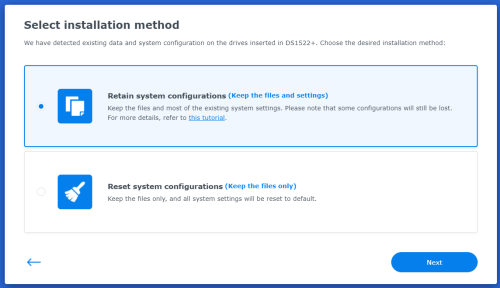
After I press the migrate button, it ask me whether I want to retain the system configuration or reset it. If you choose reset, you will have to configure everything from scratch again, just like a new NAS but with shared folders intact. Another thing to note, before migrate it will have different IP than the old NAS, so make sure to remember or write down the old NAS IP as when after restore the system configuration setting, it will change to use the old NAS IP back. I choose retain system configuration.
When installing DSM, it will also ask to automatically download latest DSM or manually upload latest DSM image file from PC.
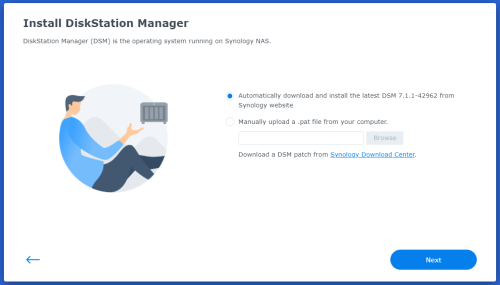
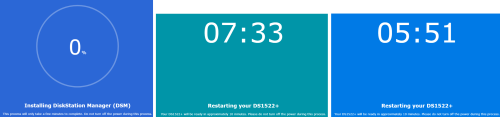
With that it will start download (if choose auto download), installing, restarting few times and configuring the DSM. For this DS1522+, it takes around 6 minutes to complete.
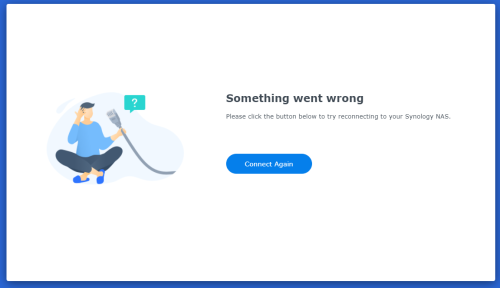
After the final reboot it have applied the old NAS setting, including the IP address. The page show it can't connect to the NAS. Simply type the old IP in browser to connect back to the NAS. Then can login into the NAS.
The only problem I encounter is there's some issue with Hybrid Share and it can't be repaired. I fix it by reinstall it and restore it's setting from the backup made earlier. SMB package error not sure why it appear but it can be updated.
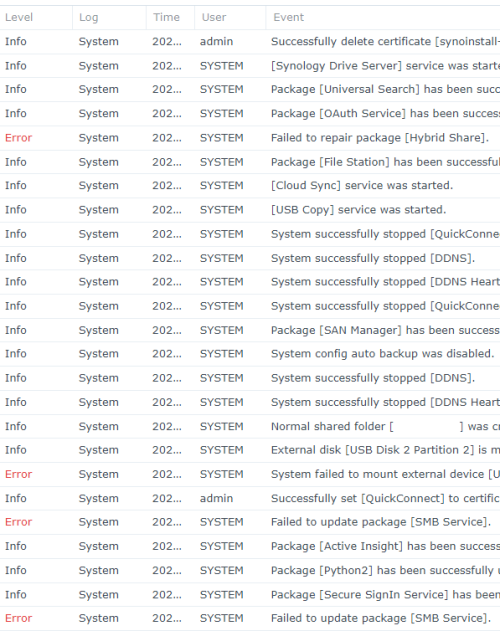
The certificate will also be different so need to redo or renew the certificate. Other than that everything else back as how it is on the old NAS. All the user account working as usual and like there's no changes to them. If they have set stay signed-in then they would need to sign in back.
This post has been edited by xxboxx: Apr 22 2023, 05:57 PM
 Quote
Quote

 I will proceed to buy a new NAS DS223 and try it out 1st. Finger cross!
 0.0150sec
 0.68
0.68
 5 queries
 GZIP Disabled