Welcome Guest ( Log In | Register )

Outline · [ Standard ] · Linear+

Review Synology DS1522+ Review (5-bays NAS), 10Gbps transfer speed anyone?

views
     
TSxxboxx
post Oct 28 2022, 01:43 AM, updated 4y ago

The mind is for having ideas, not holding them
*******
Senior Member
5,261 posts

Joined: Oct 2004
From: J@Y B33


Edit: Added Synology Drive mobile app version 3.2.0 for editing Synology Document and Spreadsheet part

Hey I'm back with another review of NAS. This time it is the Synology DS1522+, a 5 bays NAS with some upgraded of hardware from previous model of DS1520+. The price is about RM3,800 currently. As the model number suggested, this NAS support additional 10 bays through 2 DX517 expansion units, giving total of 15 bays for use. The CPU now is using AMD Ryzen R1600 which support for ECC RAM. It came with 8GB ECC RAM and support up to 32GB of ECC RAM. There's a PCIE slot for optional 10GbE LAN card. Other than these it is the same with previous model. Consider quite an upgrade from DS920+

If you looking for step-by-step guide on getting the NAS up and running, please see this review of DS920+. The steps is for the older DSM 6.2 but mostly still the same procedures. In this review I'll just briefly touch on the setup and initialization, while focus more on the features and usage, especially on Drive usage as I think this will be what most people will use the most once they realized how useful it can be. It is not just a cloud storage but helps with organizing and collaborations.


WHAT'S IN THE BOX

user posted image
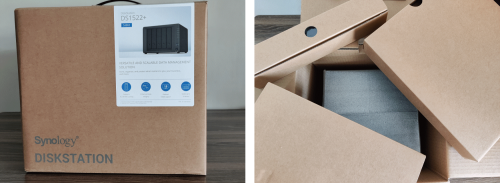
The box comes in plain card box material, synonym with Synology products. Inside there's 2 small boxes that houses it's accessories and below it the NAS itself. There's very little use of plastic material in the packaging which is good for the environment, kudos to Synology. They probably produce millions of packaging for their product every year, not using plastic will ensure the packaging can be recyclable.

user posted image
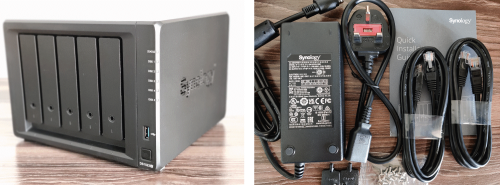
The DS1522+ itself and the accessories. It retain the same iconic shape as before with small footprint. 1 USB port that support 5Gbps bandwidth and below it the power button that light up blue color when in use. On top of the USB port, there's 6 LED that glow yellow for each bay indication and also for NAS status. The accessories are power supply that support input 100-240V, drive bay lock key, screws for 2.5" drive which you should keep it properly, I'll explain why shortly. There's also 2 CAT5e ethernet cables and quick start guide.

user posted image
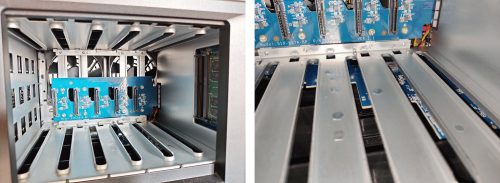
By removing all the disk tray, we can take a peek inside. The SATA board can be seen clearly, and it connect to the right side which houses the motherboard and CPU. On bottom we can see part of the board for the NVME slots. A lot of opening between the metal to help disperse hot air. For years that I use DS920+, never did it feel too hot or the system report overheat.

user posted image
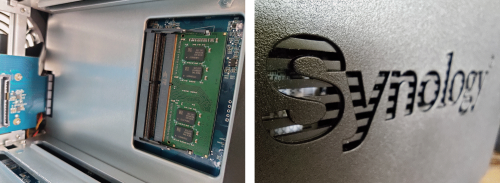
On the right side we can see the 2 slots for RAM. 1 slot already preoccupied with 8GB DDR4 ECC RAM, which is one of the benefit of using AMD Ryzen CPU as it support for ECC RAM. The maximum official support is for 2 x 16GB RAM to give a total of 32GB RAM. From the right side outside we can barely see the motherboard component from the holes. Also make sure to keep some free space between the right side if you want adequate air flow for cooling the CPU.

user posted image
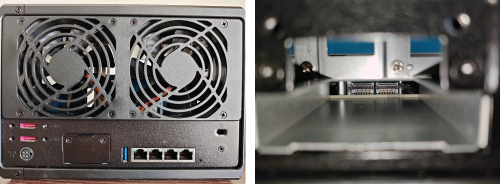
Going to the back of the DS1522+, 2 massive fans to suck out the hot air from inside the NAS. 2 eSATA port for connecting to expansion unit, this NAS support DX517 which have 5 bays. With 2 expansion units connected to NAS, you will have total of 15 bays. Below that is the power/DC in port. Beside that there's cover that you can remove to have access to a PCIe slot, as seen from the picture above. It is for E10G22-T1-Mini, a 10GbE RJ-45 network card. The card support transfer rate of 10 Gbps/5 Gbps/2.5 Gbps/1 Gbps/100 Mbps. Moving on, there's 1 USB port and 4 RJ-45 gigabit port which support link-aggregation. The plate for the bottom half that hold all these ports are made of steel instead of plastic, that will help to ensure it's rigidity.

user posted image
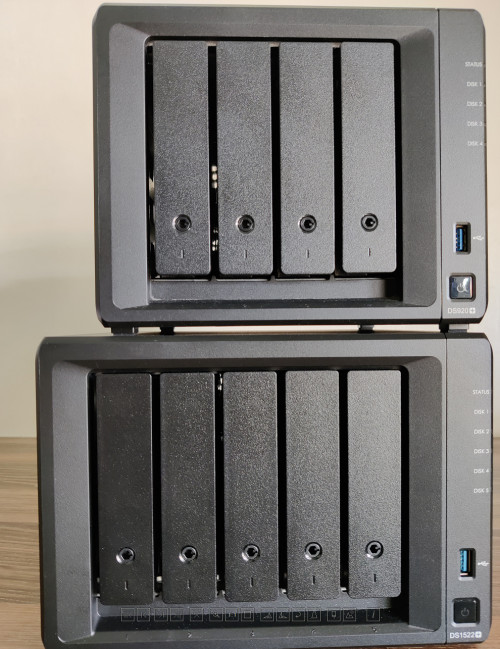
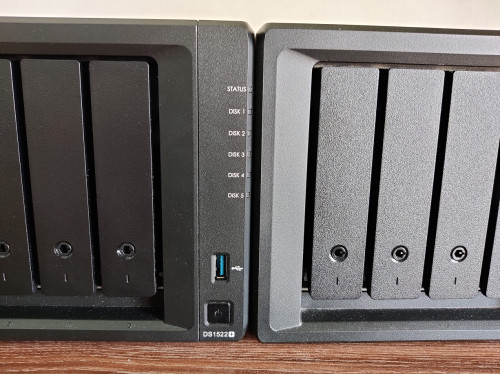
Compared to DS920+, DS1522+ is exactly 1 bay bigger. The disk tray is same so it can be re-use with other model.

user posted image
Height and depth is also the same. This makes DS1522+ almost as compact as DS920+. Less likely will have placement issue if the place you put the NAS is tight.

user posted image
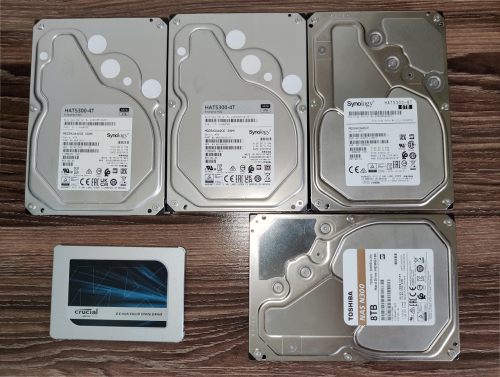
I will populate the bays with 2 x 4TB Synology HDD, 1 x 8TB Synology HDD, 1 x 8TB Toshiba HDD and 1 x 500GB Crucial SSD. I plan to make all 4 HDD into a storage pool, using SHR as it allow to mix HDD size without limiting the space on bigger HDD.

user posted image
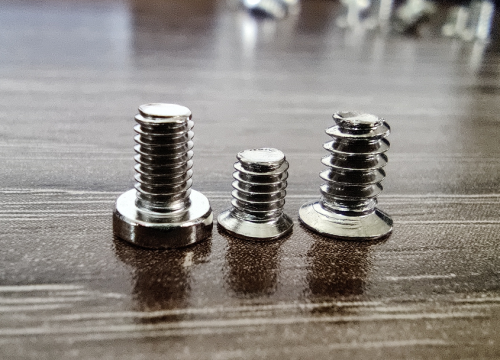
This is why I ask to keep properly the screws for 2.5" drive. From left, Synology screw, usual 2.5" drive screw, usual 3.5" drive screw. As you can see Synology screw is longer, this is to accommodate the thick disk tray. Usual 2.5" drive screw can still work but not much depth to make it fully secure. 3.5" drive screw totally can't use as it have different thread.

I'll only install the SSD drive first as it will help to give faster write performance when the OS is being installed.

This post has been edited by xxboxx: Nov 27 2022, 04:52 PM
TSxxboxx
post Oct 28 2022, 01:44 AM

The mind is for having ideas, not holding them
*******
Senior Member
5,261 posts

Joined: Oct 2004
From: J@Y B33


INITIALIZATION

user posted image
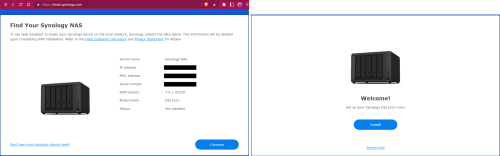
Using any browser, go to https://finds.synology.com, once it located the NAS, this page will show and it will ask to install the OS. It will ask to automatically download the latest OS version from Synology website or manually upload it if already have a copy. Then it will pop out message informing all the data in the drive will be deleted.

user posted image
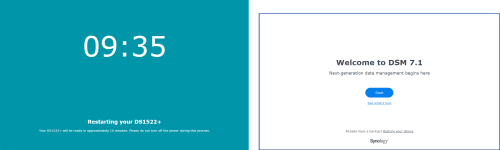
After it download or choose manually upload the OS, it will begin the install process, mine on SSD it takes less than a minute, after that it will restart and auto configure the OS which takes about another minute. This is a lot faster that what I remember it took when I install the OS on DS920+ with HDD last time. Last time what I remember is it take almost 10 minutes of total time. Once completed it will show welcome to DSM message.

user posted image
New option compared to DSM 6.2 last time is when setup new OS now, it ask if want to restore system from previous backup task from Active Backup for Business. If none then it will ask the usual setting up new NAS by giving it name and create administrator account. It also ask if want to create Synology account which can be used for online service such as Secure SignIn, manage license and support ticket record, and cloud service monitoring.

user posted image
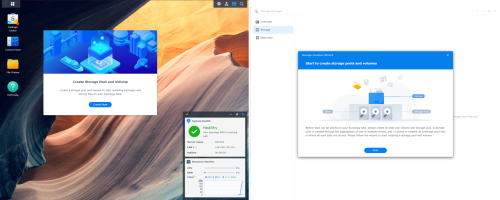
Once done it will show DSM desktop page and ask to create storage pool. With the 500GB SSD, it took just few minutes to configure and optimize the storage pool. If with HDD, it will take a lot longer time. The time will be more longer if the HDD is bigger capacity

user posted image
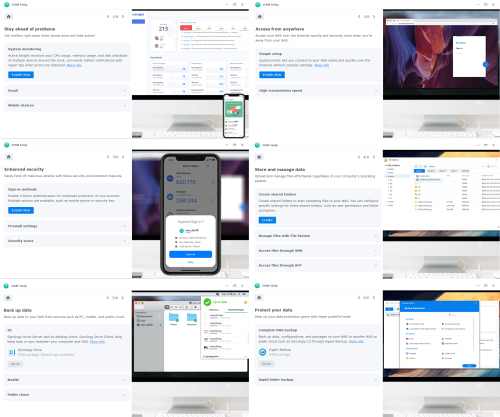
When you first login into DSM, it will show a quick tour guide that explain few important settings and button to directly access the setting. I find it useful for quick setup for these main settings.


CREATING STORAGE POOL AND VOLUMES

user posted image
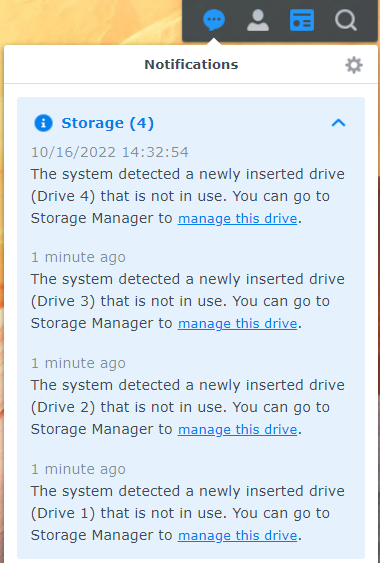
DS1522+ support for hot swappable. Once I inserted a HDD into the slot, DSM prompt notification that it detected a newly inserted drive.

user posted image
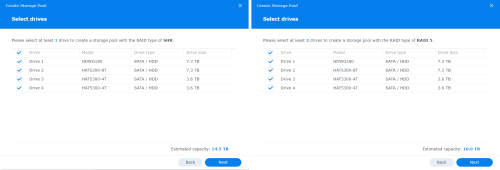
Now to create storage pool for the 4 HDD. I plan to set the storage pool as SHR RAID as it support maximizing the space with mix size of HDD and can accept additional HDD into the pool when needed. I will get 14.5TB usable space using SHR RAID while only 10.9TB if set as RAID5. For volume I'll go with BTRFS system for it's features such as metadata mirroring, checksums, self-healing, snapshots and deduplication.

Before that let me explain a bit what is storage pool and what is volume.

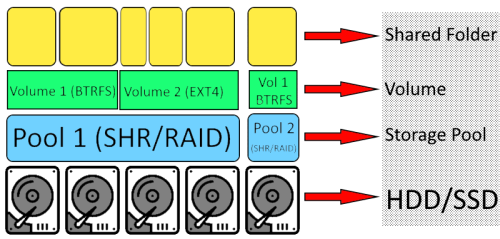
Storage pool as the name suggested, is a pool of your storage hardware, be it HDD or SSD. The system will see it as only 1 storage pool no matter how many drive is used to create it. The pool data is protected from any drive failure by using RAID 1/5/6/10 or SHR/SHR2. If use RAID0 or JBOD or Basic, there's no protection from drive failure. From the storage pool, you can allocate all or part of it to make a single or multiple volumes. Each volume can have different filesystem. If in Windows this will be NTFS. Synology support 2 filesystems, EXT4 and BTRFS. From the volume, you create Shared Folder at Control Panel and this will be the folder that you use to store and access your data.

user posted image
In this example, 4 drives are used to create storage pool 1 and 1 drive is used to create storage pool 2. 2 volumes created in storage pool 1 and 1 volume created in storage pool 2. Shared folders created from chosen volume.

user posted image
Back to creating the storage pool, after created the pool with SHR, it start to do optimization to the storage pool, it verified the HDD data space is usable. After 20 hours 50 minutes, it complete the optimization. Try to have all HDD available before start creating pool. Last time during DS920+ setup, I add second and third HDD after each time complete expanding and optimization, it takes total 5 days from first to third HDD to complete do it's thing. sweat.gif
TSxxboxx
post Oct 28 2022, 01:44 AM

The mind is for having ideas, not holding them
*******
Senior Member
5,261 posts

Joined: Oct 2004
From: J@Y B33


DATA TRANSFER SPEED TEST

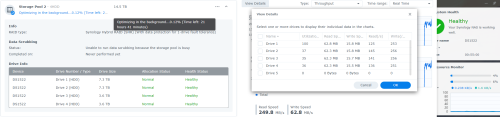
I only have a router that is 1Gbps speed and DS1522+ have no problem to fully using that speed for data transfer, even DS920+ can maximize the transfer speed. DS1522+ have PCIe slot for 10GbE RJ-45 network card that support transfer rate of 10Gbps/5Gbps/2.5Gbps. I can't do higher than 1Gbps network transfer speed test, but I thought of a way to see how fast can the data be copied in and out from the pool. I copy data between the single SSD pool with the 4 HDD SHR pool, BTRFS volume to see whether the read and write speed is fast enough to fully utilize if on faster network.

user posted image
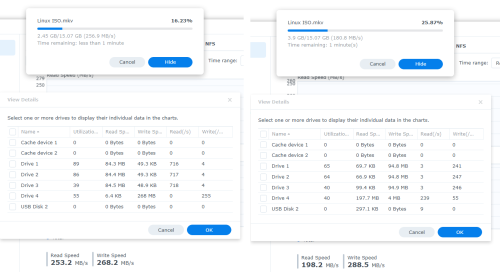
As an additional comparison, I also do the test on DS920+. SSD pool and 3 HDD pool (SHR+BTRFS). It's not exactly apple to apple comparison, but we can see how fast each HDD can read and write data to the pool. Reading from the HDD pool, I'm getting highest 253MB/s, each HDD read around 85+- MB/s. Writing to the HDD pool, highest is 288MB/s with each HDD around 95+- MB/s. If 4 HDD pool it probably give 340MB/s read and 380MB/s write.

user posted image
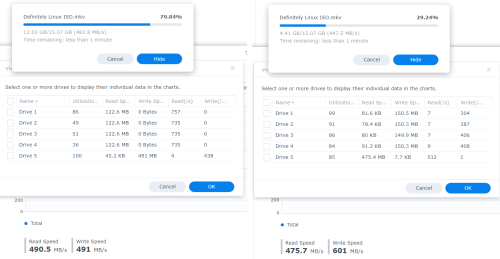
Great Scott! One look can see that it is blazingly faster than DS920+. I'm getting 491MB/s read speed or 122MB/s for each HDD. Writing to the pool, I'm getting 600MB/s speed or 150MB/s for each drive. That's about 50% faster per-drive than DS920+. I think it actually can go faster than this, just that my test is bottlenecked by the single SATA link for SSD and also the SSD performance speed. The MX500 SSD is rated with sequential read speeds of up to 560 MB/s and sequential write speeds of up to 510 MB/s.

If you have 10Gbps network and need to transfer very large data regularly over the network, DS1522+ with 5 HDD should be able to fully saturate it or near to max bandwidth. If don't have 10Gbps network, can use external drive with SATA or NVME SSD and connect using USB. But the speed is limited by the USB port speed, up to 5Gbps.


USB COPY

user posted image
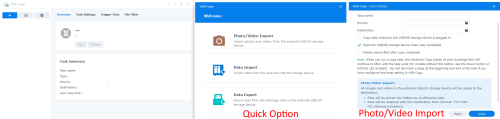
DSM also included an app for fast copy in/out from USB drive. This is useful if you have not networked device such as camera or need to transfer large amount of data such as photos, videos or backup using DS1522+ USB port. When open the app it give 3 quick options how to transfer the data, photo/video import or data import or data export.

When using for Photo/Video Import, can set it to copy the data whenever the storage is plugged in and delete the source files once the copy complete.

user posted image
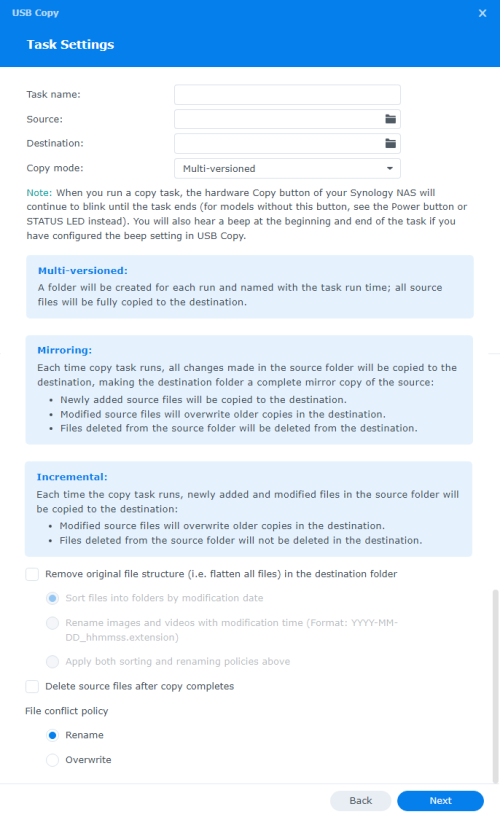
For Data Import or Export, both have same settings. It have 3 different copy mode: multi-versioned, mirroring, and incremental.

I didn't found a way to let non admin account to use this app. I guess since the NAS hardware not supposed to be accessed by non admin, there's no need for them to use the app.


PLEX AND OTHER VIDEO TRANSCODING APP

One thing to note, the AMD CPU in this DS1522+ doesn't have iGPU like the Intel CPU in the DS920+. That means it doesn't have dedicated graphic hardware for fast transcode. If you do on-the-fly transcoding from Plex to your device, for H264 it still can keep up with software transcoding but if H265/HEVC 1080p and above, it's software transcoding is not fast enough for real time playback. If your playback device can decode H265/HEVC and Plex stream the video natively then should be no issue with H265/HEVC video.


QUICKCONNECT FOR CLOUD STORAGE

Why limit the use of NAS only at your home or office when now is the era of cloud storage right? But before we make all our precious data available through the internet, let's take a moment to understand how it is being done, what's the limitation and how to protect it from bad actors. Disclaimer first, I'm no expert in networking and there's probably other way to connect into the NAS through internet. I'm explaining here through my limited knowledge of networking so please correct me if I'm wrong.

user posted image

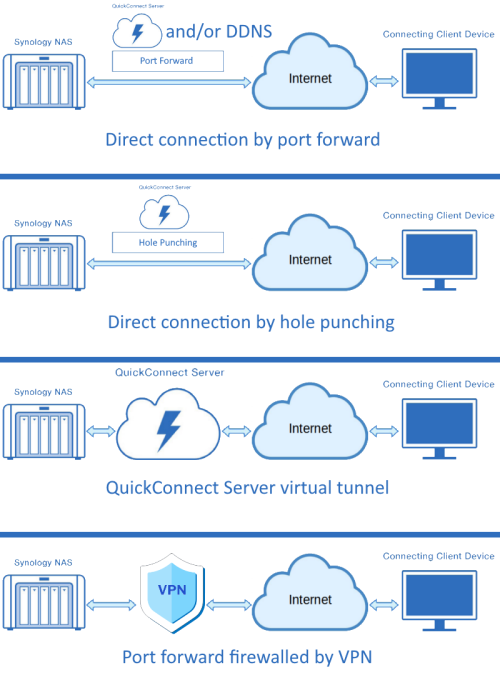
There's 4 ways for the NAS to be accessible through the internet. First way is by port forwarding to the NAS. Public_IP:Port_Number will always connect directly to NAS. The client will connect to Quickconnect server or DDNS server and it will redirect the client to NAS's Public_IP:Port_Number. The NAS will send it's current public IP periodically to Quickconnect server and/or DDNS server. The good in this method is it's connection speed maxed at the slowest of NAS or client internet and less lags as it is direct connection. But this method arguably is the most unsecure as any bad actor can have direct connection to NAS. From there the bad actor need to find the ID and password or wait for new vulnerability that's not yet patched that will allow them access into NAS without the need to login.

Second way is by Quickconnect server create a hole punching between NAS and client. Port forward is not needed and the connection can only be establish by Quickconnect server so it is a lot more secure than port forwarding. The downside is hole punching not always work and when it's not Quickconnect server will divert the connection through it's virtual tunnel, which is the third way. There's speed cap when through Quickconnect server virtual tunnel. Both these 2 ways downside is if bad actor found out your Quickconnect ID, they can establish connection to NAS and they only need to find the ID and password to gain access into NAS.

If you using QuickConnect, I suggest to create at least 16 randomize characters and numbers. This will avoid bots from guessing Quickconnect ID. And change the ID every few months. Also use Secure Signin or 2FA so that even when knowing ID and password is not enough to get it. With Secure Signin you also will able to know whenever there's an attempt to login. Set auto block login attempt after few tries, this will help to dissuade bots or bad actor from keep trying brute force or dictionary attack.

Can read Quickconnect white paper here:
Synology QuickConnect White Paper

Lastly is by port forward for VPN. I feel this is the most secure way among all the others while still can have fast connection and minimum lags. The direct connection is to the VPN which can have multiple authentication check before can reach VPN's ID and password authentication. The check are such as TLS, key pairing, certificate authority, Diffie Hellman parameters and extra chain certificates. If the bad actor somehow able to login the VPN, they then need to have the NAS's ID and password. Not necessarily need to use paid VPN, can host VPN by yourself. If host by yourself use a DDNS server to get the home/office internet current IP.

user posted image
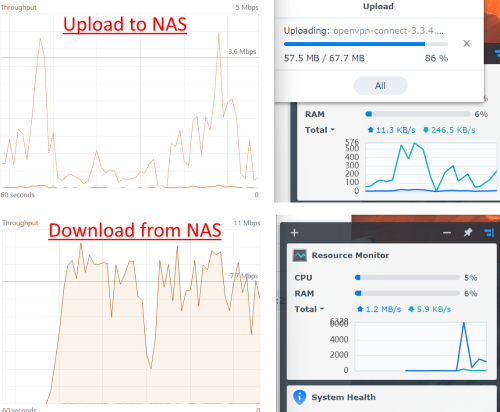
I test connect to DS1522+ from internet through Quickconnect with no port forward, it didn't able to do hole punching and instead route the data through it's virtual tunnel. I'm using hotspot from my phone. Uploading to NAS, I'm getting the highest 3 megabits per second. The slow speed possibly due to my phone internet upload is low and Quickconnect server also limit the max speed. Download from NAS, I'm getting a lot better speed, around 8 to 9 megabits per second.

user posted image
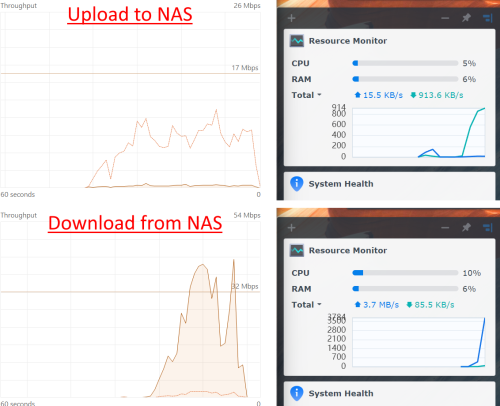
This time I port forward NAS so that can have direct connection. I'm getting a lot better speed in both upload and download. Upload to NAS, I'm getting around 10 megabits per second. I guess this is due to phone internet slow upload speed. Downloading from NAS, I'm getting about 40 megabits per second. The NAS internet upload speed is 50 megabits per second so this almost hit the max speed.
TSxxboxx
post Oct 28 2022, 01:45 AM

The mind is for having ideas, not holding them
*******
Senior Member
5,261 posts

Joined: Oct 2004
From: J@Y B33


SYNOLOGY DRIVE

One of the most exciting things for me about using Synology system is their Drive app. With this app, it functions more than just file storage management. It simplifies many things that makes it easier to manage and monitor every data in it. If you have been using online cloud service such as Google Drive, you'll feel right at home with Synology Drive. You can have your data synced from your computers and mobile device. You can make backup of folders and files on your computer and mobile device. You can share files and collaborate with others. If you don't have access to any of your device, you also can access Drive from the internet using web browser.

I also feel for non admin users, they'll have more easier time to organize their data in Drive, instead of using File Station which I feel is like the old generation way of doing thing. With File Station, it's similar to using Windows or Linux OS where you got Home folder and organize your data in it. With Drive, it's more than just folders and data. You can label and star files and folders, you can set custom sharing permission, have logs of file access, team folder, versioning, and many more.

Let's get on to it. If you haven't already have Drive installed, first thing to do is go to Package Center in DSM and install Drive server. Also consider to install Synology Office, Contacts and Photos as all these apps works together to give more seamless experience.

user posted image
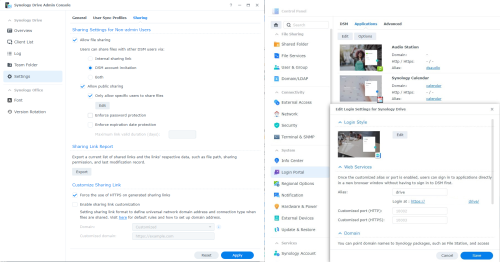
Once installed, first open Synology Drive Admin Console. Here you need to set which shared folder will be use as Team Folder, if you want to use shared folder for all Drive users. You also want to set how sharing is managed. You can have option for user can share access internally to anyone with link or with user that have been given access, or both. You can also set which users can share link publicly. There's also option for must have password for share, and link will expire after given time. It also support for versioning, you can revert back to earlier version of file if accidentally wrong save or encrypted by ransomware. Once everything done, open Drive web page by either clicking Synology Drive icon on DSM main menu/start, or the web address if you have set the link on Control Panel like the above picture. 

user posted image
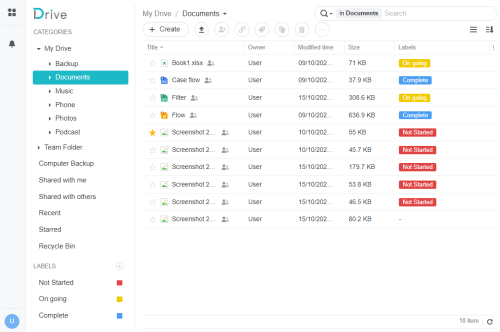
This is the main page of Drive. Inside My Drive is all your files and folders. Team Folder is shared folder for all users, you can set which user have access to shared folder and also for each individual user can only view or also can comment or give permission to manage data in Team Folder. Files and folders that appear in "Share with me" is when there's user that share their data with you. "Share with others" is list of all your files and data that you have chosen to share with others. Recent is logs of your file access. Starred will show files/folders that you have made star to it. Recycle Bin surely everyone know what it is. Labels name and color will appear when you have created it, then you can tag any file/folder with label and it will show when you click on each label.

user posted image
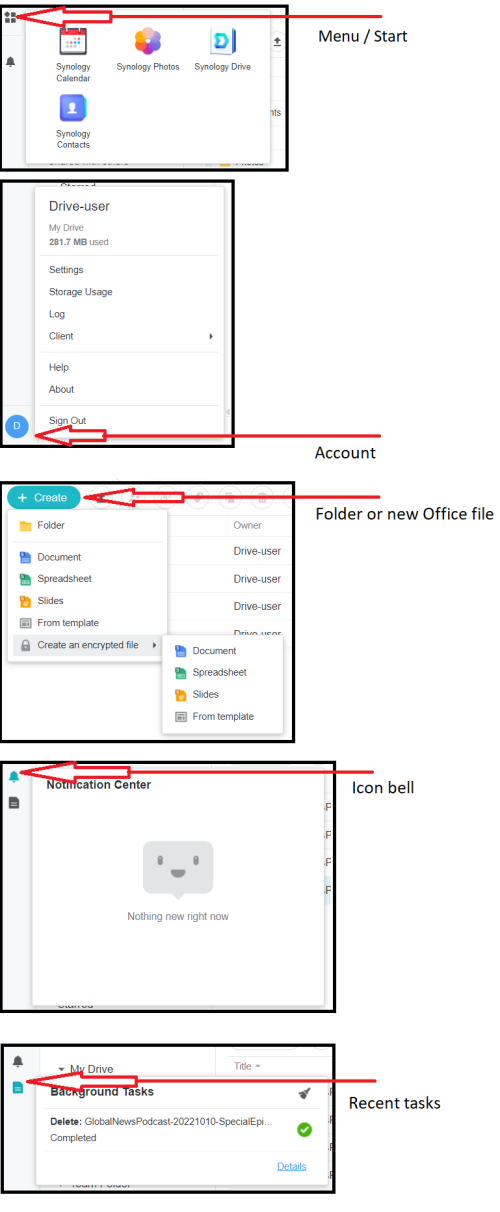
Now let's go to the button or icon around the Drive. On the top left there's menu/start to show link to Drive, Contact, Photos, Calendar. Any other Synology app that have integration with Drive will show up here.

Clicking on the bottom left round icon will open up account menu that show storage usage as well as various options and settings.

Clicking on the "+ Create" on the top middle is for creating new folder or new Office file. There's also option to create Office file that is encrypted with password.

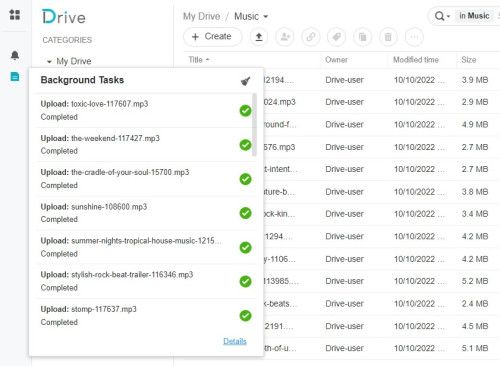
Click on the icon bell to see any notification such as when someone share you a link. Below the icon bell a sheet icon will appear when there's background task that has been performed. Example below:
user posted image


user posted image
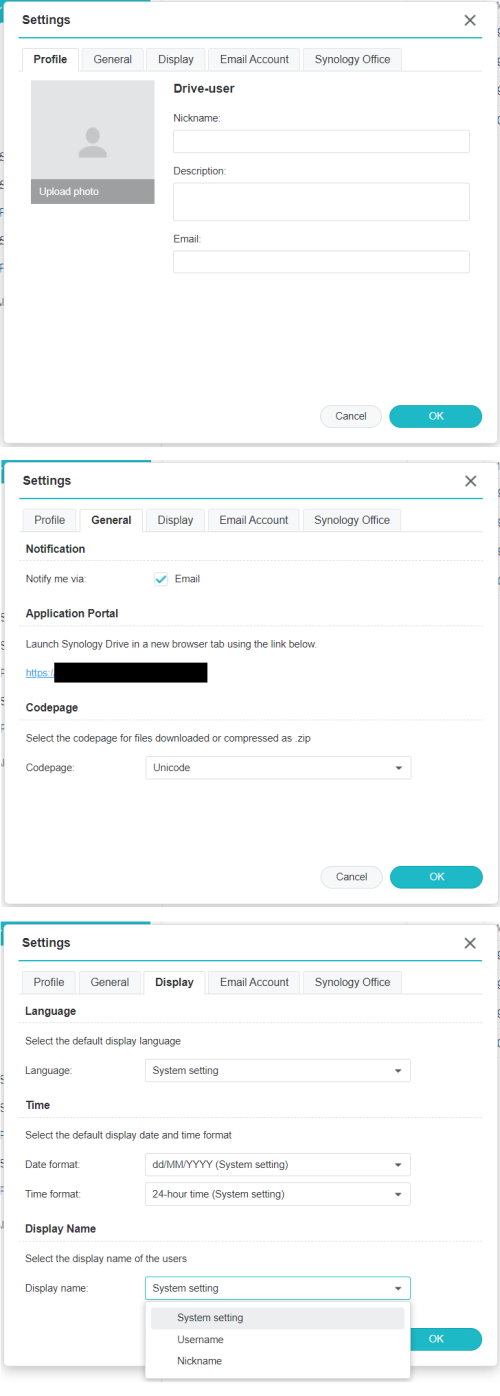
Inside the Settings, you can set nickname, descriptions as well as email for the account. Also option for email notification, Drive link, language, date and time format as well as display name on Drive.

Drive is great for collaboration or sharing files with other user of Drive. You can have files that is accessible by other users and they can only view the file or edit together with you.

user posted image
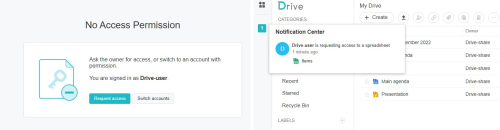
Here's an example of file that is not shared with you, you can request access to the file. Once request has been made, the file owner will receive notification at their Drive that you request access to the file.

user posted image
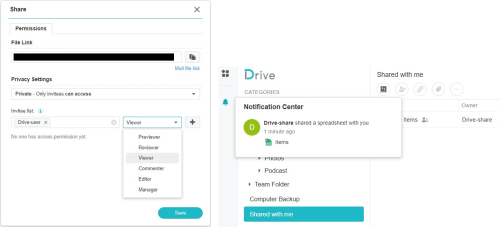
The file owner if decided to give access, you will receive notification in your Drive about the owner shared a file with you and the file also will appear in "Share with me". There's many types of permission that can be given for different situation and user:
Previewer: Can only view the file
Reviewer: Can comment and view the file
Viewer: Can download and view the file
Commenter: Can comment, download and view the file
Editor: Can edit, comment, upload, download and view the file
Manager: Same as editor plus can share and delete the file

user posted image
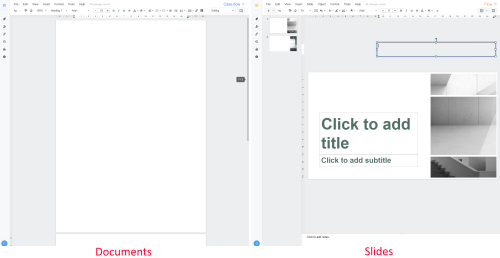
Another great usage of Drive is with Synology Office. It have Document, Spreadsheet and Slides. This is equivalent to Microsoft Office 365's Word, Excel and PowerPoint. Also to Google's Docs, Sheets and Slides. And it is constantly updated to add more functionality. Compared to 2 years ago when I first try it when I use DS920+, they have added a lot more functions to each program. These programs only editable from web browser, which is not a problem for big display device such as PC, laptop or tablet. But it is a bit harder on phone. Credit to Synology though, they now have optimize it for use with web browser on phone, last time it is almost unusable on phone. Now can use it without the menu and bottom bar taking almost all the screen space. But it still feel slightly laggy, maybe after few more optimization it will feel more snappy. And Slides still not optimize for phone screen size, can't see the slide as the side panel and foot notes taken almost all the screen space. Drive mobile app can only preview Synology Office file, maybe in future it will support editing too. It also support for converting Microsoft Office file to Synology Office file.

user posted image
The Documents and Slides have similar design to Google's Docs and Slides. It have decent options for editing but don't have template and artwork as many as Microsoft Word and PowerPoint.

user posted image
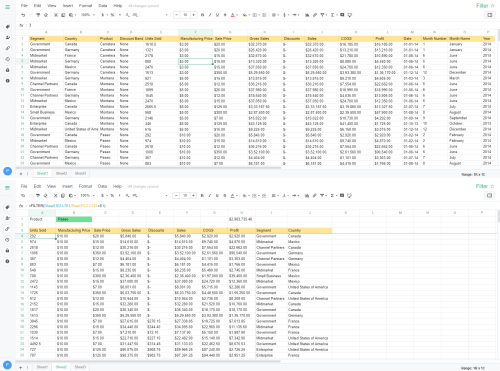
Spreadsheet is what impressed me the most. They have added so many functions that can say it's now almost equivalent to Google Sheets. The picture above I use FILTER function on Sheet2 to only display column data filtered by Product.

Few months ago I was looking for FILTER functions after seeing on Google Spreadsheet how useful it can be for filtering only the data you need and it will auto update once the source data is updated. That time Synology Spreadsheet doesn't support this function and as for Microsoft Excel, only Office 365 and Excel 2021 support this function. Older version of Excel doesn't support it. Other free spreadsheet program such as OpenOffice and LibreOffice also doesn't seem to support this function yet. Now, lo and behold! Synology have added support for this function as well as CONCAT, IMPORTRANGE and many more. Can checkout for all functions that it support here:
Spreadsheet Function List
TSxxboxx
post Oct 28 2022, 01:45 AM

The mind is for having ideas, not holding them
*******
Senior Member
5,261 posts

Joined: Oct 2004
From: J@Y B33


DRIVE FOR DESKTOP

Synology Drive also have computer client for synchronizing your files and making backup of important files that is not saved in Drive folder. It also support on-demand sync like OneDrive and recently changed Google Drive stream files.

user posted image
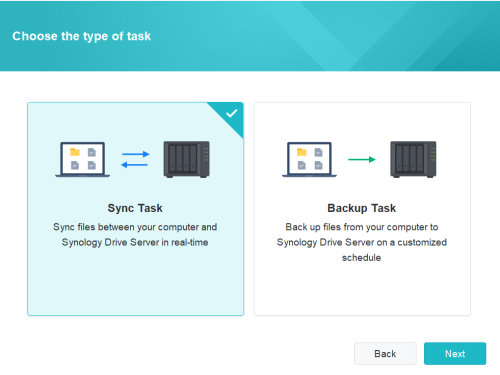
After the program is installed and run, it will ask whether you want to use it for Sync Task or backup Task. You actually can use it for both together, I'll set Sync Task first and then later in the Settings I'll create the backup task.

user posted image
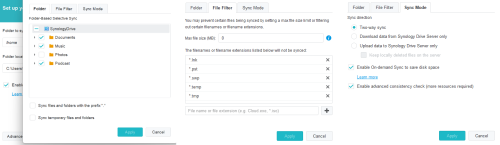
After choose Sync Task, it will ask from the Drive folder, which folders that I want to make it available on my computer for syncing. Also have option whether to sync files and folders that start with "." and whether to sync temporary files and folders. Moving to File Filter, you can set it to not sync file that exceed certain size and add filenames extension that you don't want it to sync. On Sync mode, can set whether want two-way sync or only download data from your NAS or only upload data to your NAS. Here also the option for On-demand Sync, useful if you want to save bandwidth and it only auto download file that you access. Advance Consistency Check remark it will use more resources but I didn't notice any slowdown on my PC and laptop.

user posted image
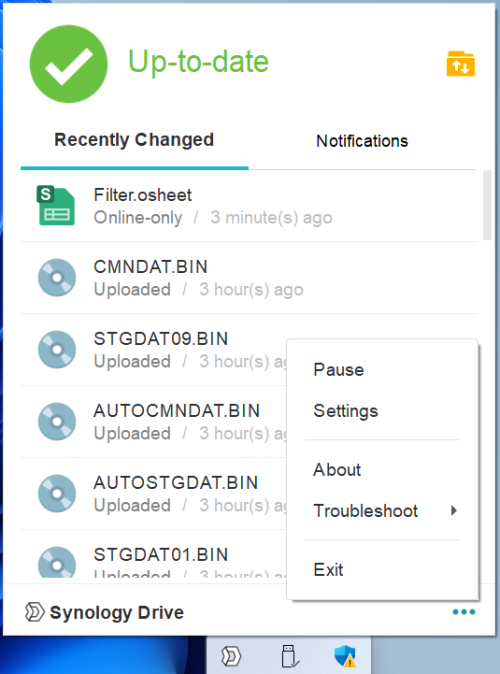
After complete the setup, Drive icon will appear on the Taskbar. Left click it to see recent changes and if there's any notification. Click on the big green checkmark logo or the words Up-to-date for fast way to pause the program. Click it again to resume. Left top folder icon will open the Drive folder when click on it or if you also choose to sync "Shared With Me", it will show choices whether to open Drive folder or "Shared With Me" folder. Clicking on the bottom left will open Drive web version on your default web browser. Click on the 3 dots at bottom right will open menu for additional option. Click on Settings to edit or make additional configuration.

user posted image
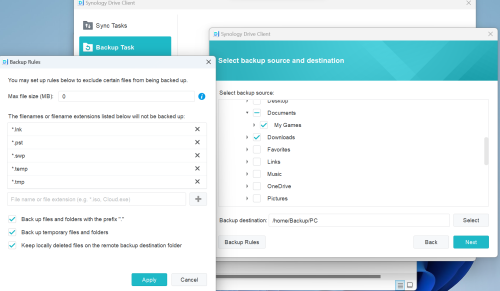
In the Setting menu, you can edit back Sync Task that you have choose when setting up Drive. Here you also can create Backup Task, there's option to limit file size and exclude certain file extensions. You can choose multiple folders for backup and select backup destination on your NAS.

user posted image
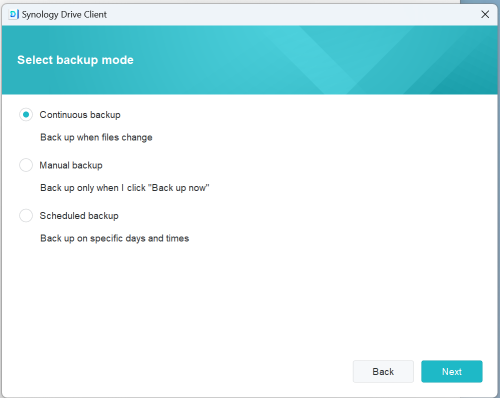
It then ask what type of backup you want to create. Continuous backup will update the backup each time there's any changes on the files in your computer. Manual backup only will make backup when you click "Back up now". Schedule backup will let you choose days and start time to run backup as well as how many every hours it should make backup within a day.

user posted image
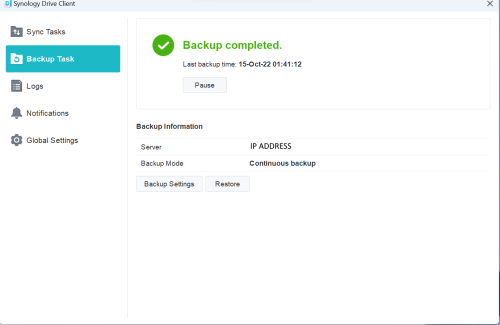
Once completed, it will show last backup information and you can also choose to pause it if there's a need. There's also information of the backup server and backup mode, also the option to edit the backup task and restore the backup.
TSxxboxx
post Oct 28 2022, 01:45 AM

The mind is for having ideas, not holding them
*******
Senior Member
5,261 posts

Joined: Oct 2004
From: J@Y B33


DRIVE APP FOR MOBILE DEVICE

These days mobile device is like an extension of ourself and having the means to access all our files from mobile device makes it very convenient as it always on our side then let's say laptop which is bulky and heavy. Some people even rely solely on mobile device instead of using any computer. Fortunately Synology is giving support that is as good as other cloud providers app and even innovate some of it's functionality. Since this is private cloud, my storage space is as big as what's available on my NAS. That's in Terabytes size, not 15GB or paying for 100GB and above.

Recently Synology also updated the Drive app to version 3.X which added a lot more functions compared to version 2. It feels like a totally different app than the old Drive app. Synology Photos app also now have been integrated with Drive, you can manage photos directly in Drive now and the changes will reflect in Photos.
user posted image
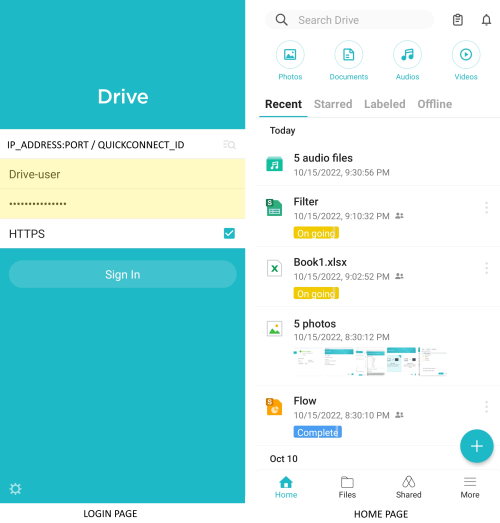
After installed Synology Drive app and launch it, this is the login page. In addition to ID and password, need to set the NAS QuickConnect ID or local IP address. Then it will show the main home page. On the top there's search bar for fast search of file that you need. Beside it with clipboard icon is the background task, it will show any background task that's running such as syncing and photo backup. And beside background task icon, with the bell icon is for notification, same as Drive web page and desktop, it's for any notification such as when someone share you a link.

There's 3 rows for navigation on the home page. The first row is category row that show Photos, Documents, Audios and Videos button for quick list of all file based on the choice. The second row is labeled as Recent, Starred, Labeled and Offline. The third row list Home (above picture home page), Files, Shared and More. When open the app will always in the second row, Recent page. It will show your recent activity and can be scrollable.
user posted image
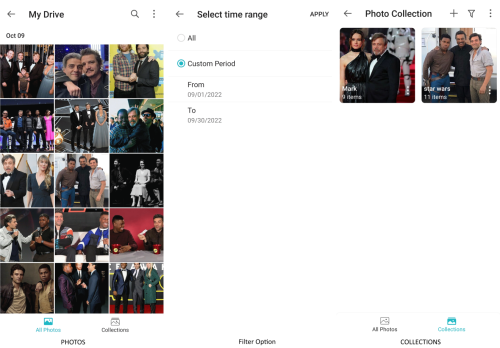
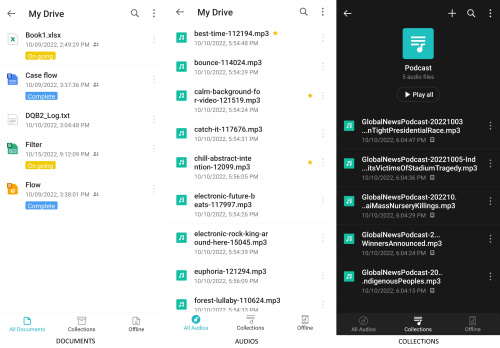
Clicking on the top row, Photos button will open this page that show all the photos in Drive. Clicking on the 3 dots on the top-right will open menu for selecting photos, change the photos grouping by day or month or year, and option to select custom time range for better filtering. On the bottom there's a button for Collections. Clicking it will Collections page where you can create new collection of photos or view collections that you have created.
user posted image
Back on the home page, the second button is to show all documents that's available in the Drive. Same with Photos page, also can create collection of files in a group. Offline button is for showing all documents that have been set to have offline access.

Second photo is when click the Audios button on home page. It's basically the same as Documents where you also can create collections and set files for offline access. The third picture is Collections page for Audios, in this I created a collection called Podcast. There's a box with checkmark beside the time, that indicate the file is available for offline access. The neat thing with this new Drive app is now it can play audio file within the app, there's no need to use DS Audio or other app. It's useful if you just need a basic player for listening to recording of meeting or music without the need for fancy functions such as lyric, album or rating. Drive app also support for dark mode as you can see in the Collections page, can set it manually or set to follow phone's default theme.

The last button on the top row is for Videos. It have the same page and functions as Audios minus internal video player, you need to use third-party app for video playback.
user posted image
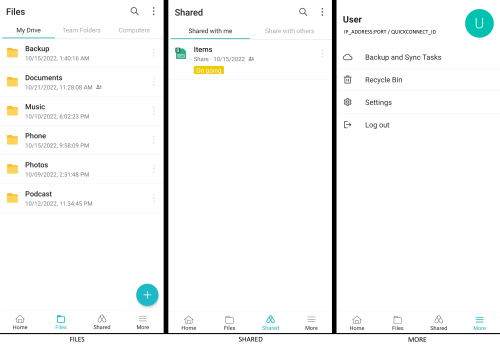
Going to bottom row, the first picture is for Files page. In it you have 3 tabs. First tab show the content of Drive. Second tab is the content of Teams Folders, here's the files for sharing with all users that can access it. Computer tab will only appear if you have create backup task on your computer, it will show the content of backup from the computer.

Second picture is Shared page. Shared With Me tab is for accessing all files that are shared to you while Shared With Others tab will list out all your files that you have choose to share with others, you can manage the sharing here.

Last picture is More page. Here you can set Backup and Sync task on your mobile device, manage Recycle Bin, access Drive app Settings page and option to log out. One neat thing about logging out is the app will remember the user settings such as sync task, I logout and login other account, then logout again and login my main account, my setting for sync task is  still there.
user posted image
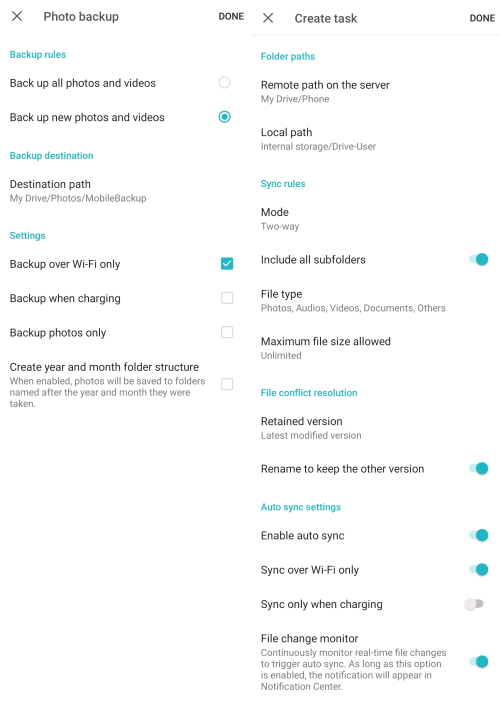
When click on Backup and Sync Task, there's 2 option in it. One is for creating photo backup task and another is for creating sync task. Photo Backup task is similar with Photos app, can set backup all photos and video or only new one. Also can set destination which folder you want it to save into. If you don't plan to use Photos app, you can use Drive app for backing up photos. If on limited data plan, can set it to only backup over WiFi. Also option for backup only when charging, only backup photos and create year and month folder structure if want the backup to auto organize as such.

Another option is for creating sync task. You can create multiple sync tasks if you have multiple folder that need syncing on your mobile device. Right now it only support for two-way mode, means any change on mobile device will also change on NAS, and vice-versa. Also can set to only sync certain file type and set maximum file size for sync. If there's conflicting version, can set whether to retain latest version or version on NAS and option to rename the other version, else it will delete the other version. Can set or disable auto sync depends on need and whether to sync only when on Wi-Fi as well as only when charging. File Change Monitor will continuously monitor for any changes on files and trigger auto sync, this will cost some battery power as it need to constantly monitor any changes.
user posted image
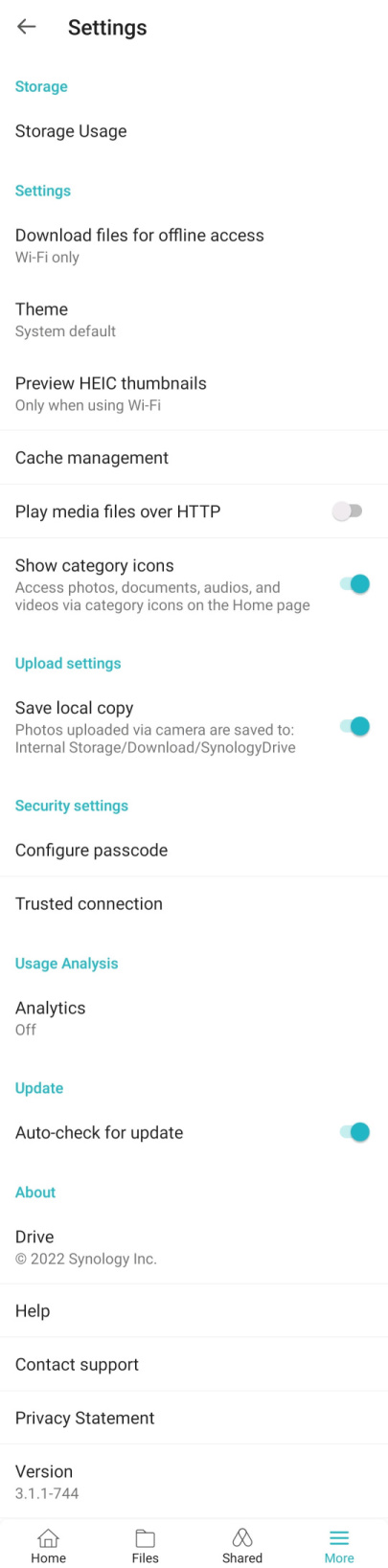
There's a lot of option in Settings page. Let's go over some of it. The first one is to check how much storage is used for the account. Also can set download files for offline access only when on Wi-Fi or even when on cellular data. Theme can change light, dark or follow system theme. Also can set how big the storage Drive can use for caching. If don't want to see the category row on home page, can disable it here. If want additional security, can set passcode for accessing Drive, also option to use mobile device built-in biometric such as face or fingerprint for security.
user posted image
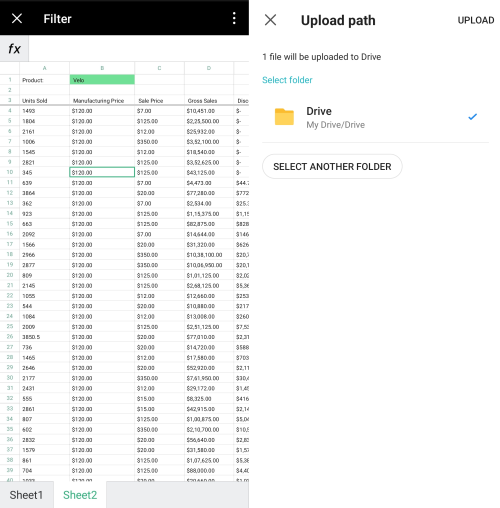
Drive app can view Synology Office files, but cannot edit it. Picture above is Spreadsheet file, can select cells and copy the data. It feel snappy, moving around the sheet doesn't feel any lag. And if you have more than 1 sheet, can select other sheets.

The second picture is when you share/upload file from other app to Drive, you only have option for selecting which folder you want to save it. Unfortunately there's no option to rename the file when uploading, which I feel a needed function as normally I'll rename the file based on what I'm using it for. Now I have to go back to Drive after upload to rename it, luckily with Recent tab, it's easy to find recently uploaded files.


SYNOLOGY PHOTOS

Synology also have updated their Photos app and with it there's some cosmetic change and functions added. It also now integrated to Drive, just like it's predecessor app, Moments. For those that doesn't know what this app is for, it is for upload photos and videos from app in mobile device or web browser. You can also upload from computer by using Drive client and set it to sync Photos folder.
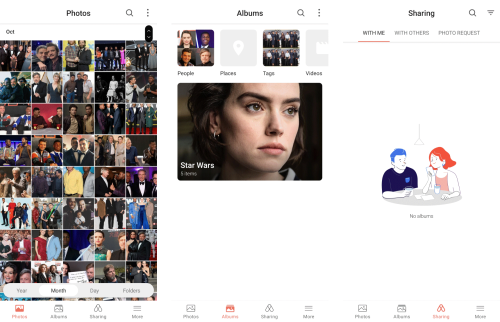
user posted image
On Photos main page, option to switch between timeline and folder have been changed to floating bar at the bottom, this makes it easier and faster whenever want to switch the view.

For Album page, Synology have added People, Places, Tags and Videos auto filter into the app. Now the app functions same with it's web app. You can create album that you add files and folders or create conditional album based on the parameters that you set such as range of date taken, rating, or conditions such as name, geolocations and tags. One thing I'm not sure is whether previously there's option to create shared album, where once created all users that have access to Shared folder also can see the shared album. I feel like there is but now there's no option for shared album. You now create album and share it to other users.

Which we come to the third picture, Sharing. Same with Drive, With Me is when other users shared their album to you. With Others is when you share an album with others. New addition is the Photo Request, anyone with the link can upload photos into the photo request. Can set max limit size for each file and set the link expiration.
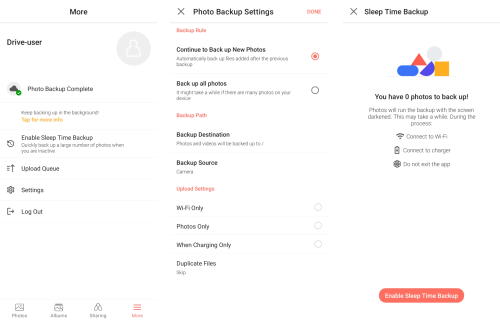
user posted image
On More page, same as Drive you can set photo backup. There's also sleep time backup, upload queue and settings.

For photo backup, can set to backup new files added from previous backup or backup all photos. Also can set backup destination and backup source. For uploading, can set if want to upload only when on Wi-Fi, upload photos only, upload when charging only and whether to rename or skip when there's duplicate.

New addition to backup is the function of Sleep Time Backup. With it when ever need to upload many files it helps to make sure the app can complete the upload. This is done by turning the screen to dark but not off the screen so that the mobile device doesn't go to standby mode. This way it can complete the upload no matter how long it takes. For such task, better to be on Wi-Fi and connected to charger, also don't exit the app.

This Sleep Time Backup function is useful on some brands of phone that will kill the app or disconnect the connection whenever the phone screen is off. 
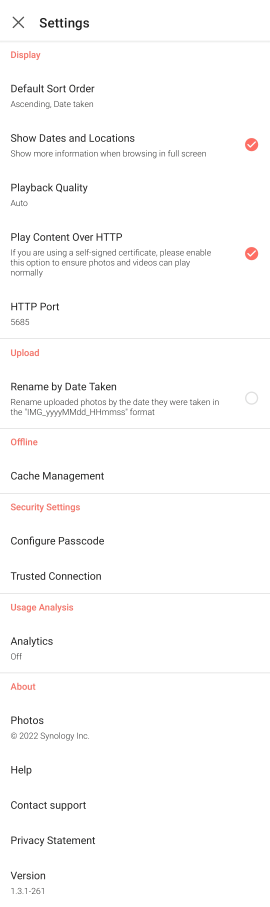
user posted image
There's plenty of options to tweak in setting. I'll go through some of it. Many are self-explanatory. For upload, some prefer to rename the uploaded photos to the date they were taken, if you prefer this you can tick the checkmark. Also can set cache size for offline copy. Same as Drive, there's option to use mobile device built-in biometric such as face or fingerprint for security.

One thing to add is about H.265/HEVC video codec. If you upload the video through web browser to Photos or File Station, when try to playback on Photos web page it will say doesn't support the format. If you upload it through Photos app and then try to playback on Photos web page, it can play! One reason that I can think of is maybe due to licensing. Upload through mobile device that have license for HEVC can be playback while from PC it doesn't have HEVC license. Another possibility is through web browser, it doesn't make conversion that makes it compatible for web browser playback.


CONCLUSION

The whole time when I'm tinkering with the DS1522+, never once did I feel it is slow or laggy. Even though the CPU is 2 cores 4 threads but with hyperthreading and higher wattage it is actually faster than the 4 cores 4 threads CPU in DS920+. This will help it to not drop it's performance even when there's many active users accessing it at the same time. ECC RAM that came with the NAS helps to make sure data integrity is intact when being written to the storage.

For those that dealing with big data transfer, such as videographer, using 5 HDD and it's optional network card can give 10Gbps speed transfer. Maybe fast enough for directly editing video files from NAS.

Synology Drive mobile and web app by itself is already a very functional storage management solution. Integration with Photos makes it even more useful. But I think it's integration can be expanded with other productivity apps such as Calendar and Note Station. Example is can create a calendar entry that can link to files in Drive or Photos or note in Note Station. Or add note from Note Station or calendar entry into Office's Documents. Just like collaboration, I feel integration is becoming a big part of how we use from one app to another. There's a lot of room to grow in this area.

My conclusion is this NAS perform very well due to it's faster CPU and more memory. High bandwidth transfer of data is possible with this NAS but need to purchase optional LAN card. Support for two expansion units give an additional 10 bays for future requirement. Synology apps also keep on being updated to cater new ways of how people use those apps.


This post has been edited by xxboxx: Oct 28 2022, 06:28 AM

empstar2
post Oct 28 2022, 02:57 AM

Getting Started
**
Junior Member
193 posts

Joined: Jan 2022
2022
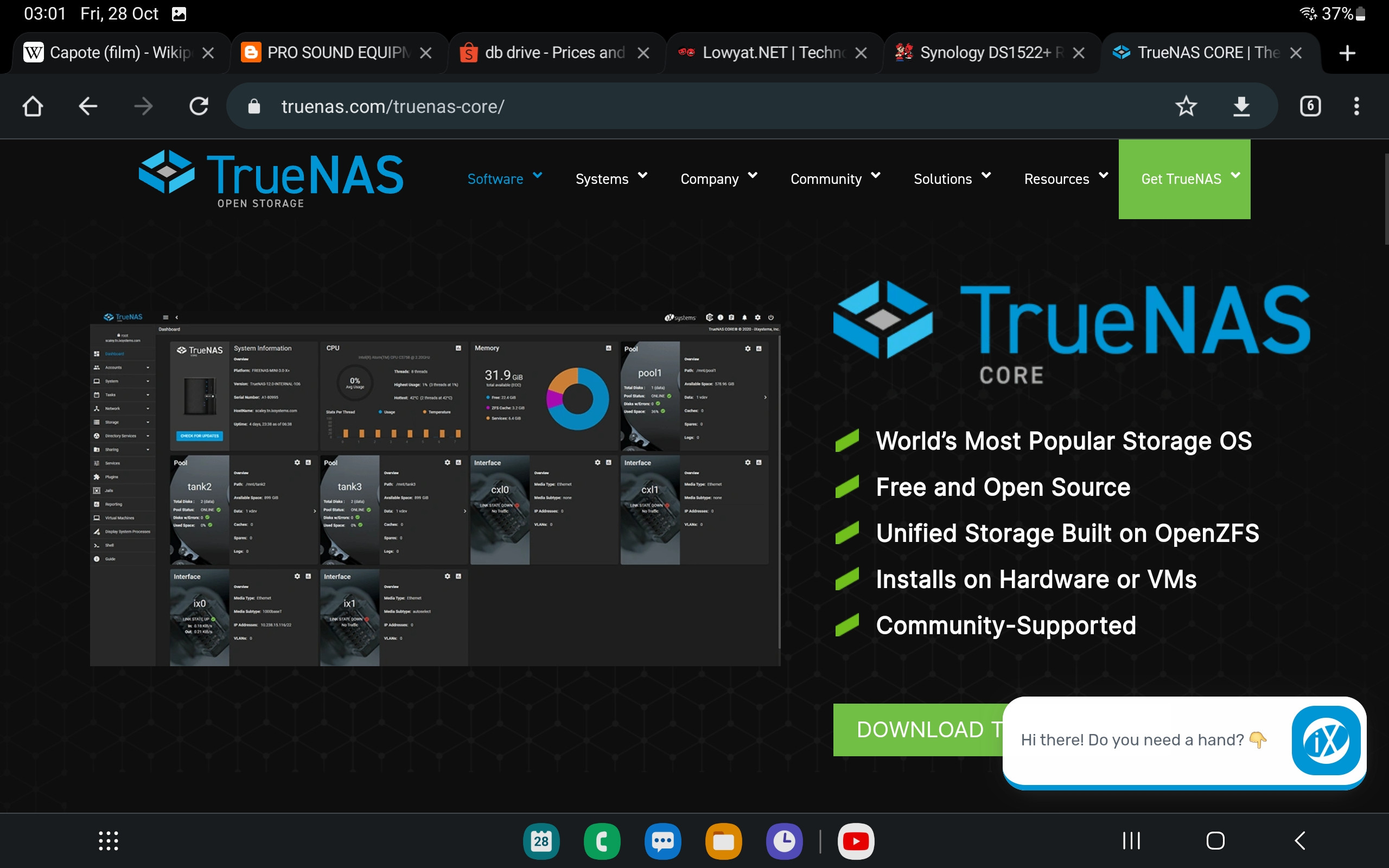
https://www.truenas.com/
Free & use any pc make my self
Unlimit storage ($$$) & customization.
empstar2
post Oct 28 2022, 03:03 AM

Getting Started
**
Junior Member
193 posts

Joined: Jan 2022
user posted image
TSxxboxx
post Oct 28 2022, 06:34 AM

The mind is for having ideas, not holding them
*******
Senior Member
5,261 posts

Joined: Oct 2004
From: J@Y B33


QUOTE(empstar2 @ Oct 28 2022, 02:57 AM)
2022
https://www.truenas.com/
Free & use any pc make my self
Unlimit storage ($$$) & customization.
*
Do you use Truenas setup?
It's not really free as still need to purchase the PC parts and the time spend to learn how to install it
empstar2
post Oct 28 2022, 12:28 PM

Getting Started
**
Junior Member
193 posts

Joined: Jan 2022
QUOTE(xxboxx @ Oct 28 2022, 06:34 AM)
Do you use Truenas setup?
It's not really free as still need to purchase the PC parts and the time spend to learn how to install it
*
Yes I'm using it form FreeNAS (V11. U2) until now updated to latest TrueNAS core.
is easy to setup.


software is free, hardware u can use old PC to setup. minimum RAM is 8G , but more is better.
is easy to setup, not susah. many tutor and just google your question if u dunno how to do.
100 time better then others NAS storage.

TSxxboxx
post Oct 28 2022, 03:30 PM

The mind is for having ideas, not holding them
*******
Senior Member
5,261 posts

Joined: Oct 2004
From: J@Y B33


QUOTE(empstar2 @ Oct 28 2022, 12:28 PM)
Yes I'm using it form FreeNAS (V11. U2) until now updated to latest TrueNAS core.
is easy to setup.

software is free, hardware u can use old PC to setup. minimum RAM is 8G , but more is better.
is easy to setup, not susah. many tutor and just google your question if u dunno how to do.
100 time better then others NAS storage.
*
DIY NAS do have few options for the OS. But need time to learn how to install and get it running.
That haven't count the time and effort to find the hardware. Some parts combination might not be power efficiency, running it 24/7 will be more costly.

Prebuilt NAS substitute the time, effort, trial and error with money. Also I really like many of Synology first party apps, which makes it more than just a network storage.
empstar2
post Oct 29 2022, 08:40 PM

Getting Started
**
Junior Member
193 posts

Joined: Jan 2022
user posted image

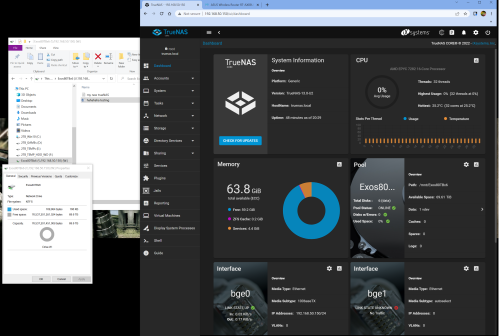
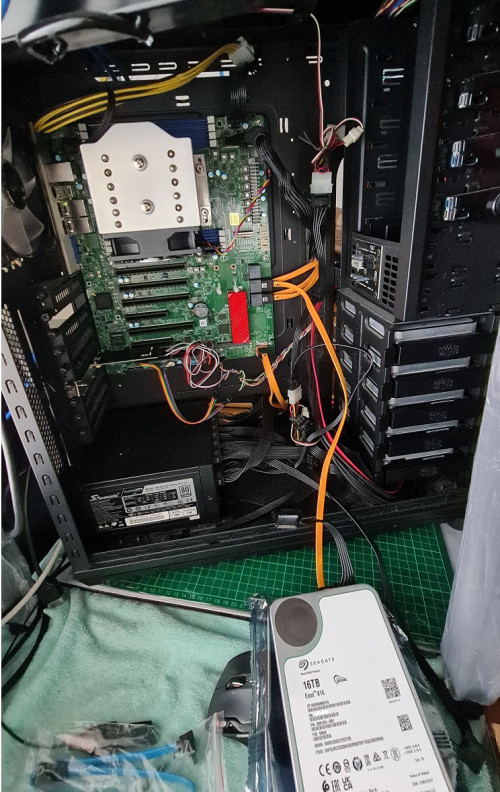
6x Exos HDD Seagate 16T in Raid-Z1 (Equivalent to Raid5 in windows)
empstar2
post Oct 29 2022, 09:05 PM

Getting Started
**
Junior Member
193 posts

Joined: Jan 2022
user posted image
How many pornography can store rclxm9.gif
TSxxboxx
post Oct 29 2022, 09:08 PM

The mind is for having ideas, not holding them
*******
Senior Member
5,261 posts

Joined: Oct 2004
From: J@Y B33


EPYC not even cheap.

With that CPU runs dozen of HDD also no problem.
empstar2
post Oct 29 2022, 09:19 PM

Getting Started
**
Junior Member
193 posts

Joined: Jan 2022
QUOTE(xxboxx @ Oct 29 2022, 09:08 PM)
EPYC not even cheap.

With that CPU runs dozen of HDD also no problem.
*
Taobao good price.
no need Agent, just buy direct like shopee/Lazada.

https://s.taobao.com/search?q=epyc&type=p&t...&sort=price-asc
TSxxboxx
post Nov 27 2022, 04:49 PM

The mind is for having ideas, not holding them
*******
Senior Member
5,261 posts

Joined: Oct 2004
From: J@Y B33


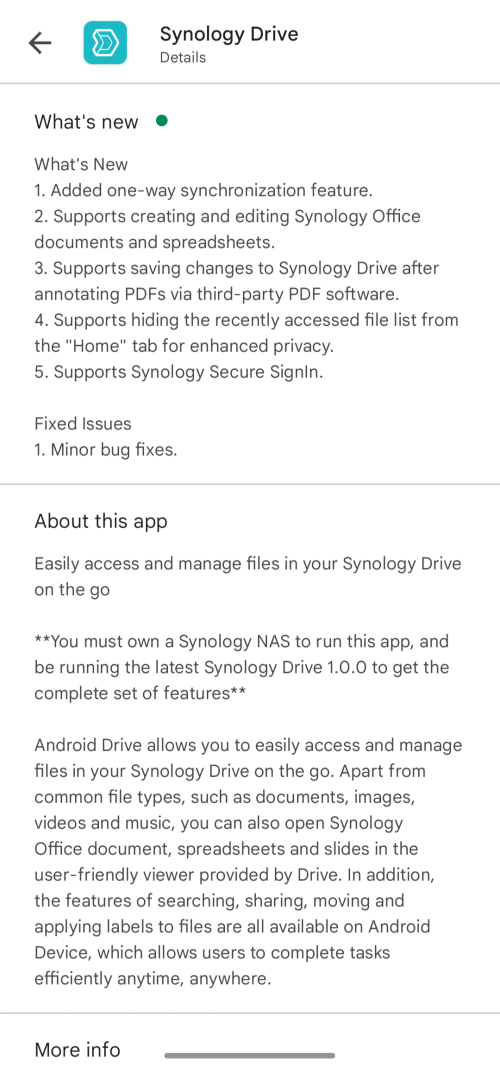
Synology recently released an update to their drive app for Android , I believe also for iOS too. And with it they have added the ability to create and edit Synology Document and Spreadsheet right inside the App. Previously using mobile app it can only preview but can't edit.

user posted image
In addition to editing Document and Spreadsheet, it also now support for one way sync, PDF file update after annotating using other software and can hide recently accessed files on Home tab. Also now support Synology Secure SignIn for two factor authentication.

user posted image
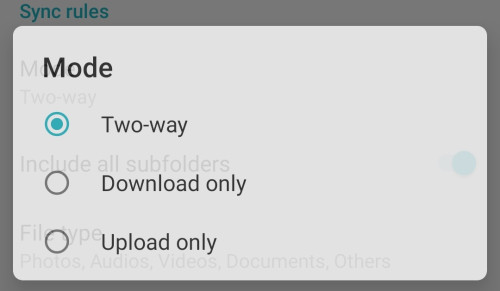
Previously can only do two-way sync. Now can also choose either download from NAS only or upload to NAS only.

I Trying This App Using Their Android Version. You Need To Update To Version 3.2.0 in Order To Get The Edit Function. Oh, And If You're Wondering Why I Wrote Capital Letter For Each Word, It's Because I'm Typing This Using The Document In Drive App On My Phone. Somehow The Keyboard Auto Capitalize After Each Press Of Space Bar. So Definitely Still Have Some Bugs That They Need To Fix First. Using Web Browser On The Phone, It Will Also Open The Simpler Mobile Version But Also The Same Keyboard Issue, Maybe It Call For The Wrong Functions From The Keyboard. EDIT: Probably the app called for keyboard function when creating or editing contact, it will capitalize each word.
Anyhow, using Windows 11 PC with keyboard now, no more auto capitalize problem. I tried using Windows 11 on-screen keyboard but the auto correction function doesn’t work, no auto capitalize, no correction and no word suggestion.

user posted image
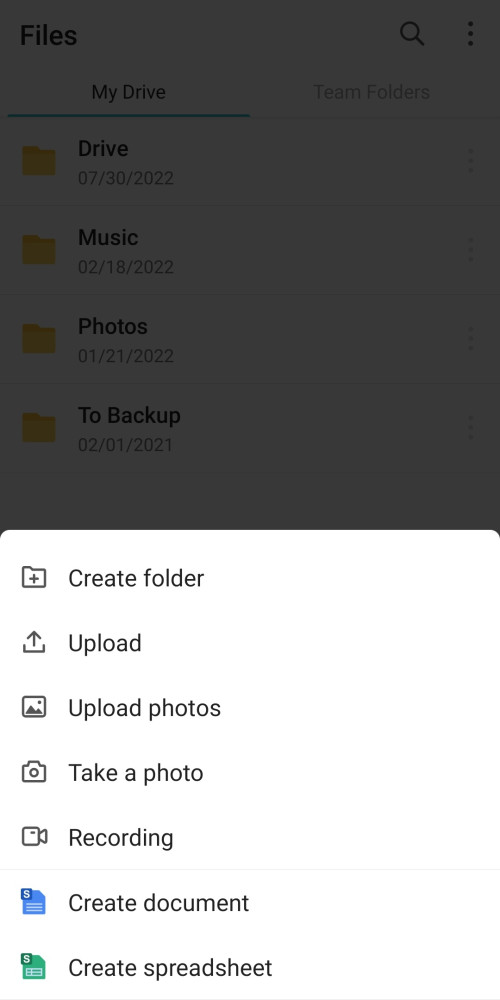
When in the mobile app, you can create new > Document or Spreadsheet file.

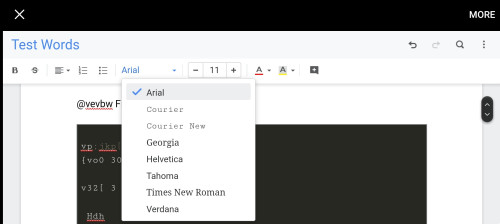
user posted image
Picture above is Document file when phone is landscape. When in horizontal it will only show part of it but you can use your finger to drag the row to show the remaining editing functions. If you use your phone with external monitor or using tablet, you can choose desktop version on web browser to have it show the full functions. But the keyboard issue still persist. The font that’s available also not much as the photo above show.

user posted image
And this the desktop version. Mobile version provide just basic editing function but I feel it’s good enough if what you want to do is just short time typing while you have few minutes free time but no access to PC or laptop.

Another cool thing is it also doing real time update, so if you type on the mobile app, another person that also accessing the file on PC maybe, he or she will see what you type at the same time. Comment function also available on the mobile app, can add comment on some part and can mark it as resolved.

user posted image
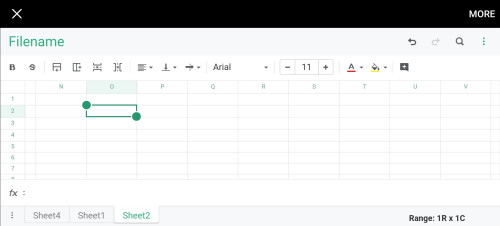
And this is Spreadsheet on mobile app. Same as Document, it have limited editing functions compared to desktop version as below
user posted image

Same as Document, the Spreadsheet is good enough for short time editing that doesn’t require other editing functions. It also support fx: function, I tried and can manipulate the drop down list that I have created on PC. Also the FILTER data changed when I change the linked data. Real time update and comment also working same as in Document.

One thing I notice is when choose to edit Document or Spreadsheet, it takes noticeable few seconds to load the editor. It get faster after multiple times of choosing to edit. Maybe Drive app will fetch the editor data from NAS whenever need to edit and after few times it start to cache locally. Using Running Services function is Developer Options, I see Drive app using 133MB and another 55MB when viewing Document file, and the size increase to 158MB and 200MB when editing Document file.

This update added a lot more usability to the app especially for Document and Spreadsheet. Now can use mobile app to continue typing when there’s no computer. But the keyboard problem they need quickly fix it as it is irritating to keep pressing shift every time after press space so that it change to small letter case.

This post has been edited by xxboxx: Nov 28 2022, 10:47 AM


Change to:
| Lo-Fi Version
0.0248sec    0.76    5 queries    GZIP Disabled
Time is now: 17th December 2025 - 05:24 AM