

 Jan 3 2022, 12:04 AM, updated 4y ago


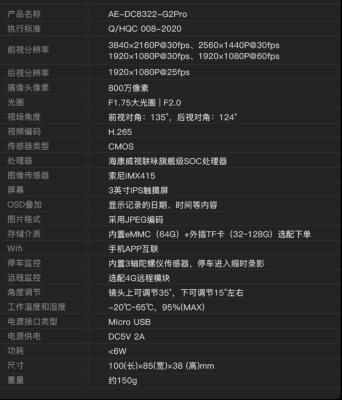
Product Specification (Translated):
| Product Name | AE-DC8322-G2Pro |
| Front View Resolution | 3840×2160P@30fps, 2560×1440P@30fps, 1920×1080P@30fps, 1920×1080P@60fps |
| Rear View Resolution | 1920×1080P@25fps |
| Camera Pixels | 8 Million Pixels |
| Aperture | Front: F1.75, Rear: F2.0 |
| Field of View Angle | Front View Angle: 135°, Rear View Angle: 124° |
| Video Encoding | H.265 |
| Sensor Type | CMOS |
| Processor | Hikvision Lianyong Flagship SOC Processor |
| Image Sensor | Sony IMX415 |
| Screen | 3-Inches IPS Touch Screen |
| OSD Overlay | Display the Date, Time, and etc. |
| Image Format | JPEG Encoding |
| Storage Media | Built-in eMMC 5.1 (64 GB) + External TF card (32 GB ~ 128 GB) |
| WiFi | Mobile APP Interconnection |
| Parking Monitoring | Built-in 3-axis Accelerometer, Time-Lapse Parking Recording |
| Remote Monitoring | Optional 4G Remote Module |
| Angle Adjustment | The lens can be adjusted by around 35° facing up and 15° facing down |
| Operating Temperature and Humidity | -20°C to 65°C, 95% (Max) |
| Power Supply Connector Type | Micro USB |
| Power Supply | DC5V 2A |
| Power Consumption | < 6W |
| Dimension | 100 (Length) × 85 (Width) × 38 (Height) mm |
| Weight | About 150 g |
Original Specification in Chinese:
» Click to show Spoiler - click again to hide... «
Product Details:

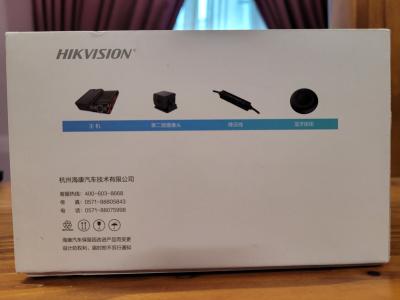
Product Box Design:




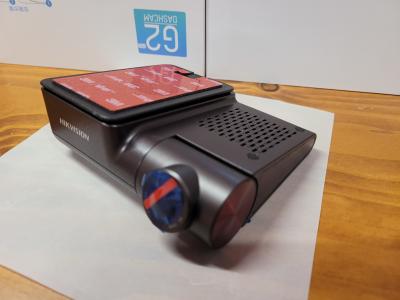
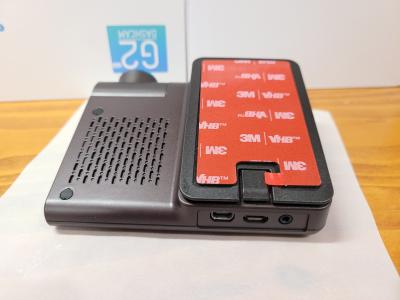
The Unboxed:

Front Camera


Rear Camera
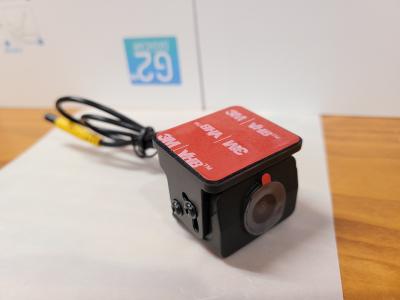
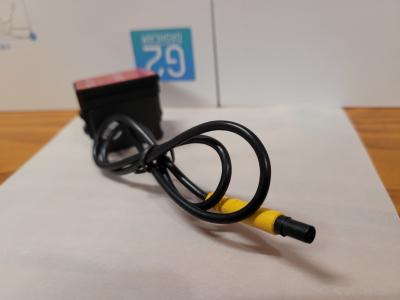
User Manual

Additional Double Sided Tape, Anti-Static Sticker


Hardwire Kit


Rear Camera Wire

Screw, Mini USB Cable, Bluetooth Switch

Hikvision 128 GB SD Card

Dashcam Operation:
To power up this dashcam properly, it is a must to use the hardwire kit provided.
Note: Although the power supply connector is a micro USB connector, if you power up this dashcam by using a regular charger or power bank, the dashcam will only work in parking mode.
The very first time you powered up this dashcam, the dashcam will prompt you to scan a QR code on the screen.
The default dashcam language will be in Chinese, but can be changed to English later after the device is activated.
The QR code will bring you to download a phone app called "Hikdashcam" if you scan using mobile phone.
The phone app default language is in English.
Hikdashcam App store link:
Google Play: https://play.google.com/store/apps/details?...dashcam.foreign
Apple App Store: https://apps.apple.com/us/app/hikdashcam/id1131456475
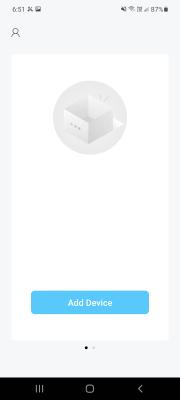
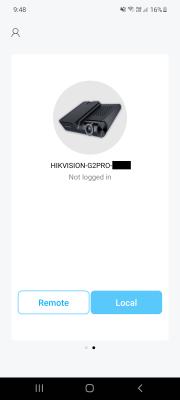
Proceed to "Add Device" in the "HikDashcam" app, the app will prompt you to connect to the dashcam's WiFi network with a default password.
The app will then force you to change the default WiFi password.
The last step for the first time setup is to activate the dashcam, simply press "Activate" when prompted.
While the app is connected to the dashcam via WiFi, the dashcam screen functionality is not accessible until you press "Cut" button on the dashcam screen to disconnect the device from the app, or simply exit the app.
To access the dashcam setting page on the device itself:
1. Tap the dashcam screen once, there will be two arrows showing on both left side and right side of the screen.
2. Swipe the screen from right to left.
Here are some of the dashcam settings screenshots:

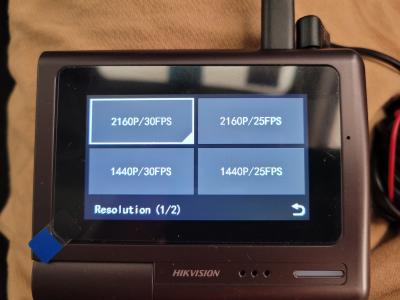



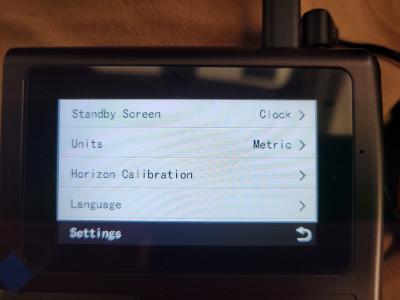

The dashcam firmware can be updated over the air (OTA) via the app.
The firmware version out of the box is version 1.0.6, and the latest version updated at the time of writing is version 1.0.8.
The firmware file is around 60MB+, there are two methods that the firmware can be downloaded and installed:
1. When the phone is connected to both the cellular data and the dashcam via WiFi at the same time, the OTA update can be done via the cellular data and then uploaded to the dashcam.
2. When the phone does not connect to any cellular data, OTA update is done through two steps process. The app will download the firmware using your home WiFi, and then prompt you to connect to the dashcam to complete the update process.
User can choose what the standby screen to do:
1. Clock display (Display time in 24 hour format, day, and date)
2. Live footage feed
3. Screen off
For the voice command feature, I only get used it once.
I spoke the "Snapshot" command in Mandarin, and I heard the snap sound from the dashcam, so I guess it works.
Voice prompt are available for the following actions:
1. Parking mode recording entry
2. Parking mode recording exit
3. ADAS - Green light occurred
4. ADAS - Front vehicle moved
5. ADAS - Speed limit sign recognition
However, there is no voice prompt when the GPS coordinate is locked.
Date and time on the dashcam will be automatically obtained via GPS.
For ADAS operation, each feature has it own hit rate between day time and night time.
Here is my observation during the testing of this dashcam:
| ADAS Feature | Day Time | Night Time |
| Green Light Recognition | Fair | Very Good |
| Front Car Moved Detection | Fair | Fair |
| Speed Limit Sign Recognition | Very Good | Good |
Dashcam Recording:
Recording resolution for the front is adjustable, from 1080P @ 25 FPS to 2160P @ 30 FPS.
Recording resolution for the rear is fixed at 1080P @ 25 FPS.
HDR is enabled by default, and not able to turn off as of now.
Audio recording is can be enabled or disabled in the settings.
The internal eMMC with 64 GB storage will be utilized first, external SD card comes next.
This dashcam supports several recording modes:
1. Continuous recording
2. Parking recording
3. Event recording
4. Picture snapshot
For continuous recording, Hikvision took a different approach than other dashcam manufacturers, or they rather inherit what has been done in their CCTV recording method.
The dashcam raw footage files do not have a fixed video duration.
Each file has different file size, but the maximum file size looks to be no more than 256 MB each.
When the captured video footage uses a higher bitrate, the video duration for that file will be shorter.
Or when then captured video footage uses lower resolution, the video duration for that file will be longer.
With this kind of footage storage implementation, it is troublesome to obtain the matching timeline front and rear footage raw footage.
However, it is not recommended to copy the raw footage directly from this dashcam.
Picture capture/snapshot can be triggered by either issuing voice command or using Bluetooth switch.
I do not have the opportunity to try out parking mode recording, so cannot comment on this feature.
Extracting the footages:
To properly extract the footages from this dashcam, there are three ways:
1. Connect phone app to the dashcam using WiFi, and extract the footages using the app.
2. Connect dashcam to Windows PC using the mini USB cable provided, in this case only footages in eMMC will be visible, use the Windows app provided called "Mini Player" to search and export the footages.
3. Eject the micro SD card from the dashcam and slot it in Windows PC, only footages stored in SD Card will be visible, use the Windows app provided called "Mini Player" to search and export the footages.

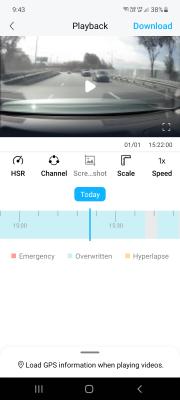
One good thing about using the "HikDashcam" phone app to extract video footage, is that, if the footage you wanted is stored in two different files, the app will merge the video for you.
By using the phone app for the playback, you can view the video footage along with the GPS movement on the map on the same screen.
If you decided to view the footages in Windows PC, a Windows app executable called "Mini Player" is provided.

By default, the MiniPlayer app interface is in Chinese language, you can change the language to English.

The export window allow you to search the footages according to date, time, and recording type.
Unfortunately MiniPlayer does not offer video merging feature as found in the "HikDashcam" app.

Two things that this MiniPlayer app needed improvement:
1. Allow app window resize
2. Allow column length adjustment
Video Footage Samples:
The videos are recorded in variable bitrate, with overall bitrate to be around 25 Mbps for front, and 8320 kbps for rear.
MediaInfo (Front)
» Click to show Spoiler - click again to hide... «
MediaInfo (Rear)
» Click to show Spoiler - click again to hide... «
Day Time - Front (Low Speed)
Day Time - Rear (Low Speed)
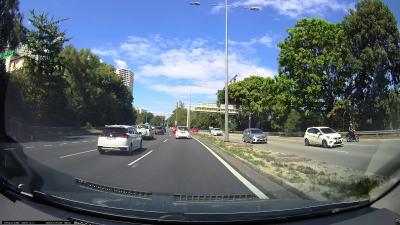
Day Time - Front (Medium Speed)
Day Time - Rear (Medium Speed)
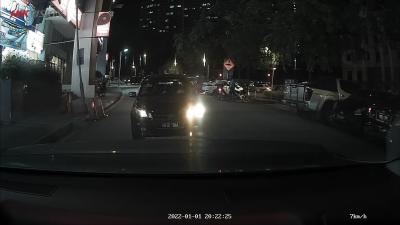
Night Time - Front (Low Speed)
Night Time - Rear (Low Speed)
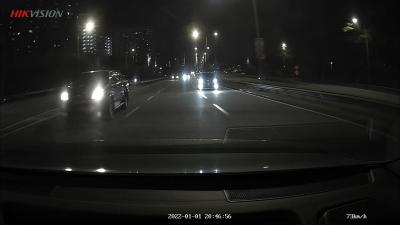
Night Time - Front (Medium Speed)
Night Time - Rear (Medium Speed)
Still Image Footage Samples:
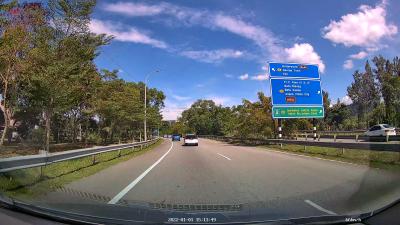
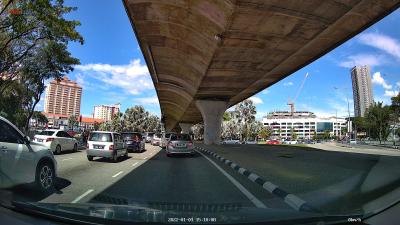
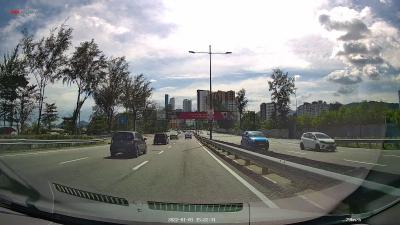
Day Time - Front
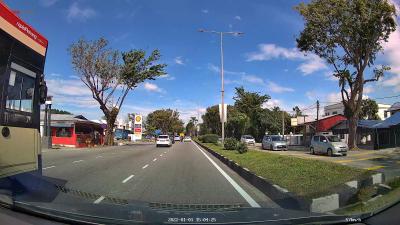
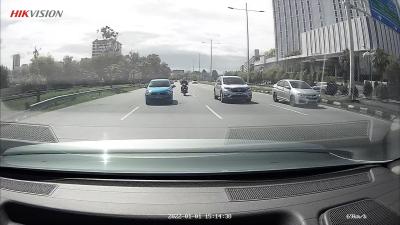
Day Time - Rear

Night Time - Front


Night Time - Rear
Final thought:
- Front 4K footage is clear, but maybe due to HDR enabled, the image sharpness decreased.
- Rear camera unit angle adjustment requires to screw and unscrew action.
- I personally like the hardwire kit design, but the fuse rating on the hardwire kit is not known.
- Powering up the dashcam in normal operation mode required the use of hardwire kit provided.
- English language on dashcam interface, phone app, and Windows player app can be more fine tuned.
- Hope to see more ADAS features to be added in the future.
- Hope to see internal microphone sensitivity can be adjusted in setting page.
- Hope to see an option in setting page to turn on or off HDR.
This post has been edited by alexander3133: Jan 3 2022, 10:39 AM
 Quote
Quote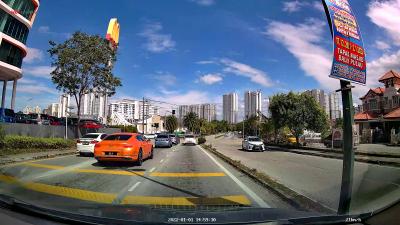




 0.0208sec
 0.17
0.17
 6 queries
 GZIP Disabled