

 Sep 5 2021, 12:32 AM, updated 5y ago


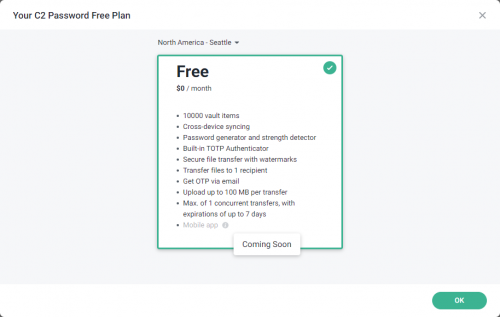
Right now C2 Password is only available for single use which is free, with family plan coming in the future. With it you get to save 10,000 items in vault, password generator with strength detector, 2FA/TOTP authenticator, and also limited file transfer functions. It have browser extension for Edge and Chrome. It still doesn't have iPhone and Android app though, iPhone app coming in end of this year while Android app coming next year.
To use it, go to this link and click get started
https://c2.synology.com/en-global/password/overview
You need to have a Synology account to use C2 Password. If you don't have one, you can create for free, it doesn't need you to have Synology NAS to create an account.
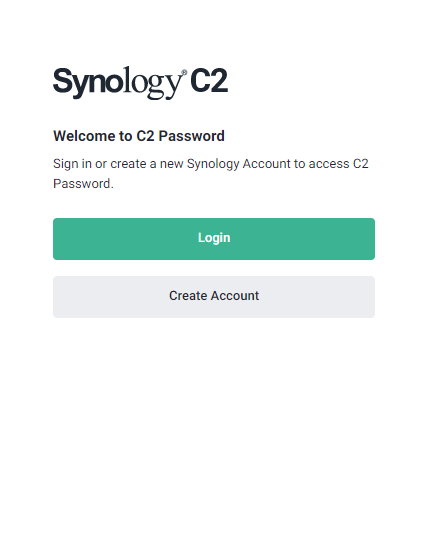
After create account and sign up, you'll be greeted with this page. You can proceed to enter vault or install browser extension.
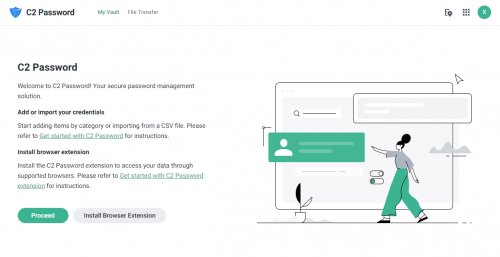
The presentation is very simple and nice. White background and black text with green highlight. Button is in green color for confirmation while grey for cancel or some menu button. If alert or caution such as confirming to delete, the button will be in red instead of green.
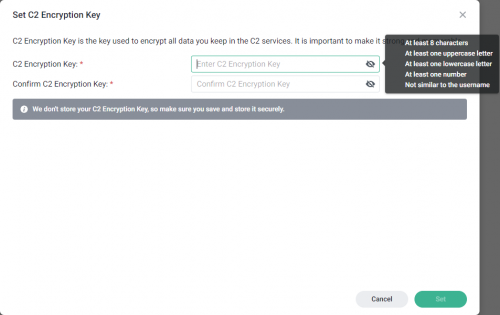
The first thing you need to do before using C2 Password is to create C2 Encryption Key. This is the key to access your saved items, whether you accessing it from vault or from browser extension. To recap, Synology account & password is for your account while this key is for C2 Password. You need to enter this key every time you use C2 Password, so better for it to be long with many combinations for security but still easily remembered.
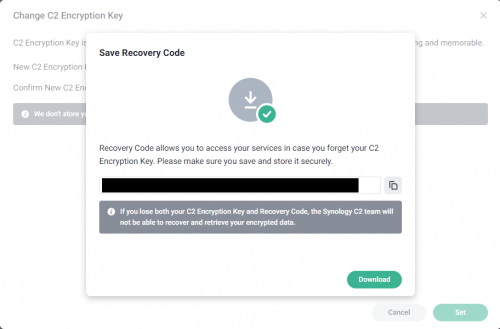
After that you need to create Recovery Code. This code is for recovering your key in case you forgot it.
IMPORTANT! If you lose your key and this code, you'll lose access to all your passwords. Even Synology can't recover it since they don't know your key and code. You cry mother father also no use. So keep this code safely.
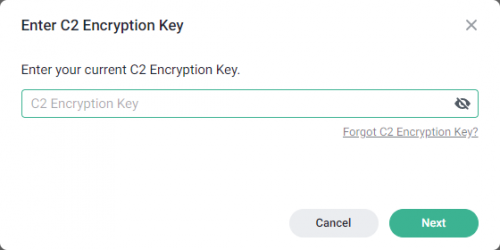
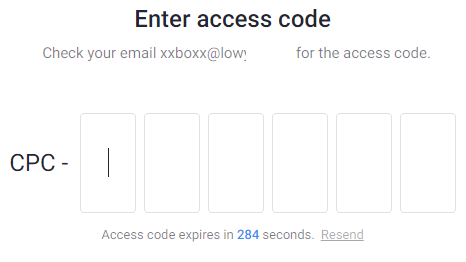
You need to key in C2 Encryption Key each time when accessing the vault.
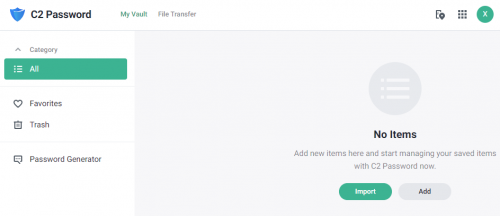
This is the main page of C2 Password. You can import CSV file that contain all your data from other password manager. Most password manager support this format for exporting. It doesn't support json file though.
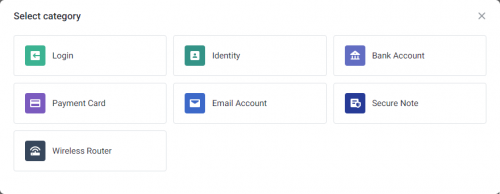
If you add new item, there's selection what type of item it would be. For Identity, it is similar to contact info, such as name, date of birth, address, phone, email, and so on. Bank Account as it's name, for banking info such as bank name, full name, account number, SWIFT code, address, and so on. Payment card is for credit or debit card, it have entry for card type, number, expire date, PIN code, CVC.
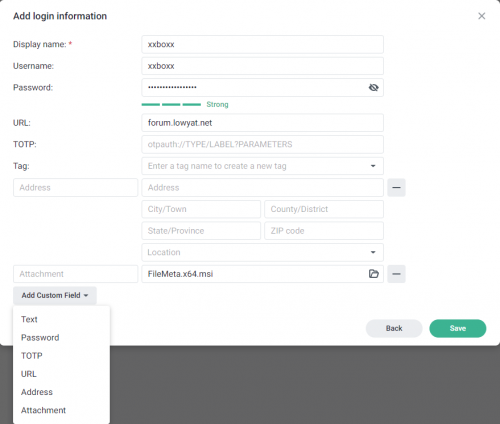
Login is what most people probably going to use this for. As the picture above show, it can add name for the login, URL which it will suggest if you open the extension on that website, tags for easy search, 2FA/TOTP if you want to add it into C2 Password, and also add additional field. It also will give indication if password is weak or strong.
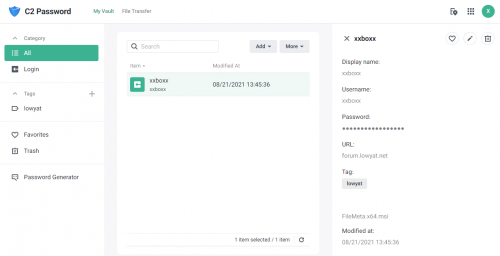
After added Login, it will show as such. If click on the account, it will come out the details on the right panel. A bit of concern, the dots that's displayed in password is actually the same amount as your password. In browser extension it is also the same.
There's no function to create folder as way to organize all the entries. One way to organize is by using tags, if you used to use tags then it should be no issue.
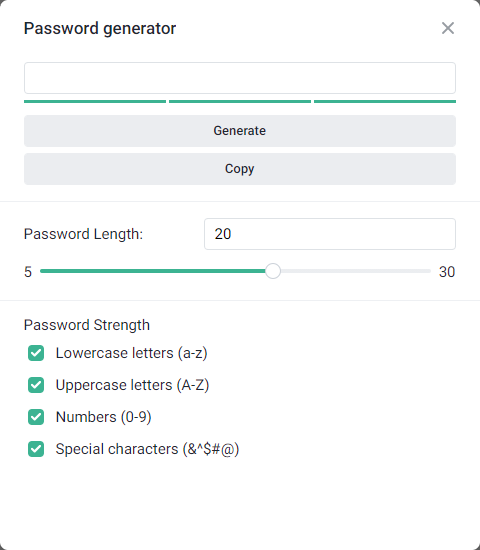
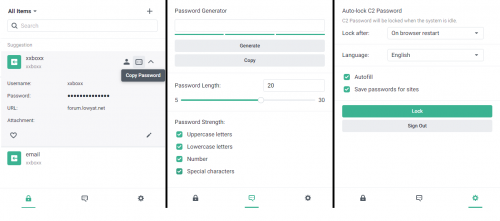
It also have password generator where you can specify the length and which type of character to be included. It can't generate passphrase though, maybe this is something that can be added in future.
 Quote
Quote


 0.2913sec
 0.46
0.46
 5 queries
 GZIP Disabled