Welcome Guest ( Log In | Register )

Outline · [ Standard ] · Linear+

Review Alternative to Google's Drive & Photos, Synology Drive & Moments Guide & Review

views
     
TSxxboxx
post Dec 13 2020, 02:01 AM, updated 6y ago

The mind is for having ideas, not holding them
*******
Senior Member
5,261 posts

Joined: Oct 2004
From: J@Y B33


One month ago, Google dropped the bomb. No more unlimited photos policy come 1st June 2021. What used to be safe heaven for unlimited backup of “high quality” photos and HD video in exchange of sacrificing the original quality photos and video are now going to be ended. I mean, I thought we surrendered our souls private data for Google to monetize and in exchange we get protection for those data? Turns out it’s another hook, line and sinker. So I was excited to see that there's a free alternative to Google’s free offering that is not constrained to mere gigabytes of data and yet still have plenty of other functions.

When I say free, I mean using the service. Don’t bash me. You still have to buy a Synology NAS and HDDs that will be used for it. You also will need a good internet connection for upload. I recon 10mbps upload is enough for a few megabytes of data transfer such as downloading pictures from your NAS to your device, over the internet. I’m using 50mbps upload speed and it feels fast even when scrolling through plenty of pictures. So there’s the entry barrier, but once you pass that, limited space is a thing of the past. You can also have your family members / friends / colleagues joining in, as sharing is caring.

When I try out these programs, I approach it as how a typical Google account user would, sign up a user account and just start using the features. No reading up tutorial or study how to get things work. TL:DR, my finding it is indeed the same, simple to use. Download the program, sign in and use away. Only the NAS admin needs to have some knowledge on how to set everything up so that the user can have trouble free experience.

Okay, so on with the guide. I start with the condition that one already has a Synology NAS set up and is using it. If you need some guide on setting up the NAS, can refer my Synology DS920+ Review here.


Synology’s Drive Server and Moments + Creating New User

Now this part is for the NAS admin job, not really technical. Basically just following this guide is enough to setup Drive and create a new user.

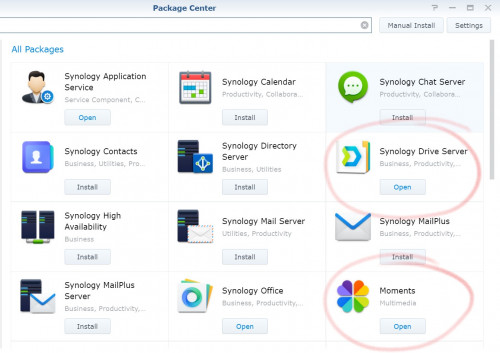
First thing to do would be head to Package Center and install Synology Drive Server and Moments.
user posted image

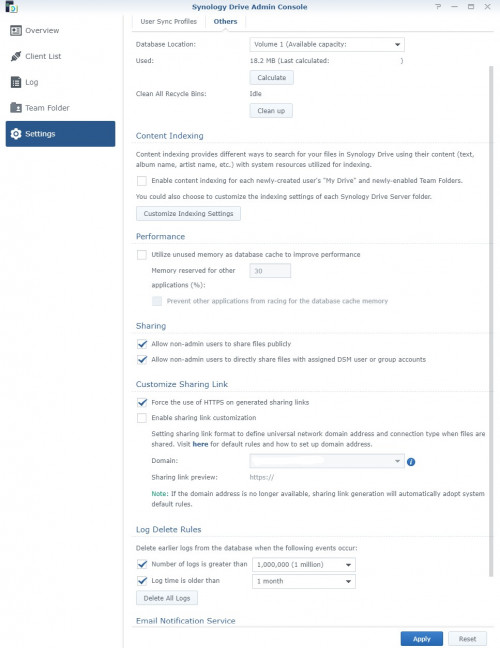
After that on to Synology Drive Admin Console to change some settings to suit your needs, such as only allow HTTPS for sharing links.
user posted image

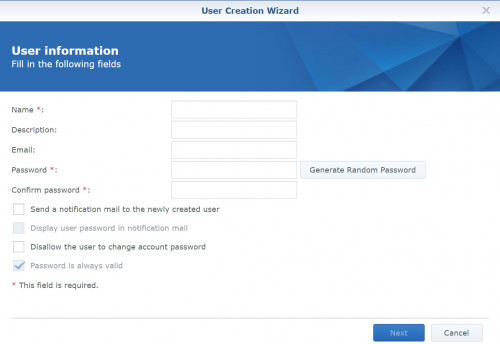
Next, create a new user credential / sign in account. That would be at User Panel > User, then click Create. Here I need to fill in all the necessary information to create a new user. Make sure to remember the name and password as you would need it when access from PC and Android phone. I would advise to create a new user even for your own usage of Drive, leave the admin account for managing NAS only, that would be as an extra security if your Drive account is compromised, your admin account is still secure.
user posted image

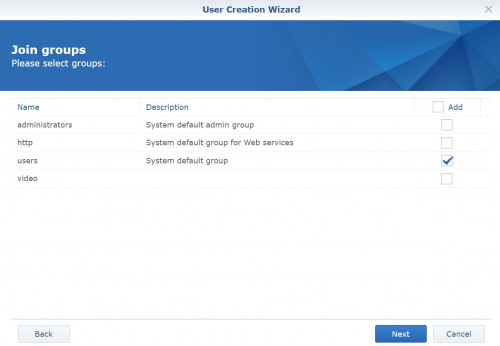
Set the joined group as users
user posted image

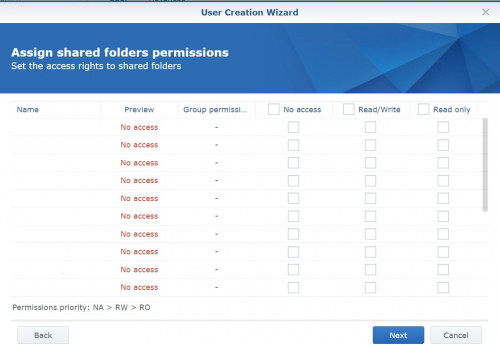
As this account will only be used for accessing Drive and Moments, there’s no need to allow it to access any folders. All the files management will be handled through the Drive app.
user posted image

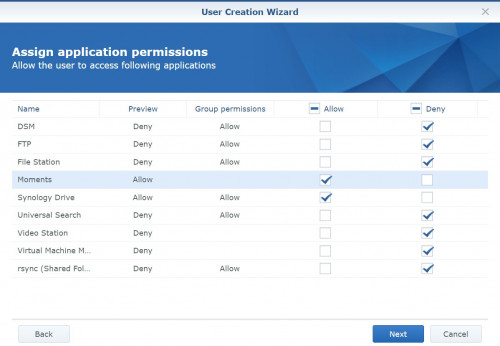
For application permission, as this account is purely for Drive and Moments, only allow for these 2 applications and deny all others.
user posted image

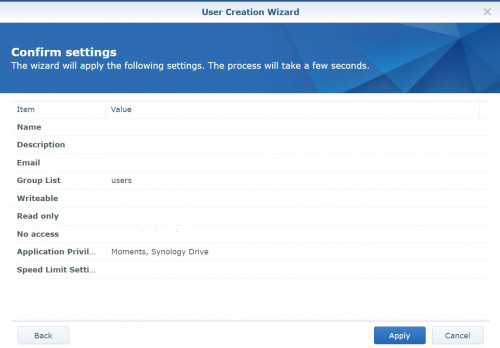
Finish creation. Synology has an overview of all selected settings to confirm before creating the user. If confirming everything is as intended then can click Apply.
user posted image

If you have other people that will use these suites then you can create each one person their own user account. Each account will then have their own sub-folder in the Homes folder. The Homes folder is where each user’s files will be stored, each with their own sub-folders.
TSxxboxx
post Dec 13 2020, 02:01 AM

The mind is for having ideas, not holding them
*******
Senior Member
5,261 posts

Joined: Oct 2004
From: J@Y B33


Synology’s Drive Client App for Windows Installation

After finishing the user account creation, now time to install the Drive program in Windows. Searching for “synology drive for windows” on Google and the first thing it found is the Synology Drive Client tutorial. After some more digging and navigating in the tutorial, I finally found the link to download Drive Client. Synology should make it more easily reachable from the tutorial instead of having to search and dig around just to get it.
user posted image

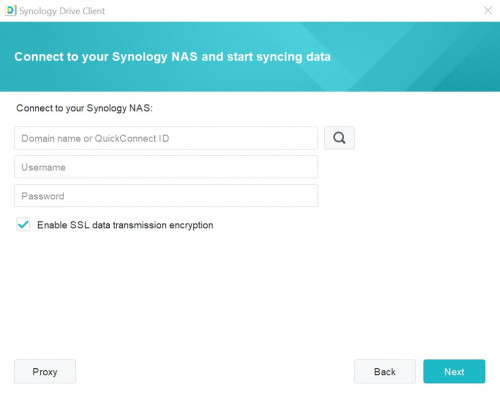
After installing the program, I need to fill in some info. First is the domain name or QuickConnect ID that I have set on NAS for how to reach it over the internet. Then the user account and it’s password that I created earlier. Also enable SSL so that the data will be encrypted before sending it over the internet.
user posted image

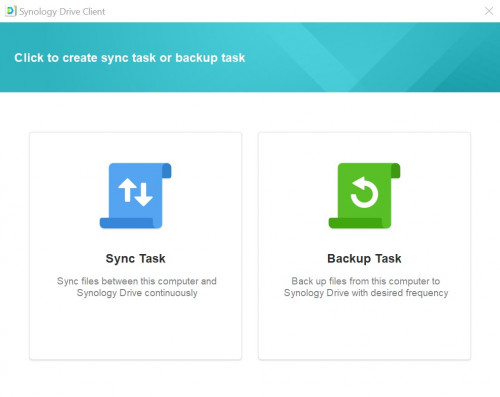
Next create Sync Task or Backup Task. As I am only doing for Drive review where data is being sync over to cloud, I will only do Sync Task. Use Backup Task if you want to backup your PC files for protection such as against drive failure or ransomware.
user posted image

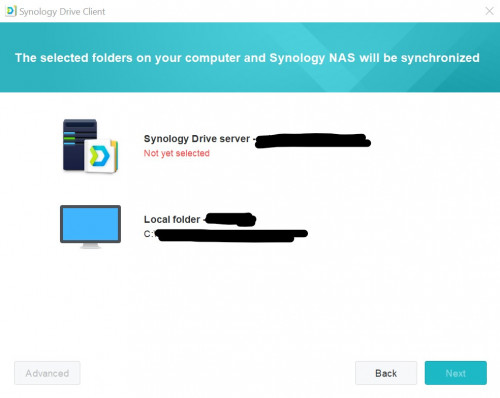
Here it will inform where my data is being stored in the NAS and in the PC.
user posted image

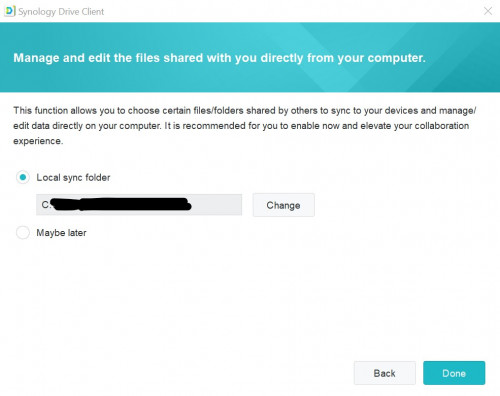
Here it asks me to specify which folder will be used for syncing files that are shared with me, useful if I’m going to be sharing files with others.
user posted image

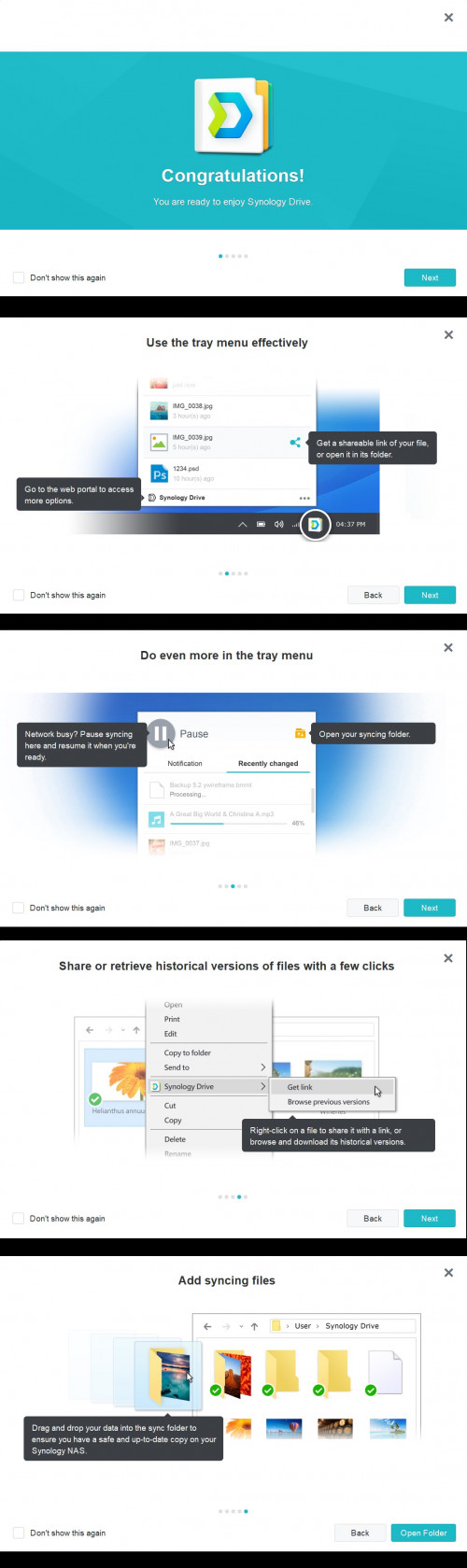
That’s it! Now I can enjoy using Synology Drive. And it shows some quick tips first, such as how to get a shareable link, how to access web portals, how to pause sync, how to open a syncs folder, how to get the earlier versions of edited files, how to sync files and folders.
user posted image

TSxxboxx
post Dec 13 2020, 02:02 AM

The mind is for having ideas, not holding them
*******
Senior Member
5,261 posts

Joined: Oct 2004
From: J@Y B33


Using The Drive App and Windows Integration

With the Drive installed, now time to start using it and compare how much different it would be from Google offering.

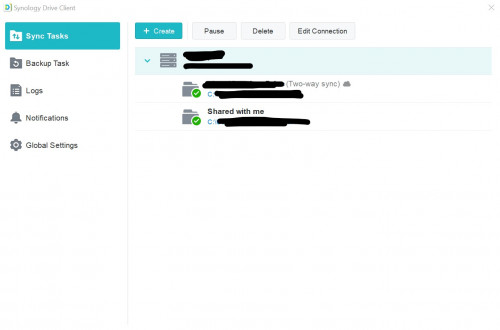
At the Tray menu, clicking the 3 dots to choose Settings. In it I can see the details of my connection, the NAS name and domain name / QuickConnect ID, the synced folders for own sync and shared.
user posted image

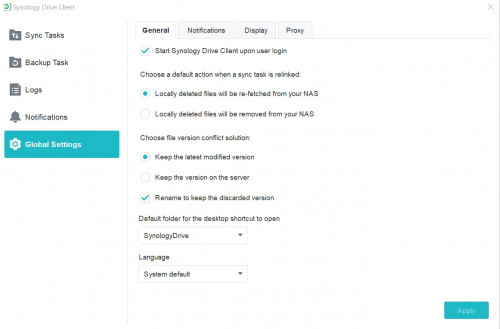
You also can do some adjustments on Drive Client settings and how it should handle the files and also proxy settings if got use it.
user posted image

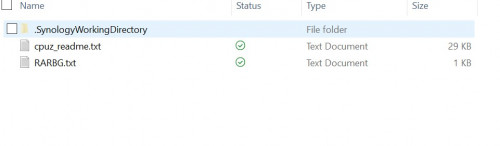
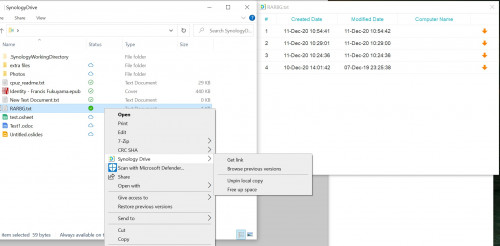
I’ve tried to copy 2 files into the Drive folder. It will show a blue sync icon when syncing the file and green tick icon when completed. Same way as Microsoft’s OneDrive method, whereas Google Backup and Sync will show a tick on the file thumbnail.
user posted image

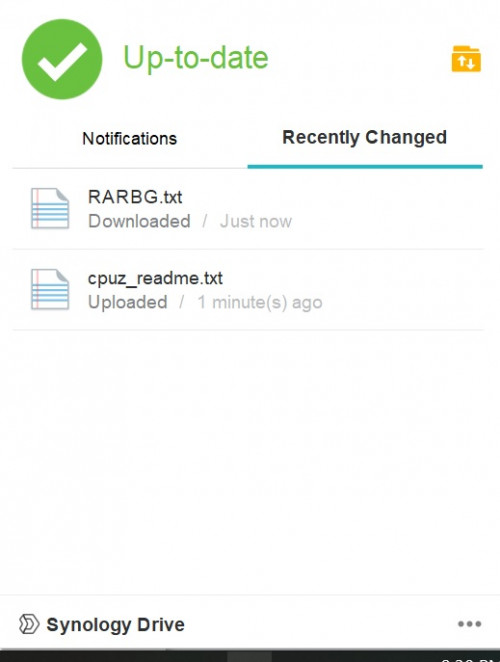
In the taskbar tray menu also will show the recent changes, just like Google Backup and Sync.
user posted image

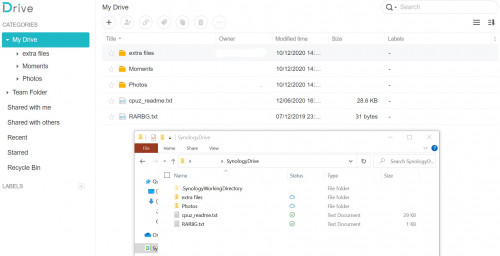
Clicking on the Synology Drive words on the tray menu will open its web portal. Here I can manage the files in Drive as well as others stuff such as Team Folder and shared links. I can also upload files from PC directly to the web portal by just dragging the files into the browser windows, it's that straight forward. Notice that in the web portal there's a Moments folder while it doesn’t appear in Windows Explorer? That's because the folder is where all the photos and videos in the Moments app reside. By default it will not sync Moments folder with PC client as most likely because this folder might be hundreds of gigabytes or even few terabytes.
user posted image

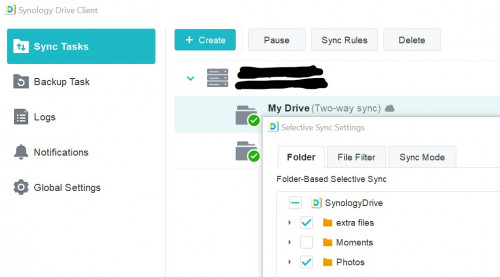
If you wish to sync Moments folder with your PC, go to Drive settings, click My Drive and then click Sync Rules, then tick Moments folder and click Apply. Without doing the steps, using Windows Explorer, I tried to create a Moments folder in Drive, but the folder will not sync.
user posted image

While checking the Sync Rules, at the Sync Mode tab I notice it also has On-demand Sync. What this does is for files that are already in the NAS but I never open in PC, it only exists as a link, once I open the file or choose Pin Local Copy Permanently, then only it will make an actual copy of the file in my PC. This function is very useful if your device has limited storage space or some big files are always edited on your PC but not on your laptop, so you don't need to always sync all files every time you use the laptop. This function is not available on Google Drive.
user posted image
Cloud status means the file is not in PC. Green tick white background means the file is in PC. White tick green background means the file will be permanently available on PC, even if you do free up space.

Another neat thing about such implementations is I can do all the changes directly in Windows Explorer, unlike Google Drive where some of the things I need to do in the web portal. I can get the file link to share with others, unpin local copy if I have it pinned, free up space by removing the file from PC but link to it still exists, and the most useful function for me is browse previous version where I can also download any previous version file.
user posted image

One thing to note about using the web portal is, unless your domain or QuickConnect ID have got it’s certificate signed, or you already setup your system to use a self-signed certificate, it will show as unsecure HTTPS connection. This doesn’t mean your connection is unsecure, just you need to set up your certificate, which needs a separate thread about it, or hundred threads. Do not take the easy route of just using HTTP, it is very unsecure and highly risky.

As I also enable SSL on the Drive program, if it’s certificate is not signed, after some time it will prompt connection error and ask to edit connection and then sign in back again.
TSxxboxx
post Dec 13 2020, 02:02 AM

The mind is for having ideas, not holding them
*******
Senior Member
5,261 posts

Joined: Oct 2004
From: J@Y B33


Drive & Moments App for Android

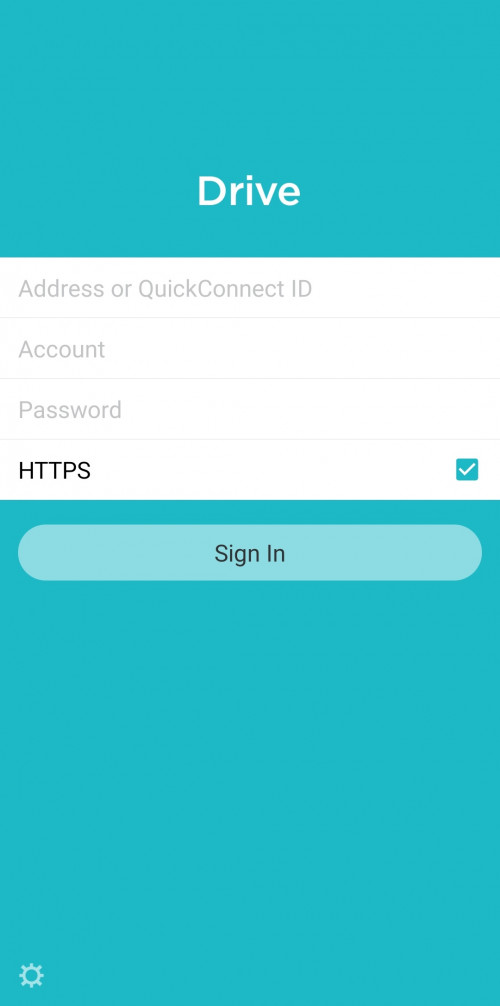
Now on to an Android phone, find and install the Synology Drive app in the Play Store. Same thing as for a PC, need to put in the domain or QuickConnect ID in addition to Account (username) and Password. It is also better to tick the HTTPS, as it will encrypt all data that is sent through and back.
user posted image

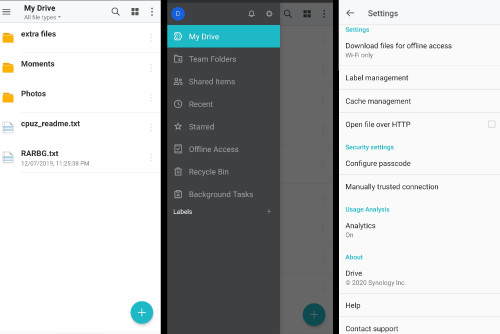
After logged in, all the files in my Drive will appear (left screenshot). Same as using Google’s Drive. Here I also can access and interact with the Moments folder. Pressing the 3 lines on top-left will slide out additional options (middle screenshot). Here I can access Team Folders, see Shared Items, see all offline accessible files, recycle bin, etc. In this top page, pressing the bell will open the notification page and pressing the cog icon will open the Settings page (right screenshot). Personally I feel the cog icon is slightly hidden, usually the option/setting icon will be in the corner of a page, not middle. In the Settings page, you can configure some more, such as downloading offline files only when using wi-fi so that you can save your data quota. You can set it to open files over HTTP (don’t!!!). You can also put 4 digits passcode that need to be key in every time when the app is opened to prevent others from accessing your Drive.
user posted image

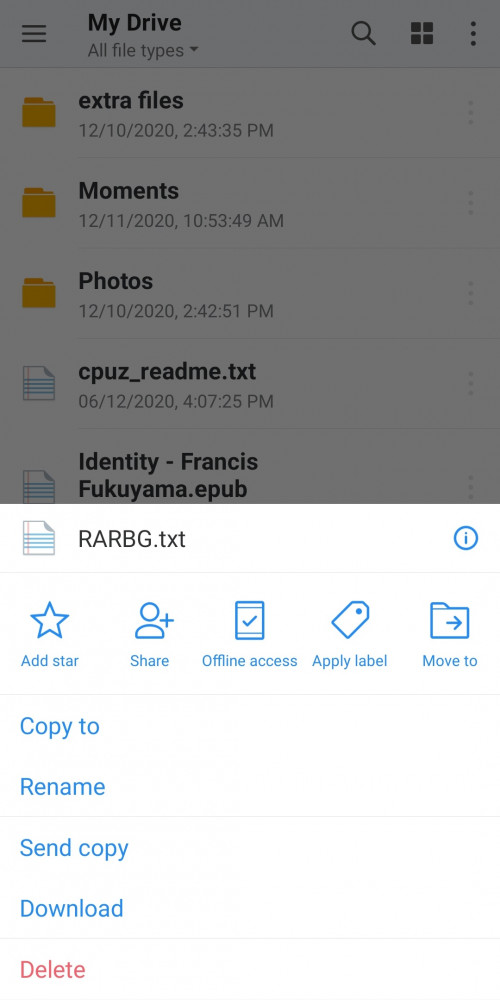
Back to the main page of Drive, pressing the 3 dots beside any file also opens options for that file, where I can star it or create a shared link, make it available for offline access, move the file, copy, rename, download, or delete.
user posted image

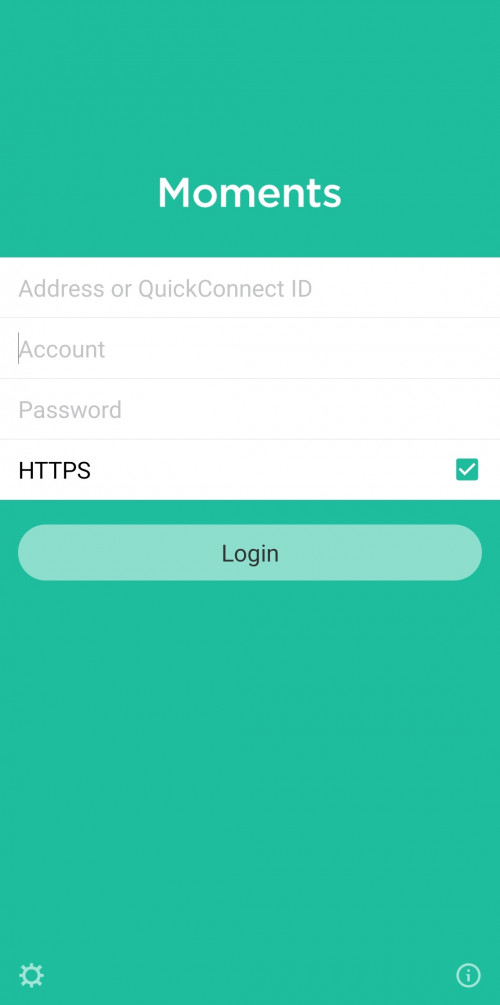
Now for using Moments. Same as before, find Moments app in Play Store and install it. Opening the app for the first time I’m greeted with the same interface as Drive, need to put in the domain or QuickConnect ID in addition to Account (username) and Password. Also don’t forget to tick on HTTPS. Then click on the cog icon on bottom left
user posted image

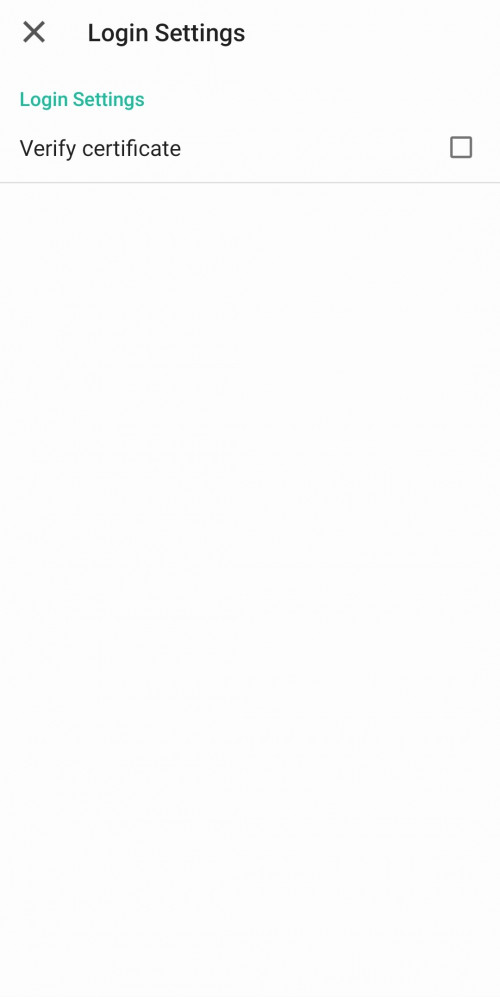
Here only one option, for verifying the certificate. Tick it if you already have your certificate signed or remove the tick if not.
user posted image

Going in and now I can access all my photos and videos that are in the Moments. One thing to note is only photos and videos in the Moments folder will appear here and at the web portal for Moments. All other photos and videos that are in Drive folder but not in Moments folder will not appear. So make sure you know where you're putting your media files at.

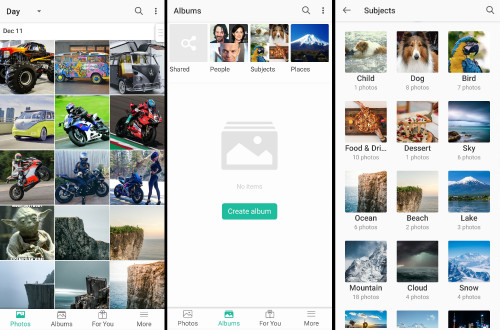
The first page is all the photos and videos that I have (left screenshot). It scrolls vertically. Long press on any photo will open file selection, I can select each file or select by date, just like Google’s Photos. After selection I got the option on top to share the files or create a share link, add to new or existing album, batch delete, batch download, batch edit tags. Pressing Albums icon on the bottom to change the page (middle screenshot), here the photos are grouped based on people, subjects and places. Synology Moments will create albums based on subjects that it find, which is impressive (right screenshot)
user posted image

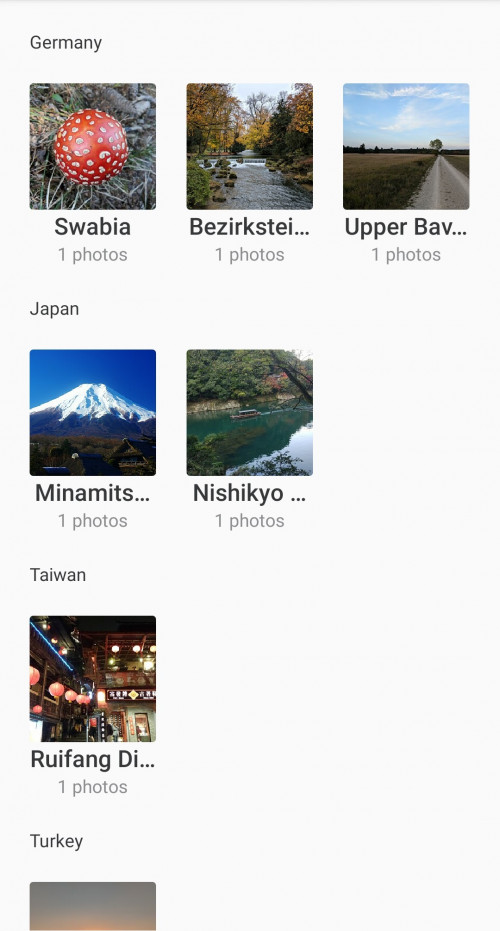
For Places, it will list based on the country and areas the picture is taken. Unfortunately it doesn't have a world map view on where each picture is taken, whereas Google Photos has it and even Oneplus Gallery also has it. I heard the new app, Synology Photos that will be used with DSM 7.0 will have such functions.
user posted image

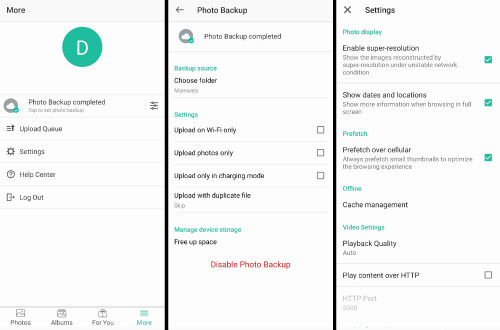
Onto the More tab (left screenshot), here to access additional settings, see the upload queue, help center and log out option. Pressing on the Photo Backup will open the page (middle screenshot) to see current backup status, choose which folders for backup, upload option, free up space, and option to disable photo backup temporarily. On the Settings page (right screenshot), additional options how the photos will be displayed and cache management, among others.
user posted image

There’s a For You tab. Currently what it does is make the photo look brighter, more “HDR”. Which might suit you, or might not. Maybe in future Synology will add more functions to it than the current solo option

I will not be covering Moment’s web portal as I already did it when reviewing DS920+, which I also cover Photo Station. You can read the Moments and Photo Station web portal review here
Basically it is very similar to Google Photos too
When I update to DSM 7.0 stable and use Synology’s new Photos app, maybe I will review it.
TSxxboxx
post Dec 13 2020, 02:02 AM

The mind is for having ideas, not holding them
*******
Senior Member
5,261 posts

Joined: Oct 2004
From: J@Y B33


Office Productivities Suites

Just like Google Drive, Synology also has their own online version of Word, Spreadsheet, and Slides. Unfortunately it is only web portal based. You can only view the file on Android, but not edit it. I’ll cover briefly on these 3 office productivity suites.

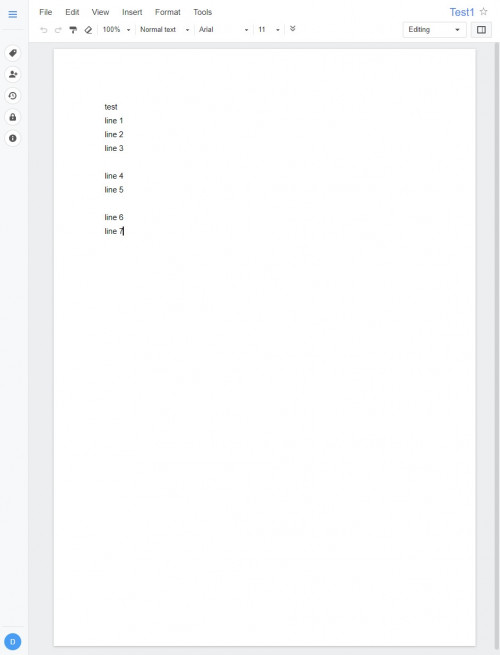
It’s Word equivalent is called Document. You have basically almost the same functions as Office’s Word or Google’s Doc.
user posted image

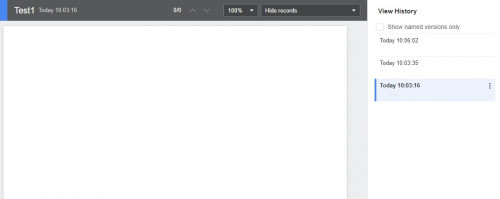
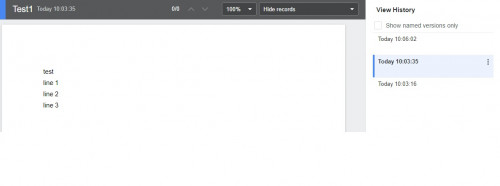
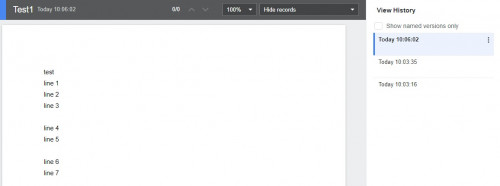
You can go back to the previous edit by going around it’s history. Spreadsheet and Slides also have the same functions.

user posted image

user posted image

user posted image

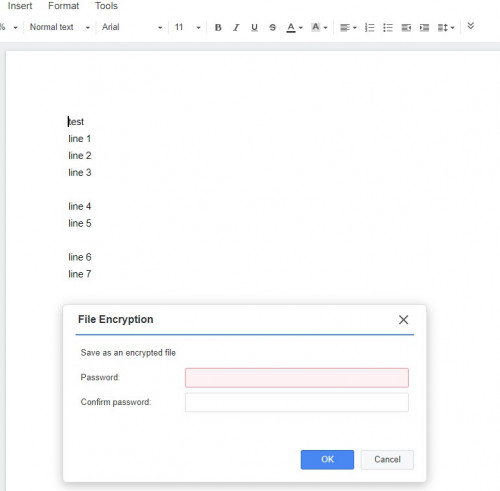
All 3 suites also have the function to encrypt the file. Something that until now Google is still unable to do. I started to suspect that Google was omitting the functions by choice.
user posted image

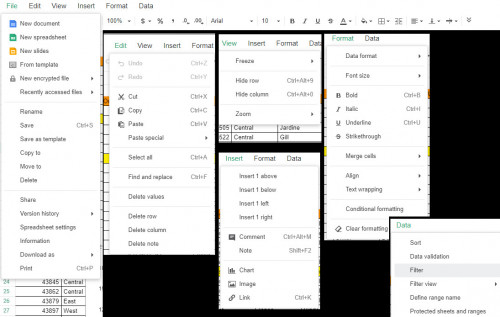
Spreadsheet option briefly, looks lesser options than what’s available in Google’s Sheet.
user posted image

I ended my review here. Overall I feel it can easily replace Google for “unlimited storage” and decent photos backup. But over the years Google have been adding additional functions on it’s suites that makes them having some edge over others. For Photos vs Moments I feel Google offering of additional functions are just slightly better, it’s more towards social media support instead of backup. For Drive, Synology having integration with Windows makes it much more usable than Google’s offering. With Google, it feels like they are trying too hard to push people to use it’s web or Android based options instead of Windows. Even the Drive program for Windows has been discontinued and replaced by Backup and Sync, even though it is functioning exactly the same. And turn out Google are offering the same Windows integration as Synology Drive, but only for business customers through it’s G Suite and Drive File Stream. For office productivity with support for equivalent Word, Excel, and Powerpoint, Google offers more functions for each app than Synology, but not having the option to encrypt the file might be enough deterrent for some to not use it. Not going to feel surprised if file encryption is available for business customers.

But back to basic, for a user that wants more than tens of gigabytes to store their documents and media files, without having to pay for subscriptions, this is a realizable alternative. If there are going to be multiple users then it makes even more sense to use own cloud storage instead of everyone paying for subscriptions.

As with most other NAS systems, Synology actually already has solutions for multiple users, automated backup, sharable link, file versioning, office productivities integration, and many others. But it is geared more towards corporate / business uses and needs someone with deep IT knowledge to customize it. With Drive and Moments it is now more user friendly for general consumers.


Additionally, for those that want to try how does Synology DiskStation Manager (DSM) feels like when using it, can try on this link :
DSM Online Demo
It have the current DSM 6.2 and also DSM 7.0 Beta which have additional features.
With the DSM 6.2 demo you can also try Drive and Moments web portal, doing changes on these portals will reflect back on the DSM demo portal, just like when using actual NAS. If want to try the new Photos, you have to use DSM 7.0 Beta as the app is not available for DSM 6.2
Sky.Live
post Dec 14 2020, 02:45 PM

Proctected Species
*******
Senior Member
4,390 posts

Joined: Oct 2004
From: Cheras, Malaysia


Initial investment is very high for this NAS, I think you will need at least 2x Bay + a good internet connection for this. The hardware alone will cost abour 2-3k?
TSxxboxx
post Dec 14 2020, 04:08 PM

The mind is for having ideas, not holding them
*******
Senior Member
5,261 posts

Joined: Oct 2004
From: J@Y B33


QUOTE(Sky.Live @ Dec 14 2020, 02:45 PM)
Initial investment is very high for this NAS, I think you will need at least 2x Bay + a good internet connection for this. The hardware alone will cost abour 2-3k?
*
Good internet connection is a must. Last time my only option is streamyx with it's 512kbps upload speed, few MBs file upload takes very long time. Not workable.

Ya, at least 2 bay model so that there's redundancy on your data, plus 1 bay model just cheaper by RM300 which I feel not worth the cheaper price but have to lose redundancy. Cheapest 2 bay I saw is DS220J, about RM700. 2 HDD around RM400, so total is RM1100. According to it's spec it support Drive and Moments. But it doesn't support BTRFS, so don't know if that will impact on file versioning/history.

The most value for money I feel is DS220+, it got much better hardware spec. About RM1400 + RM400 HDD.


Change to:
| Lo-Fi Version
0.0205sec    1.13    5 queries    GZIP Disabled
Time is now: 20th December 2025 - 02:24 AM