

 Dec 13 2020, 02:01 AM, updated 6y ago


When I say free, I mean using the service. Don’t bash me. You still have to buy a Synology NAS and HDDs that will be used for it. You also will need a good internet connection for upload. I recon 10mbps upload is enough for a few megabytes of data transfer such as downloading pictures from your NAS to your device, over the internet. I’m using 50mbps upload speed and it feels fast even when scrolling through plenty of pictures. So there’s the entry barrier, but once you pass that, limited space is a thing of the past. You can also have your family members / friends / colleagues joining in, as sharing is caring.
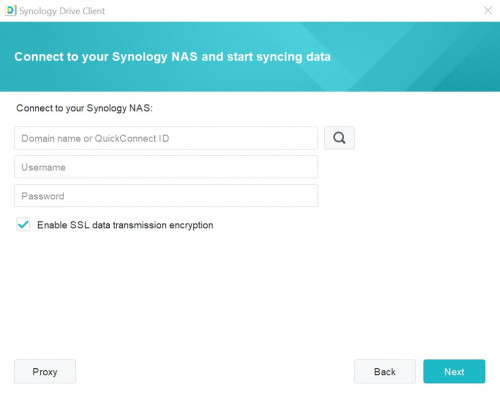
When I try out these programs, I approach it as how a typical Google account user would, sign up a user account and just start using the features. No reading up tutorial or study how to get things work. TL:DR, my finding it is indeed the same, simple to use. Download the program, sign in and use away. Only the NAS admin needs to have some knowledge on how to set everything up so that the user can have trouble free experience.
Okay, so on with the guide. I start with the condition that one already has a Synology NAS set up and is using it. If you need some guide on setting up the NAS, can refer my Synology DS920+ Review here.
Synology’s Drive Server and Moments + Creating New User
Now this part is for the NAS admin job, not really technical. Basically just following this guide is enough to setup Drive and create a new user.
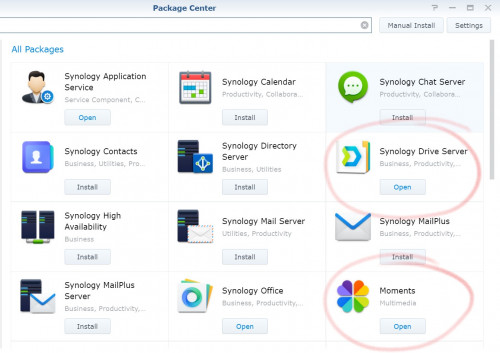
First thing to do would be head to Package Center and install Synology Drive Server and Moments.
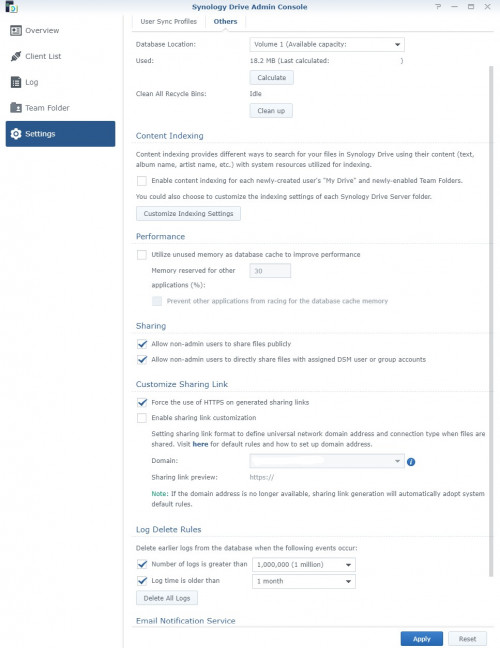
After that on to Synology Drive Admin Console to change some settings to suit your needs, such as only allow HTTPS for sharing links.
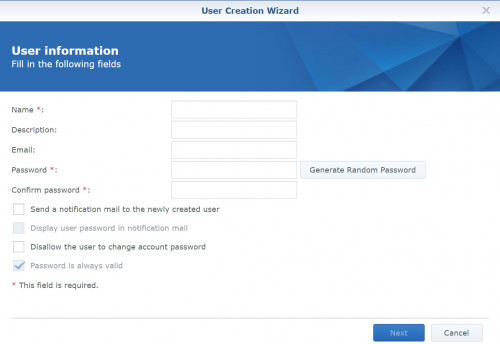
Next, create a new user credential / sign in account. That would be at User Panel > User, then click Create. Here I need to fill in all the necessary information to create a new user. Make sure to remember the name and password as you would need it when access from PC and Android phone. I would advise to create a new user even for your own usage of Drive, leave the admin account for managing NAS only, that would be as an extra security if your Drive account is compromised, your admin account is still secure.
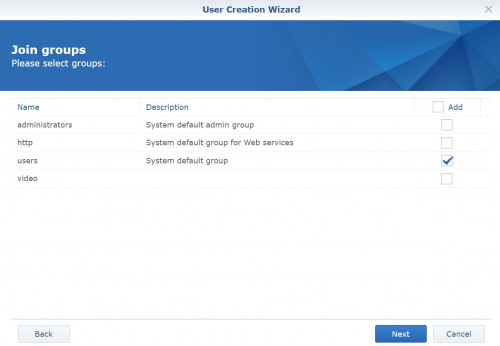
Set the joined group as users
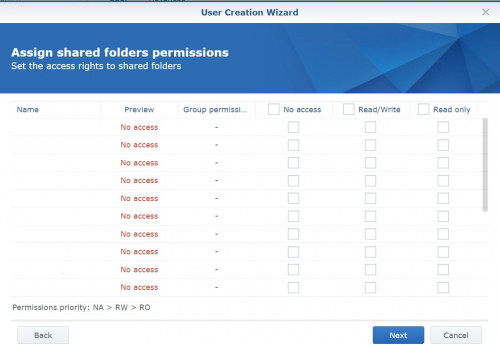
As this account will only be used for accessing Drive and Moments, there’s no need to allow it to access any folders. All the files management will be handled through the Drive app.
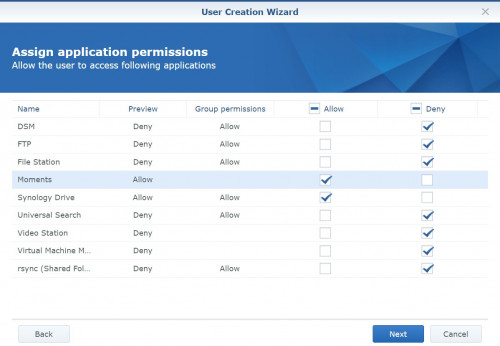
For application permission, as this account is purely for Drive and Moments, only allow for these 2 applications and deny all others.
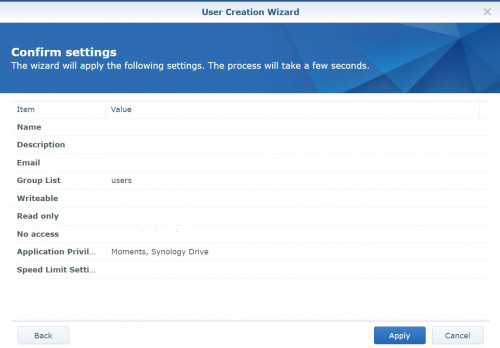
Finish creation. Synology has an overview of all selected settings to confirm before creating the user. If confirming everything is as intended then can click Apply.
If you have other people that will use these suites then you can create each one person their own user account. Each account will then have their own sub-folder in the Homes folder. The Homes folder is where each user’s files will be stored, each with their own sub-folders.
 Quote
Quote



 0.0181sec
 0.65
0.65
 5 queries
 GZIP Disabled