

What should I do?? There are many important documents in my laptop, how can I get them back? Help please!!!


Windows Automatic Repair Loop?Help!, Need advice.
|
|
 Jun 30 2020, 03:20 PM, updated 6y ago Jun 30 2020, 03:20 PM, updated 6y ago
Return to original view | Post
#1
|
 
Probation
4 posts Joined: Dec 2019 
|
It is Windows 10, and while I was using the HP laptop yesterday, the screen suddenly flickered and today's power doesn't turn on. When I press the power button, the screen saying that it is ready for Automatic Repair and turns off again.
What should I do?? There are many important documents in my laptop, how can I get them back? Help please!!! |
|
|
Jun 30 2020, 03:47 PM
Return to original view | Post
#2
|
|
Probation
4 posts Joined: Dec 2019
|
QUOTE(Jugher1 @ Jun 30 2020, 03:34 PM) Hello  Some solutions can fix auto-recovery errors, but if you have essential data on your PC, we recommend that you recover all the data you need before fixing the "auto-recovery" error in Windows 10. Some solutions can fix auto-recovery errors, but if you have essential data on your PC, we recommend that you recover all the data you need before fixing the "auto-recovery" error in Windows 10.To recover data from the system displaying the error message while preparing for automatic recovery, remove the hard drive from your PC and connect it to another drive. Restore data from Bitwar Data Recovery. Step 1. Start Bitwar Data Recovery software in the window. Select the partition and click "Next". Step 2. Select "Quick Scan Mode" to recover lost files. If the file has not been overwritten, it can be recovered completely. Step 3. On this page, select the desired file format and click "Scan" to start the search. If you are not sure what type your data is, you can also select the "Select All Types" button. Step 4. After scanning, you can preview the data to see if the file is intact. Then select the desired data and click “Recover” button to save it to a regular partition or other external device. Solutions to fix the "Preparing for automatic recovery" loop 1. Refresh or reset your PC. You can refresh your PC to repair Windows 10 and prepare for auto repair errors. Force the window to exit. Then the system will enter the boot recovery page 2-3 times after reboot. Select Troubleshoot and then continue with PC refresh or PC reset. Restart your PC and see if the problem is resolved. 2. Stop using anti-malware protection at the outset. We recommend disabling early detection of anti-malware. You can do this by using the command prompt in the Windows boot options menu that appears after restarting your computer several times. Choose Troubleshooting> Advanced Options> Startup Settings. Now restart your computer and provide a list of options. Select "Prevent anti-malware protection from initial startup" here. 3. Perform a startup recovery. It is recommended that some users perform startup recovery when the laptop is stuck in preparation for automatic recovery during startup. Insert your Windows boot drive into your computer and boot. Select the language preference and click Next. Choose Troubleshooting> Advanced Options> Startup Repair. 4. Repair the MBR manually and rebuild the BCD. Windows cannot start if the MBR and Boot Configuration Data (BCD) storage is missing, damaged, or not properly configured. Therefore, try manually repairing the MBR and reconfiguring the BCD. To do this, choose Troubleshooting> Advanced Options> Command Prompt. When the command prompt appears, type the following line and hit Enter. bootrec.exe /rebuildbcd bootrec.exe /fixmbr bootrec.exe /fixboot 5. Restore or reset the system. If the "Windows Auto Repair" loop still exists, try the last method to perform a system restore. To do so, select Troubleshoot> Advanced Options> System Restore from the Windows boot options menu. Follow the wizard instructions to choose an appropriate restore point. Finally, click Finish to restore the system. Hope it can help you, have a nice day! 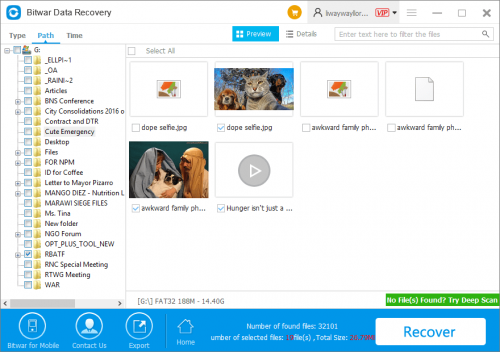  Thank you soooo much for your kind and detailed advice! I'll try these solutions! |
|
|
Jun 30 2020, 03:49 PM
Return to original view | Post
#3
|
|
Probation
4 posts Joined: Dec 2019
|
QUOTE(Hades76 @ Jun 30 2020, 03:26 PM) You can try Windows 10 repair and see how it goes. This process will take sometime. Thank you for answering! I'll try now. But sorry that what do you mean "take out your HDD and make is a slave"?Or the other way is to take out your HDD and make is a slave ( or external USB ). Then go in and copy out all your information. Once done put it back into your original machine and do a full system recovery. |
| Change to: |  0.0256sec 0.0256sec
 0.23 0.23
 6 queries 6 queries
 GZIP Disabled GZIP Disabled
Time is now: 15th December 2025 - 06:59 PM |
 Quote
Quote