KeymappingFew tips for keymapping
- make whole
tmk_keyboard folder backup before making any changes. If something goes wrong, start back from old backup. The code changes seems to affect another files, so dont copy and replace, but start back from old backup.
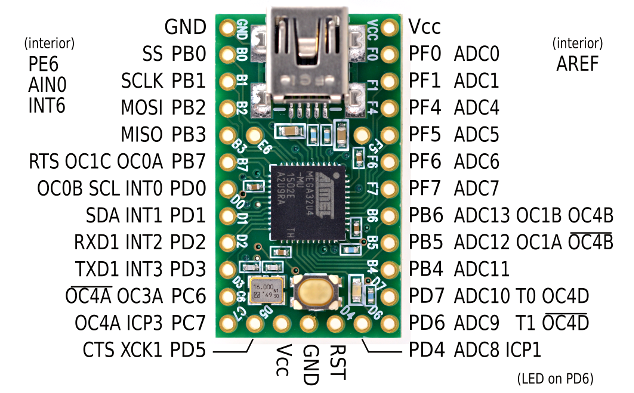
- to reset teensy 2.0 without pressing the button, open teensy loader and press lshift + rshift + pause (in my case, lshift + rshift + fn + k)
- sometimes after pressing lshift + rshift + pause, nothing happen and keyboard doest work, just unplug usb and reconnect, and try again.
- its a little bit harder for me to explain this part as it is more down to trial and error and my own understanding, so feel free to ask if anyone interested.

I use keymap_poker.c as my basis, since this is after all a poker 2 layout.
A look at
const uint8_t PROGMEM keymaps[][MATRIX_ROWS][MATRIX_COLS] function
CODE
/* 0: qwerty */
KEYMAP_ANSI(
GRV, 1, 2, 3, 4, 5, 6, 7, 8, 9, 0, MINS,EQL, BSPC, \
TAB, Q, W, E, R, T, Y, U, I, O, P, LBRC,RBRC,BSLS, \
CAPS,A, S, D, F, G, H, J, K, L, SCLN,QUOT, ENT, \
LSFT,Z, X, C, V, B, N, M, COMM,DOT, SLSH, RSFT, \
LCTL,LGUI,LALT, SPC, FN0, RGUI,APP, RCTL),
/* 1: colemak */
...
/* 2: dvorak */
...
/* 3: workman */
...
/* 4: Poker with Arrow */
...
/* 5: Poker with Esc */
...
/* 6: Poker Fn*/
KEYMAP_ANSI(
ESC, F1, F2, F3, F4, F5, F6, F7, F8, F9, F10, F11, F12, TRNS, \
TRNS,FN2, UP, TRNS,TRNS,TRNS,TRNS,TRNS,TRNS,CALC,TRNS,HOME,INS, FN4, \
TRNS,LEFT,DOWN,RGHT,TRNS,TRNS,PSCR,SLCK,PAUS,TRNS,FN3, END, TRNS, \
TRNS,DEL, TRNS,WHOM,MUTE,VOLU,VOLD,TRNS,PGUP,PGDN,DEL, TRNS, \
TRNS,TRNS,TRNS, FN1, TRNS,TRNS,TRNS,TRNS),
Dont worry about the space or anything, this is just to make it readable. Here is the example from tmk_keyboard default code. The first part is the default qwerty layout, while the second part shows the function layer fn. TRNS means that the same keys applies with the default layout, no changes made, in this case, default qwerty layout.
And remember to change numbering of /* 6: Poker FN */ if other code above is remove. Although in programming anything inside /* */ is disable, this will be an important reference when setting up the
const uint16_t PROGMEM fn_actions[] = { function. The code will take the first declared KEYMAP_ANSI as 0, and next declared KEYMAP_ANSI as 1, and so on.
Let say if colemak, dvorak and workman layout is removed
CODE
/* 0: qwerty */
KEYMAP_ANSI(
GRV, 1, 2, 3, 4, 5, 6, 7, 8, 9, 0, MINS,EQL, BSPC, \
TAB, Q, W, E, R, T, Y, U, I, O, P, LBRC,RBRC,BSLS, \
CAPS,A, S, D, F, G, H, J, K, L, SCLN,QUOT, ENT, \
LSFT,Z, X, C, V, B, N, M, COMM,DOT, SLSH, RSFT, \
LCTL,LGUI,LALT, SPC, FN0, RGUI,APP, RCTL),
/* 1: Poker with Arrow */
...
/* 2: Poker with Esc */
...
/* 3: Poker Fn*/
KEYMAP_ANSI(
ESC, F1, F2, F3, F4, F5, F6, F7, F8, F9, F10, F11, F12, TRNS, \
TRNS,FN2, UP, TRNS,TRNS,TRNS,TRNS,TRNS,TRNS,CALC,TRNS,HOME,INS, FN4, \
TRNS,LEFT,DOWN,RGHT,TRNS,TRNS,PSCR,SLCK,PAUS,TRNS,FN3, END, TRNS, \
TRNS,DEL, TRNS,WHOM,MUTE,VOLU,VOLD,TRNS,PGUP,PGDN,DEL, TRNS, \
TRNS,TRNS,TRNS, FN1, TRNS,TRNS,TRNS,TRNS),,
There's also
fn1, fn2 fn3, fn4 in the layout, and the purpose and how to set it up will be explained in second code function.
I've removed 3 layout a few other stuff, leaving only 1 default layout and 3 function layer
» Click to show Spoiler - click again to hide... «
CODE
const uint8_t PROGMEM keymaps[][MATRIX_ROWS][MATRIX_COLS] = {
/* 0: qwerty */
KEYMAP_ANSI(
GRV, 1, 2, 3, 4, 5, 6, 7, 8, 9, 0, MINS,EQL, BSPC, \
TAB, Q, W, E, R, T, Y, U, I, O, P, LBRC,RBRC,BSLS, \
CAPS,A, S, D, F, G, H, J, K, L, SCLN,QUOT, ENT, \
LSFT,Z, X, C, V, B, N, M, COMM,DOT, SLSH, RSFT, \
LCTL,LGUI,LALT, SPC, FN0, RGUI,APP, RCTL),
/* 1: Poker with Arrow */
KEYMAP_ANSI(
TRNS,TRNS,TRNS,TRNS,TRNS,TRNS,TRNS,TRNS,TRNS,TRNS,TRNS,TRNS,TRNS,TRNS, \
TRNS,TRNS,TRNS,TRNS,TRNS,TRNS,TRNS,TRNS,TRNS,TRNS,TRNS,TRNS,TRNS,TRNS, \
TRNS,TRNS,TRNS,TRNS,TRNS,TRNS,TRNS,TRNS,TRNS,TRNS,TRNS,TRNS, TRNS, \
TRNS,TRNS,TRNS,TRNS,TRNS,TRNS,TRNS,TRNS,TRNS,TRNS,TRNS, UP, \
TRNS,TRNS,TRNS, TRNS, TRNS,LEFT,DOWN,RGHT),
/* 2: Poker with Esc */
KEYMAP_ANSI(
ESC, TRNS,TRNS,TRNS,TRNS,TRNS,TRNS,TRNS,TRNS,TRNS,TRNS,TRNS,TRNS,TRNS, \
TRNS,TRNS,TRNS,TRNS,TRNS,TRNS,TRNS,TRNS,TRNS,TRNS,TRNS,TRNS,TRNS,TRNS, \
TRNS,TRNS,TRNS,TRNS,TRNS,TRNS,TRNS,TRNS,TRNS,TRNS,TRNS,TRNS, TRNS, \
TRNS,TRNS,TRNS,TRNS,TRNS,TRNS,TRNS,TRNS,TRNS,TRNS,TRNS, TRNS, \
TRNS,TRNS,TRNS, TRNS, TRNS,TRNS,TRNS,TRNS),
/* 3: Poker Fn*/
KEYMAP_ANSI(
ESC, F1, F2, F3, F4, F5, F6, F7, F8, F9, F10, F11, F12, TRNS, \
TRNS,FN2, UP, TRNS,TRNS,TRNS,TRNS,TRNS,TRNS,TRNS,INS,TRNS,PSCR, DEL, \
TRNS,LEFT,DOWN,RGHT,TRNS,TRNS,TRNS,TRNS,PAUS,TRNS,FN3, TRNS, TRNS, \
TRNS,TRNS, TRNS,TRNS,TRNS,TRNS,TRNS,MUTE,VOLD,VOLU,TRNS, TRNS, \
TRNS,TRNS,TRNS, FN1, TRNS,TRNS,TRNS,TRNS),
Now to the second function,
const uint16_t PROGMEM fn_actions[] = {, this is where to define the fn0, fn1, fn2 and so on function. This is the default hasu's tmk_keyboard code.
CODE
const uint16_t PROGMEM fn_actions[] = {
/* Poker Layout */
[0] = ACTION_LAYER_MOMENTARY(6), // to Fn overlay
[1] = ACTION_LAYER_TOGGLE(4), // toggle arrow overlay
[2] = ACTION_LAYER_TOGGLE(5), // toggle Esc overlay
[3] = ACTION_MODS_KEY(MOD_RCTL|MOD_RSFT, KC_ESC), // Task(RControl,RShift+Esc)
[4] = ACTION_LAYER_MOMENTARY(7), // to Layout selector
[5] = ACTION_DEFAULT_LAYER_SET(0), // set qwerty layout
[6] = ACTION_DEFAULT_LAYER_SET(1), // set colemak layout
[7] = ACTION_DEFAULT_LAYER_SET(2), // set dvorak layout
[8] = ACTION_DEFAULT_LAYER_SET(3), // set workman layout
};
This is the meaning of each function and how it work as far as I understand
ACTION_LAYER_MOMENTARY ---> press and hold down designated function key to initiate
ACTION_LAYER_TOGGLE ---> press the designated function key to turn on/off
ACTION_MODS_KEY ---> press the designated function key to initiate specified command
ACTION_DEFAULT_LAYER_SET ---> press to set the default layout.
[1] = ACTION_LAYER_TOGGLE
(4)[1] refers to the function key fn number. So [0] means fn0, [1] means fn1 and etc etc
(4) refers to the KEYMAP_ANSI function position, in the default hasu's code, (4) refers to function /* 4: Poker with Arrow */
This part is a little bit harder to explain, it is more down to trial and error that I had to go through.
For example, using default hasu's poker 2 code, to change layout, a combination of fn1 + fn4 + fn* (* = fn5, fn6, fn7, fn8)
to toggle arrow on, combination of fn0 + fn1, and same thing again to turn it off.
and following changes I've made to the layout, I've made changes here following my layout.
» Click to show Spoiler - click again to hide... «
CODE
const uint16_t PROGMEM fn_actions[] = {
/* Poker Layout */
[0] = ACTION_LAYER_MOMENTARY(3), // to Fn overlay
[1] = ACTION_LAYER_TOGGLE(1), // toggle arrow overlay
[2] = ACTION_LAYER_TOGGLE(2), // toggle Esc overlay
[3] = ACTION_MODS_KEY(MOD_RCTL|MOD_RSFT,KC_ESC), // Task(RControl,RShift+Esc)
};
=======================================================================================================================
Extra features that I found out:
2 or more function layer for the same key. I did not implement this, but has tested it out and it work. Here is the example
[0] = ACTION_LAYER_MOMENTARY(5), // to 1st Fn overlay
[1] = ACTION_LAYER_MOMENTARY(6), // to 2nd Fn overlay
Let say
fn0 = right alt while
fn1= right ctrl, and in function overlay (5), letter P is set as PAGE UP, while in function overlay (6) P is set as PAGE DOWN, by pressing
right alt + P, it will initiate PAGE UP function, and pressing
right ctrl + P, it will initiate PAGE DOWN. In theory, you can have limitless function for one key.
This post has been edited by faridr: Jun 8 2014, 07:55 PM 

 May 24 2014, 05:24 AM, updated 12y ago


 )
)


 Quote
Quote


 ) or anything under each switch that needed to be tested. The weight of the plate + switches inserted is enough to pressed down one key at a time.




 And there is no limitation, what each key does is up to you. As I use Poker 2 layout, I'll be using keymap_poker.c file. Other like keymap_hhkb.c , keymap_hasu.c and so on can also be use, depending on which code suit the keyboard design best.





 .
.




 0.5660sec
 0.68
0.68
 5 queries
 GZIP Disabled