Tips and Tricks [GUIDE] Application to recalibrate proximity sensor
[GUIDE] Enlarge your battery life
Battery Calibration Trick
» Click to show Spoiler - click again to hide... «
1. Use the Desire HD until the battery totally flat and auto off.
2. Turn it ON and Charge for 8 hours or more with wall charger.
3. Unplug the device and Turn the phone OFF and charge for 1 hour.
4. Unplug the device Turn ON wait 2 minutes and Turn OFF and charge for another hour.
5. Use the Desire HD until the battery totally flat and auto off.
6. Turn it ON and Charge until full (NO NEED to charge for 8 hours again).
Steps 2-4 is the original steps. My DHD battery life is still the same as before after step 4. Only after I did step 5 and 6 the battery become super long lasting.

Streaming Photo/Audio/Video from Desire HD to computer/laptop (posted by
karheng)
» Click to show Spoiler - click again to hide... «
First, my laptop and DHD is connected the same WIFI network.
TURN OFF ANY FIREWALL, ON WINDOWS OR ANTI VIRUS.on the router - Enable Universal Plug & Play
On the computerGo to My computer > Network > Media Device > click on the device name
Media Player will launch
Go to Stream>tick " Allow remote control of my player. Please check the "More streaming Options. Make sure the "Media program on this PC and remote connection" is Allowed.
LET THIS WINDOW MEDIA PLAYER OPEN, DO NOT CLOSE IT.On the DHDGo to "Connected media" app, select music, photos or videos
eg.
select photos>you will see a button at the bottom called " Connected media". It will searching the media device.
go to album ( camera shots ), select any photo, then you should able to select the player.
Another Details Walkthru :
Click Me!!Desire HD Camera guide
» Click to show Spoiler - click again to hide... «
The following is a quick version of this guide, each setting is later explored in details.
* Manually set your focus, wait for the focus signal to turn green, keep your hand steady until the shot is taken (keep it till the preview appears)
* Make sure the camera protection glass is wiped clean
* To fix image quality: Disable digital sharpness so it’s set to -2 or reduce it to -1 if you feel its too soft but never sharpness 0, or you can later increase sharpness using external apps.
* To fix the video recording freezes: update to firmware 1.72 also make sure no apps are busy in the background (i.e. skype)
* To fix low light bad video FPS: reduce the exposure setting to -2, it will go up to 30fps, use the flash to boost the brightness back.
* To fix the green tint caused by the flash: set white balance to Fluorescent.
* To fix the changing colors while recording video indoors: set the white balance manualy. Auto is good during daylight but jumpy indoors.
* Higher ISO will always boost the camera available light, so higher ISO improves frame rate, reduces motion blur and reveals more detail in darkness.
However keep in mind higher ISO will reduce image quality since it introduces noise to the image. Auto ISO is pretty smart.
* If your photo is washed out, use the auto enhance effect from the gallery to fix levels and color balance, your photo will stay at 8MP
reference:
xda-Desire HD Camera guideWhat is Clockwork Mod?
» Click to show Spoiler - click again to hide... «
ClockworkMod – also known as Clockwork and CWM – is a custom recovery for Android phones and tablets that allows you to perform several advanced recovery, restoration, installation and maintenance operations on your Android device that aren’t possible with the stock recovery.
Transferring old SDCard Data to a new SDCard
» Click to show Spoiler - click again to hide... «
DO NOT copy & paste everything directly!
Refer to Post #3 (Accessories Section --> Memory Card) for the full guide. With two methods
Added on April 14, 2011, 5:13 pmRooting & Custom ROMBefore you begin,
here is a good read written by our very own LYn bro shahz. Do read it up before you begin your adventure here.
 WARNING: Before you continue, please note that no one will be responsible for any bad things that might happen to your Desire HD by following the guides and procedures written here.
In short, we will not be held responsible if your bricked phone caused you to get fired from work, late for school, kicked out of the house, breakup with gf, missed the bus, become foreveralone, etc etc.  Some FAQs before you continue:
1. I am lazy to read the above explanation of the various term. Just tell me what is root and flashing custom ROM.

» Click to show Spoiler - click again to hide... «
Simply put - Rooting is the process to gain the SuperUser status of the device so you can do modification to the system. Flashing ROM is like installing a different flavour of system into the device. You can do Rooting only, to be able to use certain application like Titanium Backup and Shootme, but no need to go further if you do not want to. However, if you want to Flash custom rom, then you must first Root the phone first before you can flash new rom.
2. Will rooting and flashing new ROM void my warranty?
» Click to show Spoiler - click again to hide... «
Yes. Rooting and flashing will void the warranty of your Desire HD. However if you are able to flash back the original rom and UnRoot it before you send it back to HTC for warranty/service, it should not be a problem.

3. I need someone to brief me on how to flash a custom ROM!
(read with care!!!)» Click to show Spoiler - click again to hide... «
YOU ARE SUGGESTED TO HAVE HTC SYNC INSTALLED IN YOUR COMPUTER FIRST BEFORE PROCEEDING!!!(Available in your SDCard\HTC Sync or download it here------------------------------------------------------------------------------------------------------------------------------------------------------------------------
**HOW TO FLASH RECOVERY & INSTALL ROM** ~~~~~~~
assuming you did permarooted, Radio S-OFF, ENG S-OFF
If not, read syuki's guide below. Much detailed with FULL steps» Click to show Spoiler - click again to hide... «
Install ROM Manager (get it from Market) and then open the ROM Manager app and flash the RECOVERY (your WiFi/MobileData must be ON), after done flashing the RECOVERY, REBOOT TO RECOVERY (do this from ROM Manager menu)
- Download ROM and place it on your SD card
- Format Data / Format Cache
- Go to ADVANCE menu > Wipe Dalvik Cache & Wipe Battery Stats
- Go back and select "install zip from sdcard"
- Select "choose zip from sdcard" & point the location of .zip file
------------------------------------------------------------------------------------------------------------------------------------------------------------------------
**HOW TO ROOT & FLASH** ~~~~~~~credit to
syuki» Click to show Spoiler - click again to hide... «
------------------------------------------------------------------------------------------------------------------------------------------------------------------------
**HOW TO FLASH RADIO IMAGE**
» Click to show Spoiler - click again to hide... «
4. I just flashed a new ROM and now my internet is not working. How to solve this?
» Click to show Spoiler - click again to hide... «
Check your APN.
Menu >> Settings >> Wireless & Networks >> Mobile Network Settings >> Access Point Names
Example on how to use below information» Click to show Spoiler - click again to hide... «


Image provided by
koinibler. Thanks!
» Click to show Spoiler - click again to hide... «
1. DiGi Internet
APN: diginet
Proxy: not set
Port: not set
Username: not set
Password: not set
Server: not set
MMSC: not set
MMS proxy: not set
MMS Protocol: WAP 2.0
MCC: 502
MNC: 16
APN Type: default
2.
DiGi GPRSAPN: digiwap
Proxy: 203.92.128.188
Port: 80
Username: digi
Password: **** (I assume digi)
Server: not set
MMSC: not set
MMS proxy: not set
MMS Protocol: WAP 2.0
MCC: 502
MNC: 16
APN Type: httpproxy
3.
DiGi MMSAPN: digimms
Proxy: not set
Port: not set
Username: mms
Password: *** (I assume mms)
Server: not set
MMSC:
http://mms.digi.com.my/servlets/mmsMMS proxy: 203.92.128.160
MMS port: 80
MMS Protocol: WAP 2.0
MCC: 502
» Click to show Spoiler - click again to hide... «
WAP
.Name : Maxis
.APN : (NOTE: unet for 3G or net for GPRS)
.Proxy : 202.75.133.49
.Port : 80
.Username: maxis
.Password : wap
.Authentication Protocol:
MMS
.Server : Maxis MMS
.MSC : http: //172. 16.74.100:10021/mmsc
.MMS proxy : 202.75.133.49
.MMS port : 80
.MCC : 502
.MNC : 12
.APN Type : default
MNC: 16
APN Type: mms
Celcom» Click to show Spoiler - click again to hide... «
1) Home -> Menu -> Settings -> Wireless & networks -> Mobile networks -> Access Points Name
2) Menu -> New APN
Name : Celcom 3G
APN : celcom3g
MMSC:
http://mms.celcom.net.myMMS Proxy : 10.128.1.242
MMS Port : 8080
» Click to show Spoiler - click again to hide... «
Flash
This via CWM recovery (CWM 3 only). (Credits to Atsutane for making the .zip

)
5. How do I backup my apps, contact, apn, etc before I root my phone?
» Click to show Spoiler - click again to hide... «
You can do backup by various way using this utilities;
Google >>> contact, application
Mybackup root >>> almost everything except ROM
Titanium backup >>> apps, data
You also can backup data by application;
SMS >>> SMS Backup, SMS Backup & Restore, GO sms
Contact >>> People, Google,
6. Please guide me to flash kernel only!
» Click to show Spoiler - click again to hide... «
For easy understanding, you can watch this video and at the same time, flash kernel using
Kernel Update UtilityP/S: Make sure after plugin usb cable, choose
charge only. You can download the tool at Post #8..
7. How to downgrade to stock 1.3.x ROM from 1.8.x Official ROM (FOTA)?
credits to JenLOI» Click to show Spoiler - click again to hide... «
How to downgrade 1.7x/1.8x to 1.32.405.6
Credits: Scotty2, rhcp, jkoljo and Guhl
Personally tested and work with Digi DHD, and wanna help others with new 1.84 build too. I did rewrite some part to make it more understandable, and include some missed steps.
About:
The problems started when HTC released their 1.84xxxx OTA update. That update could not be rooted, and many people got stuck in stock roms. Now a downgrade method has arrived! After this process, you can use any root (+ S-OFF) method you want. Basically your device will be just like any other Desire HD with OLDER BUILD VERSION.
System requirements:
HTC Sync (or ADB drivers)
Desire HD with build number 1.72 or higher (1.84)
How to downgrade:
IF you have a branded device, you have to make a Goldcard. Use "mmc2",
IF you dont have a branded device, Use "mmc1"
Digi machine is branded, so use "mmc2" and needed to make a GOLDCARD, check post 2.
Let's Begin,
Download the Downgrade ZIP and extract it in c:\ (C:\Downgrade)
Get stock 1.32 PD98IMG.zip ROM
Connect Desire HD to a computer. Charge only, USB Debugging enabled!
Open up a cmd and go to Downgrade folder, (can try holding shift and right click on the folder to open up a cmd to this folder)
Go to cmd execute below:
adb push psneuter /data/local/tmp
adb push misc_version /data/local/tmp
adb shell chmod 777 /data/local/tmp/psneuter
adb shell chmod 777 /data/local/tmp/misc_version
adb shell /data/local/tmp/psneuter
adb shell
If you got "#" in the result, you have temproot! Proceed:
cd /data/local/tmp
./misc_version -s 1.31.405.6
Go to your DHD, switch connection to disk,
Put PD98IMG.zip to your SD card.
You can close the cmd and set connection to disk drive.
Reboot while holding volume down, it will go to the bootloader
Follow the instructions
Done.
You can now proceed with old S-OFF methods with syuki guide and remember remove the PD98IMG.zip from your SD. I recommend Radio S-OFF for new users.
Troubleshooting:
- "Main version is older"? You did not type everything correctly. Please try it again and see if any errors come up.
- "Error opening backup file"? You did not use "Charge only" -connection, or your SD card is faulty.
- "CID mismatch/CID incorrect"? Your device is branded.
Just make a Goldcard, put the PD98IMG.zip to the card again and go to the bootloader.
- Zip will not load in bootloader? Format your SD card to FAT32, no quick format! You can try another SD.
- Problems while making Goldcard? See this post.
- PD98IMG.zip md5sum is: C3D244A9F056E48EE3851A14FF52204C
FAQ:
Q: Will I lose all my settings and applications?
- Yes, so make a backup with MyBackup Pro.
Q: I have done Radio S-OFF and SuperCID, do I need this?
- No, with those you do not need this kind of trickery.
Q: It says '#' but I still cannot use root applications!
- That is normal, this method only gives root in command line. Just go ahead and downgrade.
Credits: Scotty2, rhcp, jkoljo and Guhl
8. How to prepare a
Goldcard (For downgrading BRANDED devices) -
prepared by JenLOI» Click to show Spoiler - click again to hide... «
HOW TO MAKE A GOLDCARD
This guide explains how to create a GoldCard. A GoldCard is a special SD card which, when inserted into your device, allows you to flash RUU files with a different CID to your own device.
Requirements
Spare microSD card (any size, recommended 2GB - should be enough)
Windows PC (recommended)
ADB (part of the tools folder of the SDK, available for download here
http://developer.android.com/sdk/index.htmlHxD Hex Editor, available for download here
http://mh-nexus.de/en/downloads.php?product=HxDStep by step instructions
Format the microSD card to FAT32 format , allocation size 512 bytes, untick quick format. (please use normal format)
Put the microSD card in your device and boot it.
Ensure you have unzipped the SDK, then open a command prompt to the extract location. Change to the 'tools directory.
Enter 'adb shell cat /sys/class/mmc_host/mmc2/mmc2:*/cid'
You should get a very long number which looks like this: "532600bd227d9c0347329407514d5402"
Visit this page
http://hexrev.soaa.me/, paste in your number and reverse it. In our example the result would be 00544d5107943247039c7d22bd002653.
Visit this page
http://psas.revskills.de/?q=goldcard, enter your reversed number and create your goldcard image, which will be e-mailed to you.
Open the HxD hex editor.
If you are using Windows Vista or Windows 7, you must run the application as administrator.
In HxD hex editor,
Go to the 'Extra' menu and select 'Open Disk'.
Under physical disk, select Removable Disk (your microSD card), uncheck 'Open as Readonly' and click OK.
Note that you should select physical disk NOT the logical disk. This is important!
Go to the 'Extra' menu again and select 'Open Disk Image'. Open the goldcard image that you received by email.
You should now have two tabs - one is your removable disk, the other is your goldcard image.
Press OK when prompted for 'Sector Size' (selecting 512 (Hard disks/Floppy disks)) and click OK.
Click on the goldcard image tab.
Go to the 'Edit' menu, choose 'Select All' then select the 'Edit' menu again and select 'Copy'.
Click on the 'Removable Disk' tab.
Highlight offset (line) 00000000 to offset (line) 00000170 (including the 00000170 line), then click on the 'Edit' menu and select 'Paste Write'.
Click on the 'File' menu and select 'Save', accepting the warning.
You now have a goldcard!
Credits: MiSSigNNo, Paul

Added on April 14, 2011, 5:14 pmDevelopment ROM User ListAndroid Revolution HD» Click to show Spoiler - click again to hide... «
allenultra
eddmecha
shiyau
kakakulouqe
GaryPKK
angrysnail
KambengAngkasa
WindChaseR
Atsutane-Shirane
piring
rockmaniac85
cts0418
HoneyBadger
Taetsu
thefinal
GameFr3ak
rulmufc
horras
lung85
billy_overheat
pluginbaby
ir2shah
Z-hotlink
asrulz
ckvsck
dude1218
terry3386
polarzbearz
ykc
IceFlame21
aberrant80
winter_X
banji
JenLOI
koinibler
Sylwest
raven143
monza84
LeeDrOiD HD» Click to show Spoiler - click again to hide... «
leecs
keeycheng
AbsolutWayne
mushashi87
InvinCibleXz
lankutu
Ahkwang
tajukagebunshi
ckvsck
atomizer
uzairi
MIUI» Click to show Spoiler - click again to hide... «
stranger88
aeronchan
lunatique
EroTe
CyanogenMod» Click to show Spoiler - click again to hide... «
giomanach
Calex
CoreDroid» Click to show Spoiler - click again to hide... «
hypermount
ywkwy
RCMixHD» Click to show Spoiler - click again to hide... «
Syuki
Stock ROM» Click to show Spoiler - click again to hide... «
Cynox
soonlee33
stormlcc - Buzz Kernel 1.3.5 OCUV
ccgenius
Ghostblind
ahmadkey
terrence0488
------------------------------------------------------------------------------------------------------------------------------------
Development ROM DownloadsJust A Little Sharing For The Members :
CUSTOM ROMRevolution HD 3.1 ---->
Click Me - ROM MD5# 583BB02CFE1D622065528ACE5086765C
Revolution HD 3.2 ---->
DropBox |
Mega Upload - ROM MD5# 7E9DD43C71D2C9836D354EC28796E81F
Revolution HD 3.3 ---->
Dropbox1 |
Dropbox2 MD5# 588749E7F1BF404BEF35C605E07577B9
Revolution HD 4.0 Beta 2 (Gingerbread) ---->
Dropbox |
Megaupload - ROM MD5# 42CF108C2D6C3CD00195EFE9439F0139 (
Report Bugs)
Revolution HD 4.0 Beta 3.1 (Gingerbread) ---->
Dropbox - ROM MD5# 412C635C5B4A7C51C4C35601770C45E4
Revolution HD 4.0 Beta 4 (Gingerbread) ---->
Dropbox - ROM MD5# 7B883E59C60E19286480F9A39B0A3064
LeeDroid 2.2.2 ---->
Dropbox |
Megaupload - ROM MD5# 25bdce002fc84398a9d37175d7f7abf8
LeeDroid 2.3.4 Beta 4 R2 (Gingerbread) ---->
Dropbox |
Megaupload - ROM MD5# ba593d4abece42df5917f669be1452ba (
Report Bugs)
CoreDroid 3.2 (Froyo) ---->
Click MeCoreDroid 3.3 (Froyo) ---->
DropboxCoreDroid 4.0 (Gingerbread) ---->
Click MeCoreDroid 4.5 (Gingerbread) ---->
Hot File (Click Me)CoreDroid 4.6 (GingerBread 2.3.3)---->
Dropbox MD5# 7a527cf0f23d0544d75970c2a3e0dfbc
CoreDroid 4.7 (GingerBread 2.3.3) ---->
Dropbox MD5# 35F785203E90B9F1B796387AF3D86DB5
CyanogenMod7 @ CM7 (RC2) ---->
Click HereCyanogenMod7 @ Spike CM7 Build #19 ---->
Dropbox |
MegauploadCyanogenMod7 @ CM7 (RC3) ---->
Click HereCyanogenMod7 @ CM7 (RC4) ---->
Click HereCyanogenMod7 @ CM7 (Stable) ---->
Click HereSpike's CM7 Build 21 ---->
DropBox |
Mega Upload - ROM MD5# 024389BDC118278C10AC29CB75B87052
Spike's CM7 Build 22 ---->
DropBox |
Mega Upload - ROM MD5# FE828576D4CE2C9A3EC2ABFC41F203E7
Spike's Pure Gingerbread v1.0 (No-sense) ---->
Download | MD5# 8296FF66EC6DD2A67E1A1AE8C8F61D33 (
Report Bugs)
RCMix HD v5.2 GingerBread ---->
Dropbox MD5# aa477935b1a3b611a278876590d3eafc
RCMiXHD v5.3 GingerBread ---->
Dropbox |
Dropbox2MD5# aeaeddc3fde679636eec7ec6c9b147bd
RCMiXHD v5.5 GingerBread ---->
MultiUploadMIUI 1.3.11 (ENGLISH) ---->
Click MeMIUI 1.3.18 (ENGLISH) Gingerbread 2.3 based ---->
Click Me - ROM MD5# 0074a9d2175ad7311f4f57b0300847d0
MIUI 1.3.25 (ENGLISH) Gingerbread 2.3 based ---->
Click MeMIUI 1.4.8 (ENGLISH) Gingerbread 2.3 based ---->
Click MeTOOLSRadio S-Off ---->
Click HereENG S-Off ---->
Click HereEasy Wipe Tool ---->
Click HereKernel Update Utility 0.9 ---->
Click HereProximity Sensor Recalibrator (Guide & App) ---->
Click HereRADIORadio Recommended for ARHD 3.2 (based on GB radio) - HTC Ace Gingerbread S Generic 2.16.0.0
DropBox |
Mega UploadRadio Recommended By LeeDroid & RevoHD (1.72 Base ROM) ---->
Click HereRadio Recommended By LeeDroid & RevoHD (1.84 Base ROM) ---->
Click HereRadio Thread in XDA (got lists of radio) ---->
Click HereKERNELBUZZ SENSE OC/UV 1.3.8 ---->
Dropbox |
MegauploadBUZZ SENSE OC + 1.3.8 (1.6Ghz) ---->
Dropbox |
MegauploadBuzz Kernel 1.3.8.2 OCUV (1.2Ghz) ---->
DropBox |
Mega UploadBuzz Kernel 1.3.8.2 OC+ (1.61Ghz) ---->
DropBox |
Mega UploadBuzz kernel 1.3.8.3 OCUV (1.2Ghz) --->
DropboxBuzz Kernel 1.3.8.3 OC+ (1.61Ghz) --->
DropboxLeeDroid Kernel 2.2.7 ---->
Dropbox |
MegauploadLeeDroid Kernel 2.2.7 R2 ---->
DropBox |
Mega UploadLeeDroid Kernel 2.2.8 ---->
DropBox |
MegaUploadLeeDroid Kernel 2.2.9 ---->
DropBox |
MegaUploadKamma Kernel Ent v2.3 ---->
Dropbox |
MegauploadCM7 Battery Fix Kernel #5 ---->
Click MeCM7 Battery Fix Kernel #7 ---->
Dropbox |
MegauploadCM7 Battery Fix Kernel #9 ---->
Link 1 |
Link 2 - Kernel MD5# cc9372655750994cddfd12460dcdcb8b
CM Kernel 1.8Ghz CFS fixed for MIUI ---->
Click MeAPPSSPB Shell ---->
Click Mevisionary+ r14 ---->
Click MeGoogle Apps For CM7 ---->
Click MeAndroid Fonts Library ---->
Click MeTo uploaders :
» Click to show Spoiler - click again to hide... «
PM me the links instead of posting in the thread, it makes things more organized for me


 Apr 14 2011, 04:25 PM, updated 15y ago










 Quote
Quote



 . You have been warned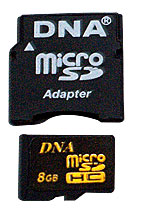




















 0.0377sec
 0.67
0.67
 6 queries
 GZIP Disabled