Here's a quick guide on how to take a photo in Gran Turismo 5, then export it to a USB memory stick. The video below assumes that you are in Replay mode, which is where you should start if you want to take a snapshot.
Once you've got your photo on a USB thumb-drive, just upload it to image hosting sites as mentioned in the 1st post.
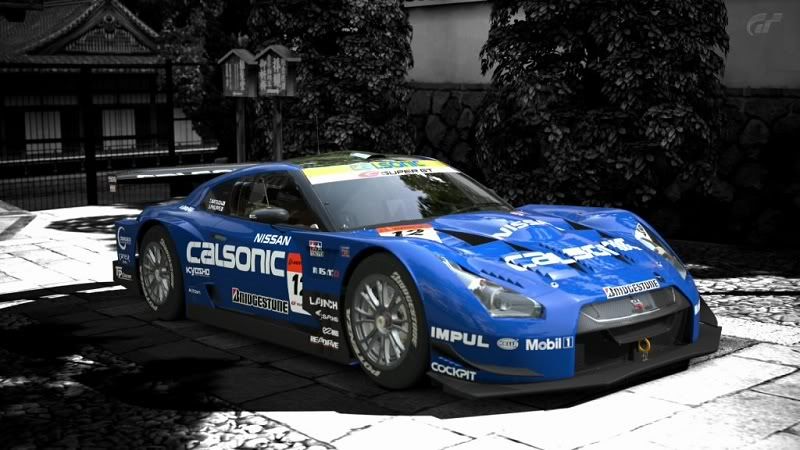
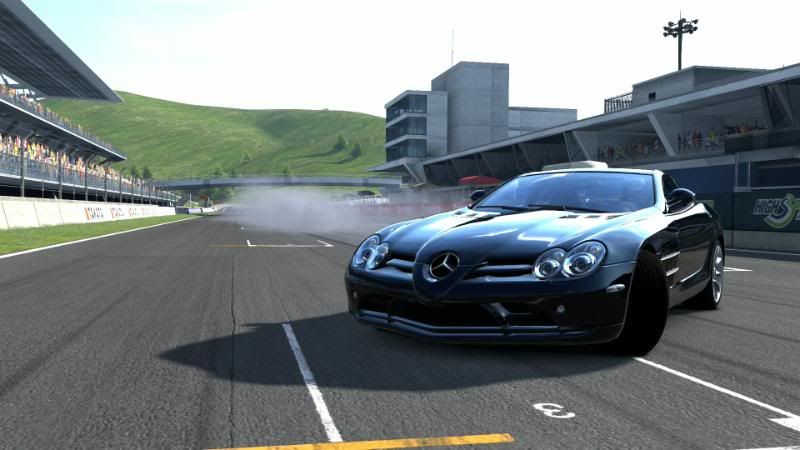
In the Photo Travel mode within GT Life, you can place your favorite cars in the beautiful environments around the world and enjoy life-like photo shoot sessions. Additional locations that can be photographed will be unlocked as you progress in the game.
* The Photo Travel mode can only be used with Premium Cars, and is not compatible with Standard Cars.
Camera and Car Positioning When a location is selected, a birds-eye view of the location will be displayed. Use the positions marked by numbers on the map to pick the preliminary positions for your car and camera.
Set the Composition in Walk Mode Next, you can walk around within the area to determine the composition of the shot. Depending on the location, time transitions are in effect, so people may be walking around or the time of day can transition from day to night.
Look Through the Viewfinder to Take Your Shot Once you’ve fixed your composition, look through the viewfinder. Set your parameters as you like, and press the shutter button. Opening the camera menu will enable even more detailed settings.
Your Photograph Your Photo will be saved in your "Photo Album", and you can show it to your friends through the community feature, or export it to the Photo folder of your “PlayStation 3” so that you can save it to other media and / or make printouts.(Excludes photo data output in 3D.)
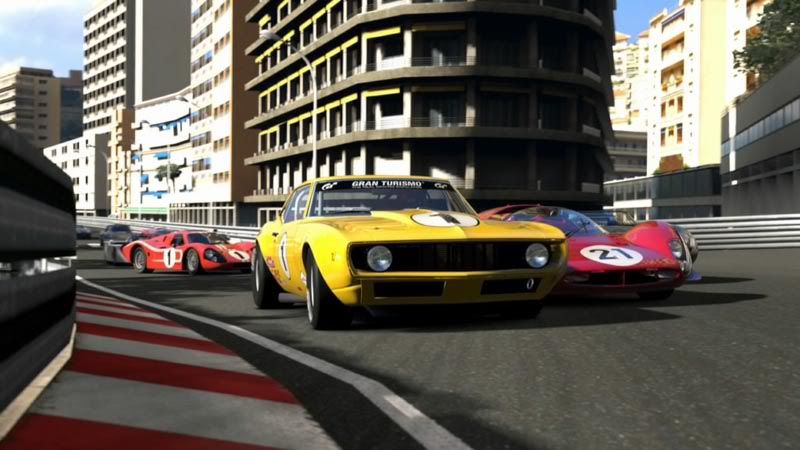
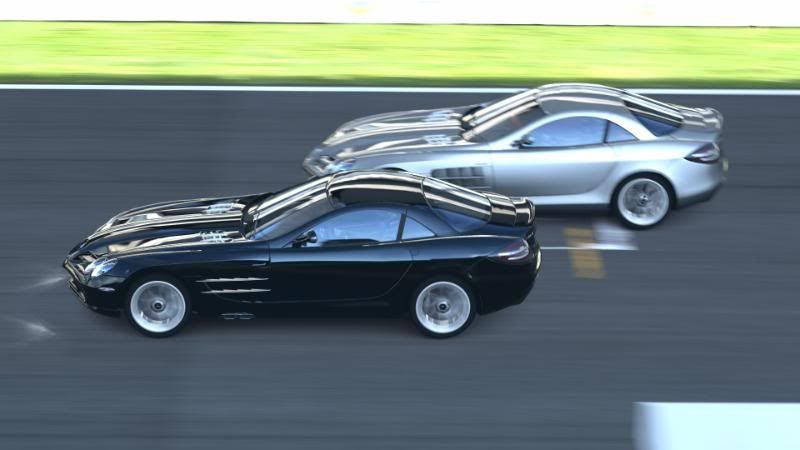
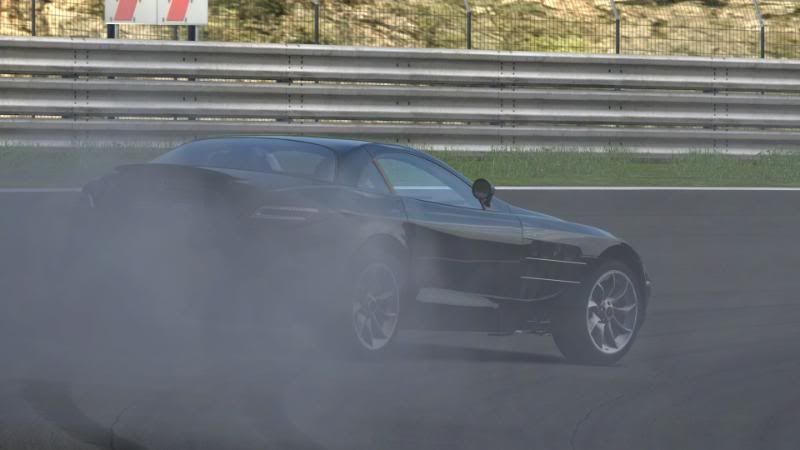
Photo Mode You can pause the replays of races and time trials, and take photographs in a similar way as in Photo Travel mode.


 Dec 25 2010, 10:35 AM, updated 15y ago


 Quote
Quote












 :doh:
:doh:


 0.0308sec
 0.52
0.52
 6 queries
 GZIP Disabled