Pic 3 shows how it displays by default from the 55mb file. It may be a little too small for your eyes.

Pic 4 shows me increasing the size of the PDF.
There would not be a difference size i cannot increase a font on a picture.

Pic 5 shows the same pic like pic 3 but a focus area.
This is for zooming into the whole picture. Remember, with Kindle, PDF files with images are seen as pictures.

Pic 6 shows the 150% increase in the focus but this is where you found it troublesome to scroll around
as you would need to move the cursor left and right.

Pic 7 shows an alternative i did. Instead of increasing focus, i just changed orientation.

Pic 8 shows the alternate orientation with the fonts being nice and big. No zooming needed.
This way the left or right button are the only buttons you need to use to turn the pages, nice and easy.
And dont worry not all PDF files get small fonts, it depends on how the originals were.
There is no lag other than the screen refresh, no scrolling left or right, only the Kindle will need
to be read sideways and it will show half the page all the time. So to go through 2 pages
of National Geographic, you would have to click the 4 times.

Pic 9 shows the PDF file converted to .mobi, .prc. Horrible and cant be enlarged. Easier to just paste the PDF in.




 Dec 31 2010, 01:24 AM


 Quote
Quote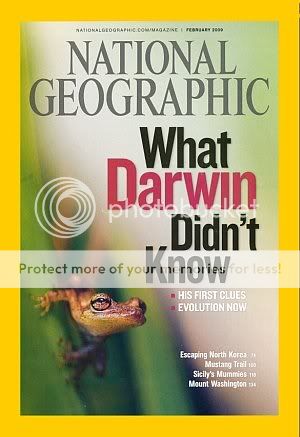


 (especially after i zoomed for those small font size pdf)..


 0.0222sec
 0.67
0.67
 7 queries
 GZIP Disabled