

 Jul 3 2010, 01:01 AM, updated 16y ago


Basically here are the requirements :-
1. You must be using Windows XP/Vista/7/2000
2. Your partition must be NTFS (i.e Games drive , it can't be FAT32 nor other funny file format) and it must comply to NTFS 3.0 standards (Vista/7 ensures this. If in doubt , just re-format the drive , if its empty)
3. Steam Drive is installed in C.
4. Link Shell Extension - works with 64-bit windows as well - obtain it from here - http://schinagl.priv.at/nt/hardlinkshellex...nkshellext.html
Before I show you the how-to , there are few things that you should understand
What is NTFS Junction Point ?
QUOTE
In computing, an NTFS junction point is a feature of the NTFS file system that provides the ability to create a link to a directory that is, for most intents and purposes, the same as the directory itself. This has many benefits over a Windows shell shortcut (.lnk) file, such as allowing access to files within the directory via Windows Explorer, the Command Prompt, etc.
Junction points can only link to directories on a local volume; junction points to remote shares are unsupported.[1] (Wikipedia)
Junction points can only link to directories on a local volume; junction points to remote shares are unsupported.[1] (Wikipedia)
I dont get it mr. smartypants. Put it up in Plain English
QUOTE
It simply means OSX and Linux are superior OSes. Nah just kidding - basically in the UNIX world its called symbolic link which simply means
C:\coolstuff= E:\pictures\porn\
Which simply means when I access C:\coolstuff it actually points to E:\pictures\porn but in any software and even in windows. The folder thinks that its aprt of C drive , which means when I save a picture inside coolstuff it will be actually saved to porn folder in my E drive. This is transparent. When you access C:\coolstuff , you'll see everything relative to C:\coolstuff. In other words you wouldn't know that it actually points to E:\pictures\porn at all. When I access my other folder , the contents of the both of the things will be the same and data is actually being written on my E drive rather then C !
Umm okay , so how does it work with Steam GamesC:\coolstuff= E:\pictures\porn\
Which simply means when I access C:\coolstuff it actually points to E:\pictures\porn but in any software and even in windows. The folder thinks that its aprt of C drive , which means when I save a picture inside coolstuff it will be actually saved to porn folder in my E drive. This is transparent. When you access C:\coolstuff , you'll see everything relative to C:\coolstuff. In other words you wouldn't know that it actually points to E:\pictures\porn at all. When I access my other folder , the contents of the both of the things will be the same and data is actually being written on my E drive rather then C !
QUOTE
Steam games are generally stored in C:\Program Files (x86)\Steam\steamapps\common (64-bit OSes) or C:\Program Files\Steam\steamapps\common (32-bit oses) in their own folder. Basically we will move this folder to another drive and then make a link. Its not a shortcut but a junction point. That means that steam thinks that the game is in actually in C:\Program Files (x86)\Steam\steamapps\common folder but then data is getting written to the E drive. This is taken care by OS . As far as Steam sees it , it sees it as actual folder on C drive but it does not know that its a NTFS Junction
1. First thing first , go to your commonfolder. Its located in C:\Program Files (x86)\Steam\steamapps\common or C:\Program Files\Steam\steamapps\common
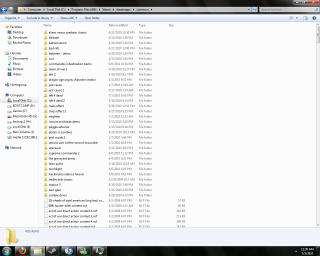
2. Next pick a folder (or a game that you want to move to another drive). For this tutorial , I'll be moving bad rats to my game drive. Basically I'll be cutting the folder and pasting it to my game drive. Once that is done , on my games drive I select my bad rats folder and I simply select Pick Link Source

3. Back to your steam folder , this time right click on an empty space and then select Drop As Junction. The software will automatically make a junction point

4. If it was created successfully you'll see a small anchor icon which tells you that the folder is actually an NTFS junction. When you double click it will not point to the path where the original folder located but rather relative to steamapps. So as far steam thinks that the games are placed in C , but then the games are actually placed in another drive and the OS (Windows takes care of this for us)

Note 1 - Please note that do not attempt to move or create symbolic link of apps which are tied to your account. There are some games which are account specific , it can be found inside your steamapps\<user id> . An example would be garrys mod.
PS There may be typos. This is my first revision. Feel free to comment and I'll improve the guide
This post has been edited by prasys: Jul 3 2010, 01:10 AM
 Quote
Quote

 0.0173sec
 0.64
0.64
 7 queries
 GZIP Disabled